Implementation method
The workflow management mechanism in CMDBuild is implemented through concepts and procedures similar to the management of classes and cards.
Workflow management includes:
- special Process classes, each corresponding to a workflow type
- attributes, representing the information displayed (read or write) in the forms used to advance each step of the process
- relations with other process instances or standard cards involved in the process
- user groups, which can perform each activity and correspond to CMDBuild user groups
- customization tools for workflow behavior (widgets and scripts using dedicated APIs)
To maintain homogeneity between normal and process classes, the following technical strategies are adopted:
- the new confidential superclass Activity contains attributes shared across specific workflows, which are defined as its subclasses
- the history mechanism is used to track process progress
- the relations mechanism is preserved to create automatic or manual links between a card and a process instance, or between two process instances
Building the workflow
The tools available in the workflow visual editor are essential for designing complex processes and include:
- selection of attributes to be placed on each form corresponding to a user activity
- selection of widgets (visual controls) to be placed on each form corresponding to a user activity
(viewing, creating or editing cards; viewing or creating relations; single or multiple card selection; file upload; report execution) - flow‑control mechanisms, including parallel activities and subprocesses
- scripting languages (BeanShell, Groovy, JavaScript) to define automation executed between one user activity and the next
- API functions that can be invoked within scripts
Defining a new process
To create a new Process class, follow this logical sequence:
-
analysis of the process to be implemented, identifying:
- list of user groups involved
- list of user activities, automatic activities, transition conditions
- list of descriptive attributes used in user activities, their types (string, integer, etc.) and presentation mode (read‑only, read/write, mandatory)
- list of values required for Lookup attributes
- list of domains needed to manage correlations between the new process and other classes or existing processes (also used to create Reference attributes)
- list of widgets to configure in each user activity
- list of widgets to configure in each automatic activity
-
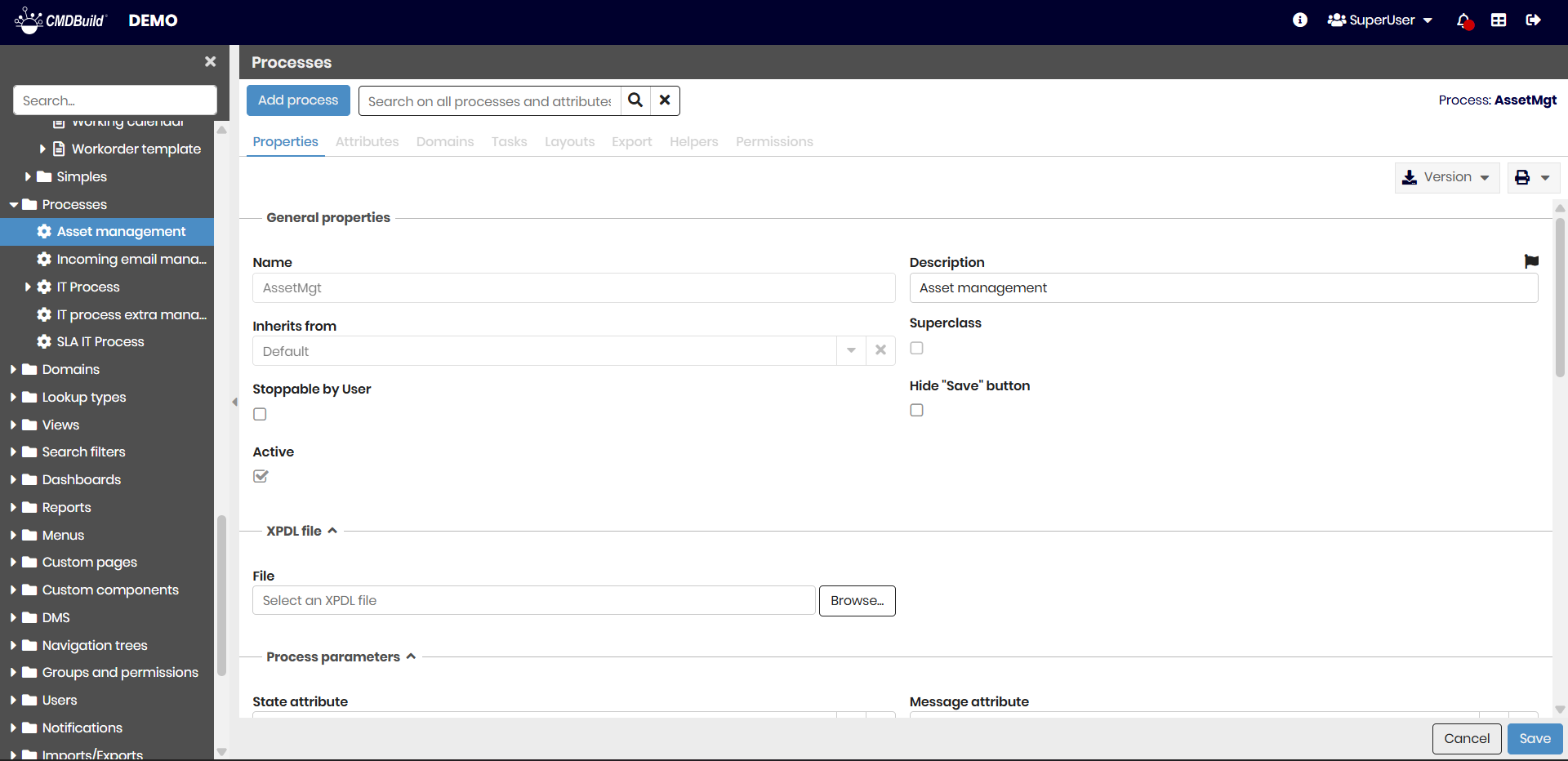
creation of the new process class in the Processes section of the Administration Module, including:
- specific attributes identified in the analysis
- domains identified in the analysis
-
creation of missing user groups through the Administration Module
-
export of the new process template from the Administration Module (tab XPDL of each Process class), including:
- process name
- list of process attributes to be placed in the various user activities
- list of actors (users) interacting with the process (the System role is automatically created for system activities)
-
detailed workflow design using the external TWE editor, completing the template exported from CMDBuild
-
saving the workflow as an XML file (XPDL 2.0) using TWE
-
importing the process schema into CMDBuild using the XPDL upload button in the corresponding Process section of the Administration Module
Once these operations are completed, the new process can be used in the Management Module (menu Processes or process entries in the Navigation Menu) and executed through the Tecnoteca River workflow engine.
The same operations can be performed when editing an imported process, but changes apply only to new process instances started afterward.
Initiation and progress of a process
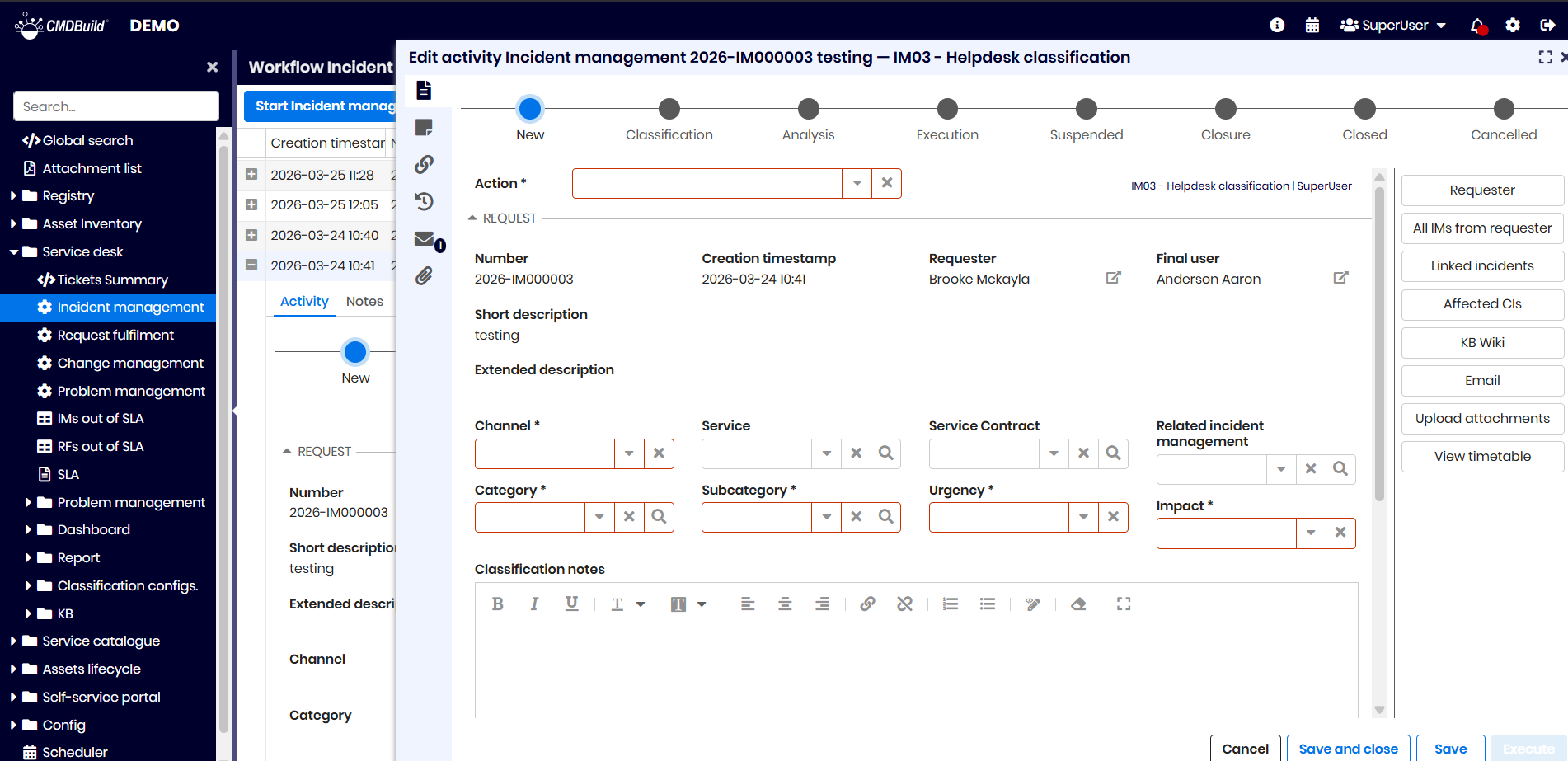
In the Management Module, CMDBuild executes processes designed with TWE and imported through the Administration Module, using the Tecnoteca River workflow engine.
To maintain consistency with CMDBuild functionalities for managing item cards, the user interface of the Management Module mirrors the management of normal data classes:
- a dedicated menu item Processes, consistent with data sheets
(process elements can also be added to the Navigation Menu alongside data sheets, reports or dashboards) - process management uses the same standard components available for normal cards: List, Card, Details, Notes, Relations, History, Attachments
In the List tab of a process, the user can view activity instances in which they are involved (because they performed that activity or previous ones), with:
- filters by status (started, completed, …)
- a data table showing process name, activity name, request description, process status and other attributes defined as display base in the Administration Module
(clicking a row opens the activity card) - possible indicators of parallel activities for that process instance
In the Card tab, the user can view or fill in the attributes defined for that activity instance (read/write permissions are configured in TWE) and perform additional operations through widgets configured in TWE.
Additional tabs include:
- Notes: view or add notes related to the activity instance
- Relations: view or create relations between the activity instance and instances of other classes
- History: view previous versions of the activity instance (completed activities)
- Email: view details of emails related to the process instance
- Attachments (if the DMS Service is enabled): view attachments related to the process instance
The list of activities appears at the top of the interface, while the activity card to be completed is displayed below.