Workflow
The management of workflows is a key feature of CMDBuild, supporting collaborative activities among operators. Both cards and processes can be fully configured by the Administrator to reflect organizational procedures.
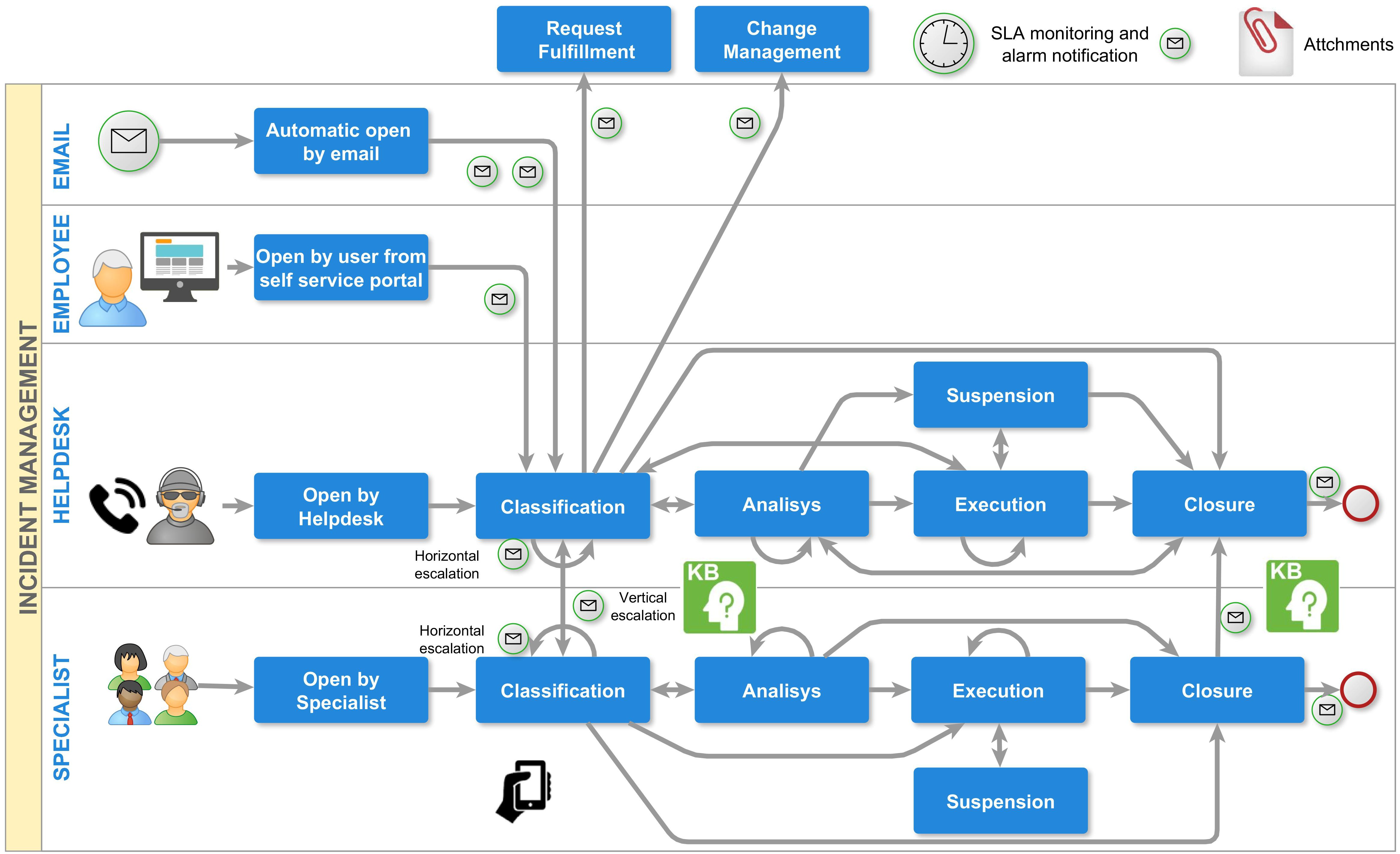
Within a generic asset management instance, processes supporting the asset lifecycle can be defined. In an IT environment, it is possible to configure processes based on ITIL Best Practices (for example Incident Management, Change Management, Request Fulfillment). In a Facility Management context, processes for breakdowns and scheduled maintenance can be defined.
As with standard cards, the workflow interface allows users to display process cards, consult and edit detailed information, and view relations, history, emails and attachments. For each process type, users can view open or closed instances, start a new process, advance the process through its predefined steps and, when applicable, assign it to another operator group until completion.
List of processes
Current workflow instances are initially displayed in a table.
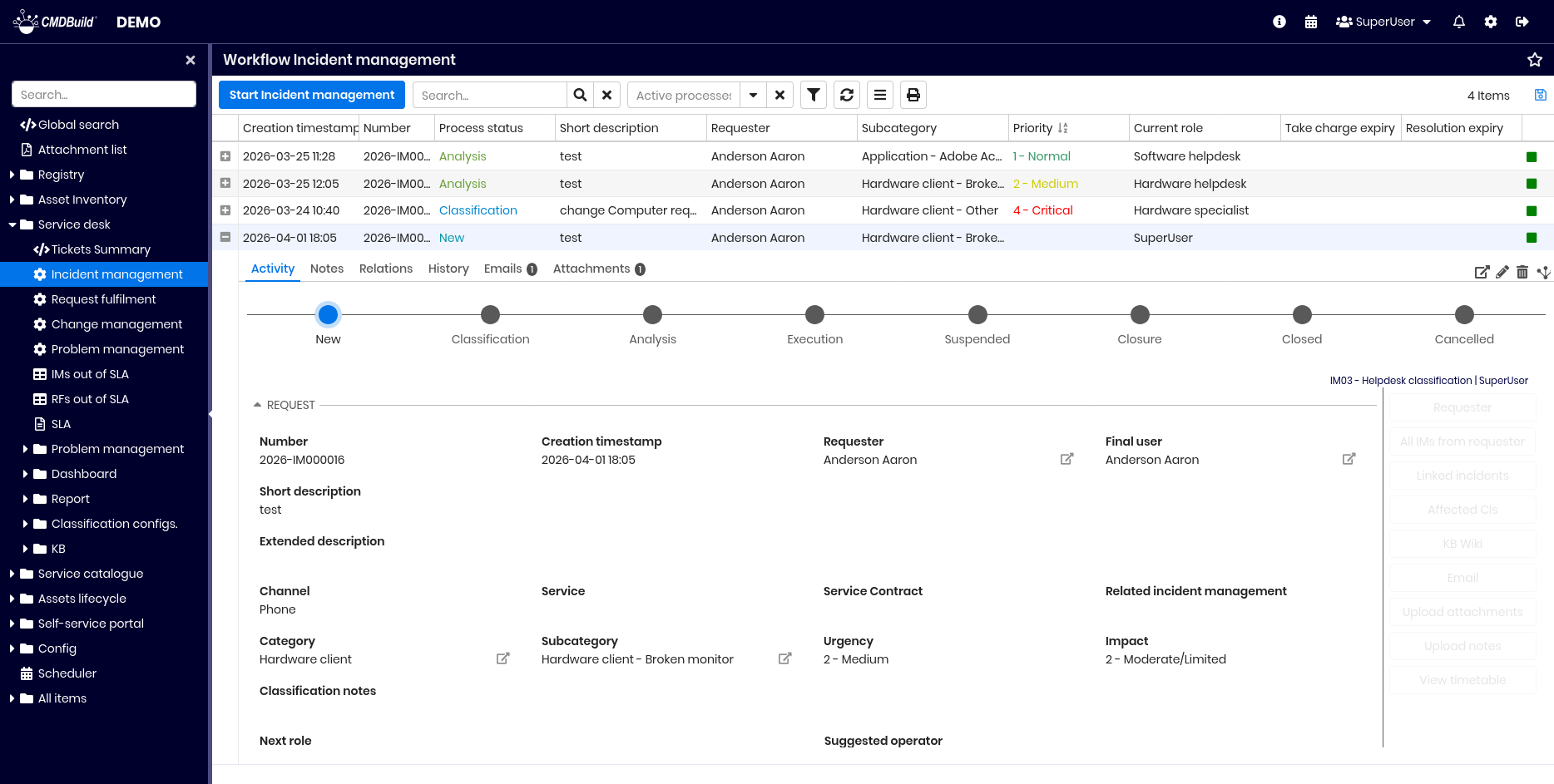
The available operations are similar to those described for cards, with elements specific to workflows.
The Card tab allows starting a new process or advancing an existing one. These actions can be performed only by users who belong to groups authorized for the activity. For example, in an Incident Management flow, both the Helpdesk group and a group of specialists may be allowed to classify a ticket.
Guide to compilation
Available operations are the same as for cards.
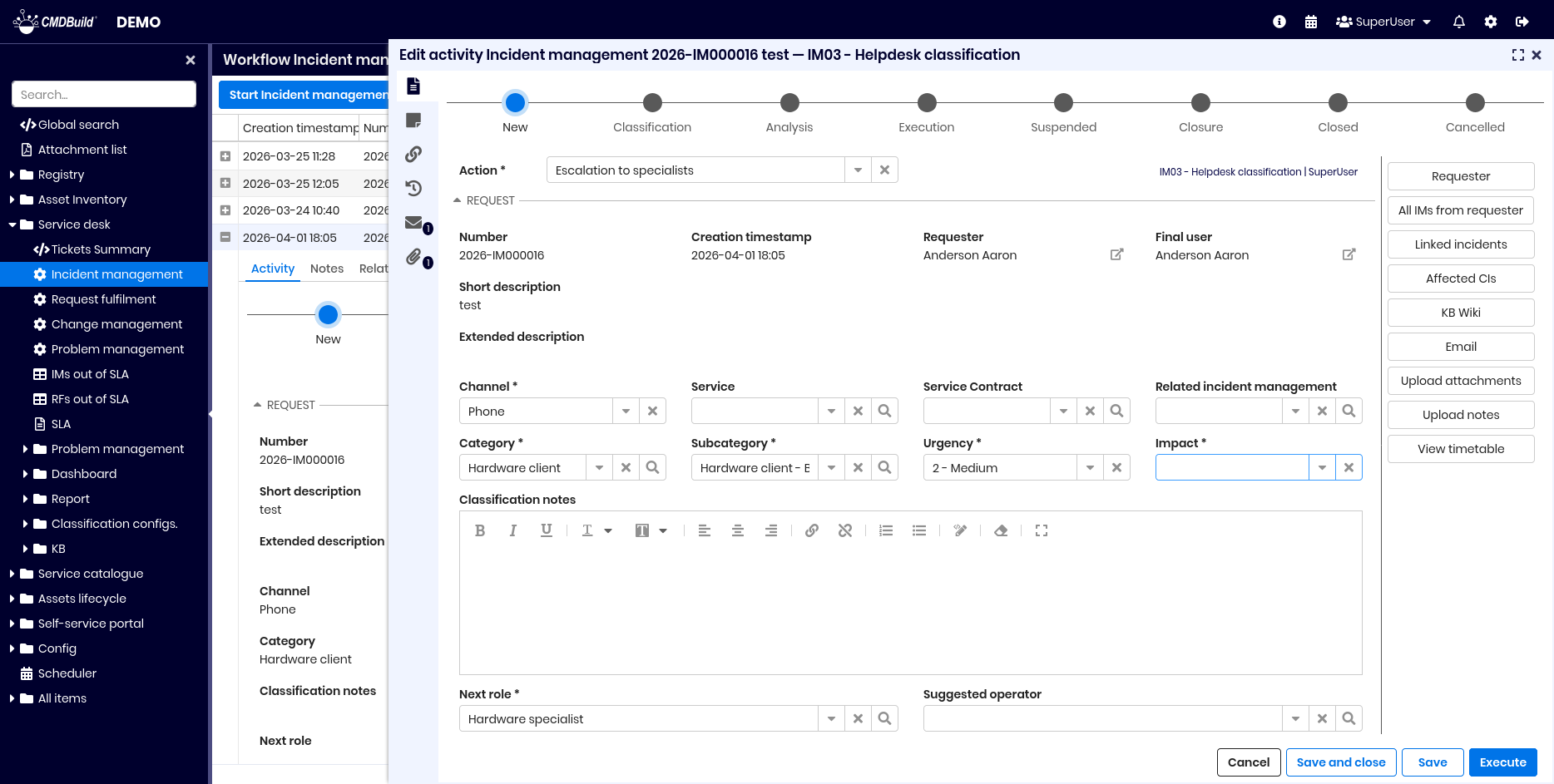
The following example shows how to complete an Incident process card during the initial step.
Locking an advancing process
If the CMDBuild instance has the active lock function enabled, when a user attempts to advance a process, the system reserves the instance card for that user for a period defined in the configuration.
If another user attempts to edit the same instance during this period, an error message appears. The instance is automatically released when the first user exits the editing mode using Cancel, Save an close, Save or Execute.
Widgets
Widgets, configured with the TWE editor (Together Workflow Editor), provide context-specific functions for process instances. The following standard widgets are available:
- Calendar — displays deadlines on a visual calendar
- Create / Modify Card — reads or edits a card from another class
- Create Report — prints a report designed in JasperStudio
- Custom Form — requests input for a single card or a grid of cards
- Link Card — selects one or more cards from a filtered list
- Manage Email — handles email exchanges during the process
- Open Attachment — views and uploads process attachments
- Open Note — displays or edits notes related to the process
- Preset from Card — fills fields automatically using a selected card
- Start Workflow — starts a workflow from the current card
Custom widgets can also be implemented in ExtJS (JavaScript) and made available for workflow management.
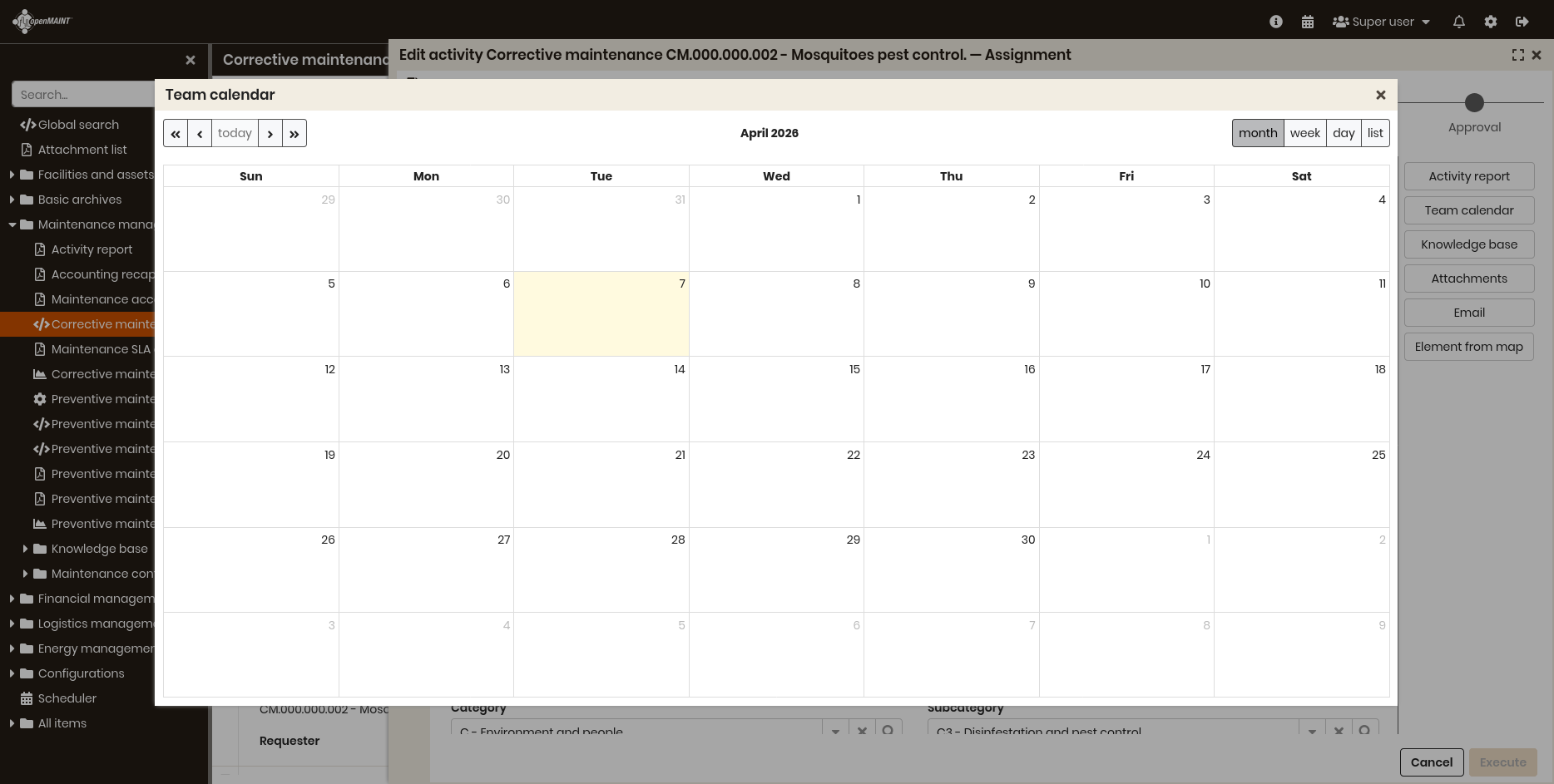
Calendar
Displays relevant dates such as preventive maintenance or administrative deadlines. Configuration requires specifying the source class, an optional filter, the reference date and the field used as the activity title. Possible views are day, week or month.
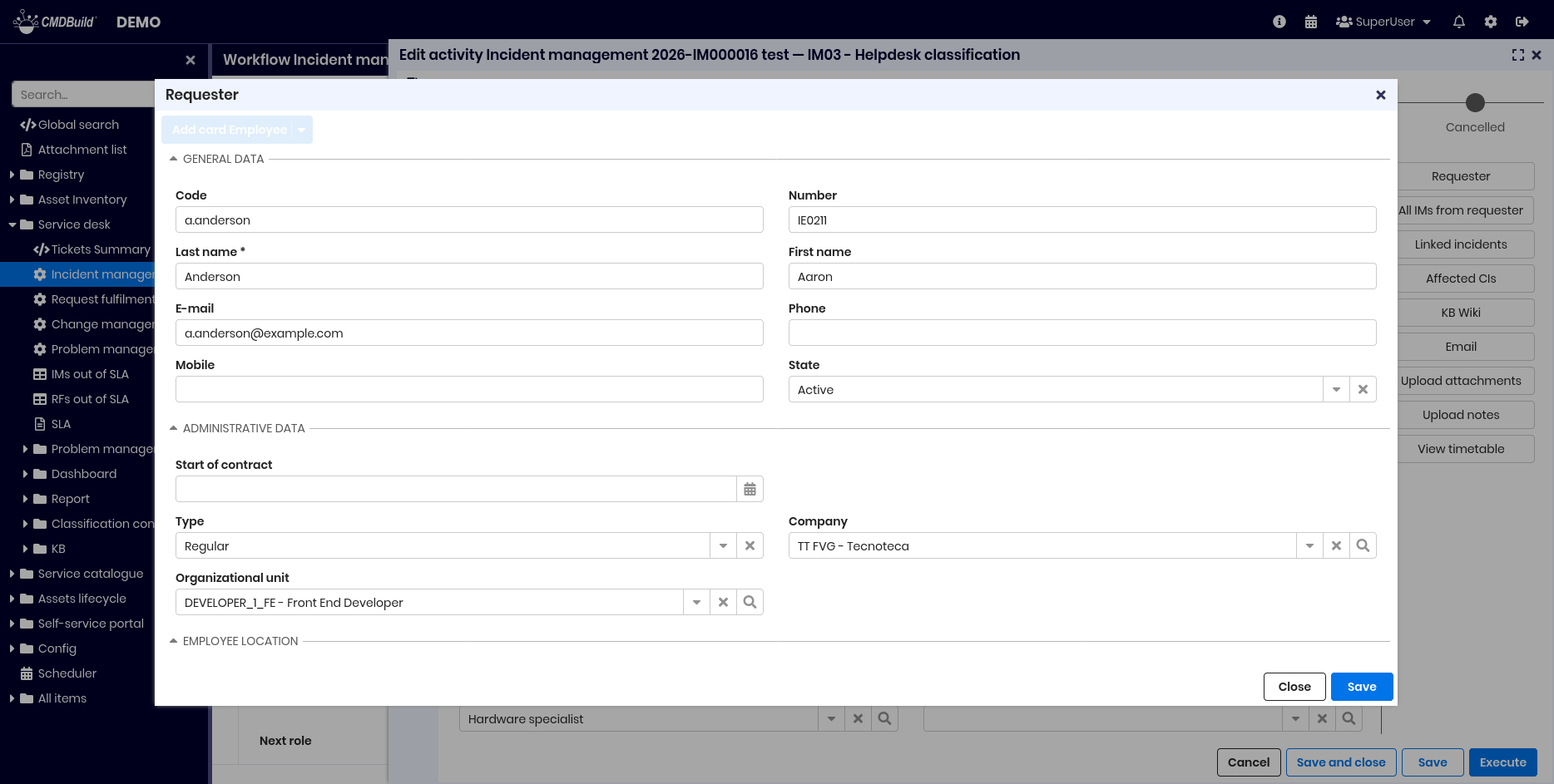
Create / Modify Card
Allows reading or editing a card from another class. Configuration requires specifying the class and identification code, optionally through a eCQL expression based on the current card.
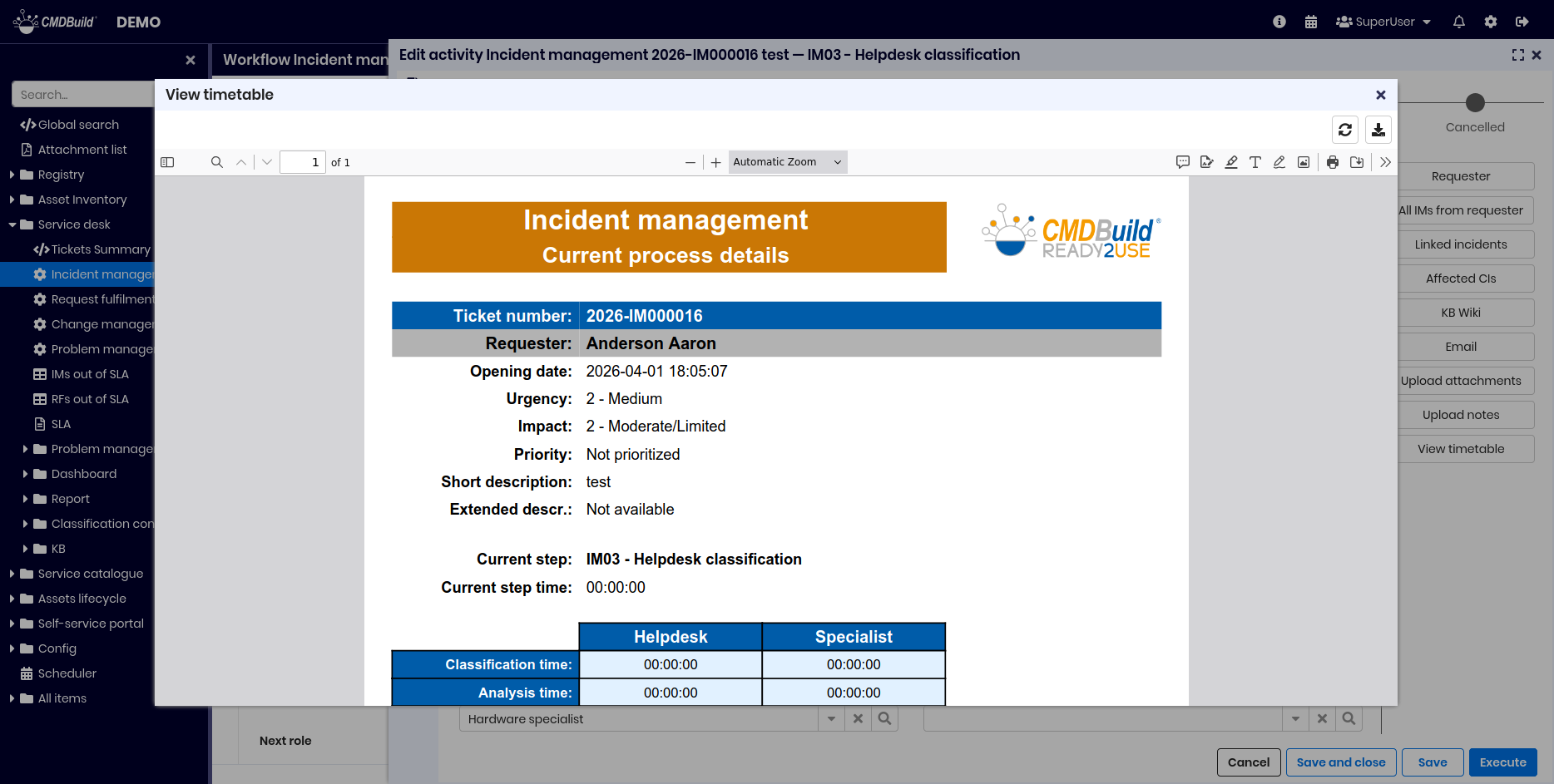
Create Report
Prints a report imported into CMDBuild. Configuration requires the report name, output type (PDF or CSV) and any required parameters.
Custom Form
Requests operator input for a single card or a grid of cards. For example, compiling a list of assets from a delivery note, with the ability to add, edit or delete rows. Supports CSV import/export. Data is processed by workflow scripts.
Link Card
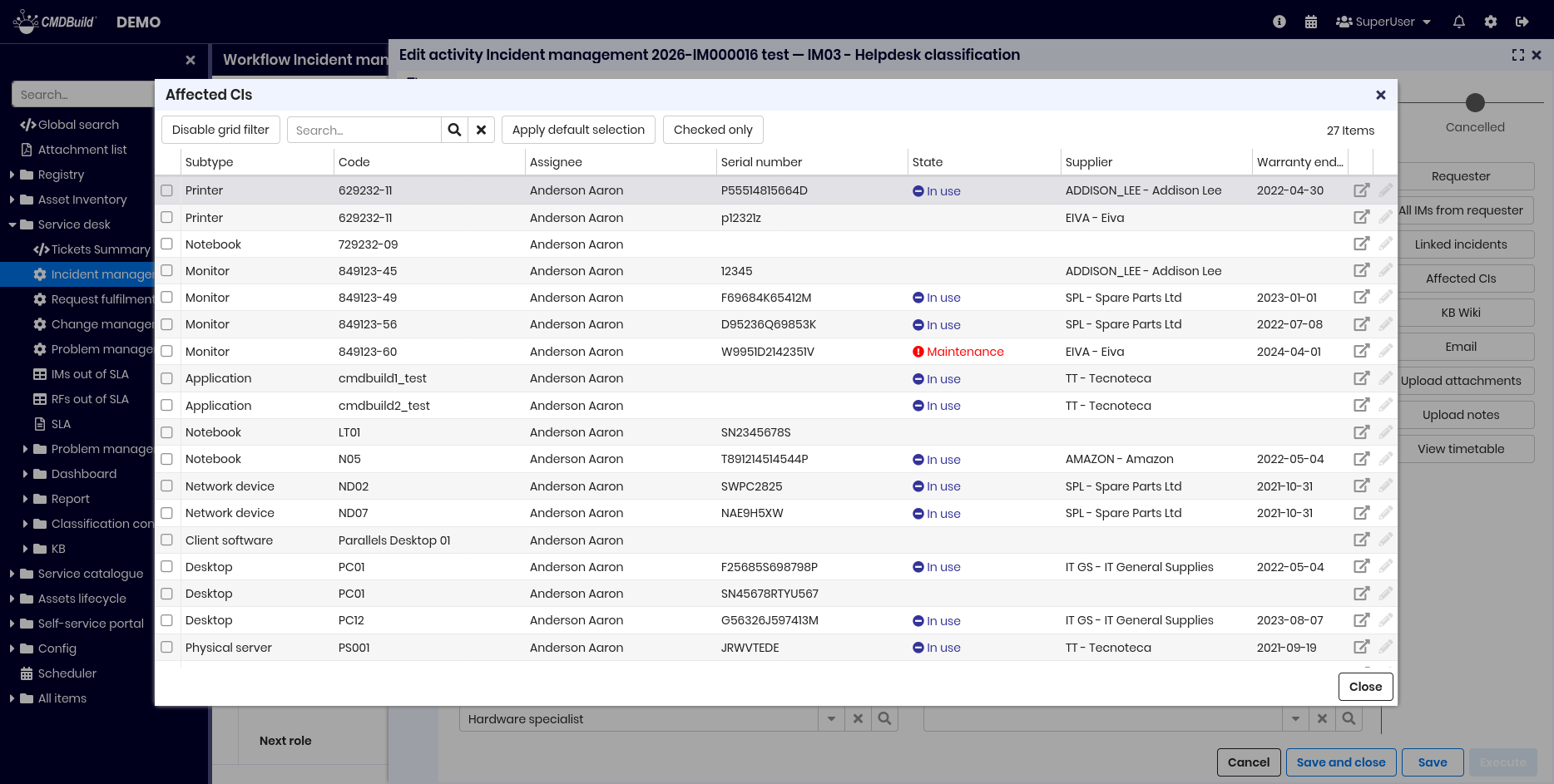
Selects one or more cards from a filtered list. In IT Management, this is used to select assets related to a ticket. The selection is returned to workflow scripts, often to create relations in the CMDB.
Manage Email
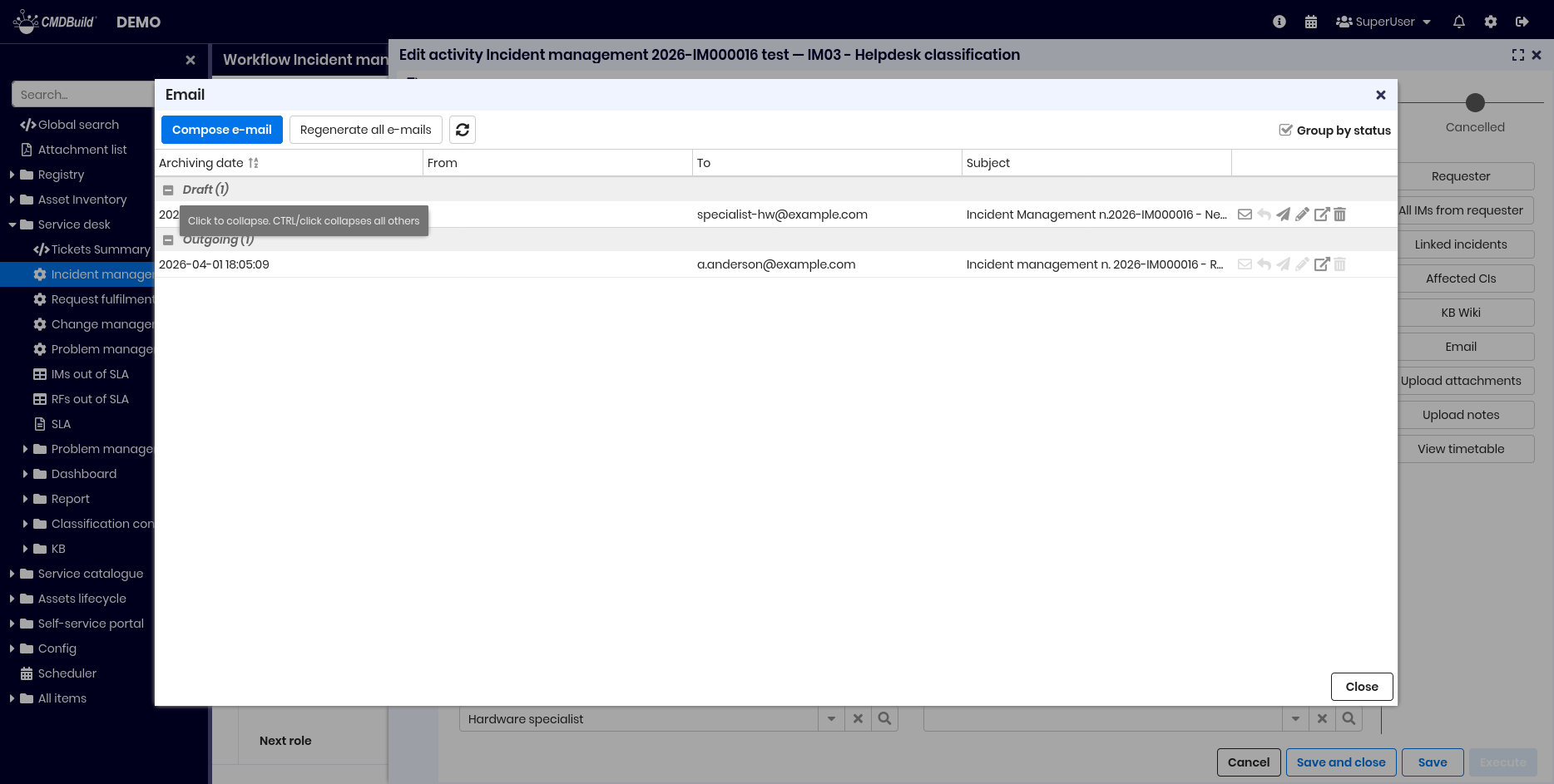
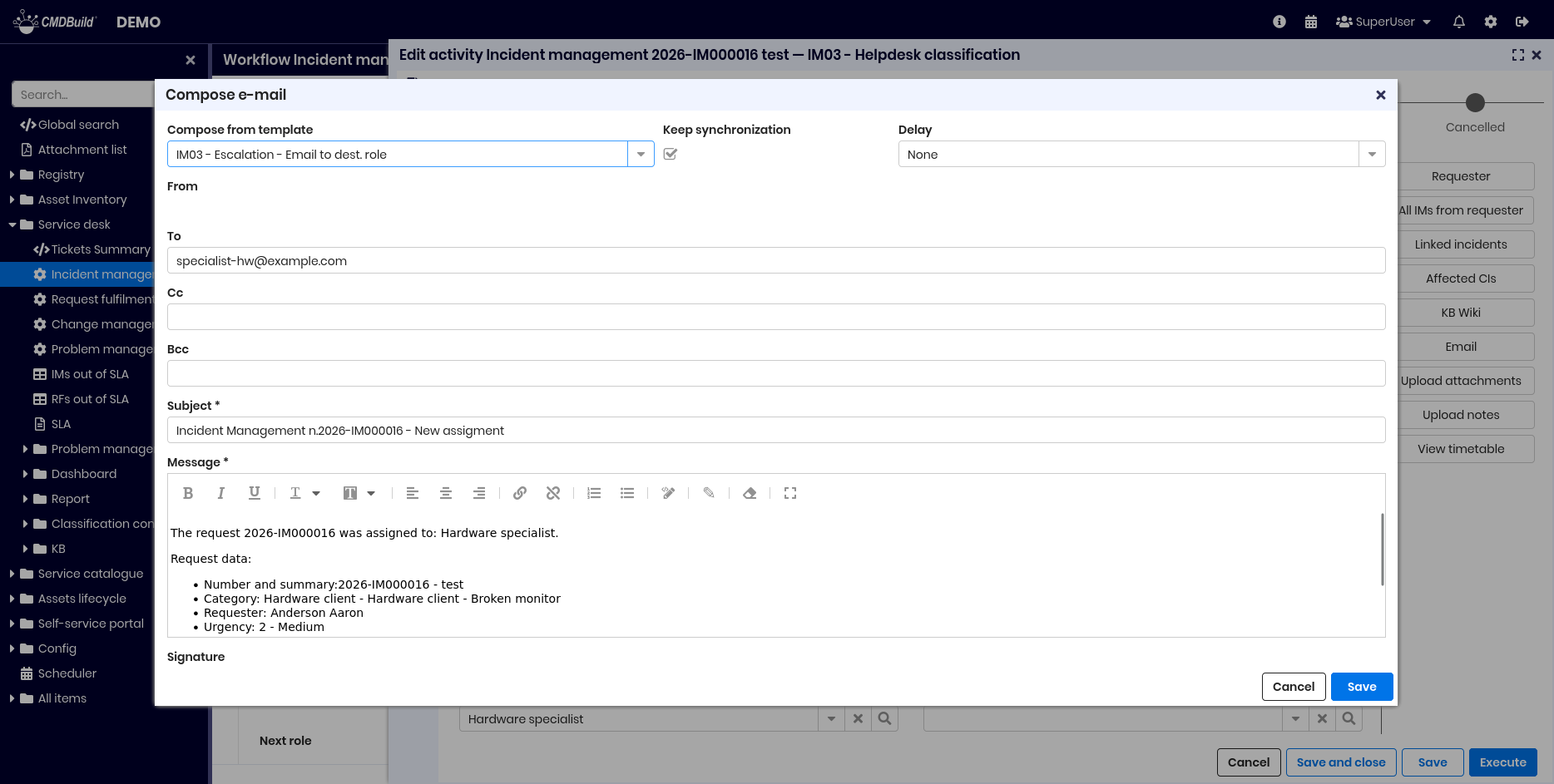
Manages email exchanges with process participants such as applicants, specialists or technicians. Operators can consult received and sent emails and compose new messages. For general email functions, see this section.
Open Attachment
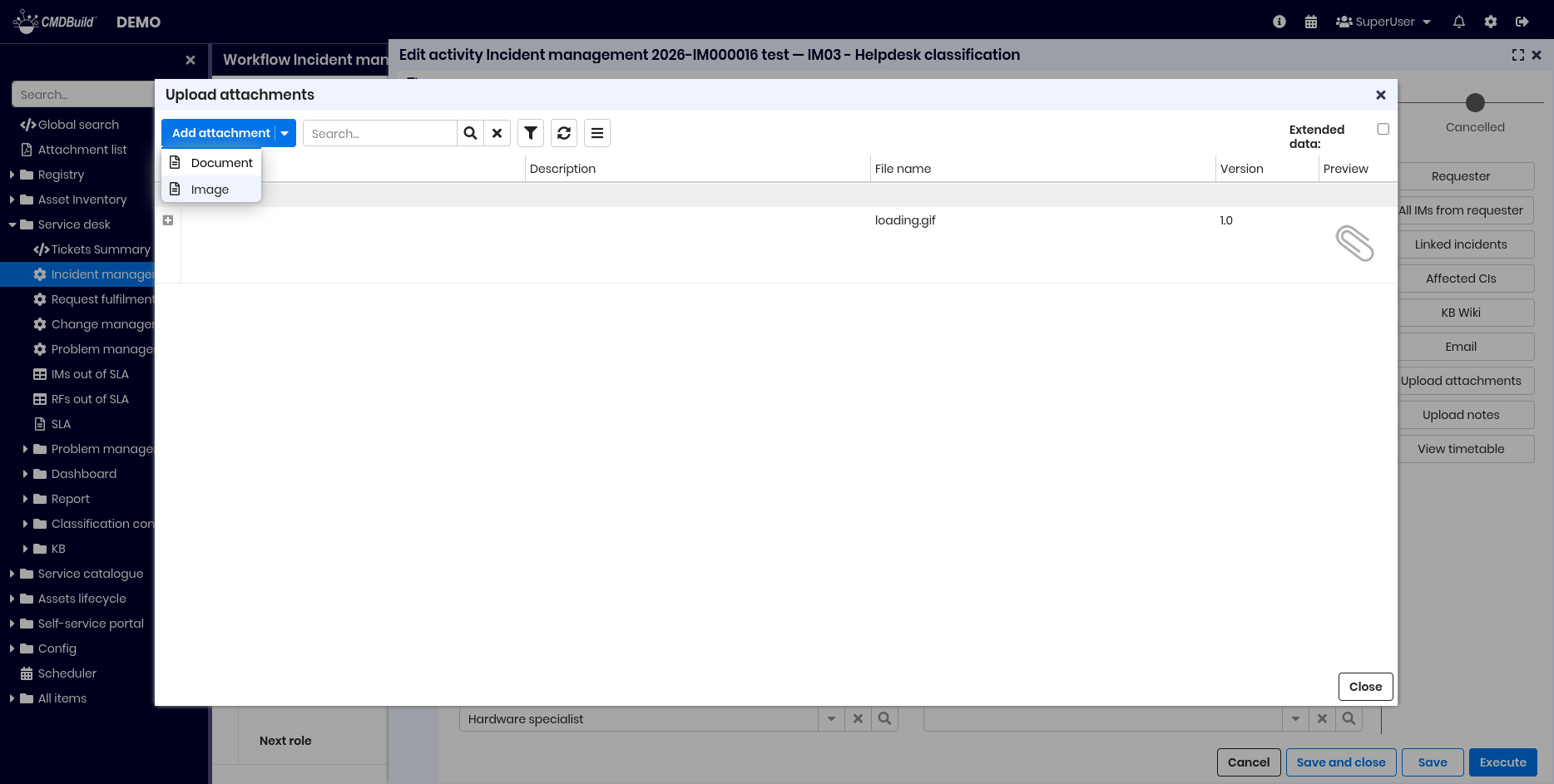
Displays attachments related to the process (screenshots, manuals, technical documents) and allows uploading new files. For general attachment features, see this section.
Open Note
Displays and edits notes linked to the process. For general use of notes, see this section.
Preset from Card
Automatically fills fields in the current process using a selected card.
Start Workflow
Starts a workflow from the current card, for example starting a maintenance process from an asset card. Configuration requires specifying the workflow and parameters.
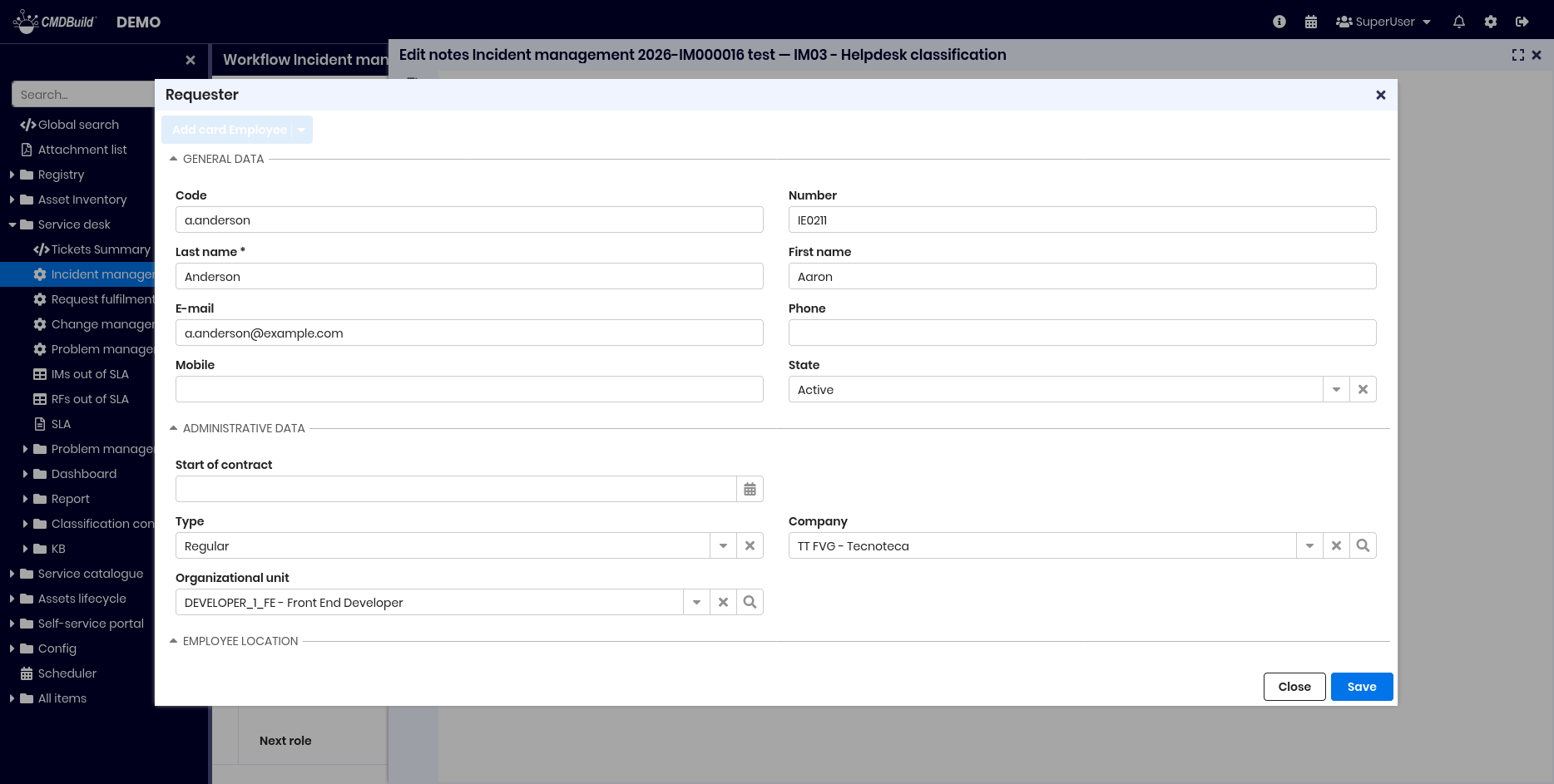
Notes TAB
Displays notes linked to a process. During process execution, notes can be inserted or edited only through the Open Note widget. This tab is read-only.
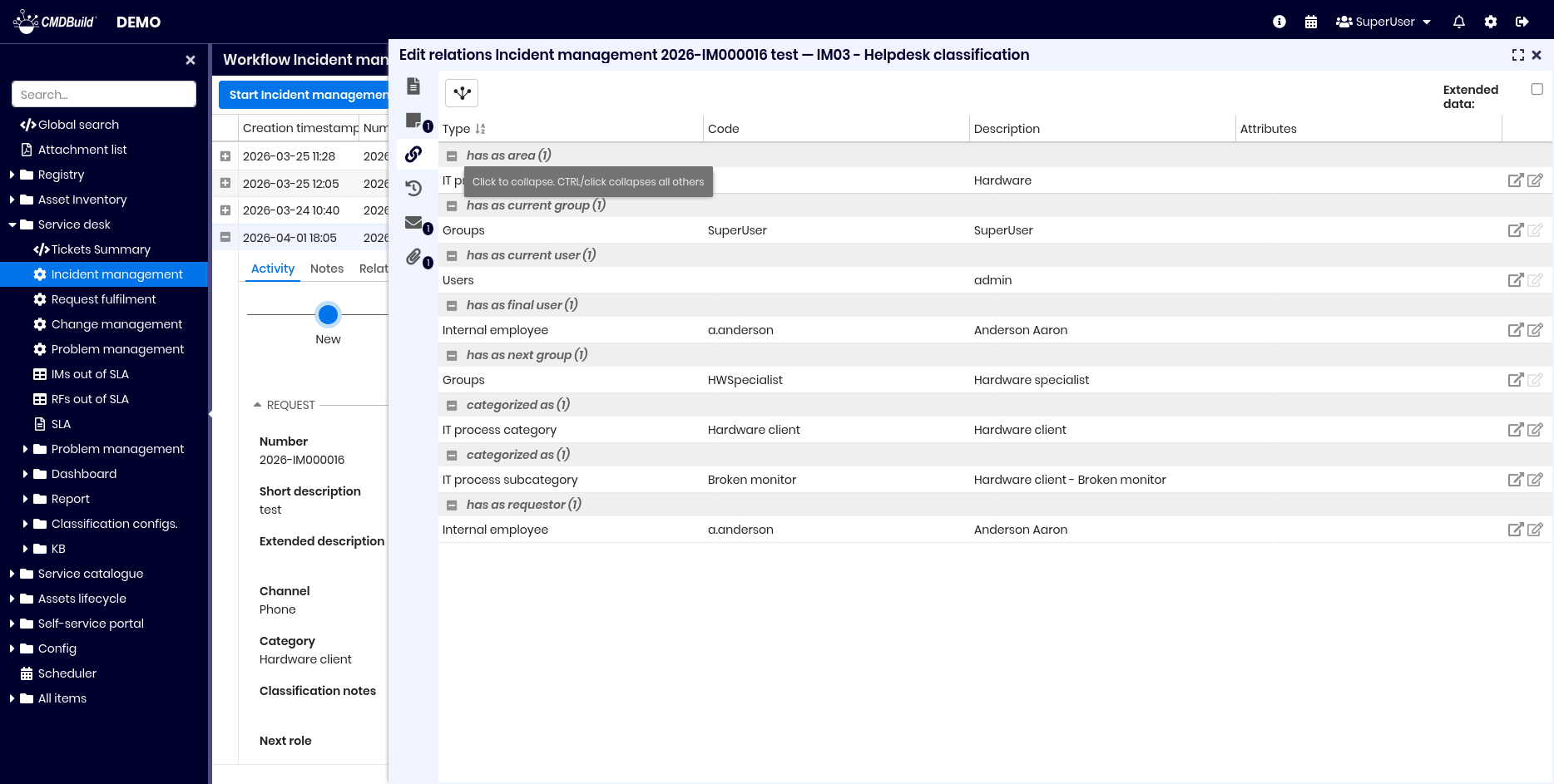
Relations TAB
Displays relations linked to a process. Relations can be added or edited only through widgets such as Link Card or Custom Form. This tab is read-only.
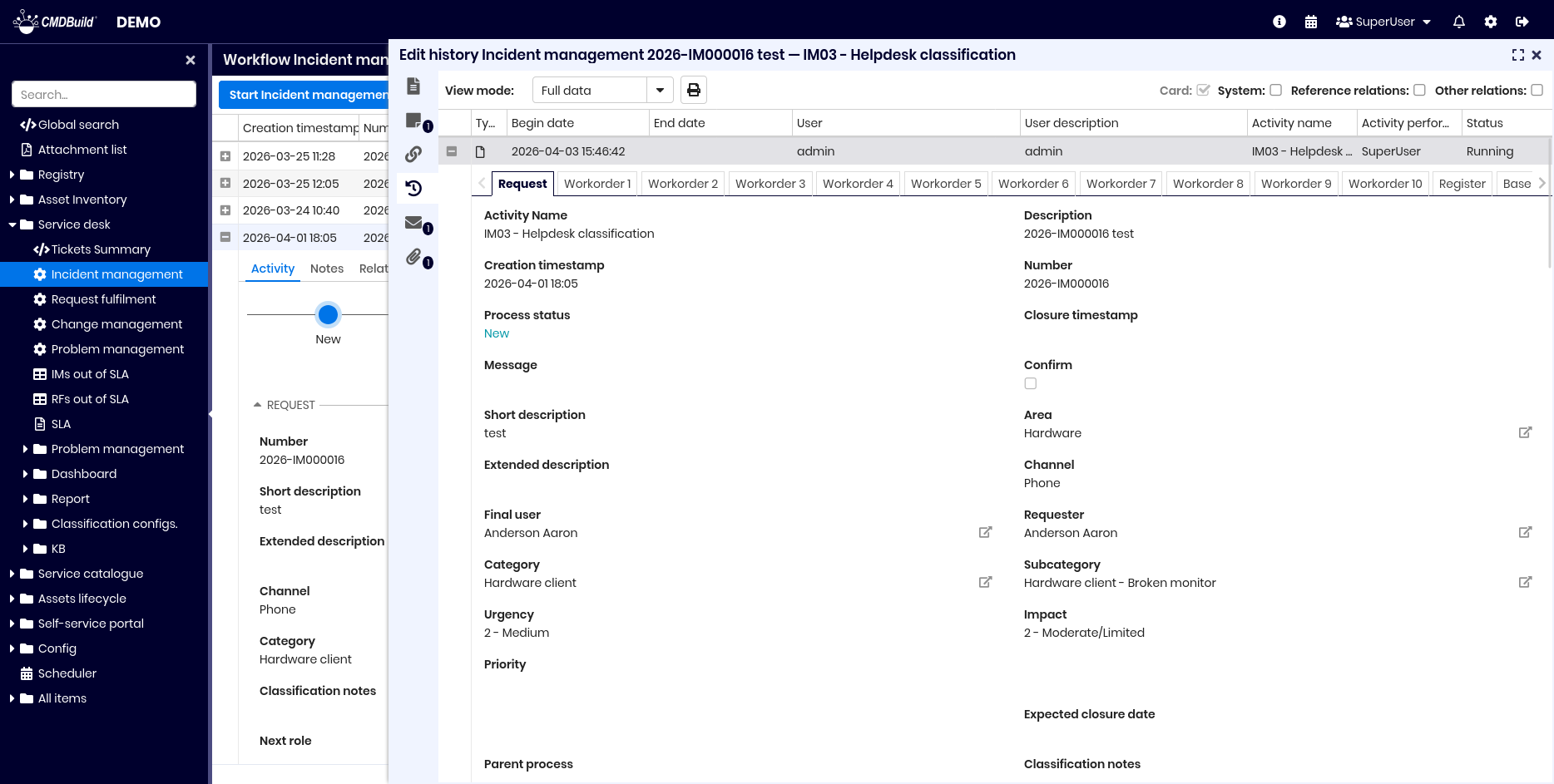
History TAB
Displays the full history of a process instance, from creation to completion, including attribute values across all steps. Data can be used for SLA compliance reporting. Attributes edited in previous steps are highlighted in blue.
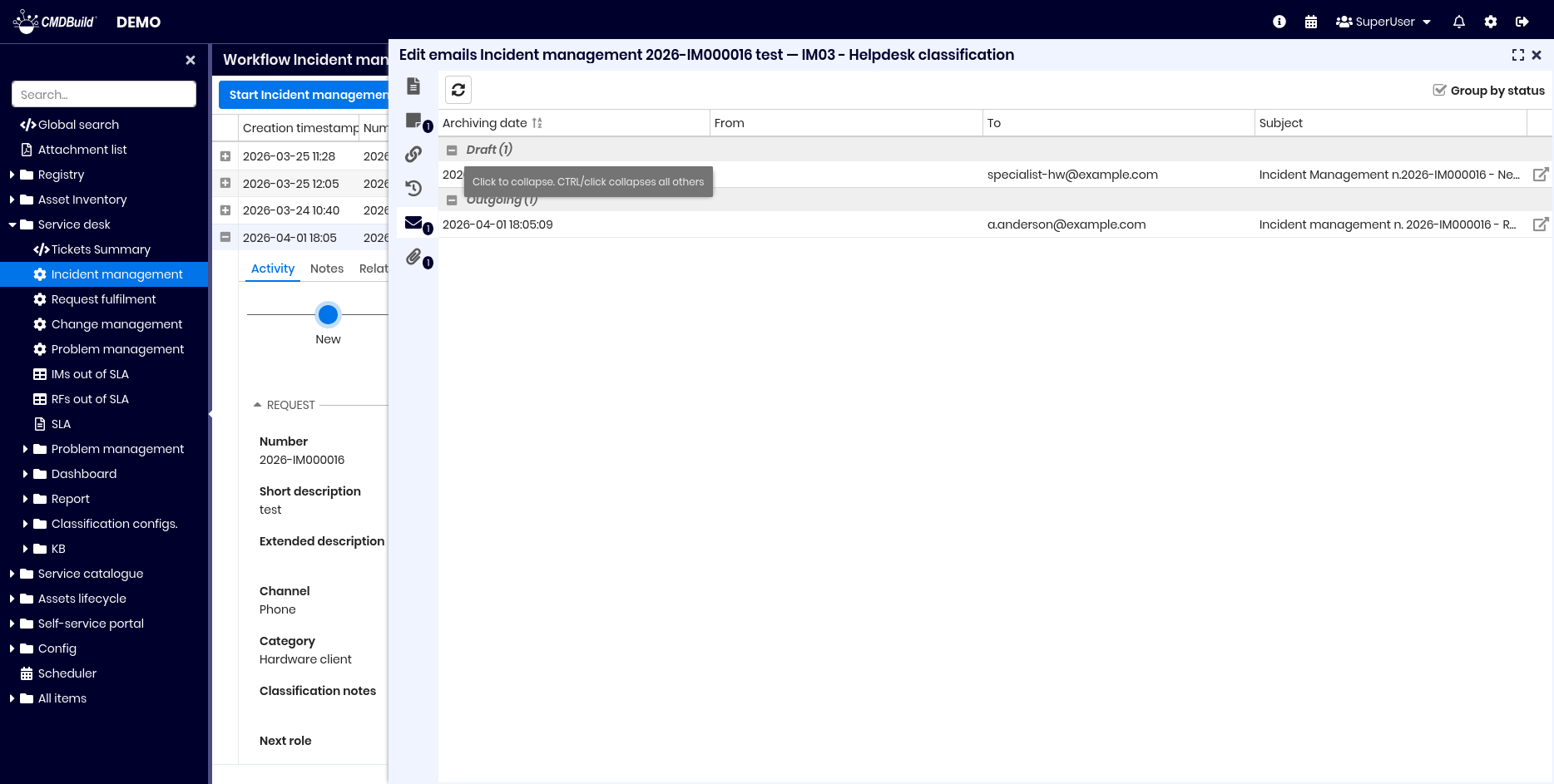
Emails TAB
Displays emails exchanged during the process. Emails can only be managed through the Manage Email widget or received via the Task Manager. This tab is read-only.
Emails are usually sent when the process advances.
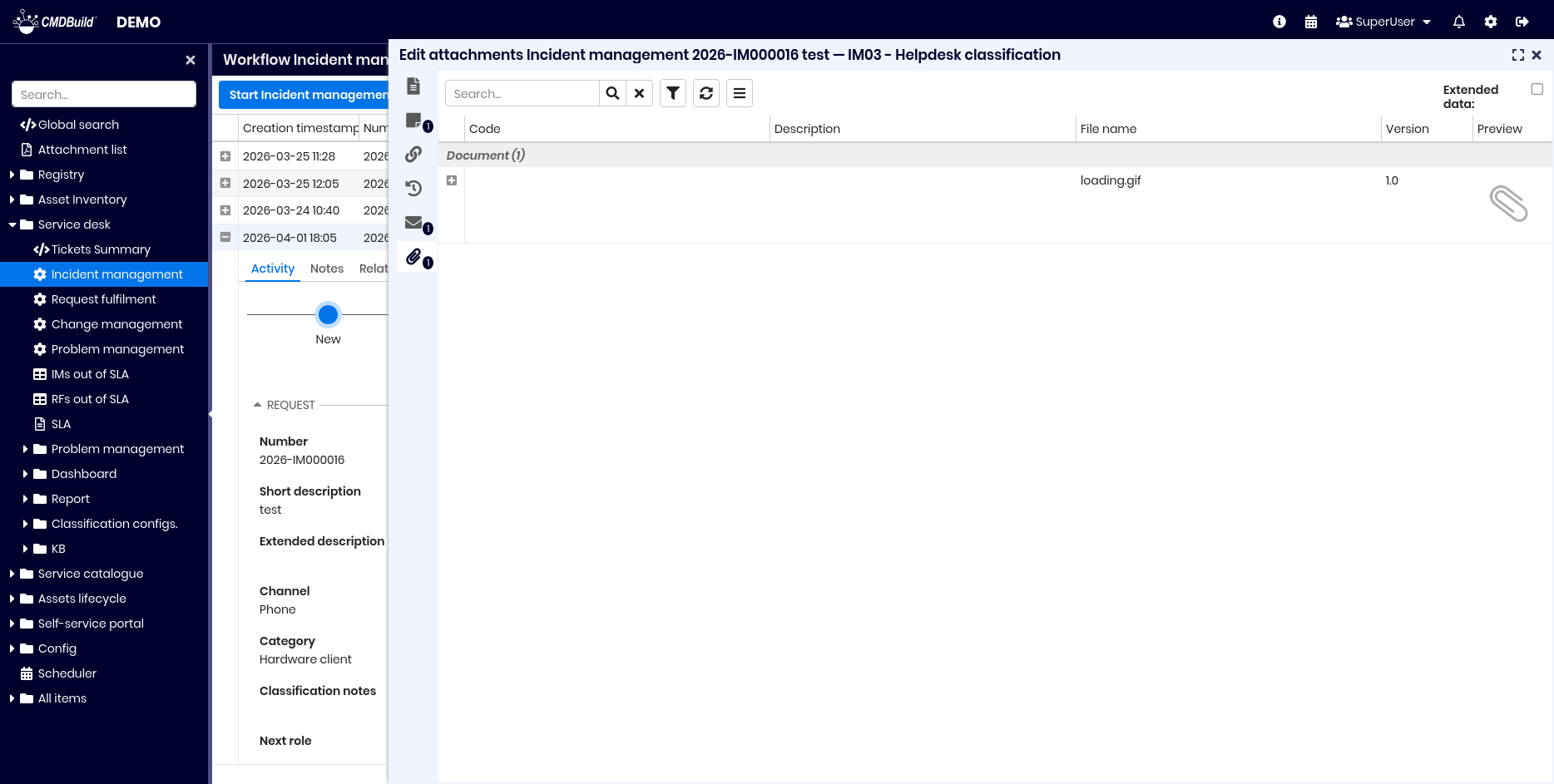
Attachments TAB
Displays attachments related to the process. Attachments can be managed only through the Open Attachment widget. This tab is read-only.
Interaction with external tools
CMDBuild workflows can integrate with external tools:
- start or advance a process instance from external systems using CMDBuild REST webservices
- start a process instance by receiving an email via the Task Manager
In CMDBUILD READY2USE (IT Management):
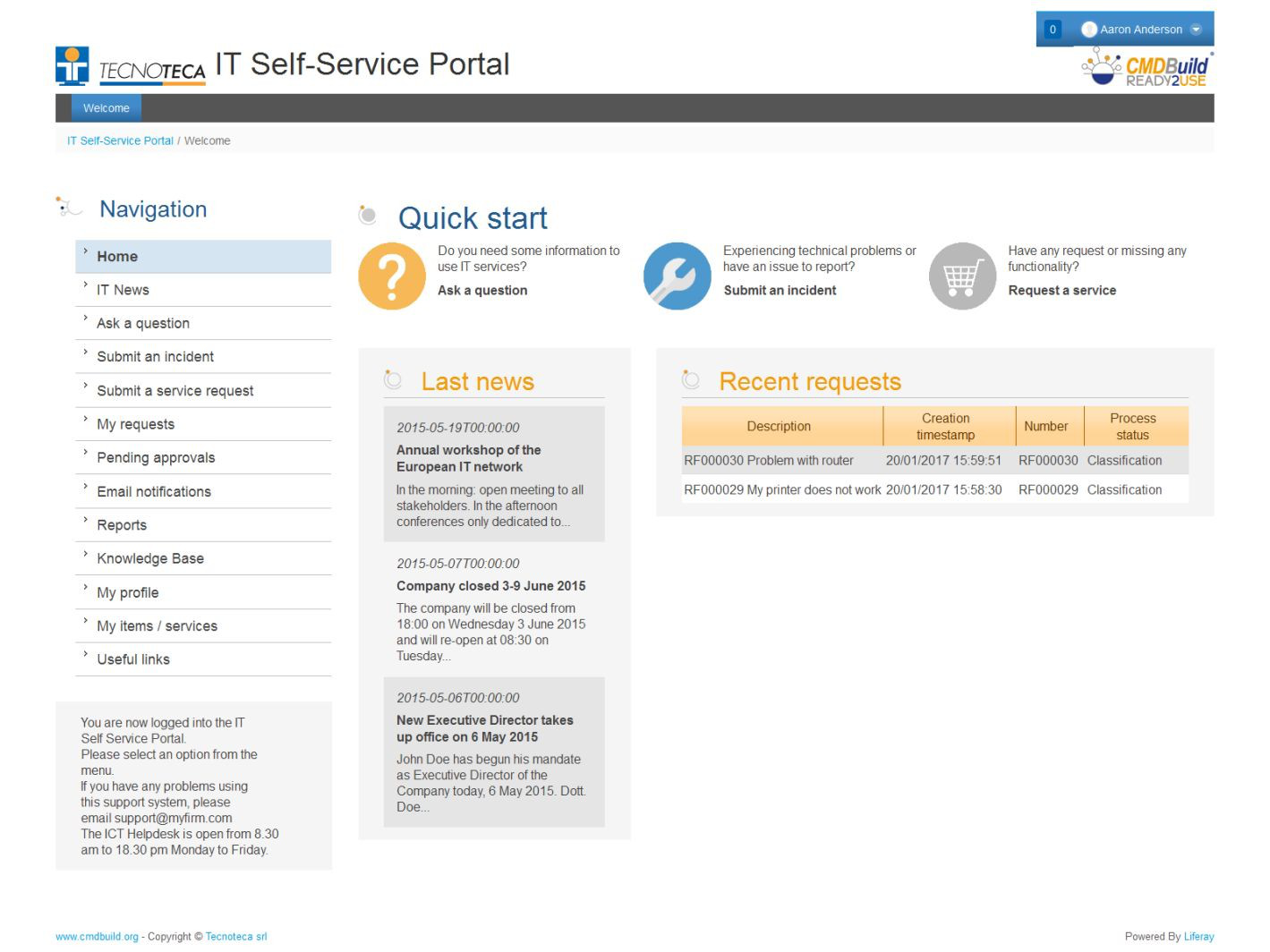
- Self Service Portal — allows end users to open Incident Management and Request Fulfillment processes
- connector with Zabbix — starts Incident Management processes when a malfunction occurs
In openMAINT (Facility Management):
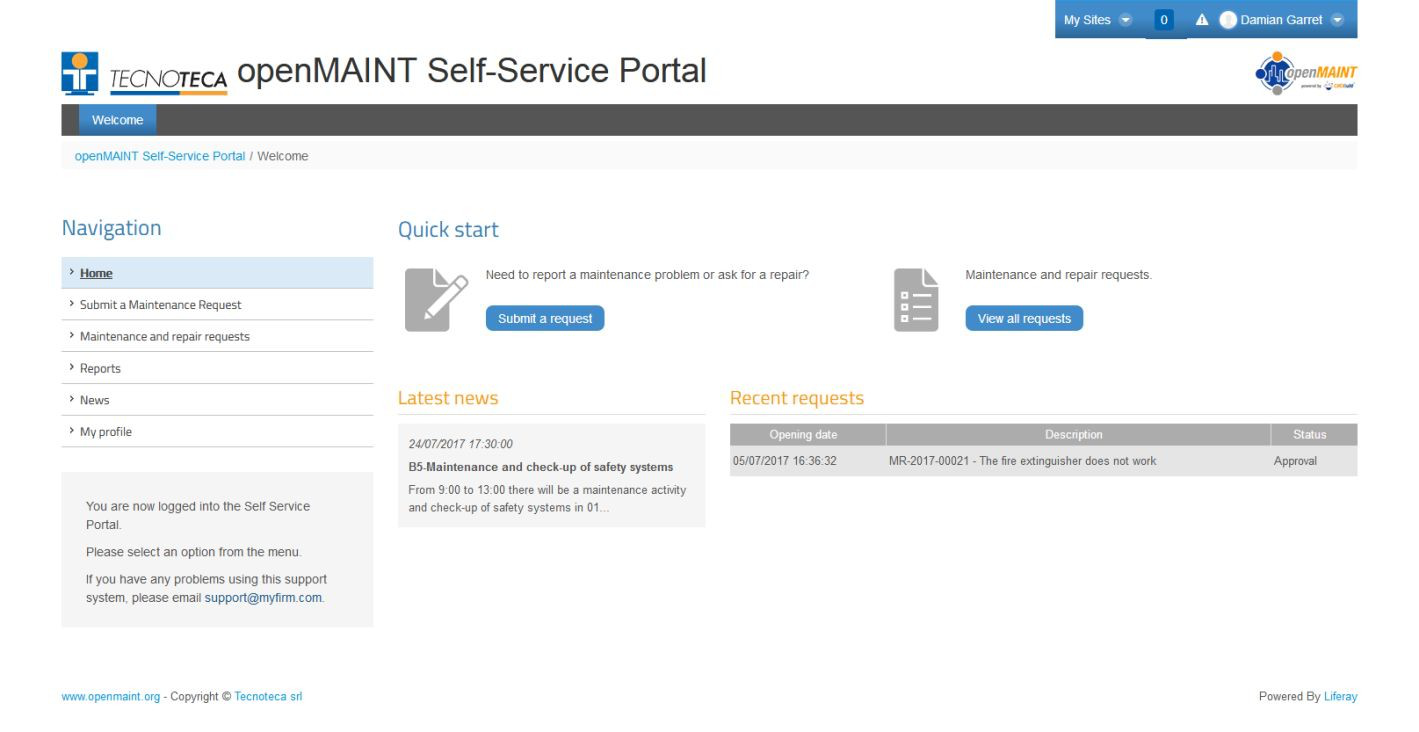
- Self Service Portal — allows end users to open maintenance processes for breakdowns
Sample user interfaces from the Self Service Portals: