Service features
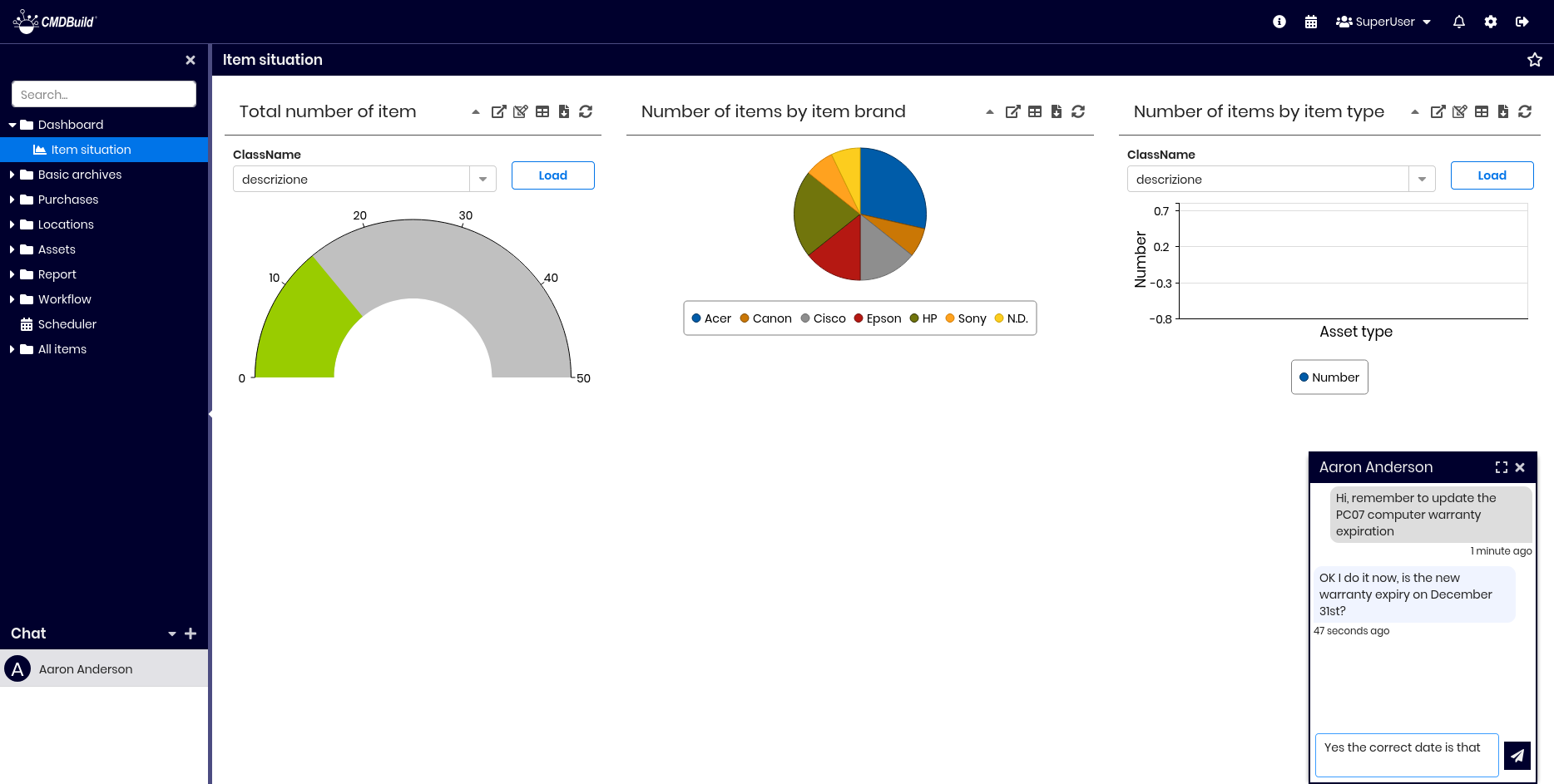
Each operator enabled to access the CMDBuild system can access the available service features by clicking their group name at the top-right of the interface.
The available functions include switching group or tenant, setting personal preferences and changing the password.
User preferences
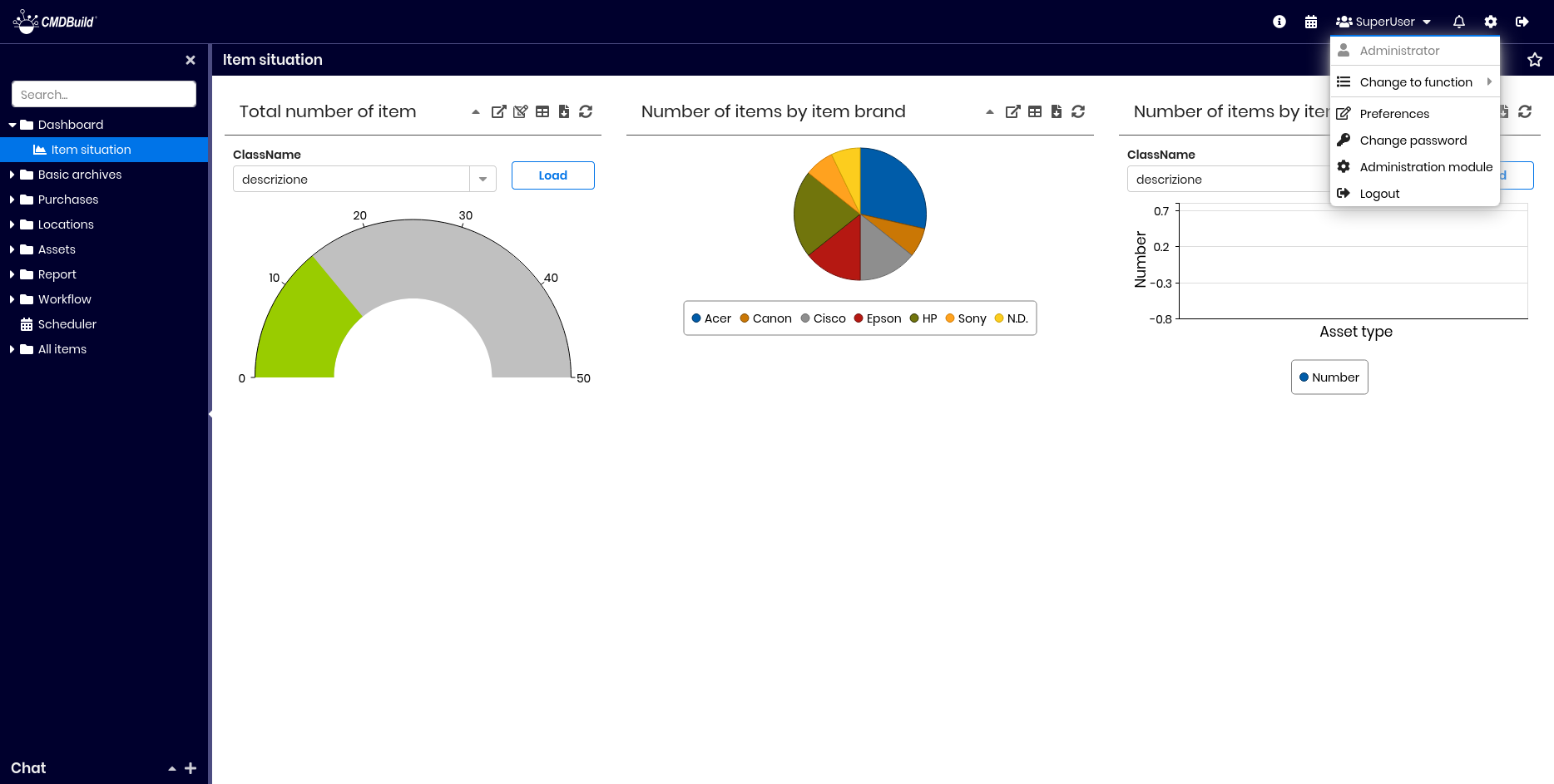
Each operator can configure personal preferences regarding:
- application language (among the available ones), used when CMDBuild is configured not to request the login language
- initial page displayed at startup
- date format (among the available ones)
- time format (among the available ones)
- timezone (among the available ones)
- first day of the week
- decimal separator for numeric fields (among the available ones)
- thousands separator for numeric fields (among the available ones)
- separator used in CSV reports and CSV grid exports
- encoding mode (charset) for CSV reports and CSV grid exports
- Office software used for the Export function and optimal formatting of dates and numbers in CSV reports
- preferences for the bookmarks menu, including initial collapse state and its position relative to the navigation menu
- chat icon
- sound and volume level for chat notifications
- preference for grouping emails by status
- time window within which an email can be cancelled after sending
Screenshot of the user interface:
Password change
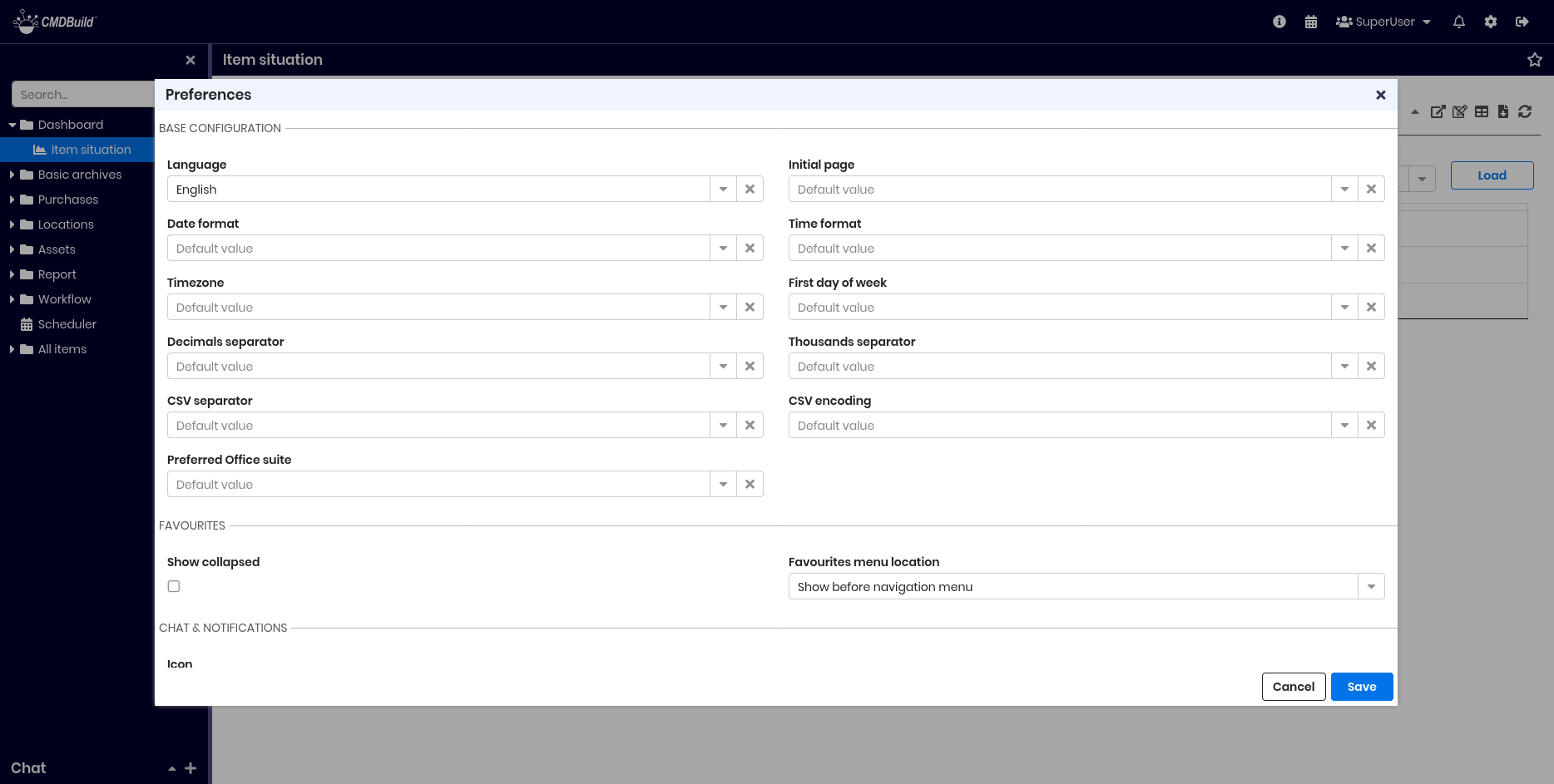
Each operator can change their CMDBuild access password at any time.
The following fields must be specified:
- current password
- new password
- confirmation of the new password
Passwords are hidden with the * character in the user interface.
Screenshot of the user interface:
Chat
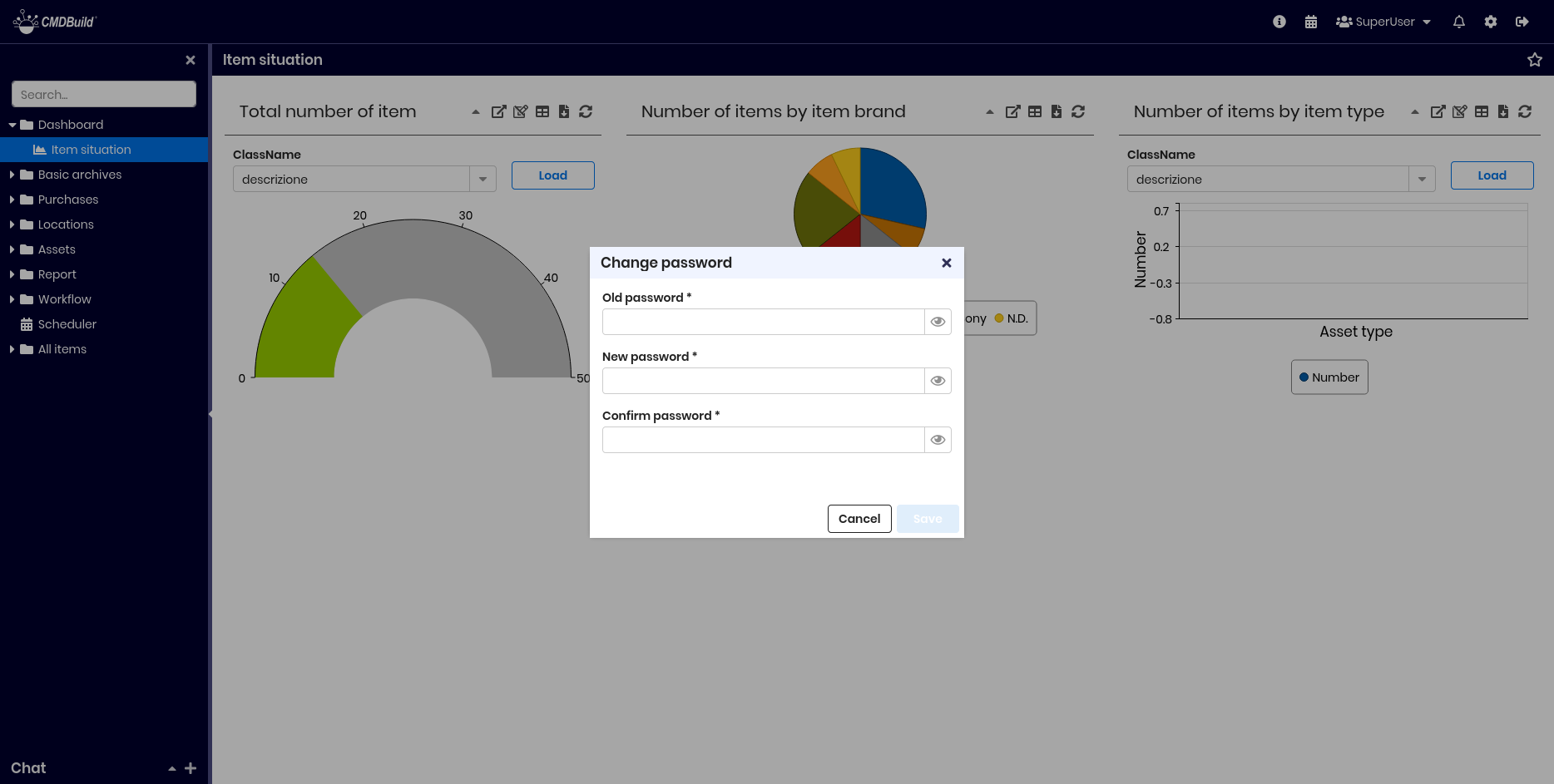
CMDBuild includes an integrated chat, allowing operators to communicate, report activities, provide feedback, resolve doubts and more.
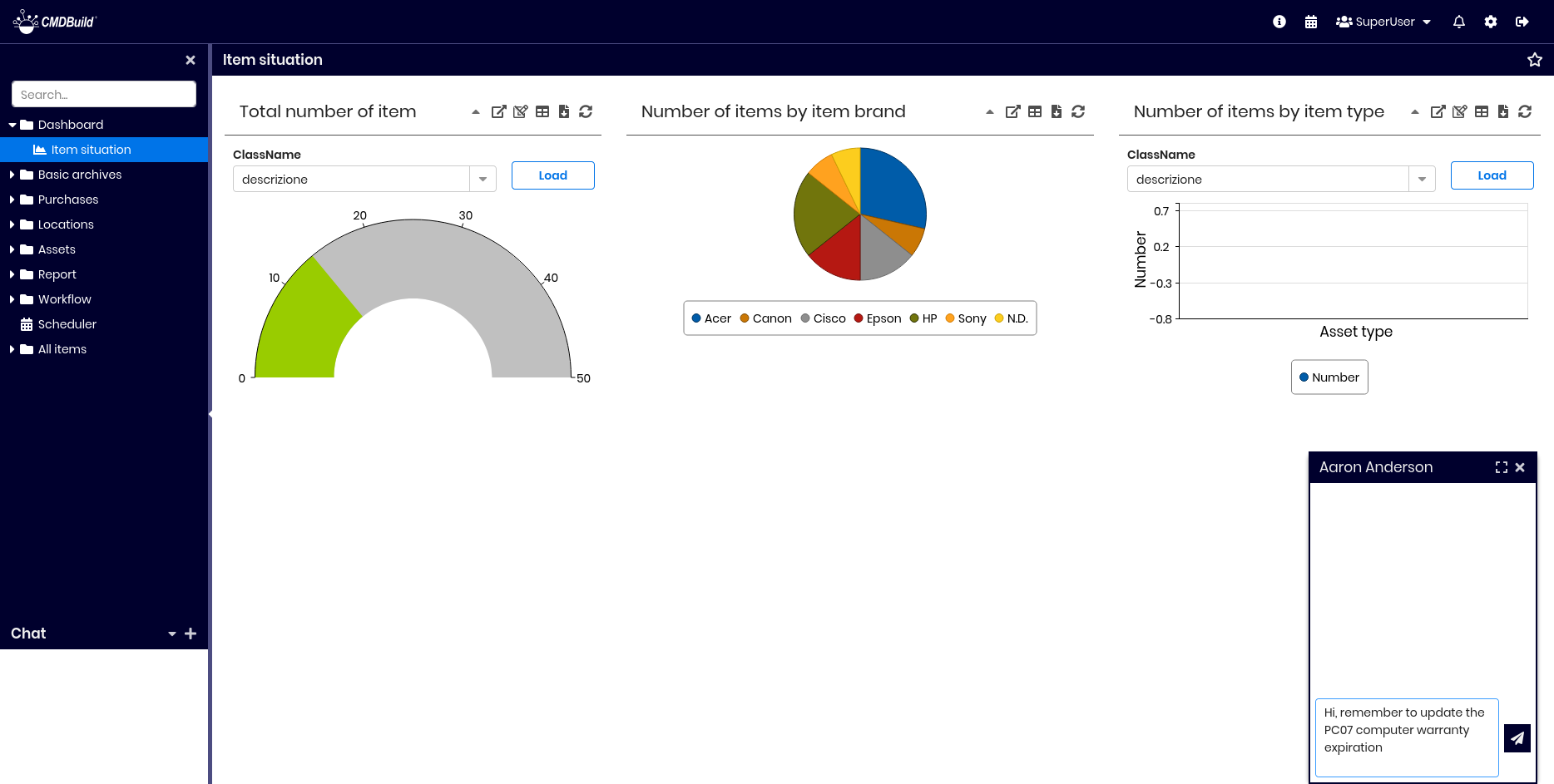
The following functions are available:
- expand or collapse the chat box
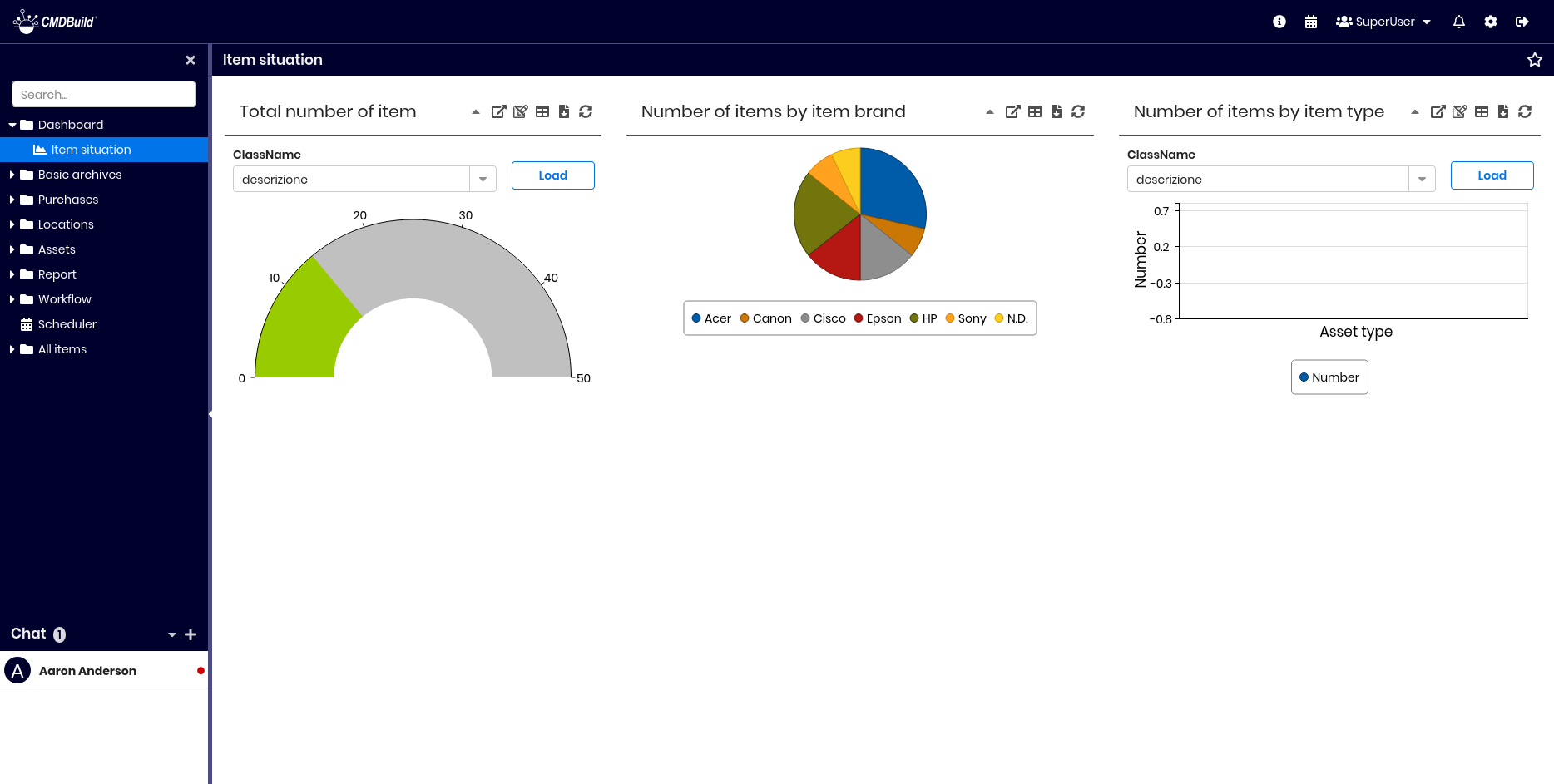
- display the list of users in chat (if the box is closed, unread messages are shown)
- use the + button to display or search the user list and select a user to chat with
- display the messages received from the selected user
- type and send a new message
The screenshot below shows the chat with an unread message:
The screenshot below shows the conversation with the selected user: