Installing CMDBuild
Before installing CMDBuild, ensure the following software is installed and properly configured:
- PostgreSQL database (must be running and accessible)
- Apache Tomcat application server (required only for manual installation)
- Alfresco DMS — or any other DMS supporting the CMIS protocol (required only if document attachment management is needed)
- Java runtime environment
Download links for all required software are provided in the previous chapter.
Warning: Ensure that none of the directories in the installation path contain spaces.
CMDBuild installation
Once all prerequisites are in place, proceed with the CMDBuild installation.
Installation files are available on the official CMDBuild website.
A single .war file is provided and supports both graphical (GUI) and manual installation methods.
CMDBuild installation via GUI (Windows and Linux)
A guided GUI installer is available for both Windows and Linux operating systems to simplify the standard installation and configuration process.
After downloading the .war file, open a terminal (Linux) or a Command Prompt window (Windows), navigate to the folder containing the file, and run the following command:
java --add-opens java.base/java.nio=ALL-UNNAMED -jar cmdbuild.war -v
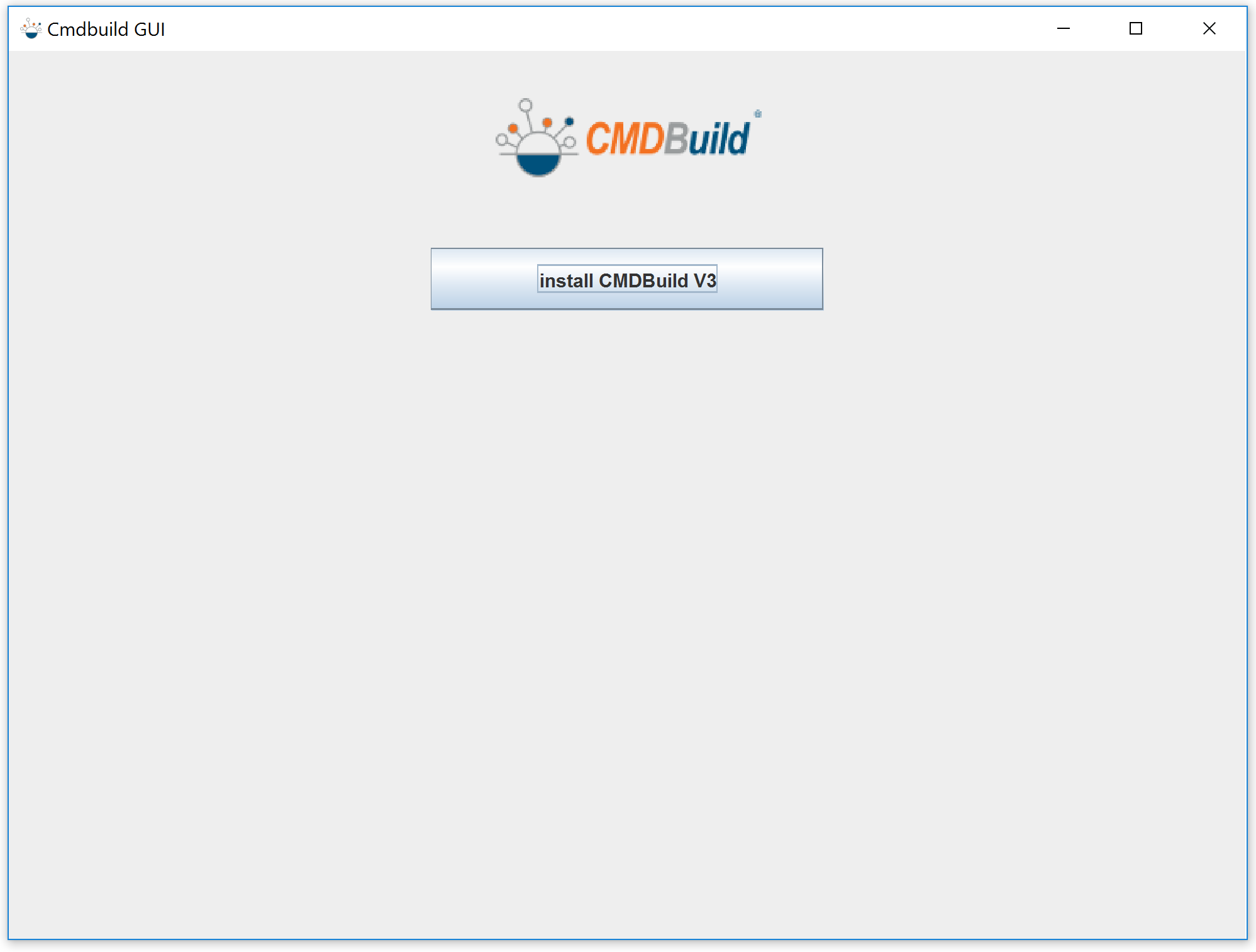
This command launches the graphical installer. Click Install CMDBuild V3 to proceed to the configuration steps.
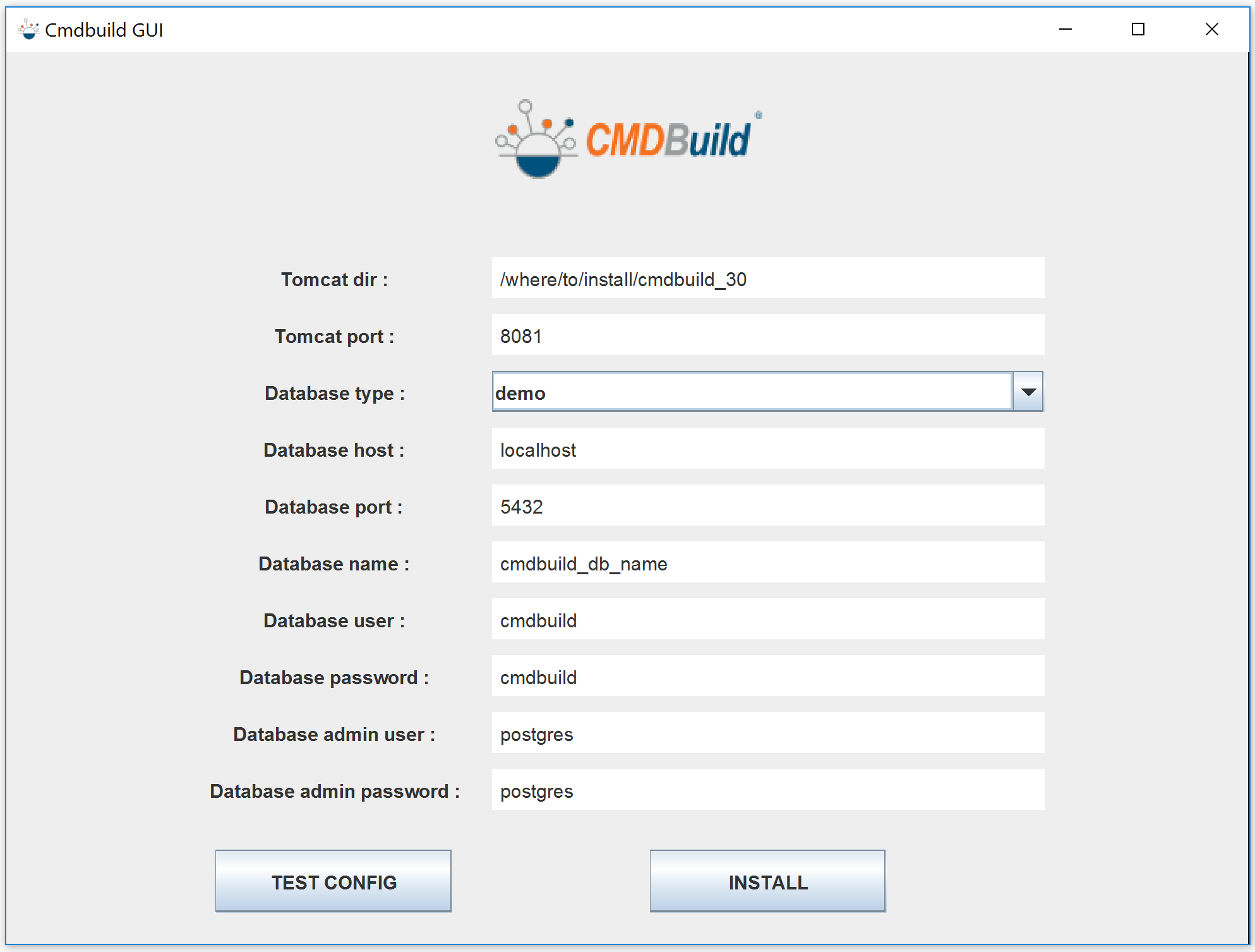
The configuration form includes the following fields:
- Tomcat dir — path where a new Tomcat instance will be installed
- Tomcat port — port Tomcat will use for communication
- Database type — choose between empty (basic structure only, no data) or demo (basic structure with sample data for demonstration purposes)
- Database host — host where the database is running; use localhost for a local installation
- Database port — port used to communicate with the database
- Database name — name of the database to be created
- Database user — standard database user (default: cmdbuild)
- Database password — password for the standard database user (default: cmdbuild)
- Database admin user — administrator database user (default: postgres)
- Database admin password — password for the administrator database user (default: postgres)
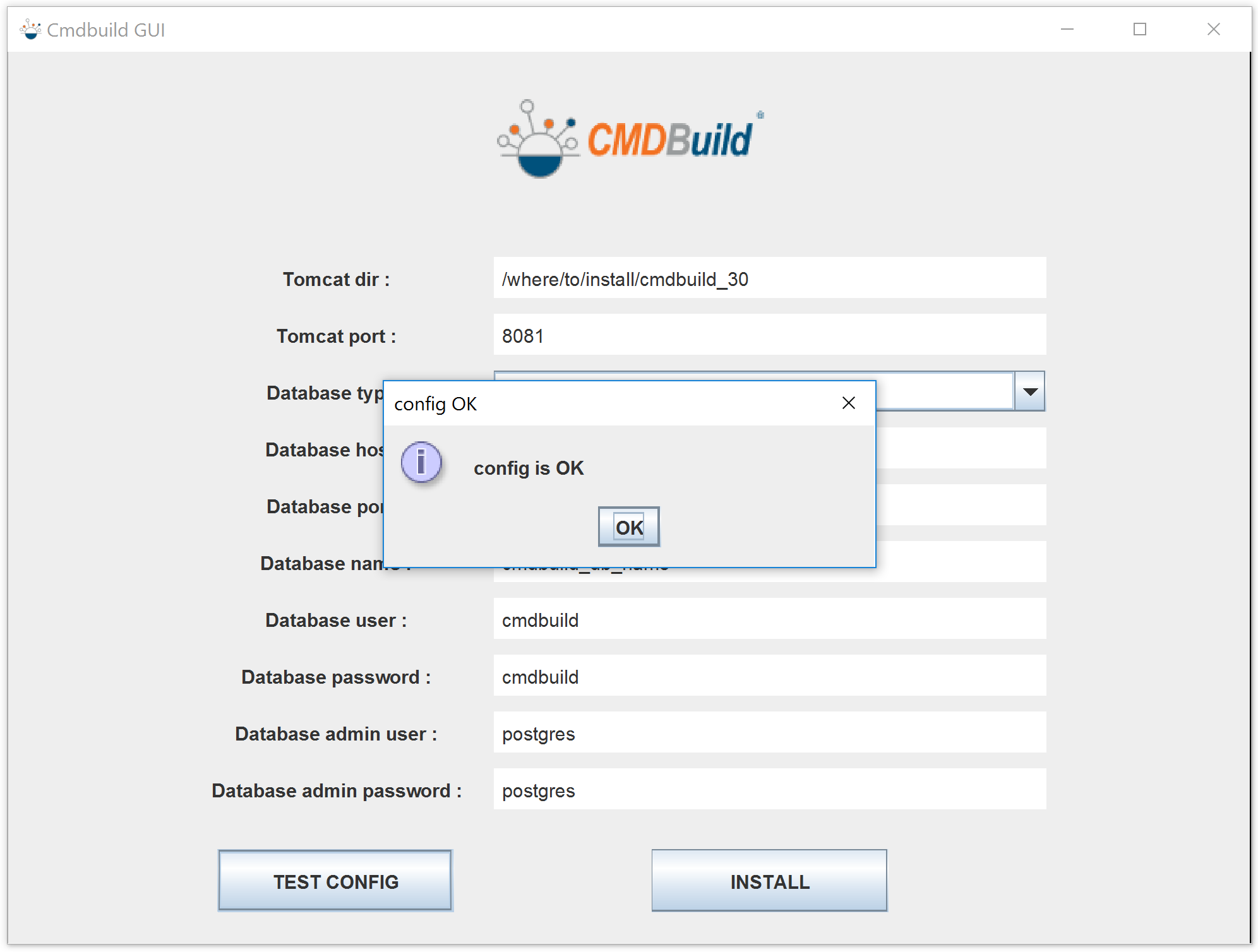
Use the Test Config button to validate the configuration before proceeding. If the configuration is correct, the following confirmation dialog will appear:
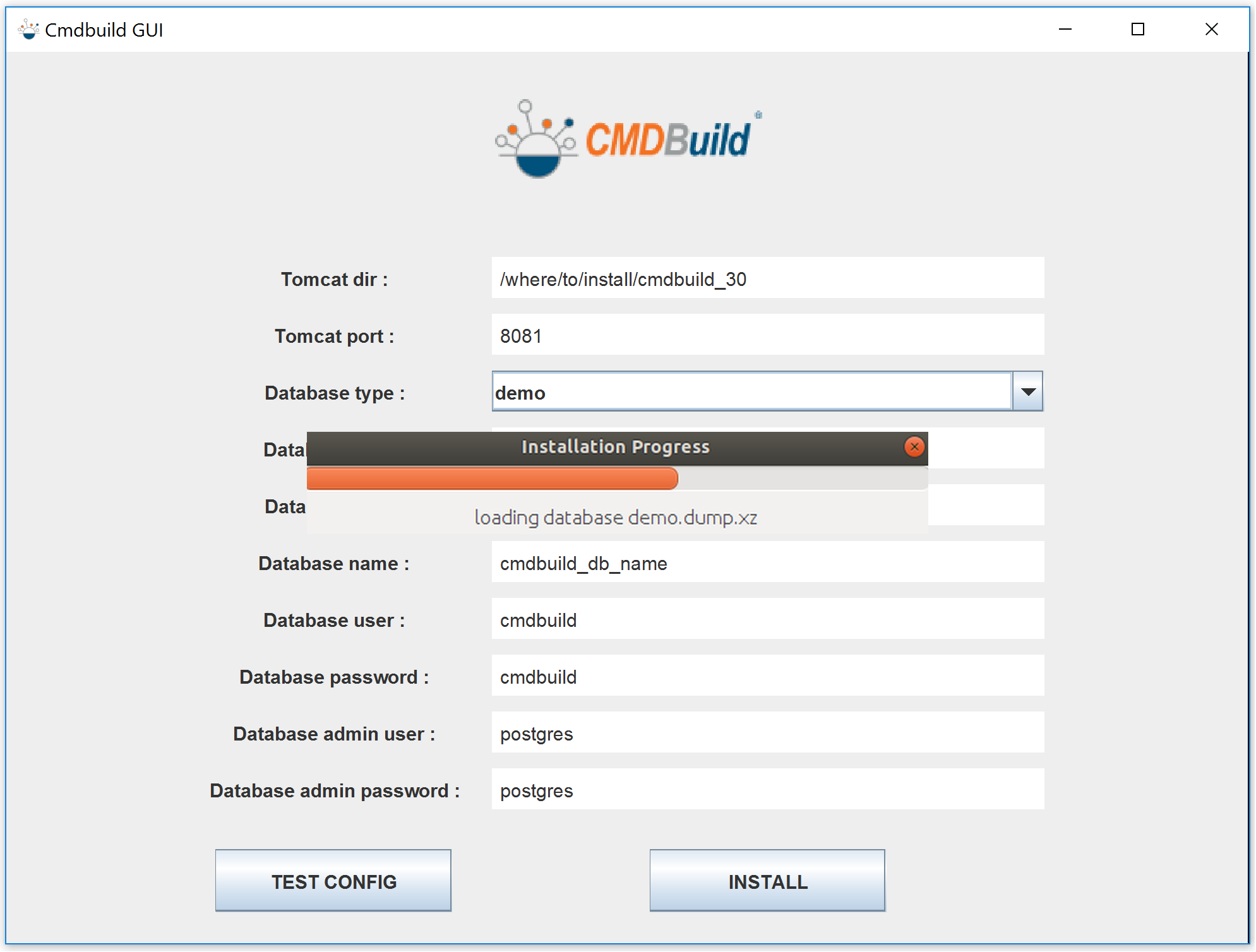
Click INSTALL to begin the installation. Apache Tomcat and CMDBuild will be installed, and the selected database will be loaded:
Once the installation is complete, a dialog will prompt you to start the application:
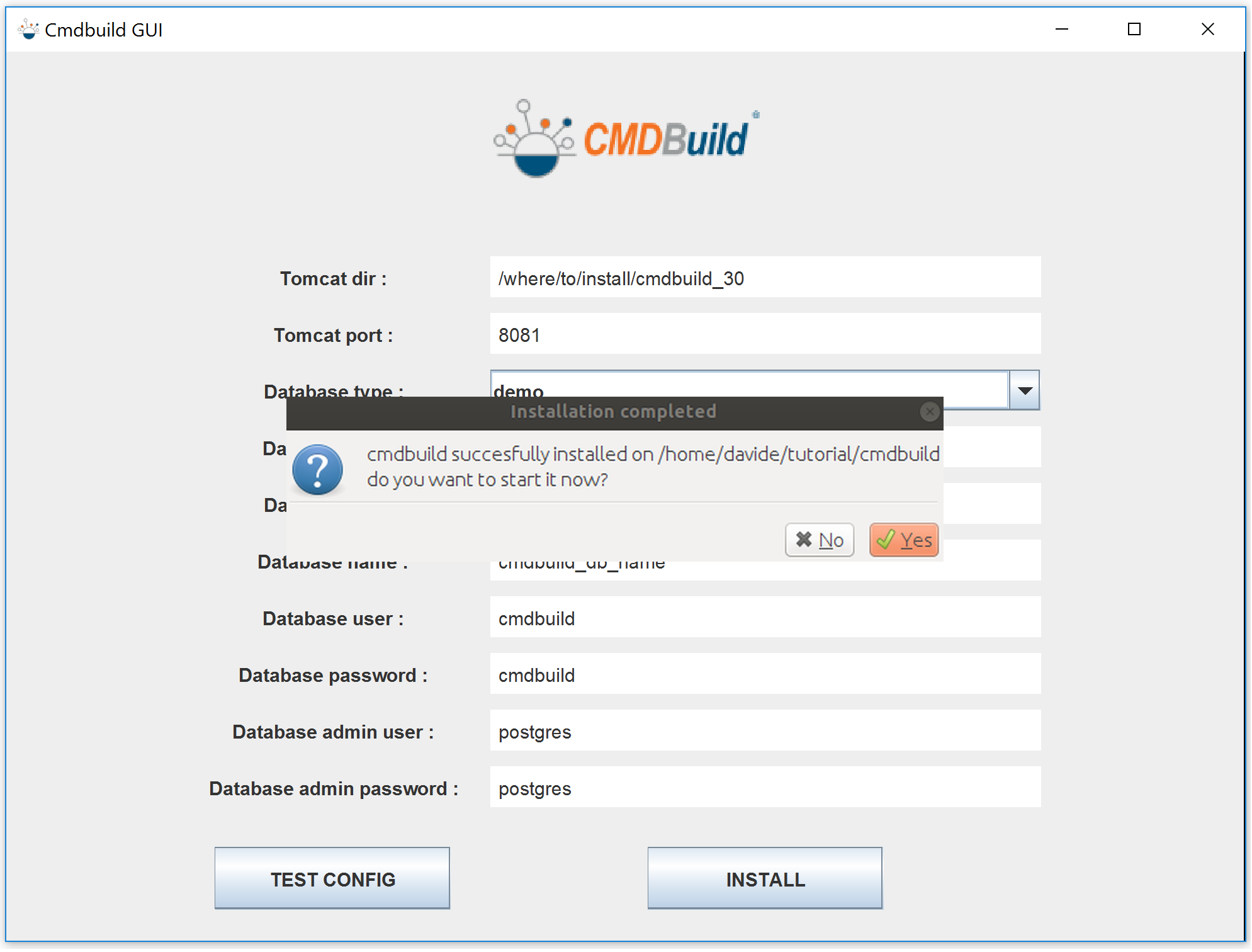
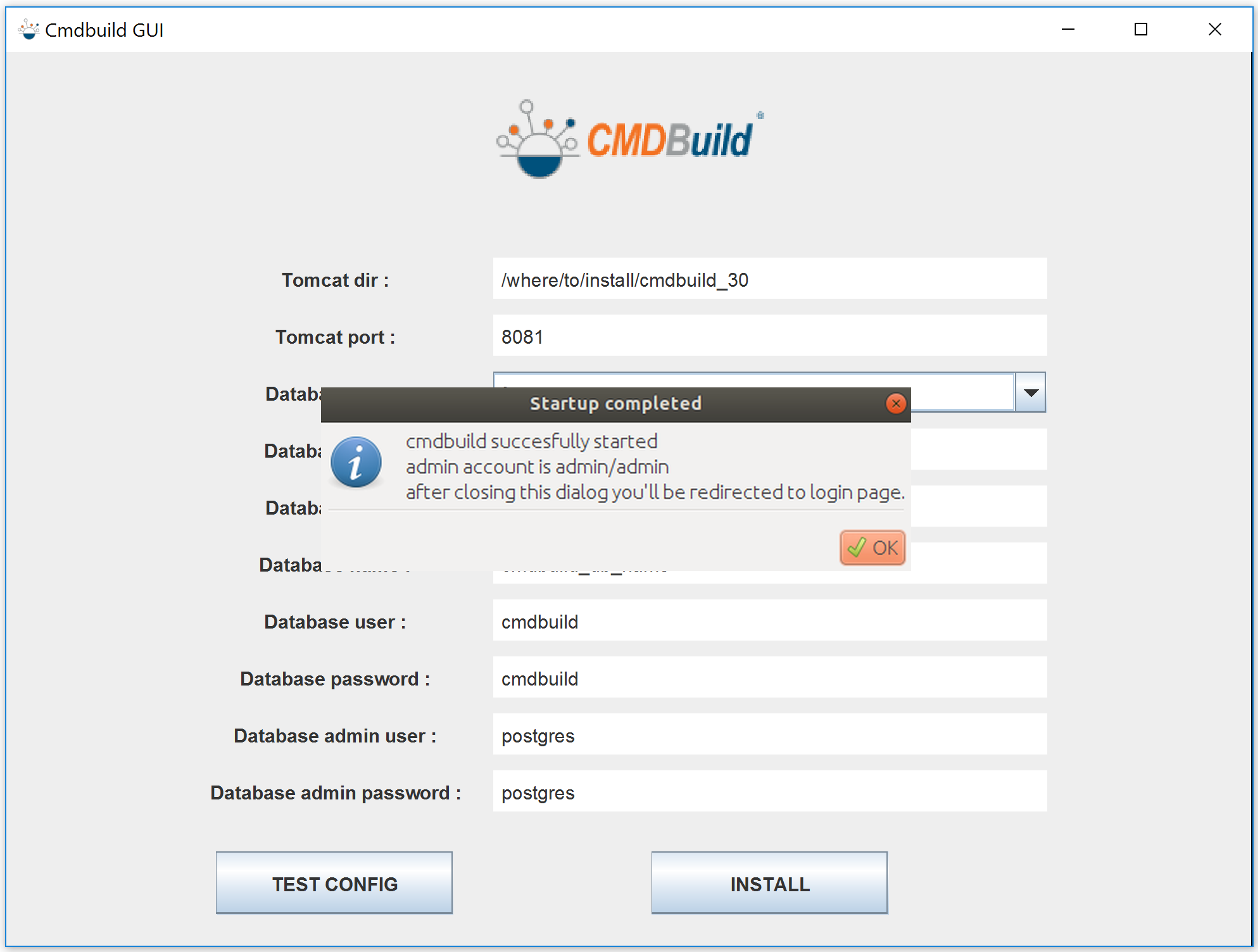
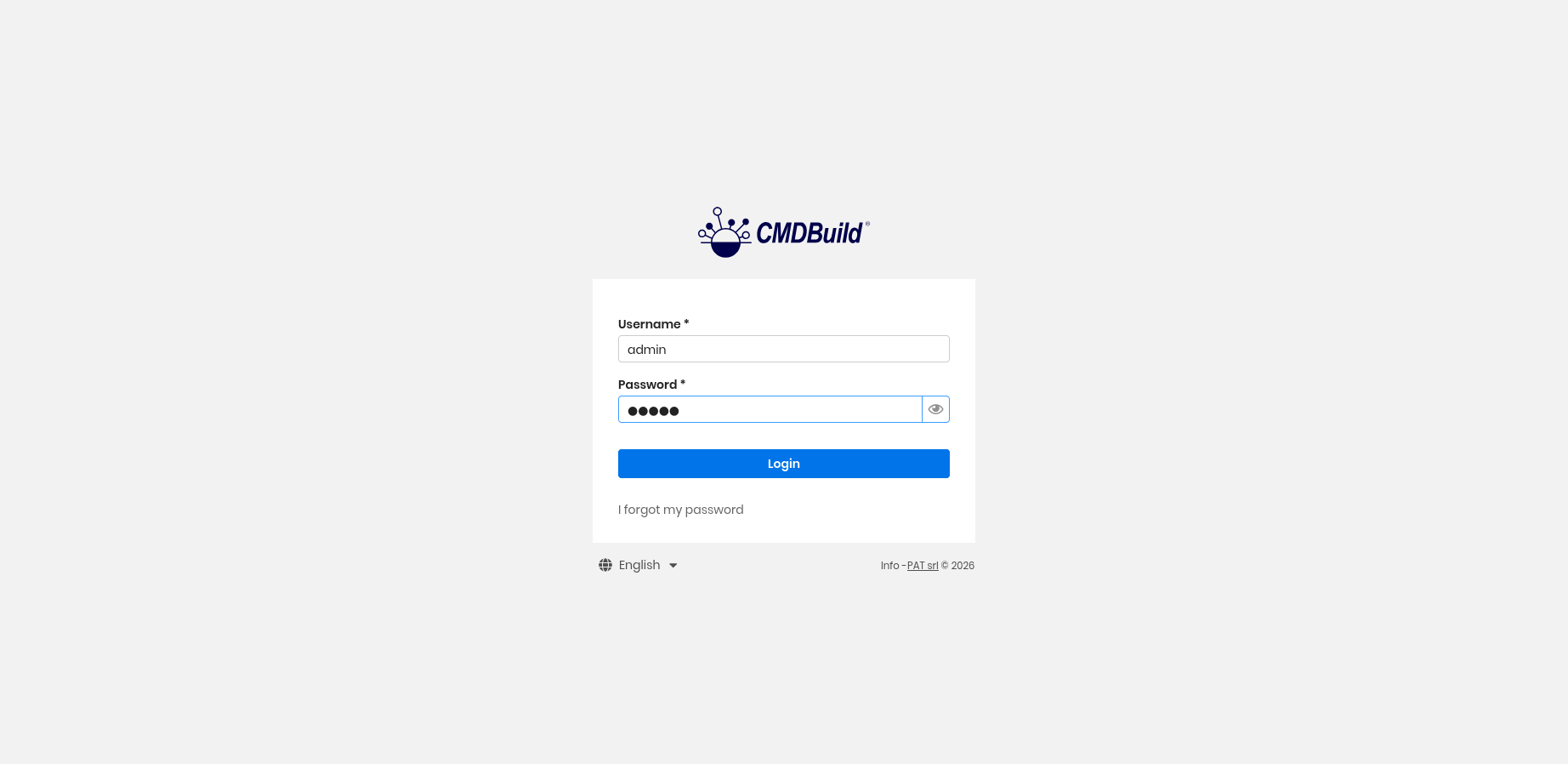
If you choose Yes, Apache Tomcat will start and the installer will notify you when the application is ready:
CMDBuild manual installation (Linux and Windows)
For manual installation, Apache Tomcat and all other required software must be installed beforehand. Refer to the previous chapter for download links and supported versions.
Note: If you are installing OpenMAINT, replace all references to CMDBuild with openMAINT.
Extract the contents of the downloaded file (e.g. cmdbuild-4.2.0.war) into the Tomcat installation directory under /webapps/cmdbuild. This provides a working CMDBuild installation, but the database has not yet been configured.
Database configuration can be performed in two ways:
- Using the Database Configuration Wizard available after the first Tomcat startup
- Manually via the command line
CMDBuild database configuration via DB Config Wizard (Linux and Windows)
A database configuration wizard is available for new CMDBuild installations, consistent with the approach used in CMDBuild 2.5 and earlier versions.
After deploying the CMDBuild webapp and starting Tomcat, open the application in a browser. You will be automatically redirected to the database configuration page:
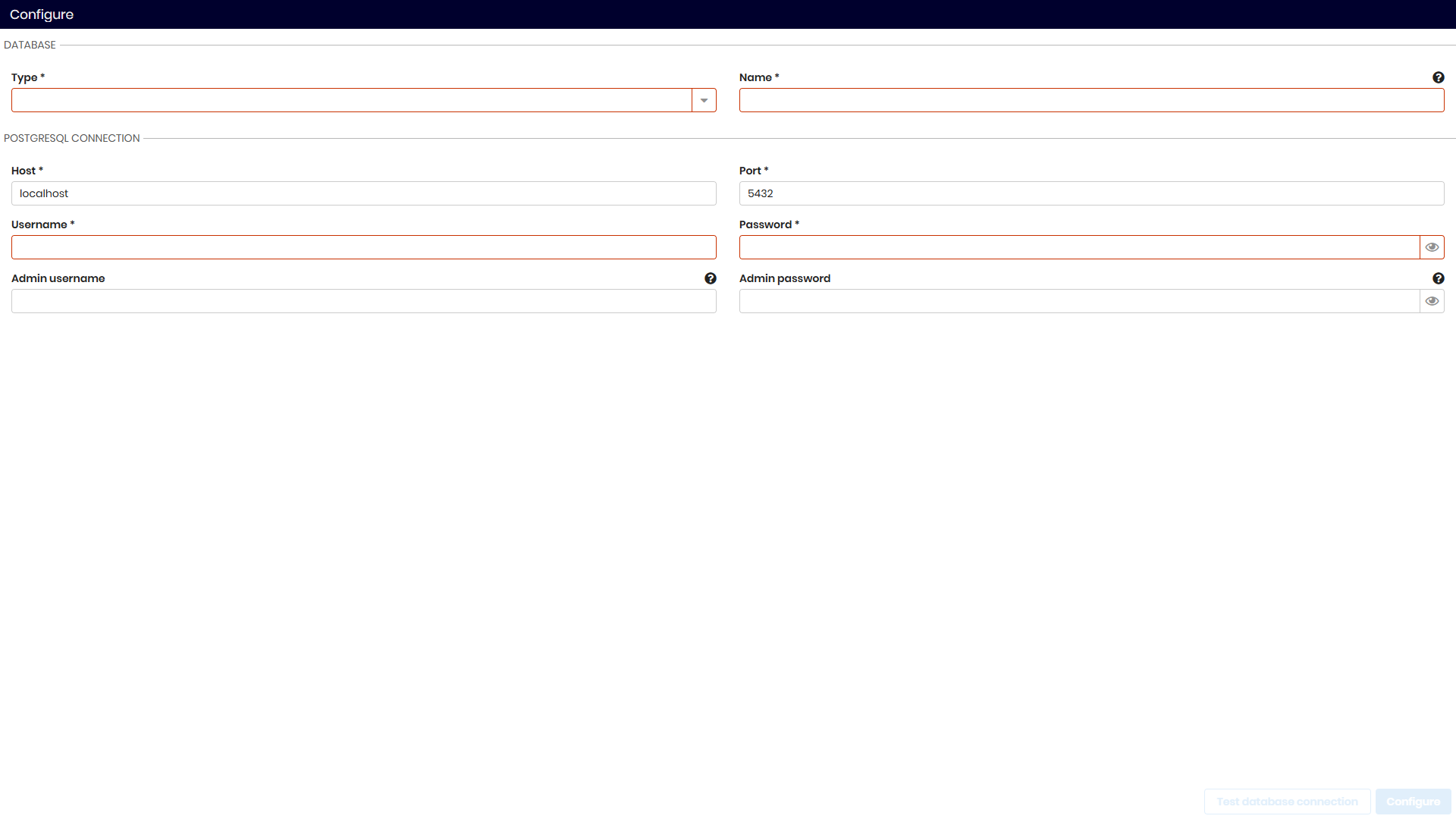
The configuration form includes the following fields:
- Type — select the database type: one of the provided presets (demo, empty), an existing database, or import from a file
- Name — PostgreSQL database name
- Host — PostgreSQL host
- Port — PostgreSQL port
- Username — standard PostgreSQL username (recommended: cmdbuild)
- Password — standard PostgreSQL password (recommended: cmdbuild)
- Admin username — PostgreSQL administrator username (recommended: postgres)
- Admin password — PostgreSQL administrator password (recommended: postgres)
After filling in all fields, click Test database connection to verify the configuration. If no errors are reported, click Configure to proceed.
If patches need to be applied to the database, a list will be displayed after configuration. Click Apply patches to apply them.
The system is ready to use when the login page is displayed.
CMDBuild manual database configuration for Windows
On Windows, the database must be imported manually using a tool such as pgAdmin or the PostgreSQL command line. The dump file is located at WEB-INF/sql/dump inside the webapp folder.
Note: If you need to load a dump that includes GIS/PostGIS features, refer to the PostGIS documentation for configuration and version migration guidance.
The following example describes a PostGIS installation with PostgreSQL 17 and PostGIS 3.x on Windows 11:
- Download and install PostgreSQL 17
- Download and install PostGIS for PostgreSQL 17
- Connect to the PostgreSQL instance using a tool such as pgAdmin 4
- As the default administrator user, create a new user named cmdbuild with a password
- Create a database assigned to the cmdbuild user
- Reconnect to the new database as cmdbuild and create the GIS schema:
CREATE SCHEMA gis;
- Create the PostGIS extension — note that superuser privileges may be required for this step; revoke them after completion:
CREATE EXTENSION postgis SCHEMA gis;
- Import the database using pgAdmin as the cmdbuild user, selecting cmdbuild as the target database. The import may generate warnings related to duplicate entries in the dump file; these can be safely ignored.
Once the import is complete, start Tomcat using the startup script. To change the port or other Tomcat settings, edit the server.xml configuration file located in <tomcat_install_folder>/conf.
CMDBuild manual database configuration for Linux
On Linux, database configuration is performed using the dbconfig command, available through the cmdbuild.sh script located in the webapp folder. This command supports database creation from a dump file, as well as other operations described in the related documentation.
To import the demo database included in the CMDBuild .war file, run the following command:
bash webapps/cmdbuild/cmdbuild.sh dbconfig create demo -configfile /path/to/configfile
CMDBuild will create a new database with the name specified in the configuration file and load the demo dump automatically.