Menu
Each user group in CMDBuild has its own navigation menu, which can be configured by the administrator.
A menu can include any type of element available in the system, such as classes, processes, views, dashboards, reports and custom pages, as well as custom folders used to organize menu entries.
When accessing the Management Module, each operator sees the menu assigned to their group or, if configured, a default menu filtered according to the user’s permissions.
Different menus can be configured for the desktop and mobile interfaces.
It is also possible to insert hierarchical navigation structures (navigation trees) based on relations, allowing users to browse information following a hierarchical logic (e.g. building → floor → rooms → assets).
Desktop Menu
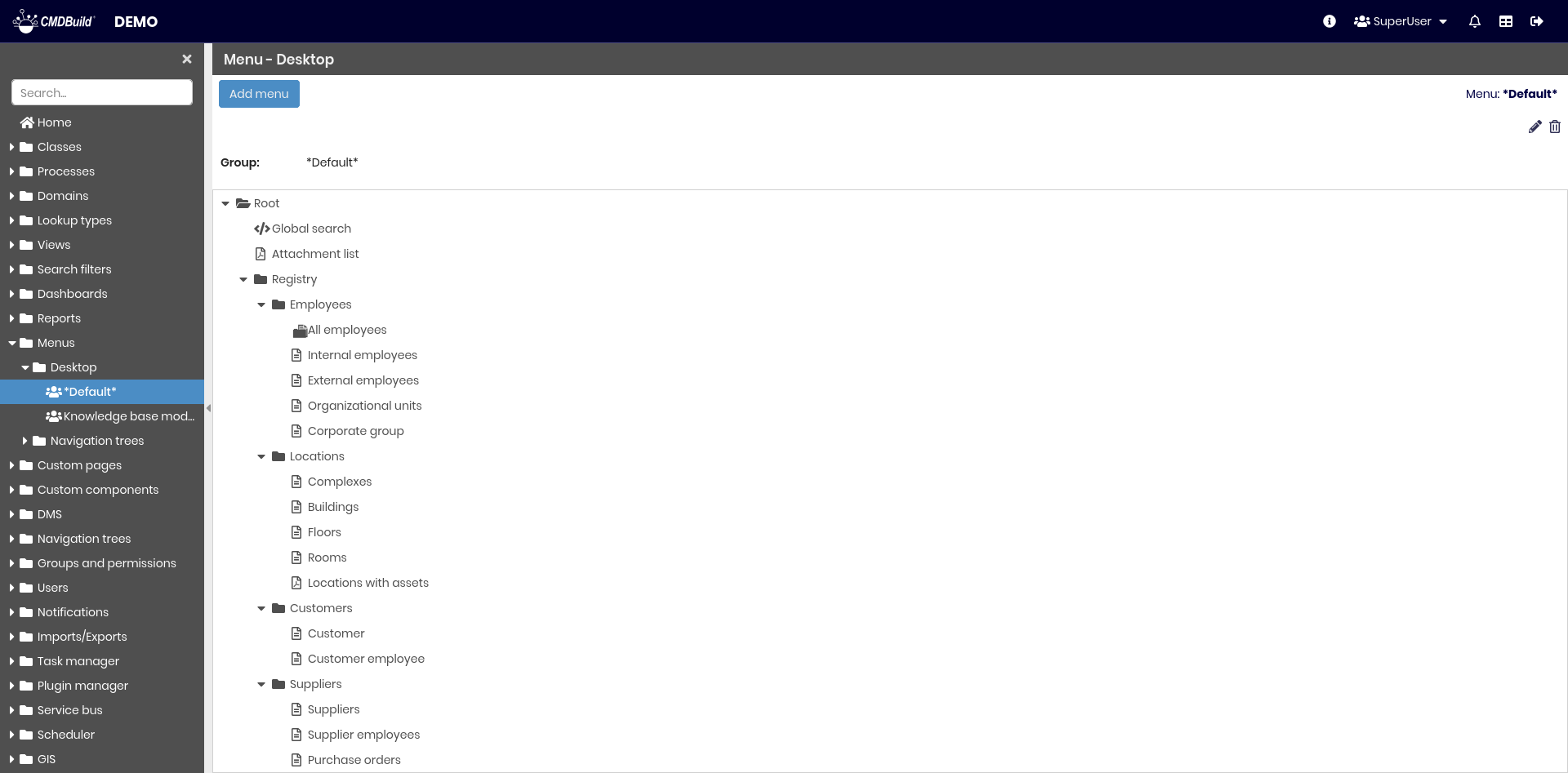
This function allows creating new menus for the desktop interface, assigning them to user groups and editing existing ones.
A Default menu type can be configured and will automatically apply to all groups that do not have a dedicated menu.
Available operations include:
- adding a new menu
- editing an existing menu
- deleting a menu
Menu creation and modification follow the configuration steps described below.
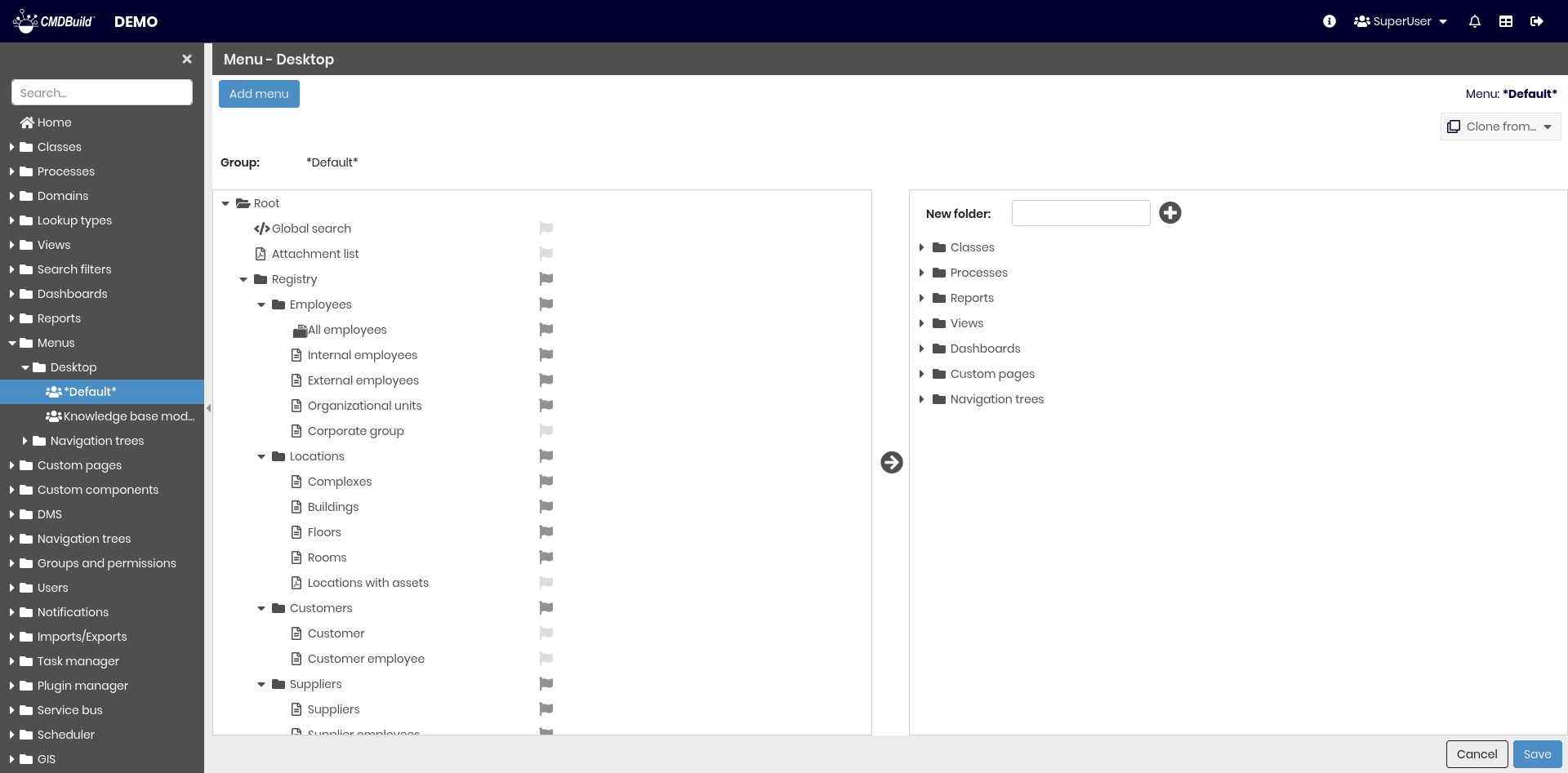
Menu Configuration
Menu configuration includes the following operations:
- cloning a menu from an existing one
- adding new folders
- dragging and dropping items from the list of available elements
- removing items from the menu
- localizing menu element labels
- customizing the description of each menu item (double‑click)
Once the configuration is saved, the menu becomes immediately available to all users belonging to the associated group (or to all groups in case of a default menu).
Users already logged into the Management Module may need to clear their browser cache or log out and back in to see the updated menu.
Navigation Trees
Navigation trees can be added to the menu to provide hierarchical access to cards based on relations between classes. This allows users to browse information following a structured path — for example, Buildings → Floors → Rooms → Configuration Items — directly from the Management Module.
Navigation trees included in the menu behave like standard menu entries and reflect the hierarchy defined in the Navigation Trees configuration. See Navigation Trees session.
In these navigation trees the administrator, for each selected domain, can configure:
- Label: optional custom label for the class node
- Configuration:
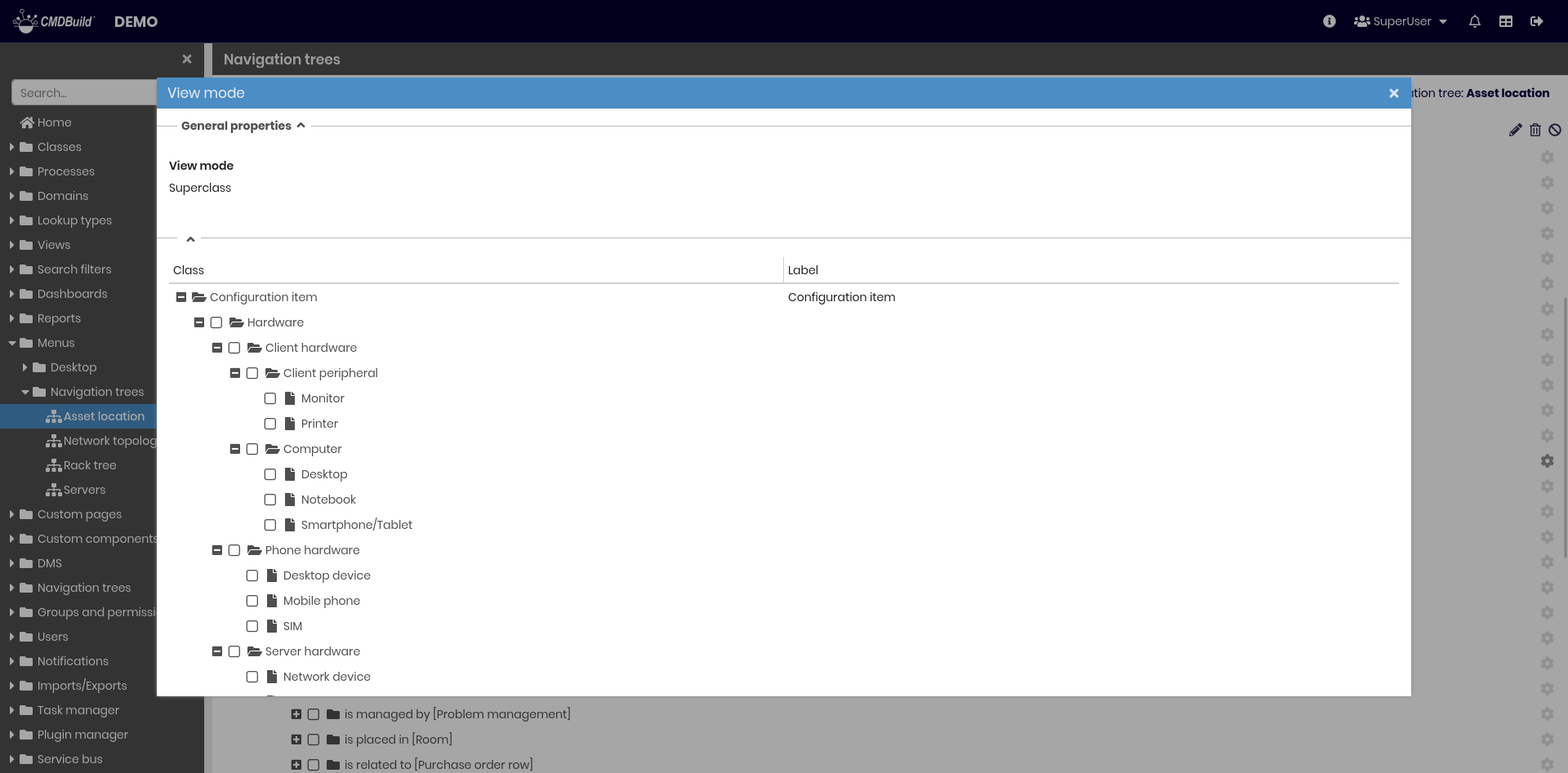
- View mode:
- Superclass: shows all cards of subclasses grouped under the superclass.
The tree below allows excluding cards belonging to specific subclasses. - Subclasses: shows cards grouped by subclass.
The tree below specifies which subclasses are included.
- Superclass: shows all cards of subclasses grouped under the superclass.
- View mode: