Groups and Permissions
CMDBuild permissions are based on the following elements:
- User groups (roles)
- Permissions assigned to user groups on system items, including classes (with possible restrictions on rows and columns), processes, views, search filters, dashboards, reports, custom pages, import and export templates and bus descriptors
- User to group associations
Using these mechanisms, you can:
- Define user groups with specific permissions for each configured system element
- Associate users with one or more groups, inheriting permissions from those groups
Additional features, grouped in the UI configuration tab, allow you to define further permissions on user interface elements. These options can remove standard CMDBuild functionalities and simplify the interface for specific user groups. CMDBuild also supports multitenant configurations, where a subset of CMDB data is reserved for users belonging to a specific sub-organization, such as a group company, branch office or division.
Properties tab
This tab allows you to create new user groups and edit the properties of existing ones.
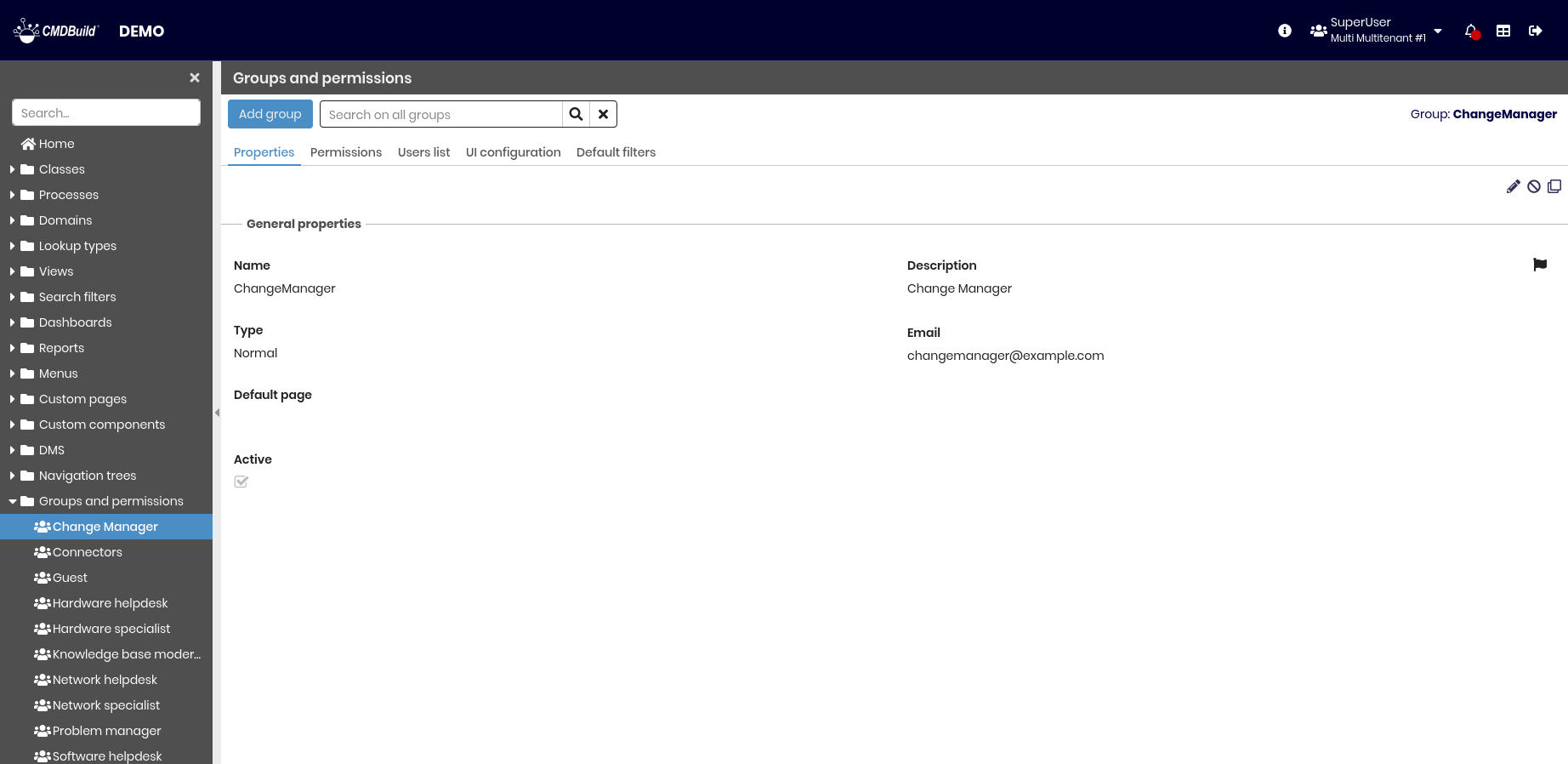
The following operations are available:
-
Top bar
- Create a new user group
- Search among configured groups
-
Single row actions:
- Edit the selected group
- Enable or disable the selected group
- Clone the selected group
Each group requires the configuration of the parameters described below.
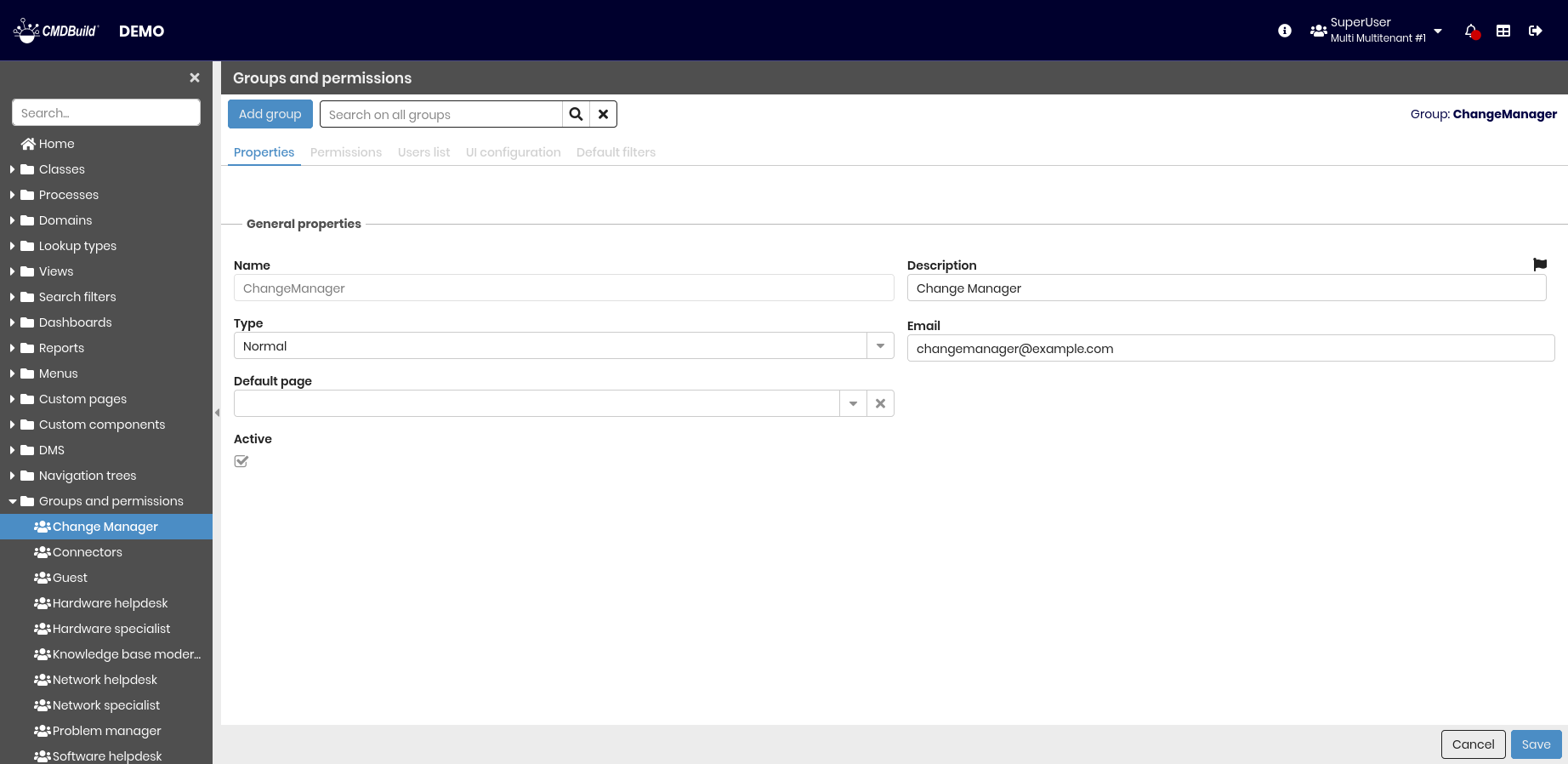
General properties
The following information is required.
- Name — group name
- Description — group description
- Type — group type, with the following possible values:
- Normal — standard group for operators using the application
- Administrator in read-only mode — read-only access to the Administration Module
- Limited administrator — access to system configuration except for data model editing (classes, processes, domains)
- User creation administrator — can create users and groups only, useful in multitenant scenarios to operate on assigned tenants
- Complete administrator — full access to all Administration Module features
- Email — group email address, used to receive system notifications
- Default page — page opened when users of this group access the Management Module
- Active — indicates whether the group is active
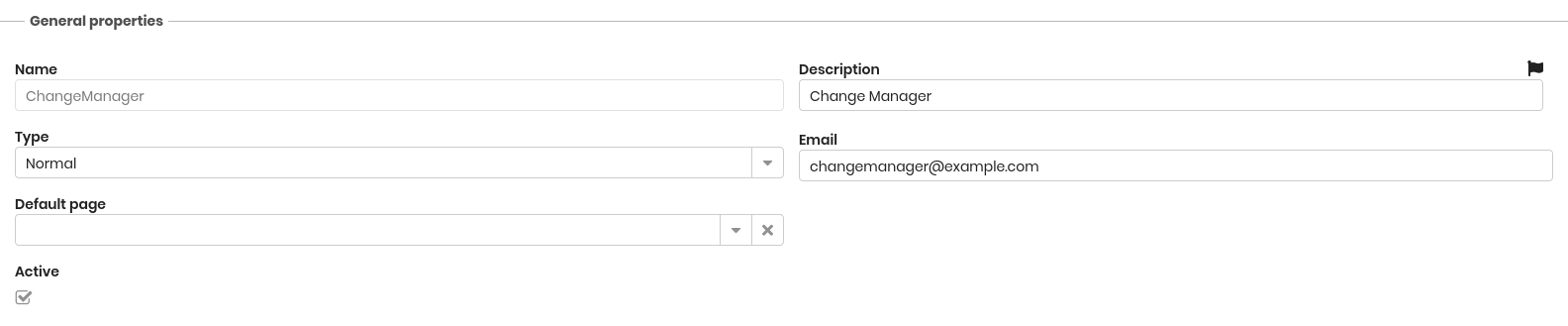
Permissions tab
This tab allows you to assign access permissions to the current group for the various items configured in CMDBuild. Using the second-level tabs described below, permissions can be defined for classes, processes, views, search filters, dashboards, reports, custom pages, import - export templates and bus descriptors.
Classes
This tab allows you to define permissions on classes.
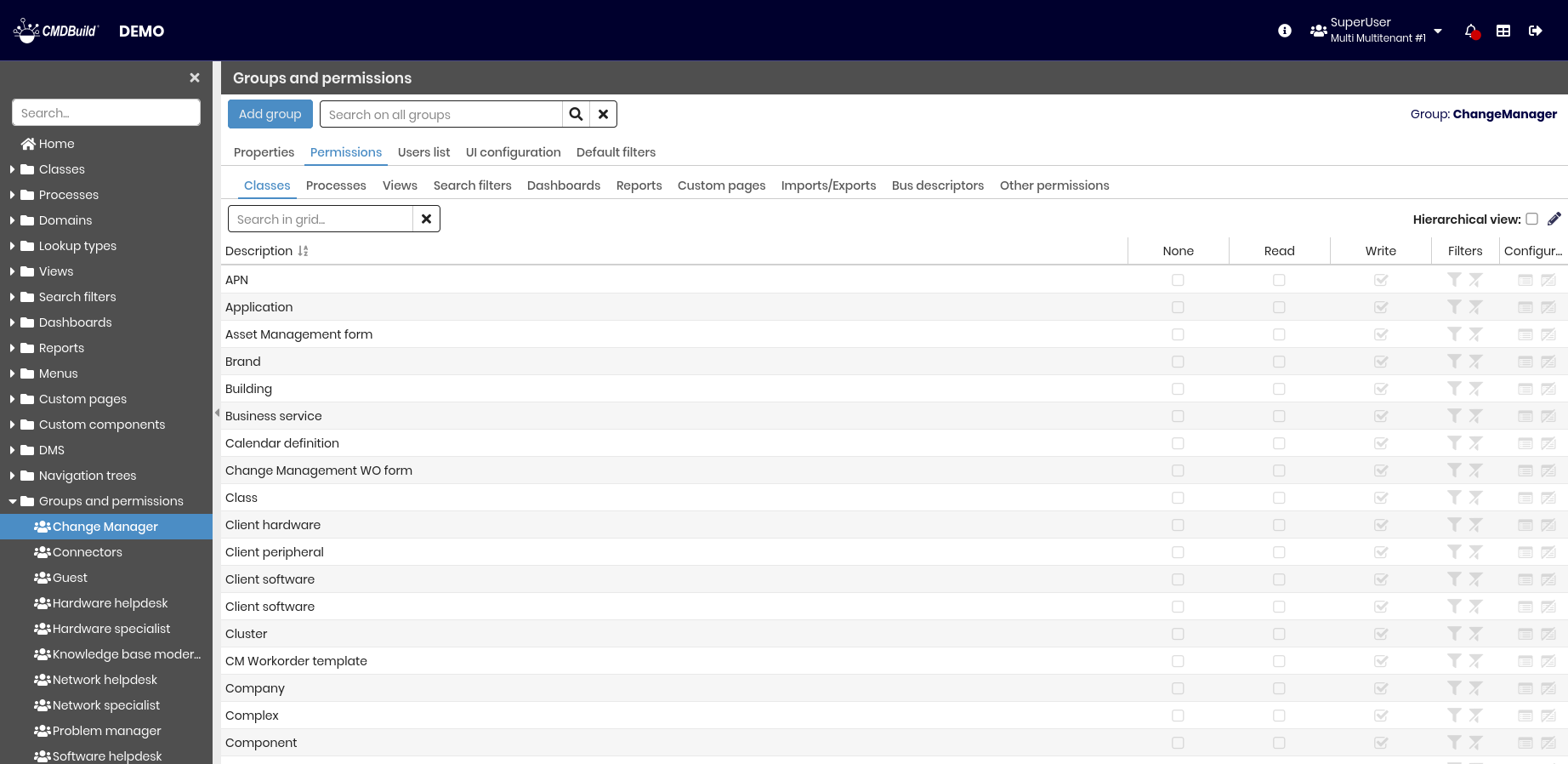
The following operations are available.
- Search among configured permissions
- Enable hierarchical view (superclasses and subclasses)
- Edit the permission list
When editing permissions, you can:
- Clone permissions from another group
- Set permissions per row or apply them uniformly using column header selectors
- Apply or remove a filter to restrict permissions on the class
- Manage or reset configurations for the standard CMDBuild user interface of the selected class
Filters
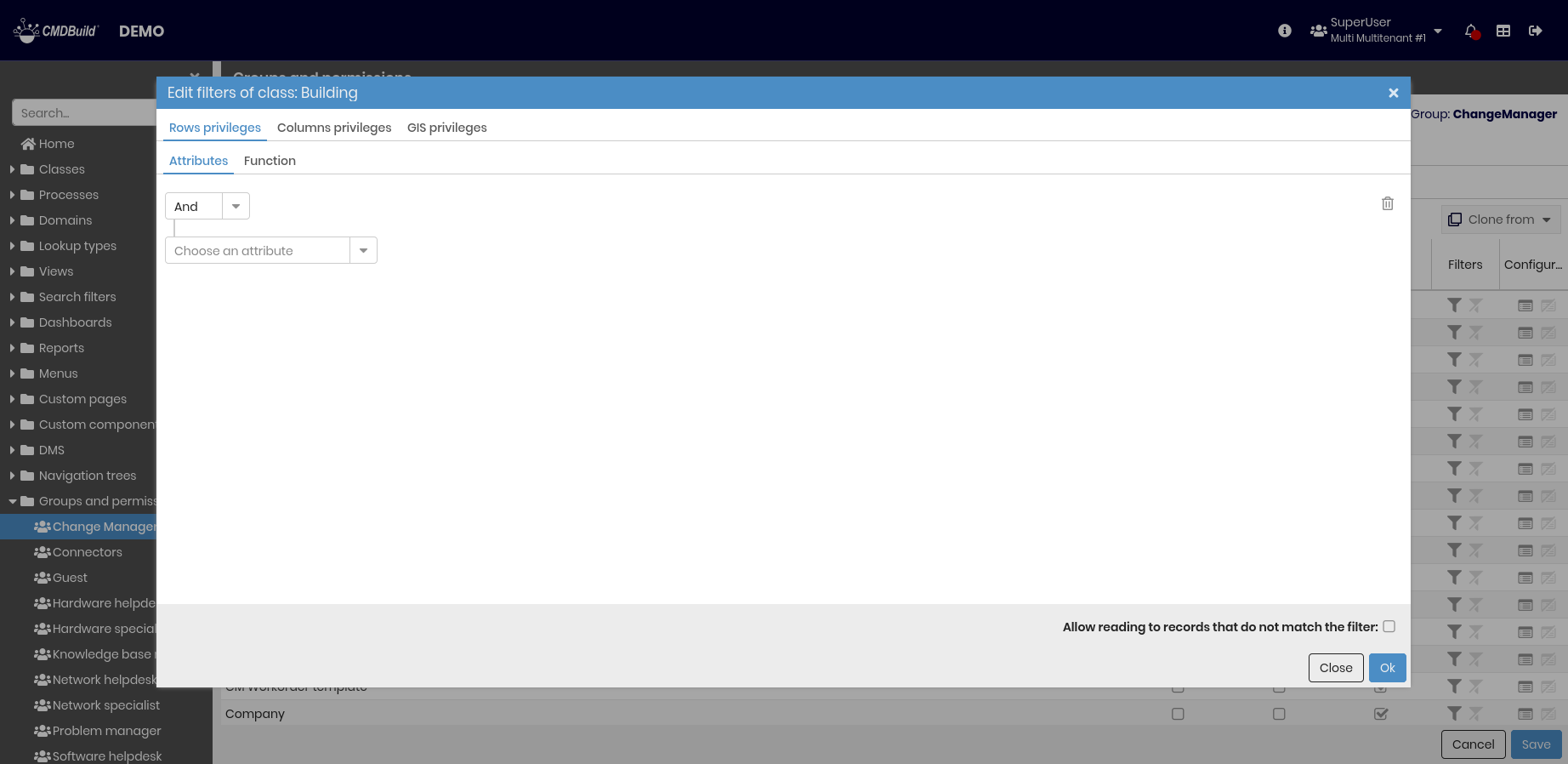
Filters allow you to restrict access permissions on rows or columns of the selected class. By selecting the Filter icon, a dialog is opened with the tabs described below.
Privileges on rows
Row-level permission restrictions can be defined in two ways:
- By defining filter criteria on attributes of the selected source class using the same mechanism as the Management Module advanced search filter
- By using a predefined PostgreSQL function, which must meet the following requirements:
- The function must include the comment
TYPE: function - Input and output parameters must be clearly declared
- Allowed parameter types are: character varying, boolean, integer, numeric, double precision, date, time, timestamp, text (excluding bigint)
- If the function returns multiple tuples, it must use the syntax
RETURNS SETOF record
- The function must include the comment
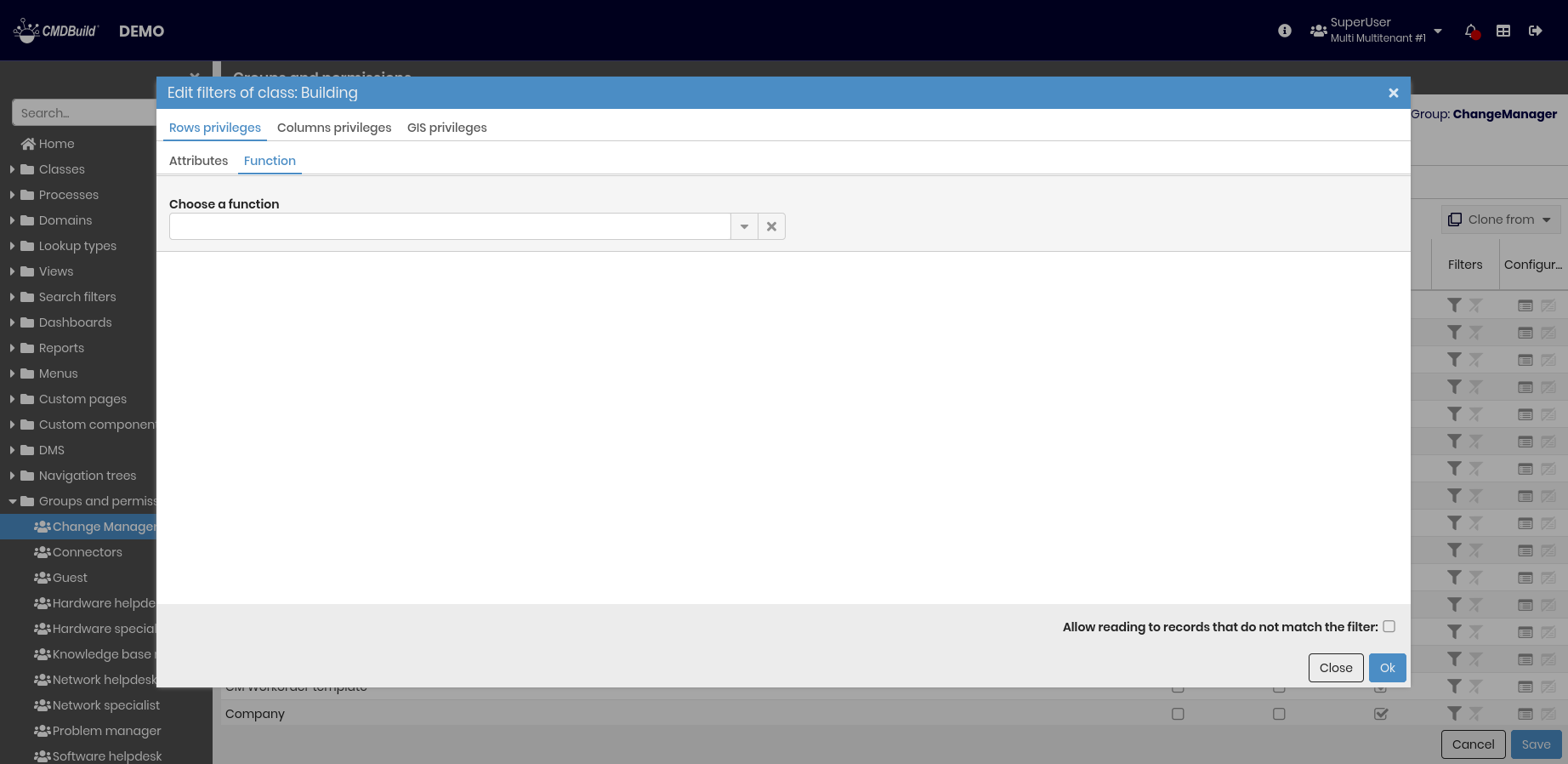
For write permissions, you can specify whether rows excluded by the filter are displayed in read-only mode or not displayed at all by relative button.
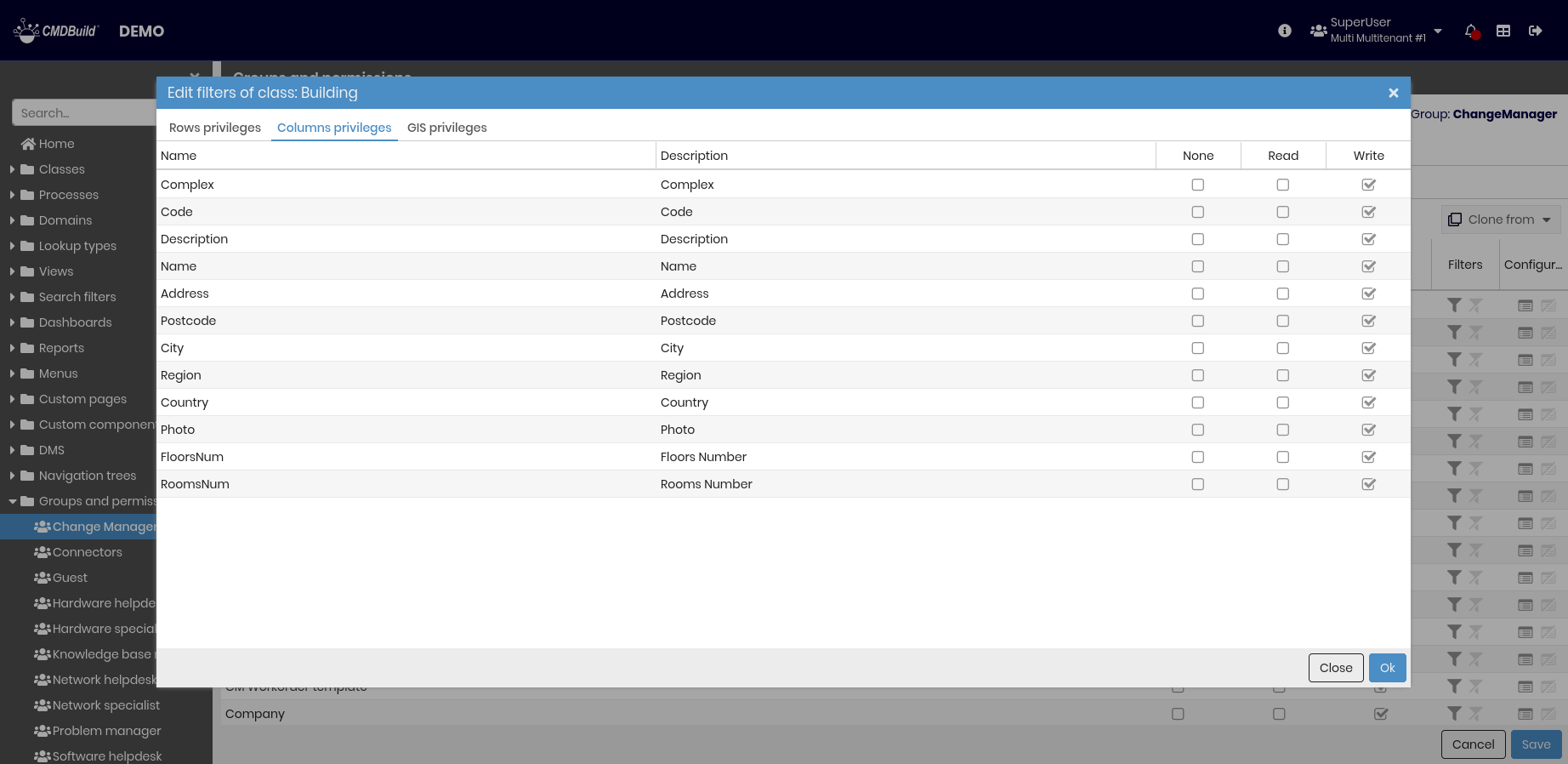
Privileges on columns
Column-level permission restrictions can be defined as follows.
- Not visible attribute
- Only visible attribute
- Even editable attribute
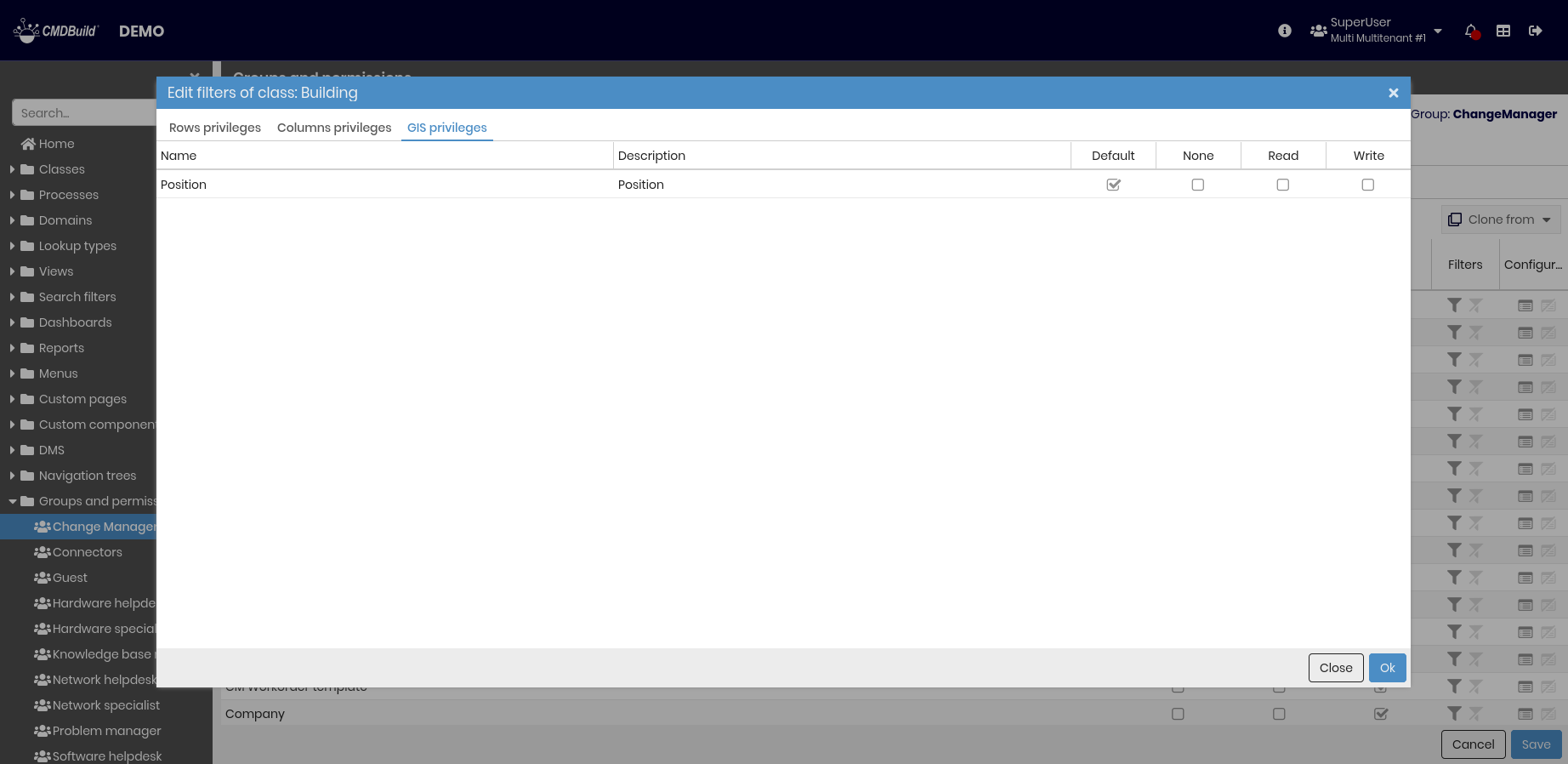
GIS privileges
Restrictions on geographical attributes can be defined as follows.
- Default mode — based on permissions defined on the geographical attribute
- Not visible geographical attribute
- Only visible geographical attribute
- Even editable geographical attribute
Configurations
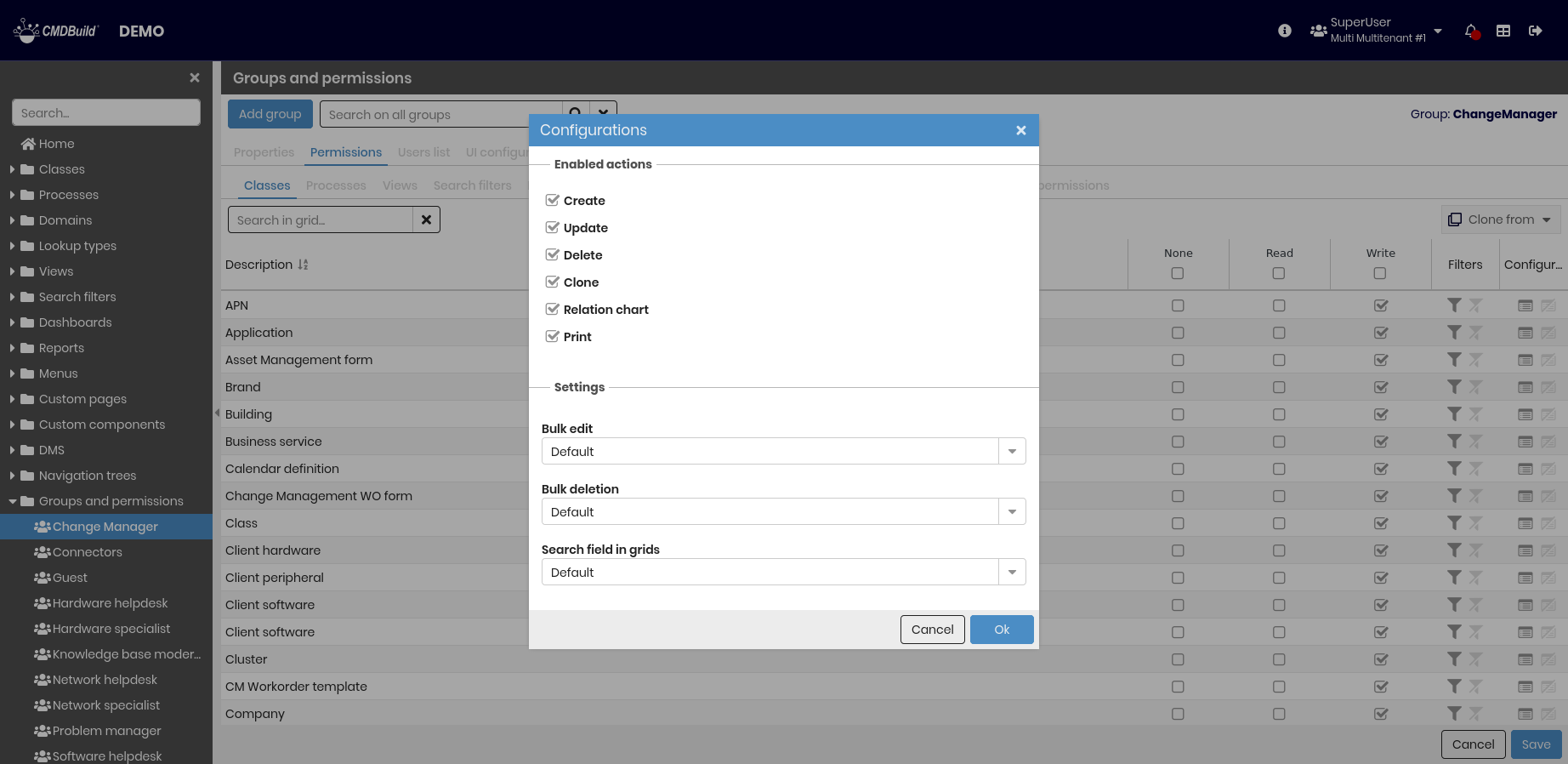
For the selected class, you can configure the following options:
- Enable or disable permissions related to insert, edit, delete, clone, graph access, and print actions
- Enable, disable, or restore default permissions for massive edit, massive delete, and search field on grid
- Enable or disable permissions for Details, Notes, Relations, History, Email, Attachments and Scheduling tabs
- Set permissions for attachments by DMS category with values default, none, read, or write
When a configuration is set to default, the value is inherited from the corresponding global configuration. For example, the default value for massive edit is inherited from the system configuration.
These configurations apply only to the standard CMDBuild graphical interface and do not affect operations performed through other interfaces or web services.
Processes
This tab allows you to define permissions on system processes.
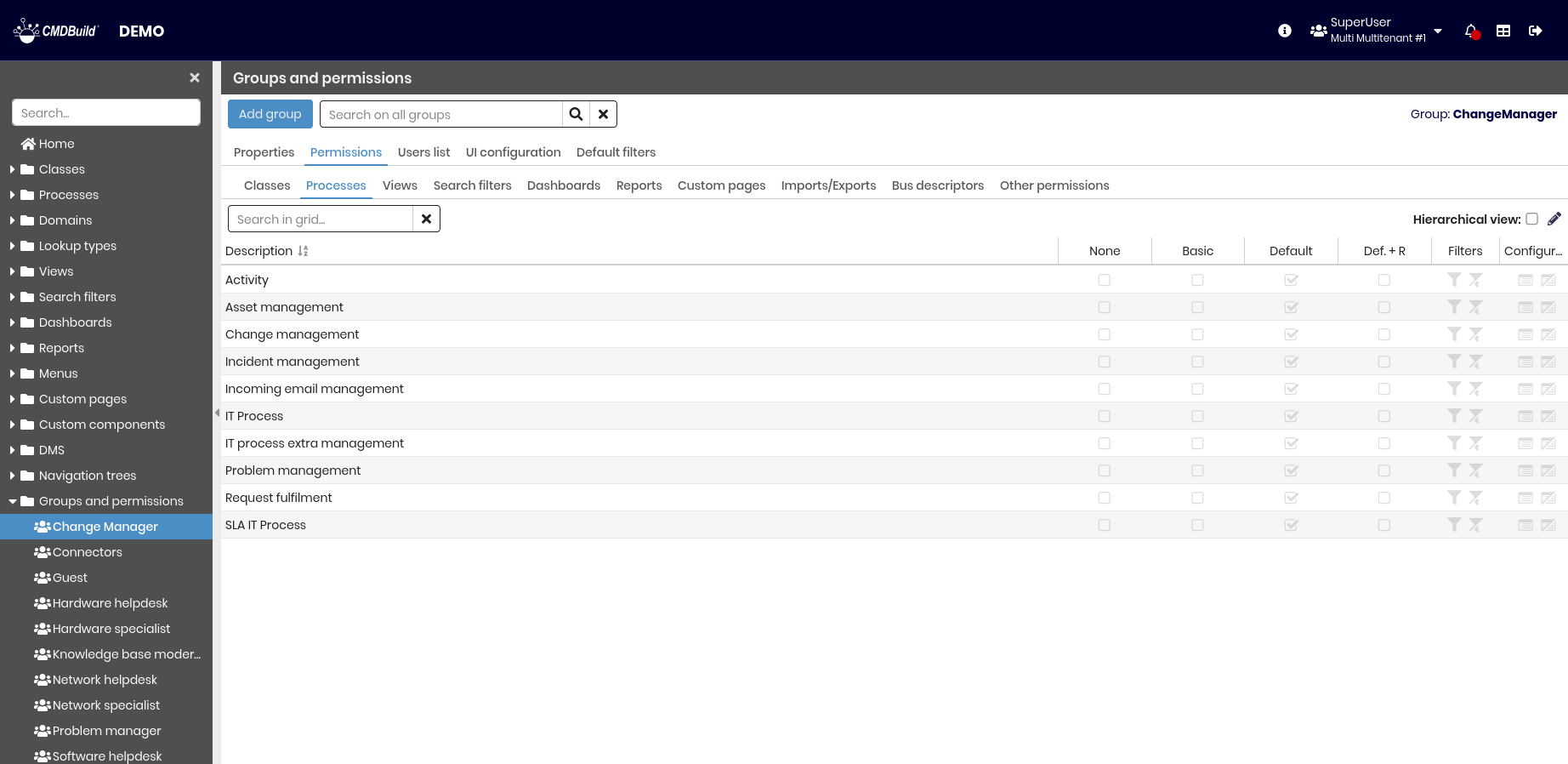
The same features available for classes apply, with the following differences:
- Permission types are:
- None — the process is not visible to the group
- Basic — the process can be managed only if the ongoing activity belongs to the group
- Default — permissions are derived from the XPDL process definition
- Default + Read — default permissions plus read access to the entire process
- GIS privileges are not available, as geographical attributes are not supported in processes
- In the configuration section:
- Single-card permissions cannot be disabled
- You can manage massive abort permissions and attachment handling for closed activities
- Write permissions are not available for tabs, as data is modified only through widgets
Views
This tab allows you to define permissions on views.
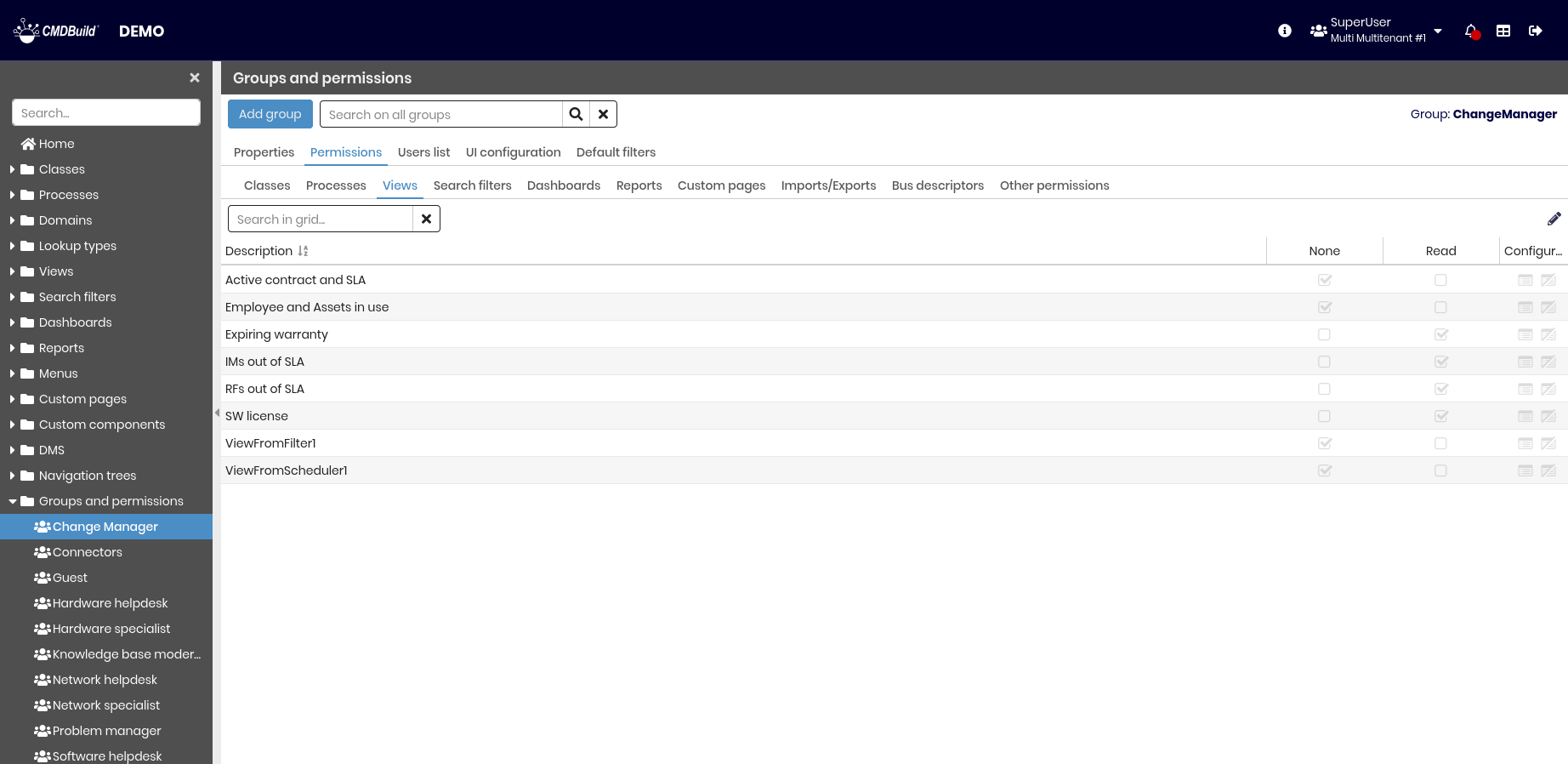
Available permission types are:
- None — the view is not visible
- Read — the view is visible
Filters are not supported. In the configuration dialog, you can only:
- Enable or disable the print action on single cards
- Enable, disable, or restore the default grid search field
Search filters
This tab allows you to define permissions on search filters.
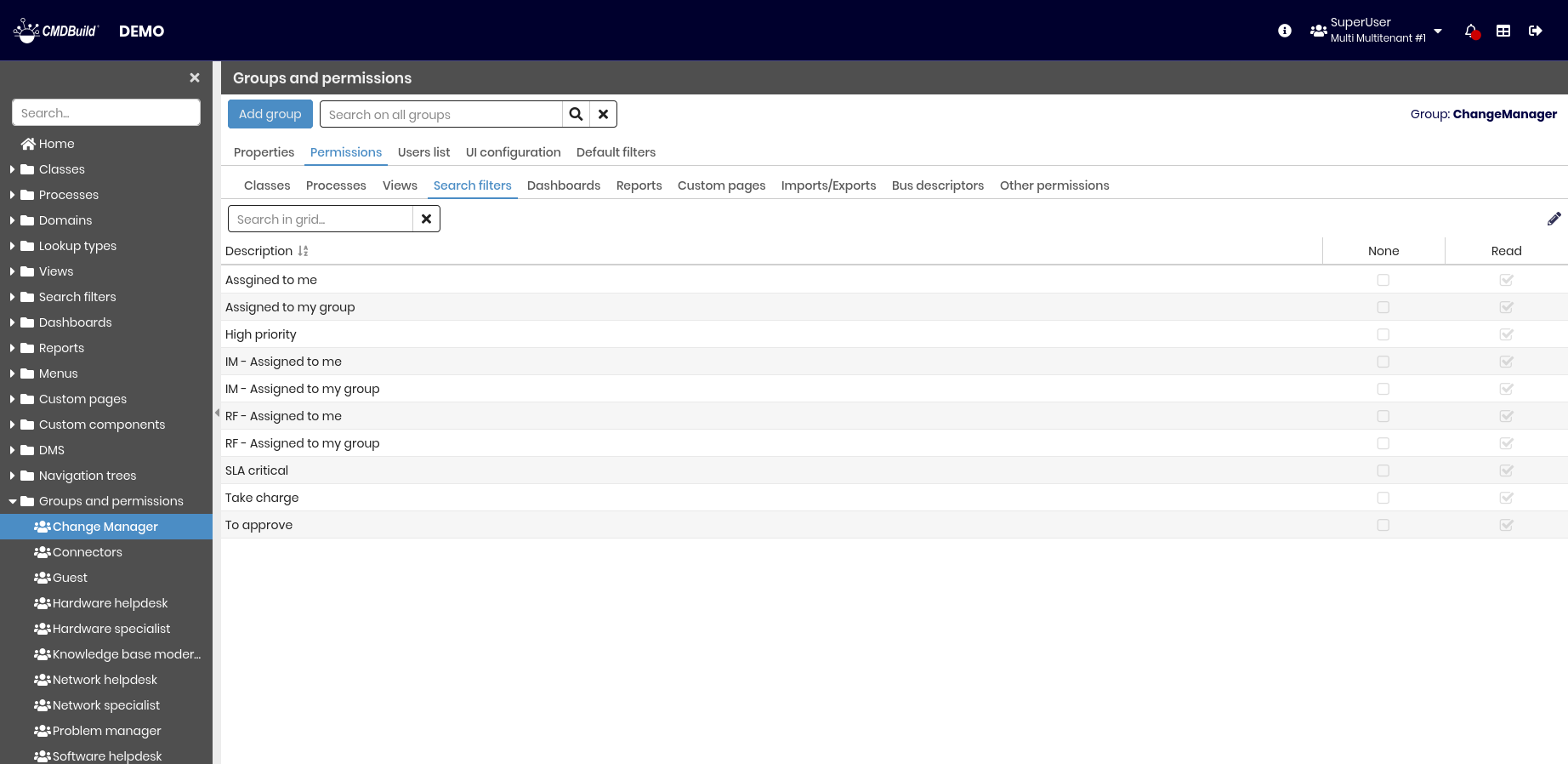
Available permission types are:
- None — the search filter is not visible
- Read — the search filter is visible
Dashboards
This tab allows you to define permissions on dashboards.
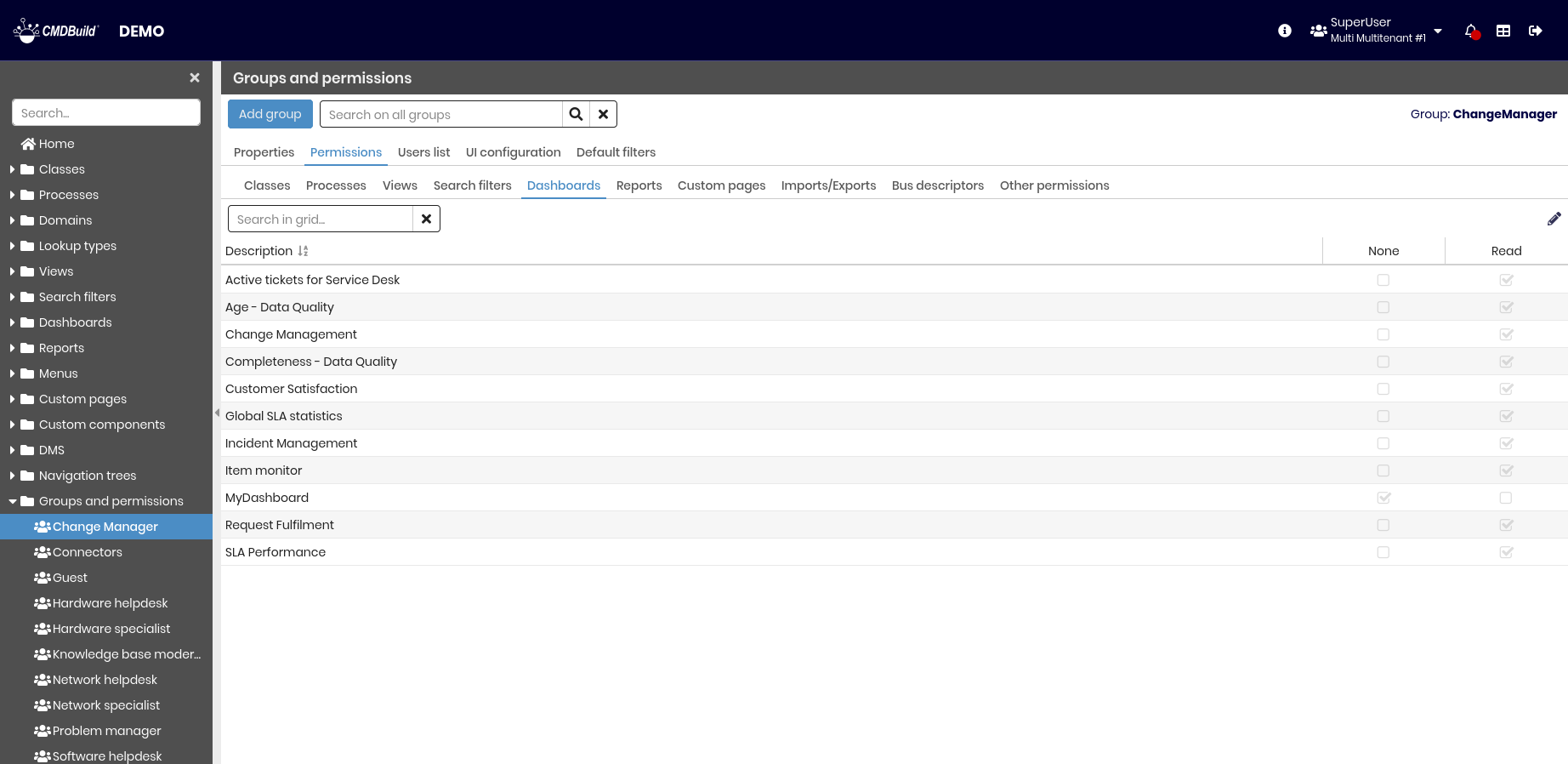
Available permission types are:
- None — the dashboard is not visible
- Read — the dashboard is visible
Reports
This tab allows you to define permissions on reports.
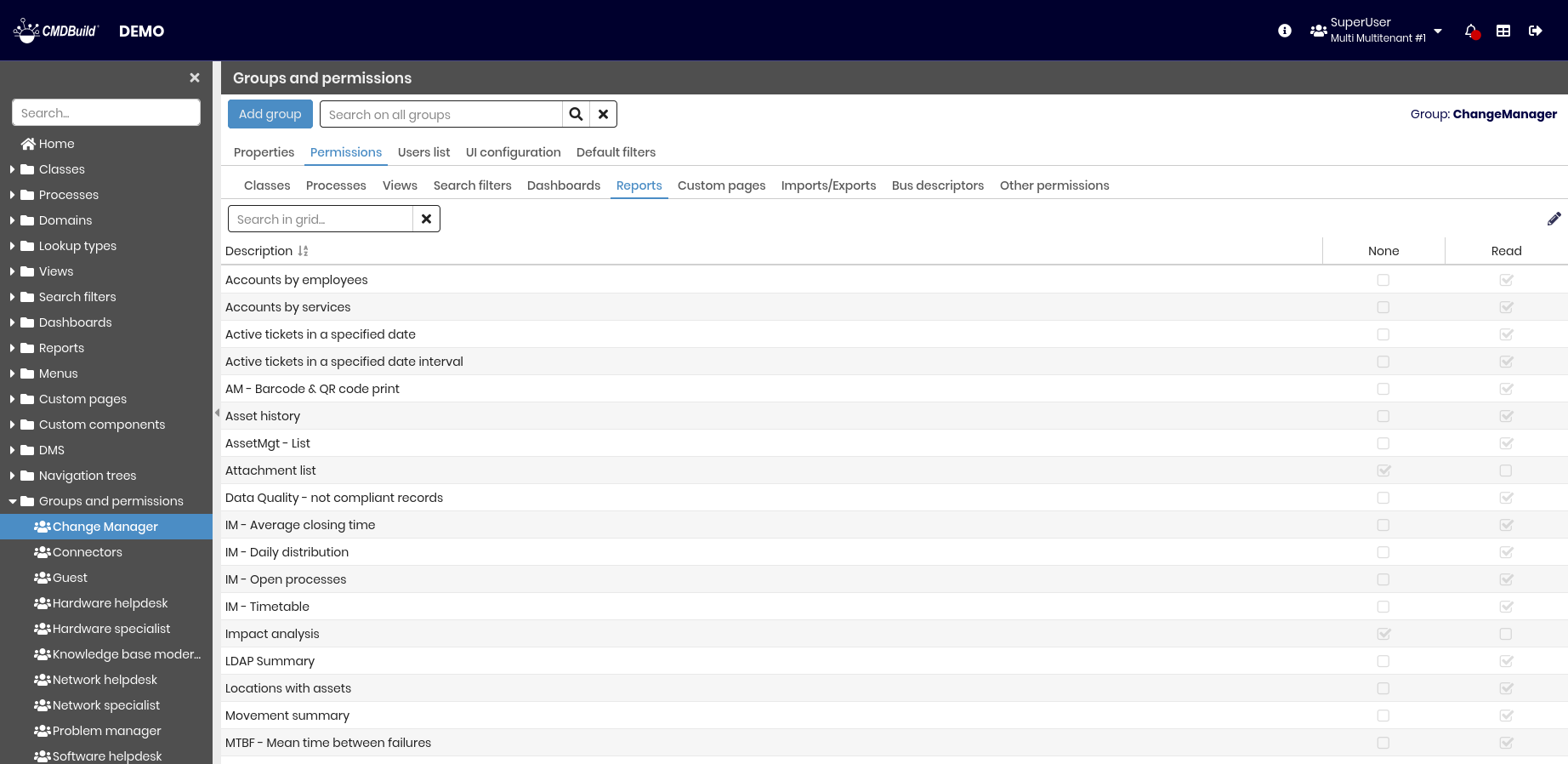
Available permission types are:
- None — the report is not visible
- Read — the report is visible
Custom pages
This tab allows you to define permissions on custom pages.
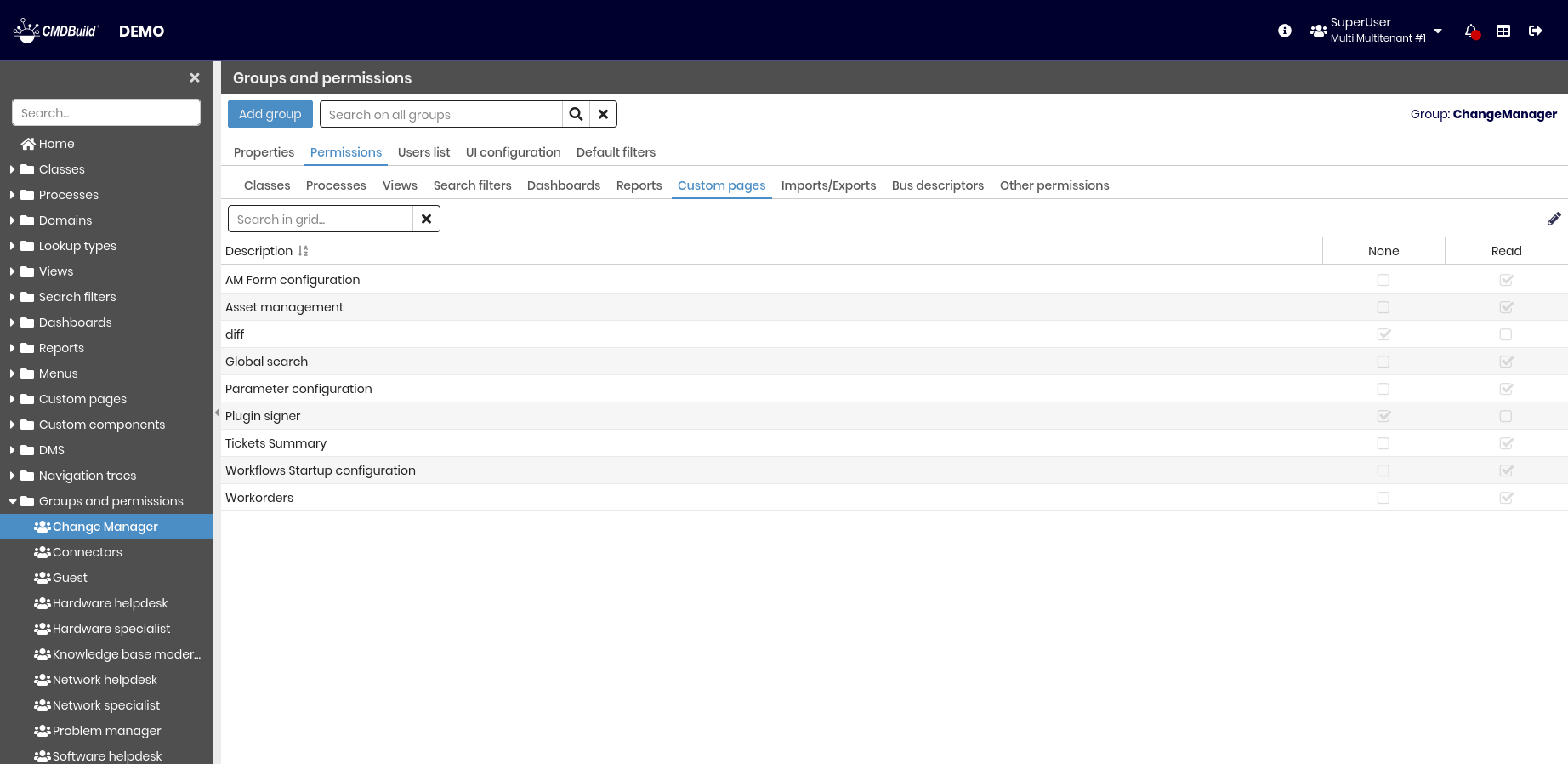
Available permission types are:
- None — the custom page is not visible
- Read — the custom page is visible
Import / Export
This tab allows you to define permissions on Import and Export templates.
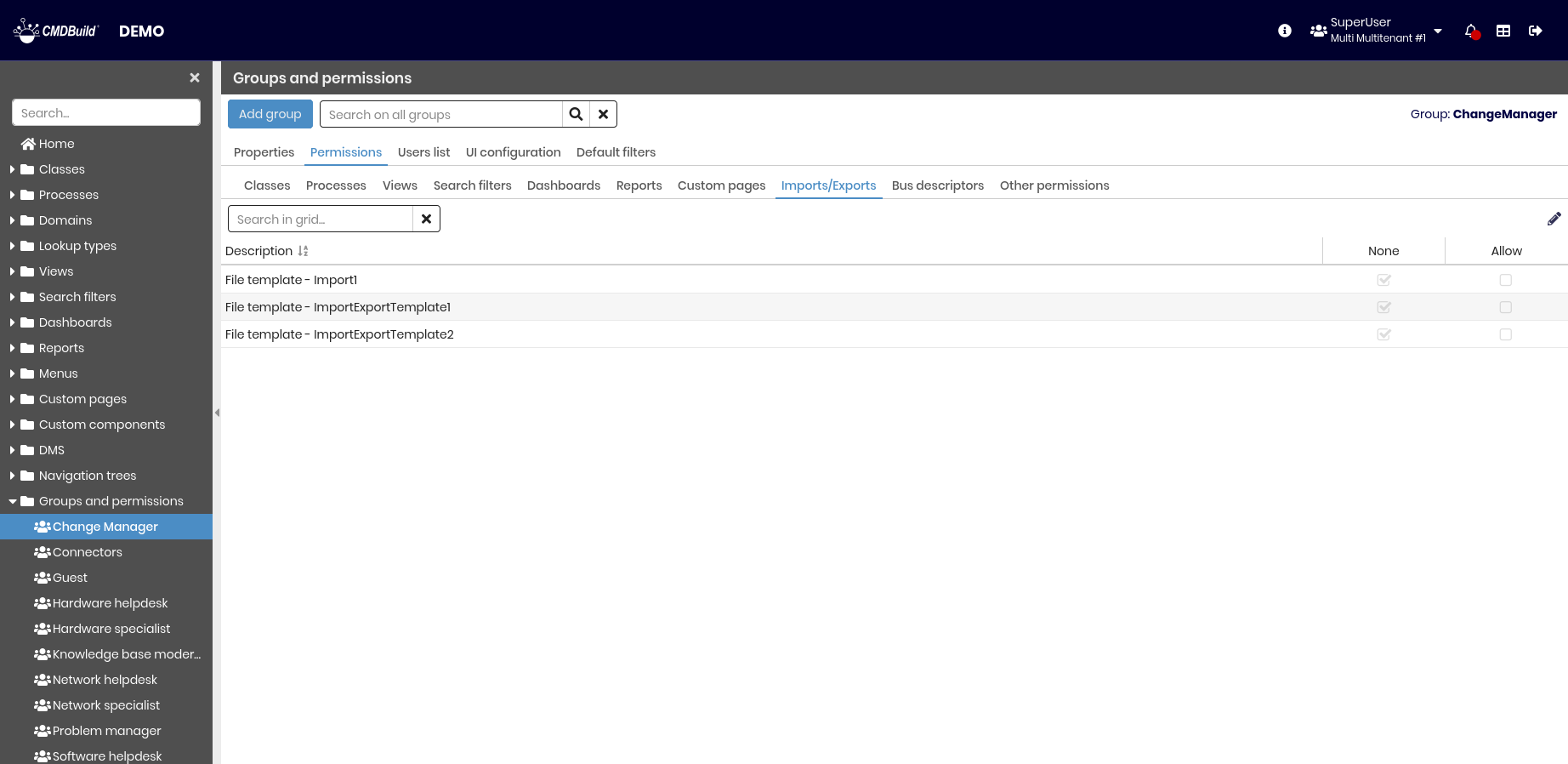
Available permission types are:
- None — the template is not visible
- Read — the template is visible
Bus descriptors
This tab allows you to define permissions on bus descriptors.
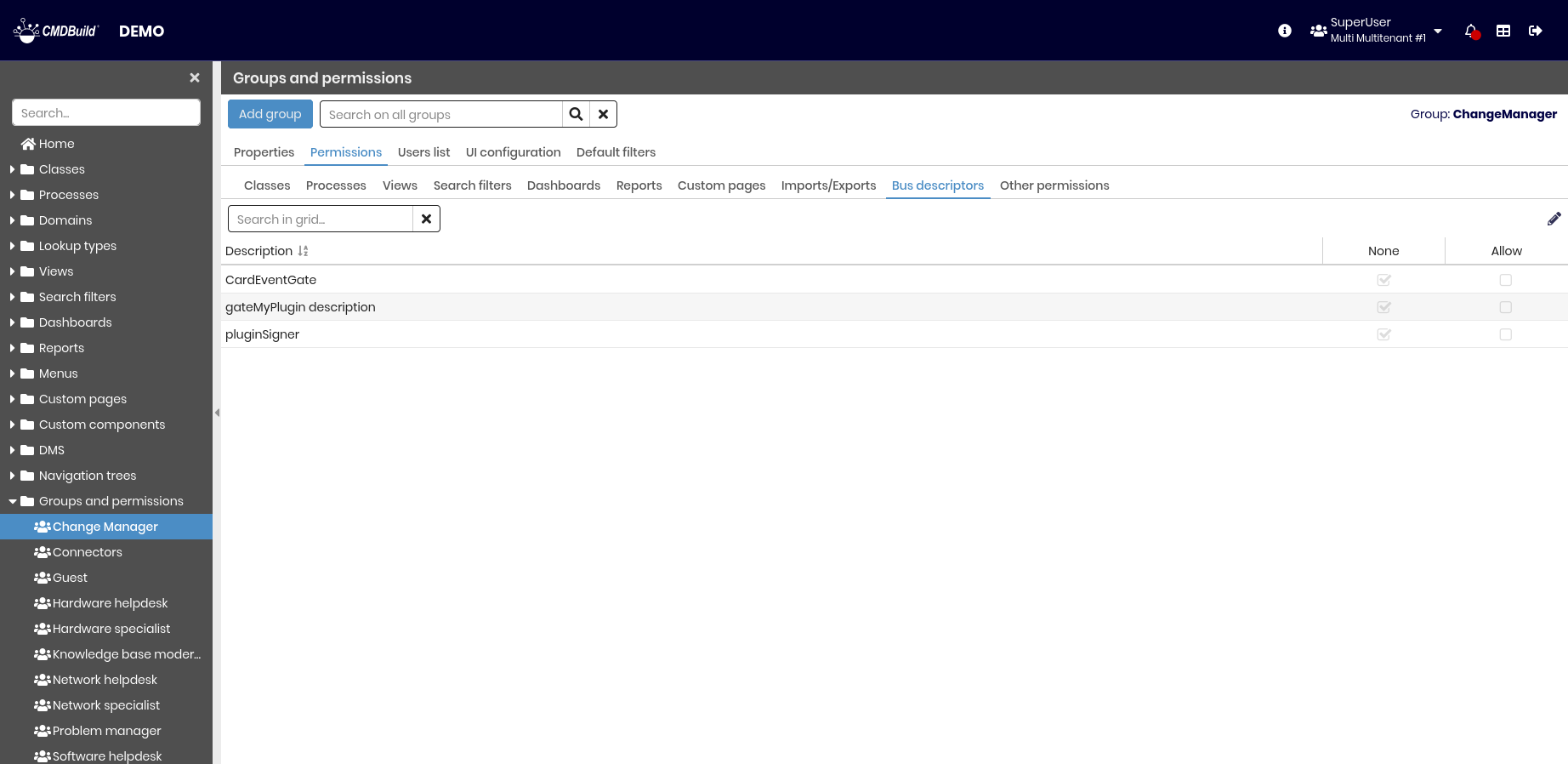
Available permission types are:
- None — the bus descriptor can be executed only by tasks
- Allow — the bus descriptor can also be executed directly, for example through REST web services
Other permissions
This tab allows you to define permissions for additional features: GIS, BIM, relation graph and Scheduler.
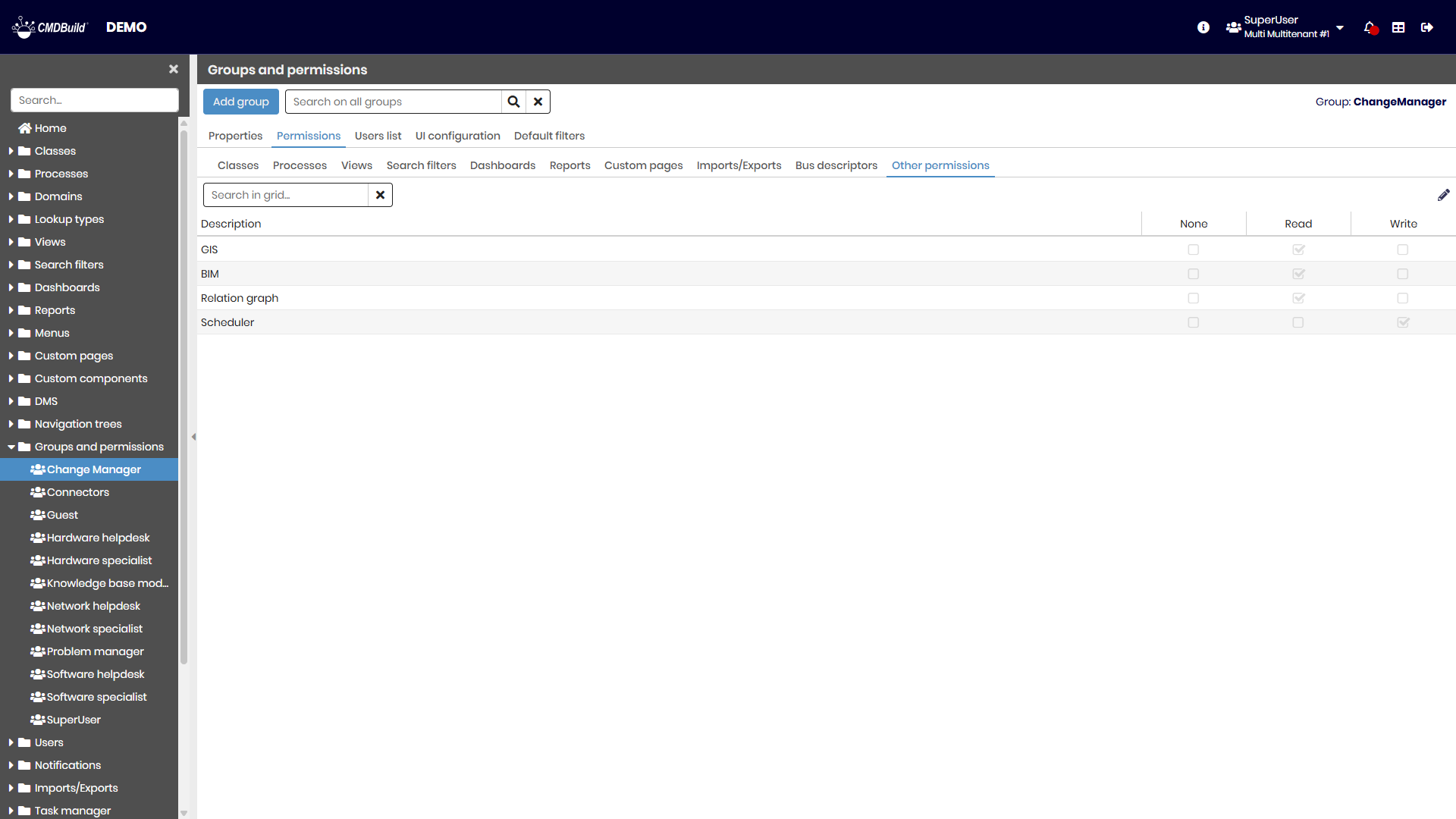
Available permission types are:
- None — the feature is not visible
- Read — the feature is visible
- Write — the feature allows write operations
Users list tab
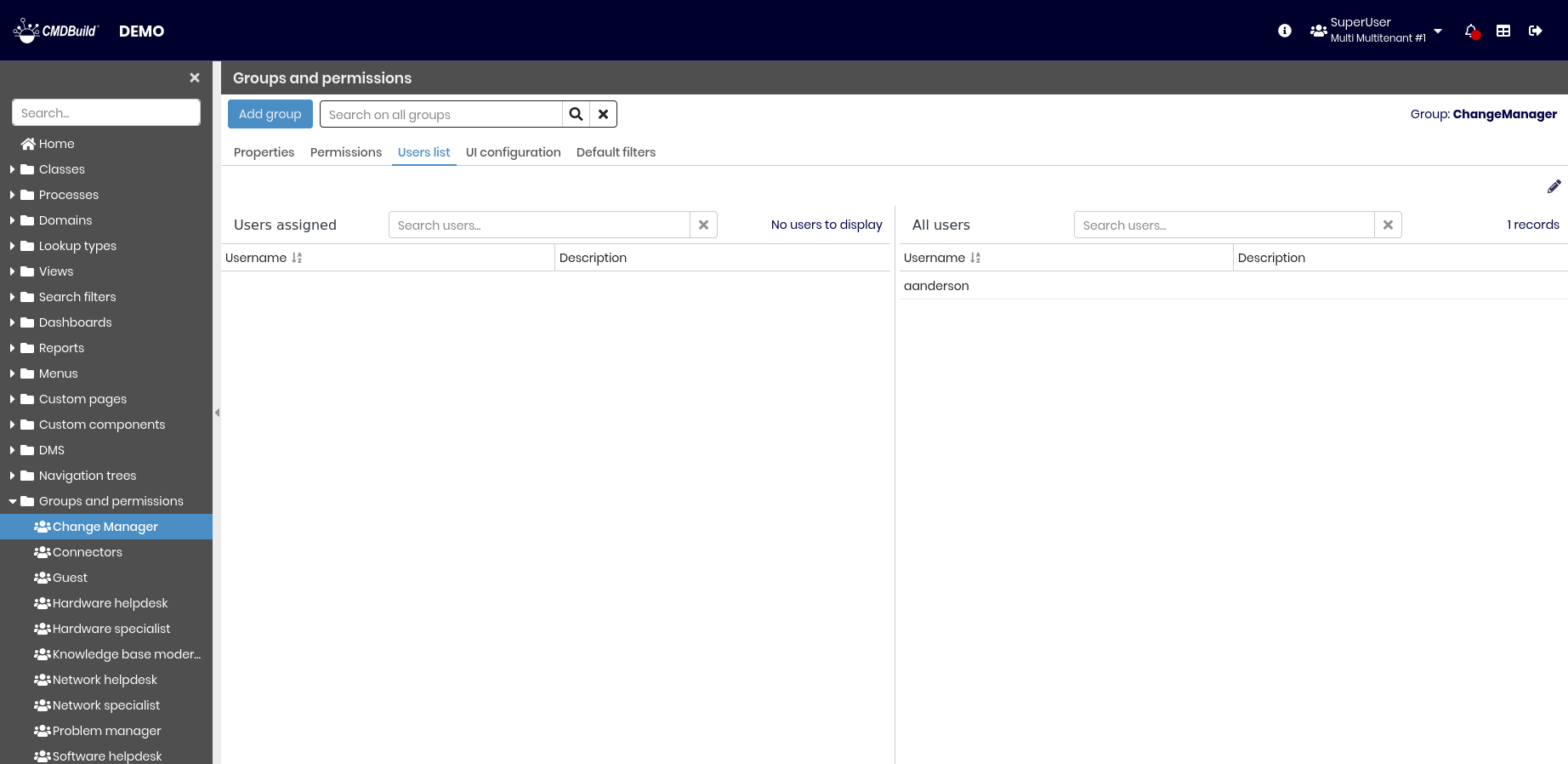
This tab allows you to associate users with the current group. Users can be moved by drag and drop from the list of available users to the list of group members.
UI configuration tab
This tab allows you to configure permissions on user interface elements of the Management Module.
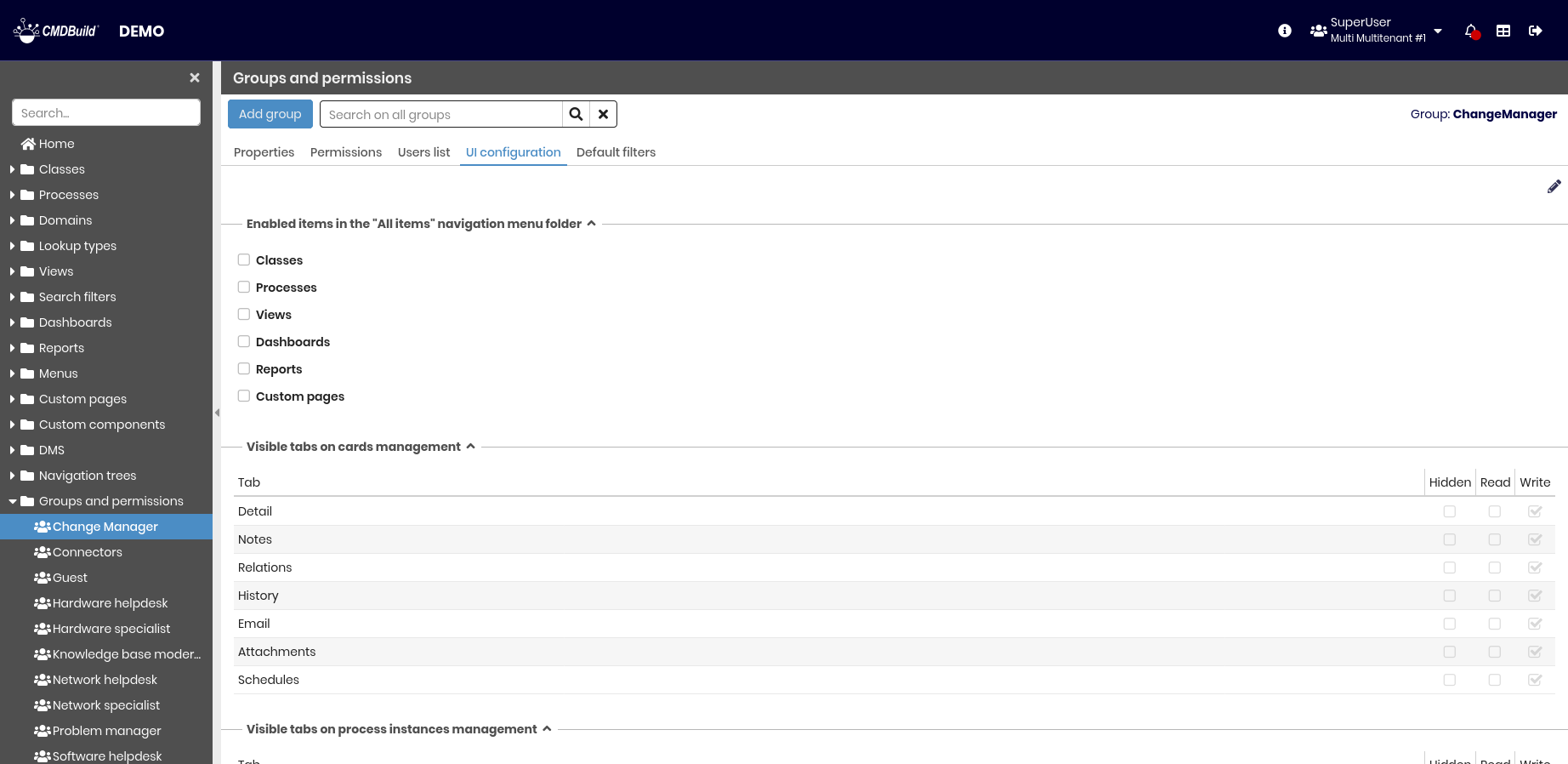
You can enable, disable, or hide:
- Entries in the All items navigation submenu
- Tabs available in class management
- Tabs available in process management
- Massive actions
- CMDBuild chat
The following sections describe each option in detail.
Menu "All items"
You can enable or disable access to classes, processes, views, dashboards, reports, and custom pages.

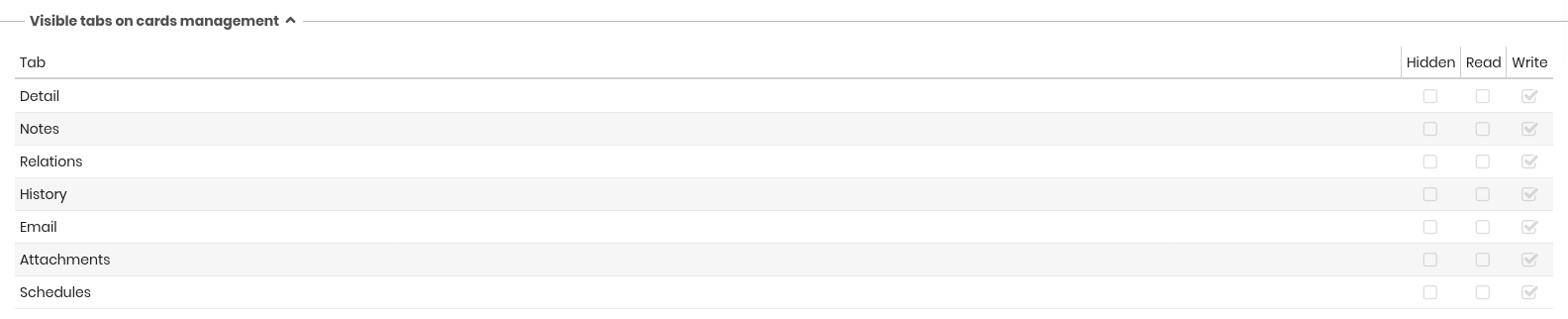
Classes management
You can hide, enable, or disable the following class card tabs: Details, Notes, Relations, History, Email, Attachments, and Schedule.
Process management
You can hide, enable, or disable the following process instance tabs: Notes, Relations, History, Email, and Attachments.

Massive actions
For the current group, you can configure massive edit and delete operations on classes, massive abort on processes and search field in grid.
Available values are:
- Default — inherited from system configuration
- Enabled
- Disabled

Chat
You can enable or disable the CMDBuild chat for the current group.

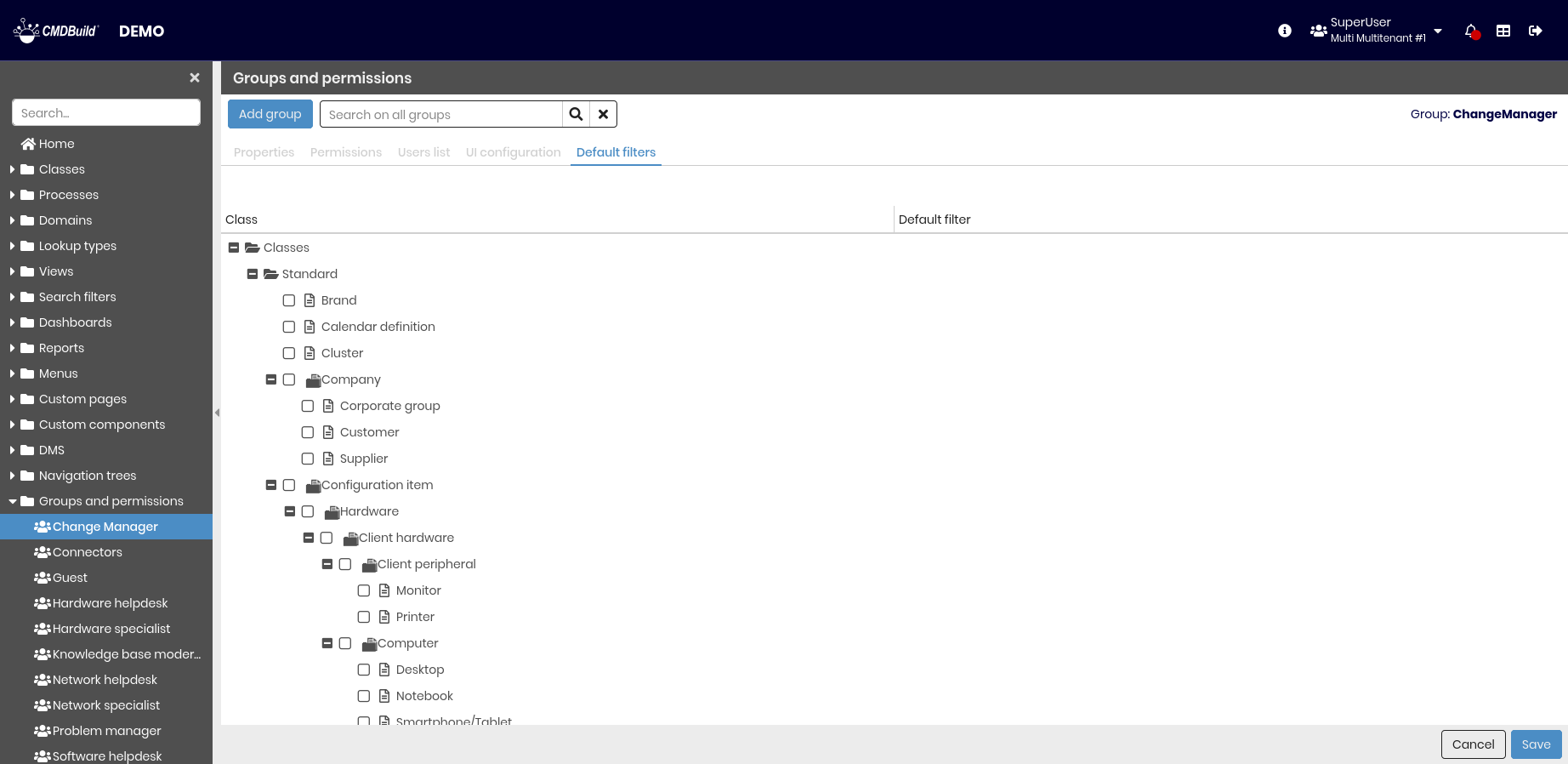
Default filters tab
This tab allows you to define default filters applied in the Management Module when a user of the current group accesses a class or process.
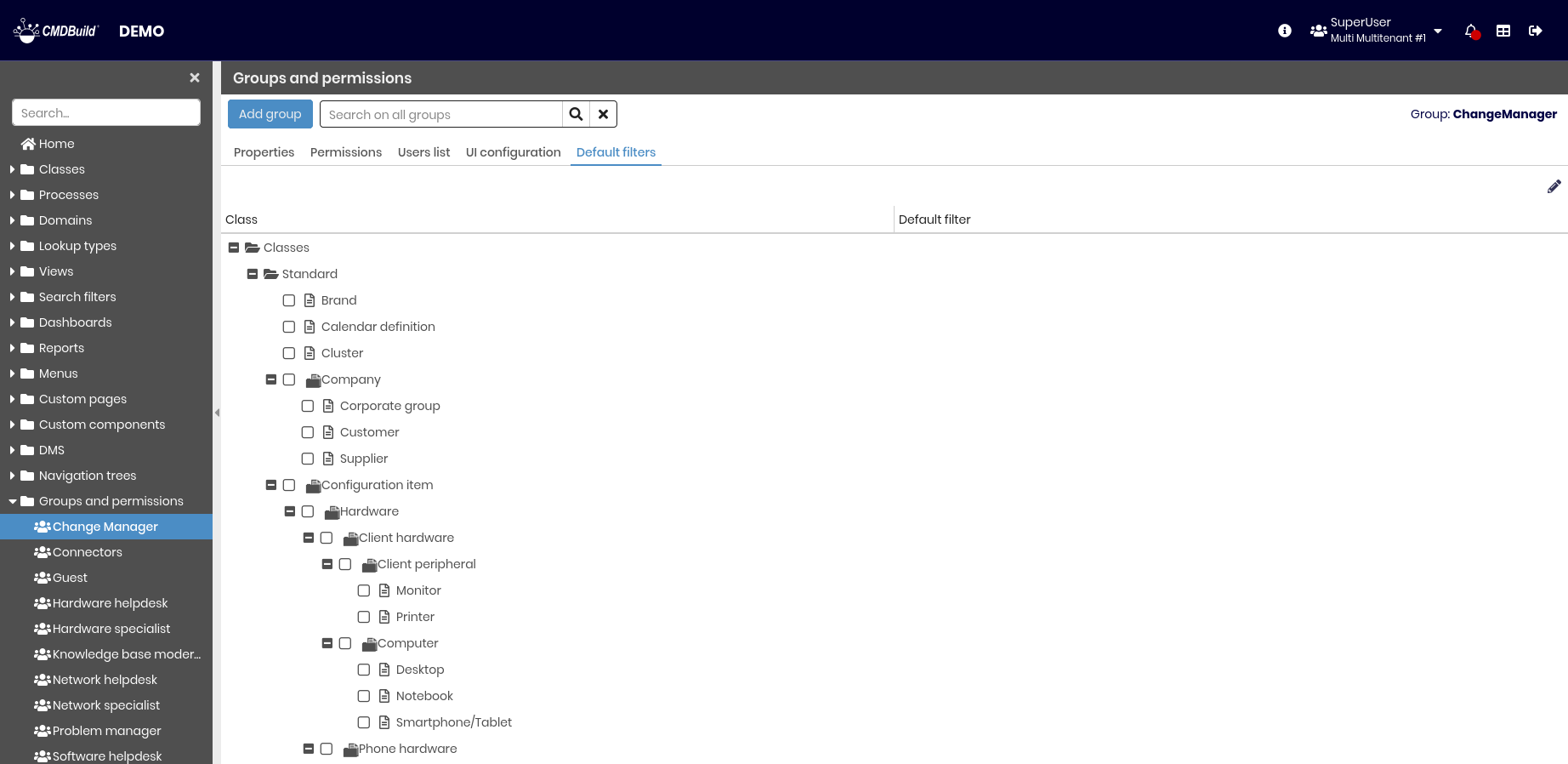
A tree view displays the class and process hierarchy. For each element, you can select a default filter from those configured using the related search filters.