Localization
In CMDBuild there are two localization typologies:
- First-level localization: related to the base CMDBuild interface (menu texts, standard buttons, headers, footers, etc.)
- Second-level localization: related to all application elements (class names, attributes, domains, lookups, menu entries, etc.)
First-level localization is managed through external system files.
Second-level localization is managed within this Administration Manual, by working on each page where elements include texts to be localized, or globally through the features described in this chapter.
Configuration
In the configuration page you can select the default language of the CMDBuild default instance, decide to permit or not to choose the language when logging in and select the languages for the current instance, among those with the first-level localization.
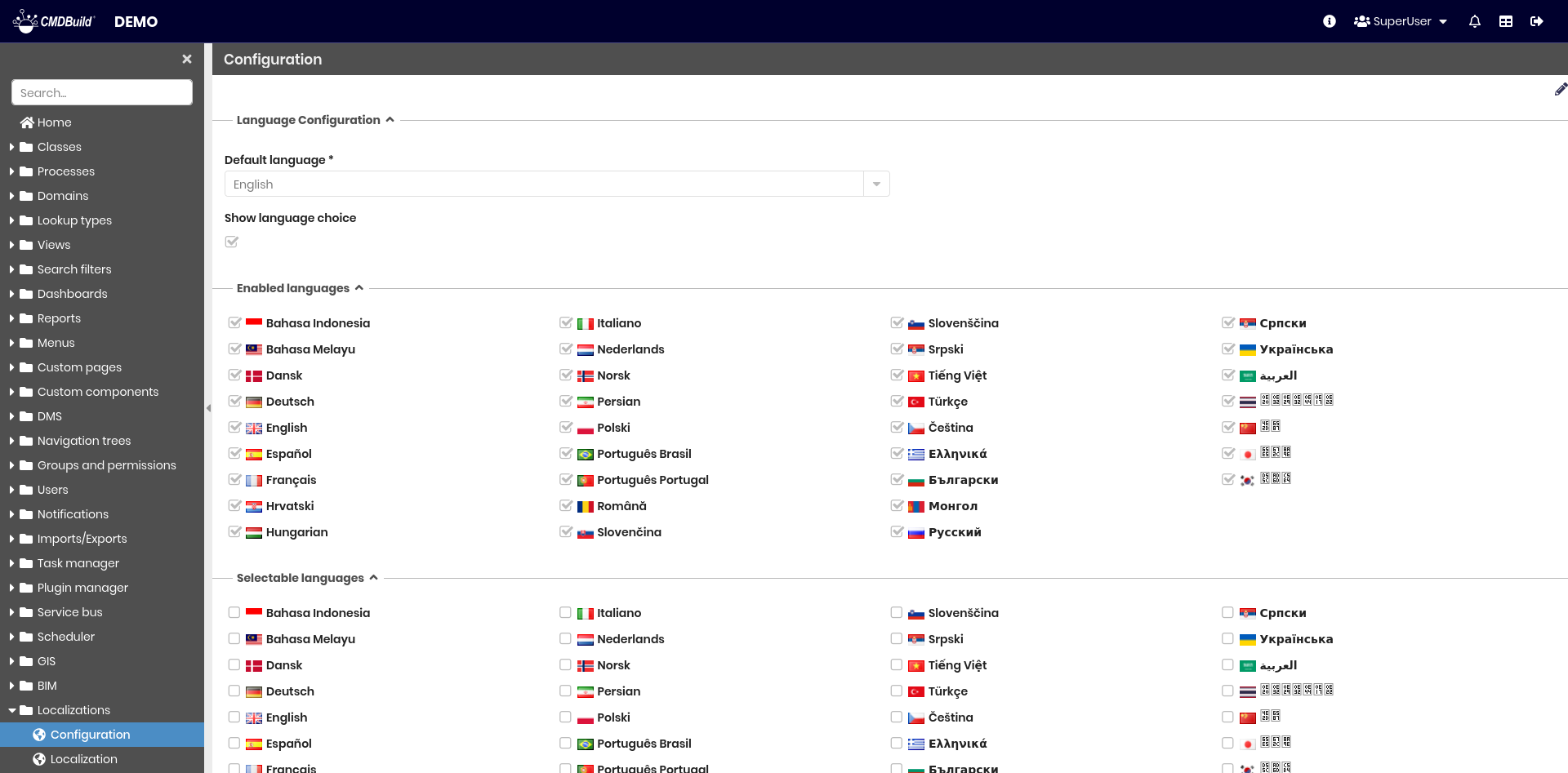
There is the possibility of performing the following operations:
- enter the edit mode to edit the configuration parameters
The parameters to configure the localization are divided in the two sections described as follows.
Language configuration
The following information is required:
- Default language: default language for the CMDBuild instance
- Show language selection: displays the list of available languages when logging in

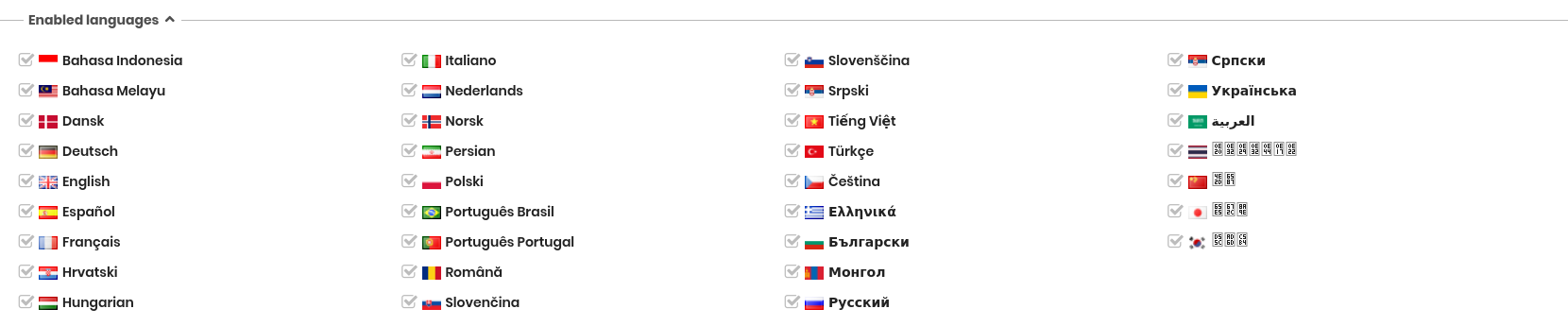
Enabled languages
You can select the languages enabled for localization among those providing first-level localization.
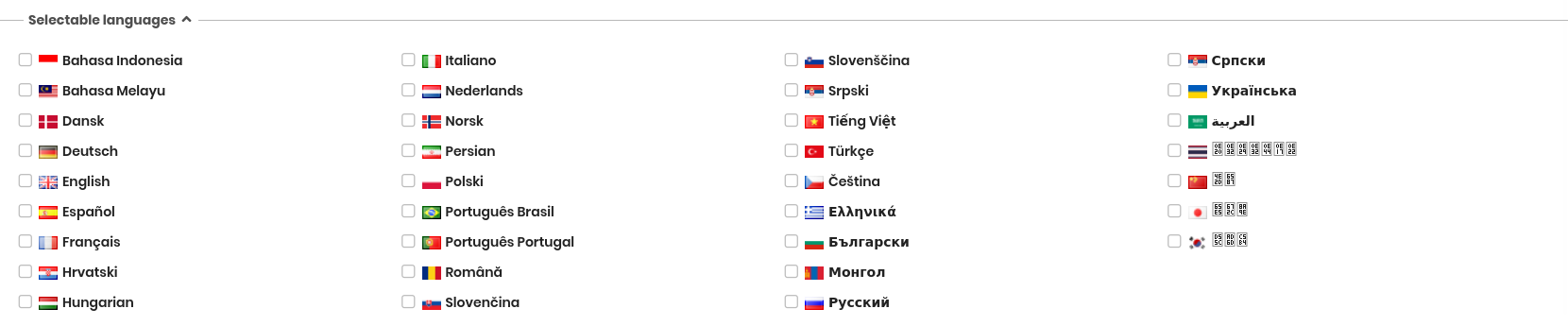
Selectable languages
You can select the languages available at login.
Localization
The localization interface offers a single point from which to work on every translation:
- Classes: class descriptions, attribute group descriptions, attribute descriptions
- Processes: process descriptions, attribute group descriptions, attribute descriptions
- Domains: domain description, direct description, inverse description, Master Detail label
- Views: view descriptions
- Search filters: search filter descriptions
- Lookup: lookup list heading descriptions
- Report: report descriptions
- Dashboard: dashboard descriptions, histogram axis labels, legend labels
- Groups: user group descriptions
- Menu: folder descriptions and descriptions of items inserted in the menu
Each type of element is managed in a dedicated tab of the interface.
From the localization page you can also import localizations provided by contributors or export your own localizations to share with third parties.
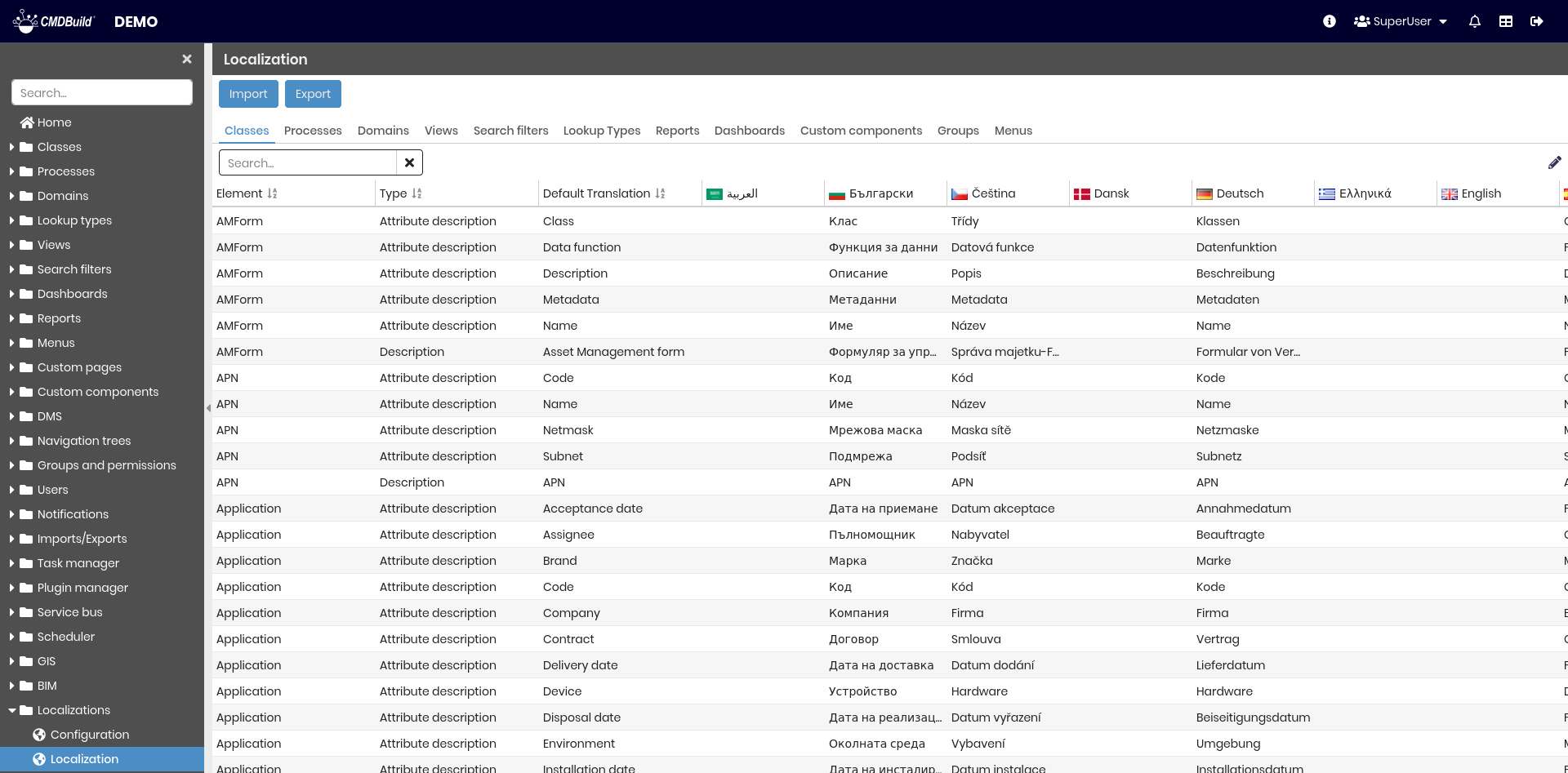
From this page you can perform the following operations:
- Perform a search
- Import a localization in CSV format
- Export a localization in one or more languages in CSV format
- Edit the localizations
For each language enabled for localization, a dedicated column allows you to view, add and modify translations.
TAB Classes
Elements to translate:
- Class description
- Attribute description
- Attribute group (fieldset) description
Example of the classes localization interface:
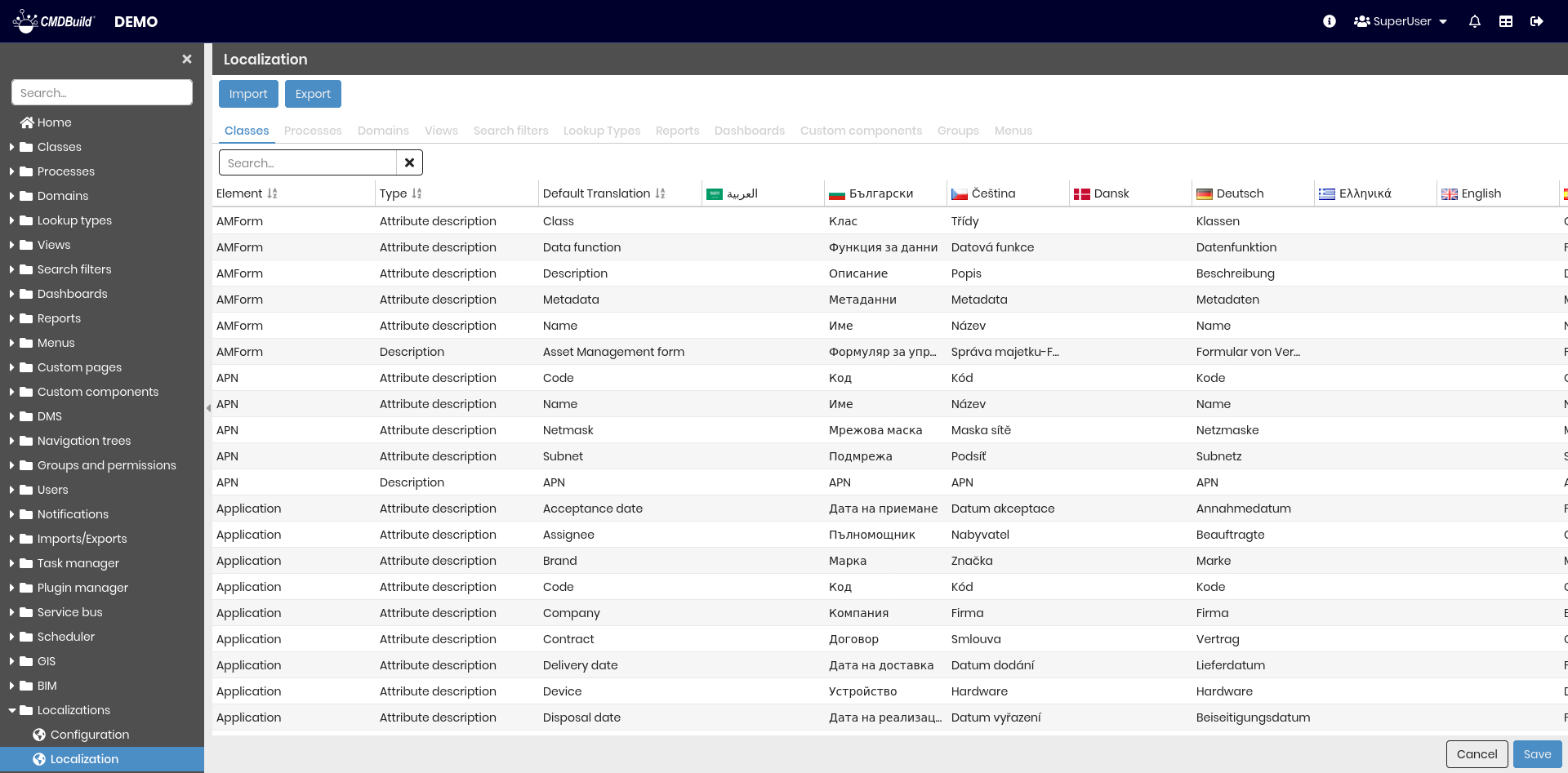
The management of the other tabs is similar, except for the Menu tab described below.
Menu tab
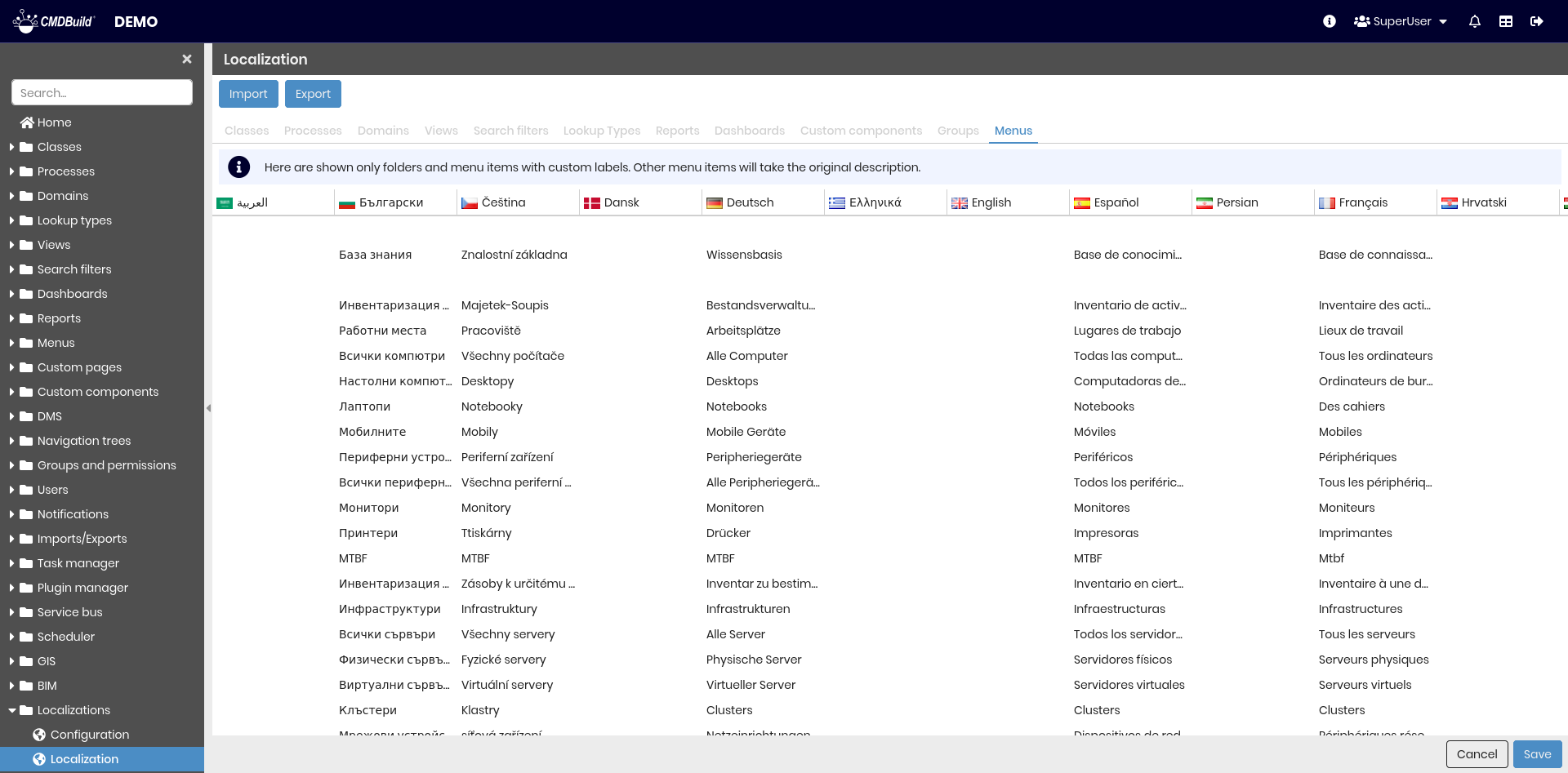
Elements to translate are the names of the single menu entries.
Here's a screenshot of the user interface of menu localization.
Import
The import feature allows you to load a localization provided by Tecnoteca or other contributors.
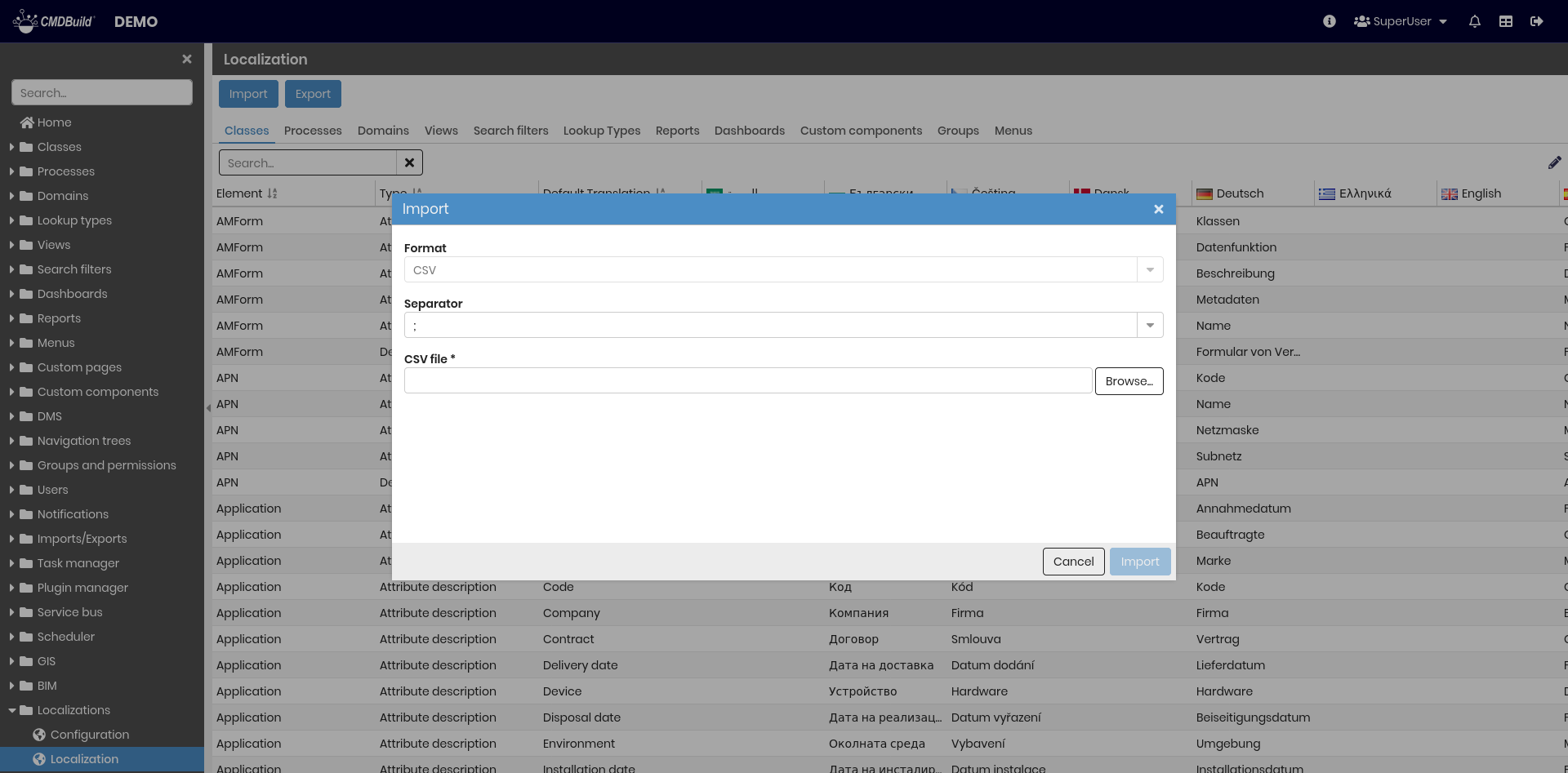
The import page includes the following fields:
- Format: CSV (not editable)
- Separator: selectable among "," ";" or "|"
- File: the file to upload
Here's a sample of interface screenshot.
Export
The export feature allows you to export your own localizations to share with other users.
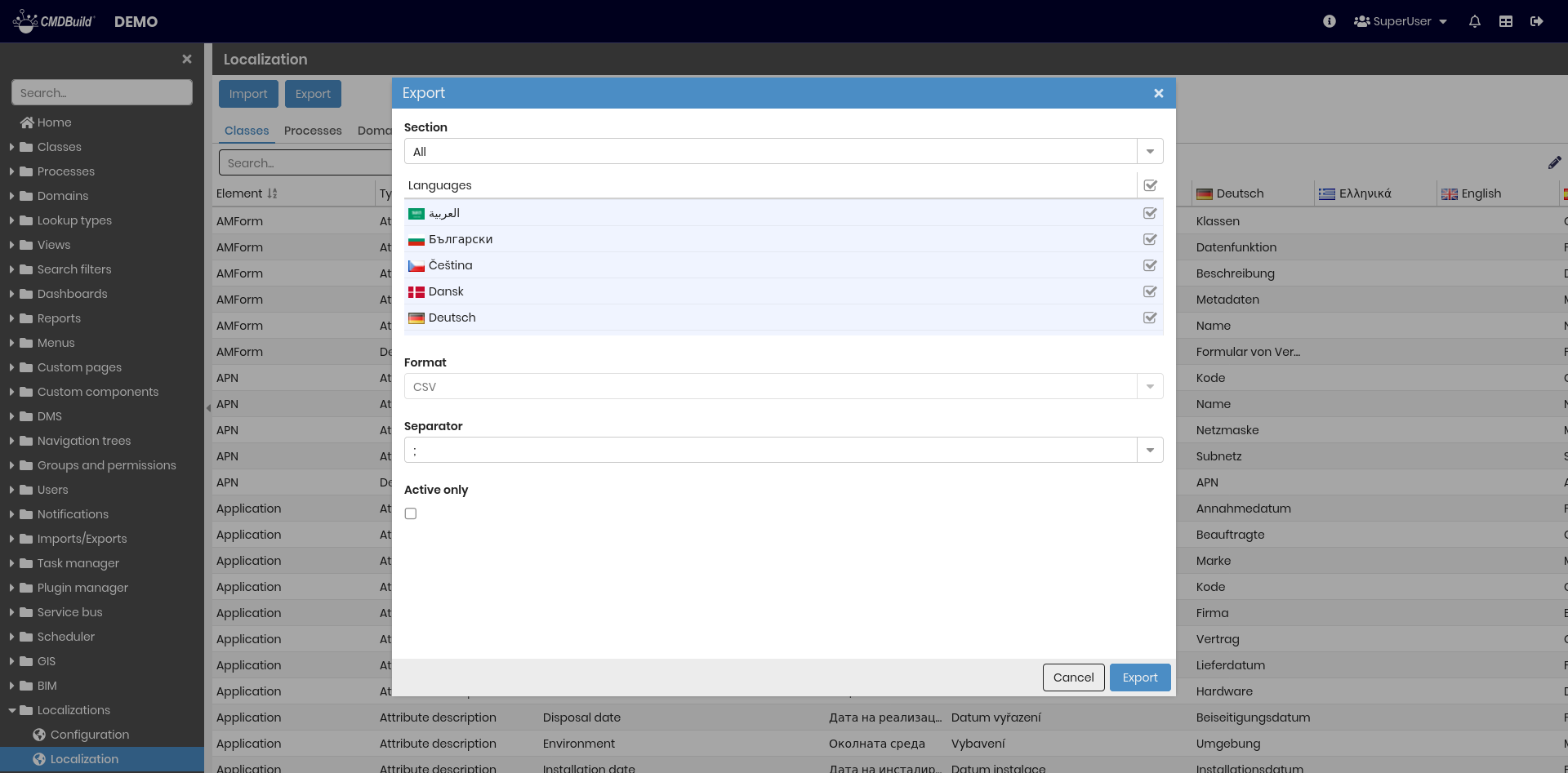
The export page includes the following fields:
- Section: All, Classes, Processes, Domains, Views, Search filters, Lookups, Reports, Menu
- Languages: languages to export (among the enabled ones)
- Format: CSV (not editable)
- Separator: selectable among "," ";" or "|"
- Only active: exports only localizations of active elements
Here's a sample of interface screenshot.