GIS
CMDBuild allows you to georeference cards on geographical maps and planimetries when a geographical attribute is configured.
Supported geographical attribute types are point, line, polygon, shape, and GeoTIFF.
Manage icons
This section allows you to create and maintain the list of icons used to represent markers.
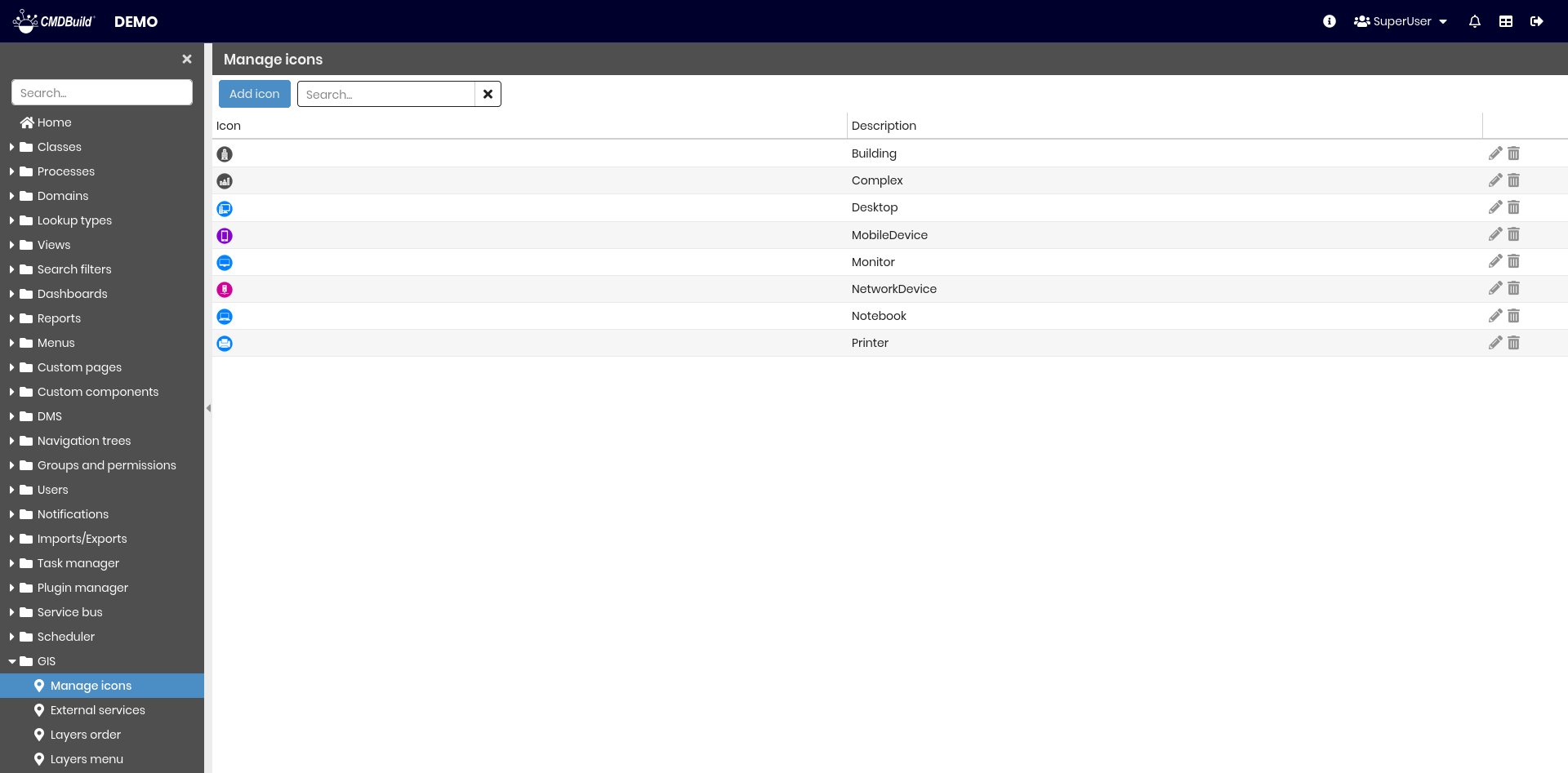
The following operations are available.
-
Top bar
- Add a new icon
- Search icons in the list
-
Single row actions
- Edit the selected icon
- Delete the selected icon
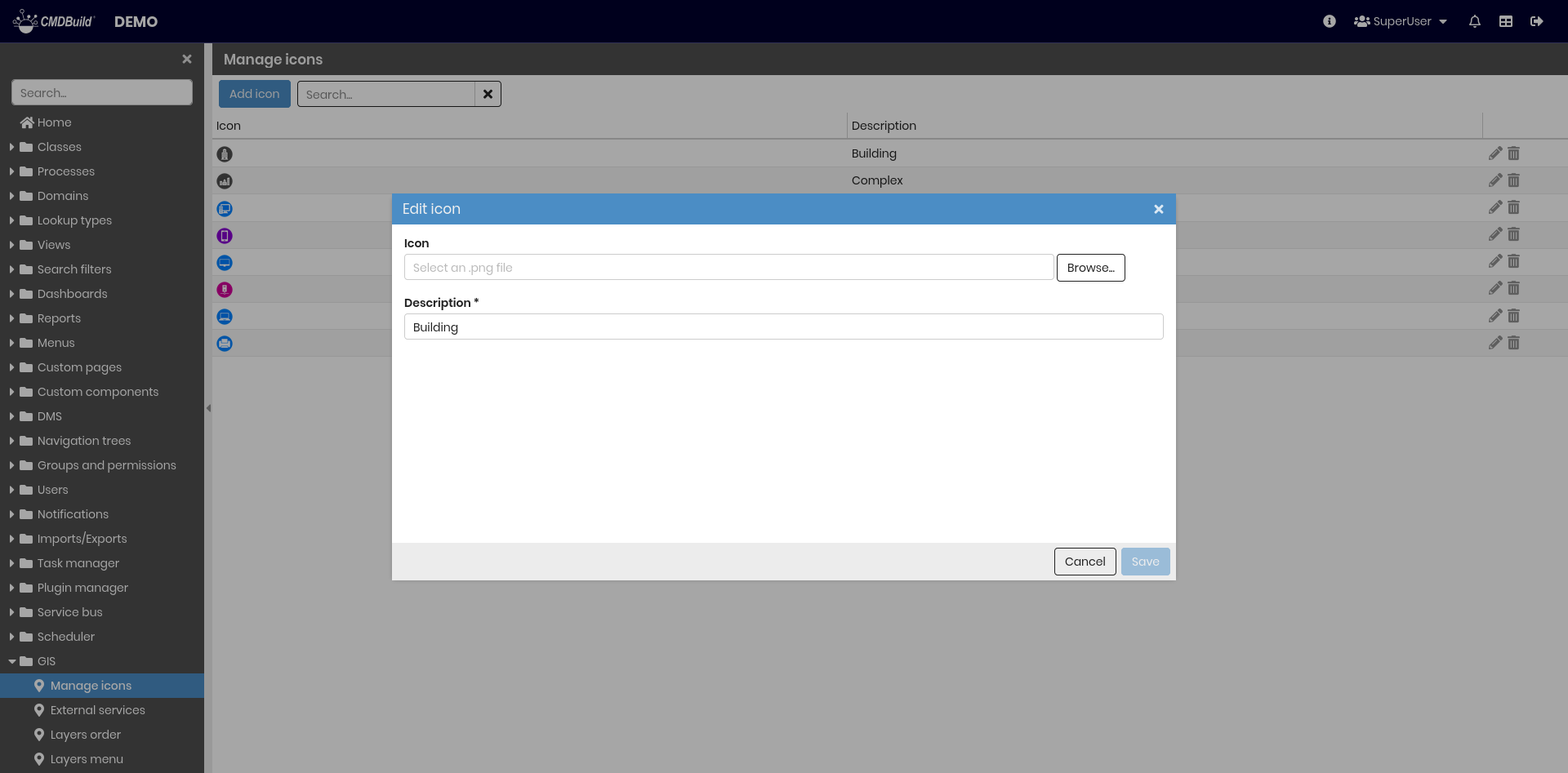
Uploading a new icon or modifying an existing one is performed using the following dialog where the following information is required:
- Icon — PNG file with size 32x32 or 64x64 pixels
- Description — icon description
External services
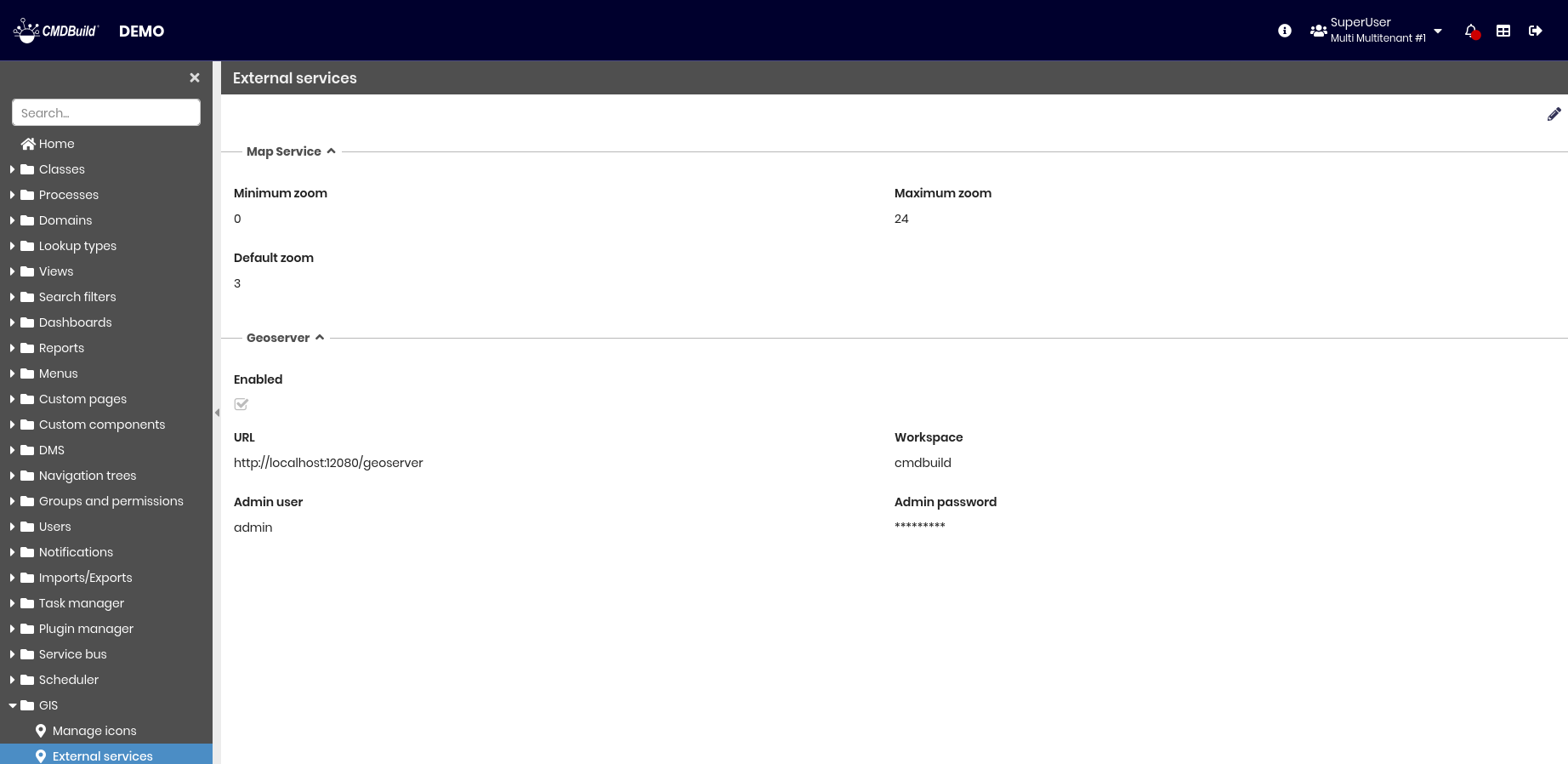
This section allows you to configure map zoom levels and enable external services used as background layers to represent and georeference cards.
The supported external service is GeoServer, typically installed locally, which allows loading vector data such as Shape files (planimetries) and raster layers.
Map service
The following information is required.
- Minimum zoom — minimum zoom level for map display
- Maximum zoom — maximum zoom level for map display
- Default zoom — default zoom level for map display

GeoServer
The following information is required.
- Enabled — indicates whether GeoServer is enabled
- URL — GeoServer service address
- Workspace — workspace name
- Admin username — GeoServer administrator username
- Admin password — GeoServer administrator password

Layers order
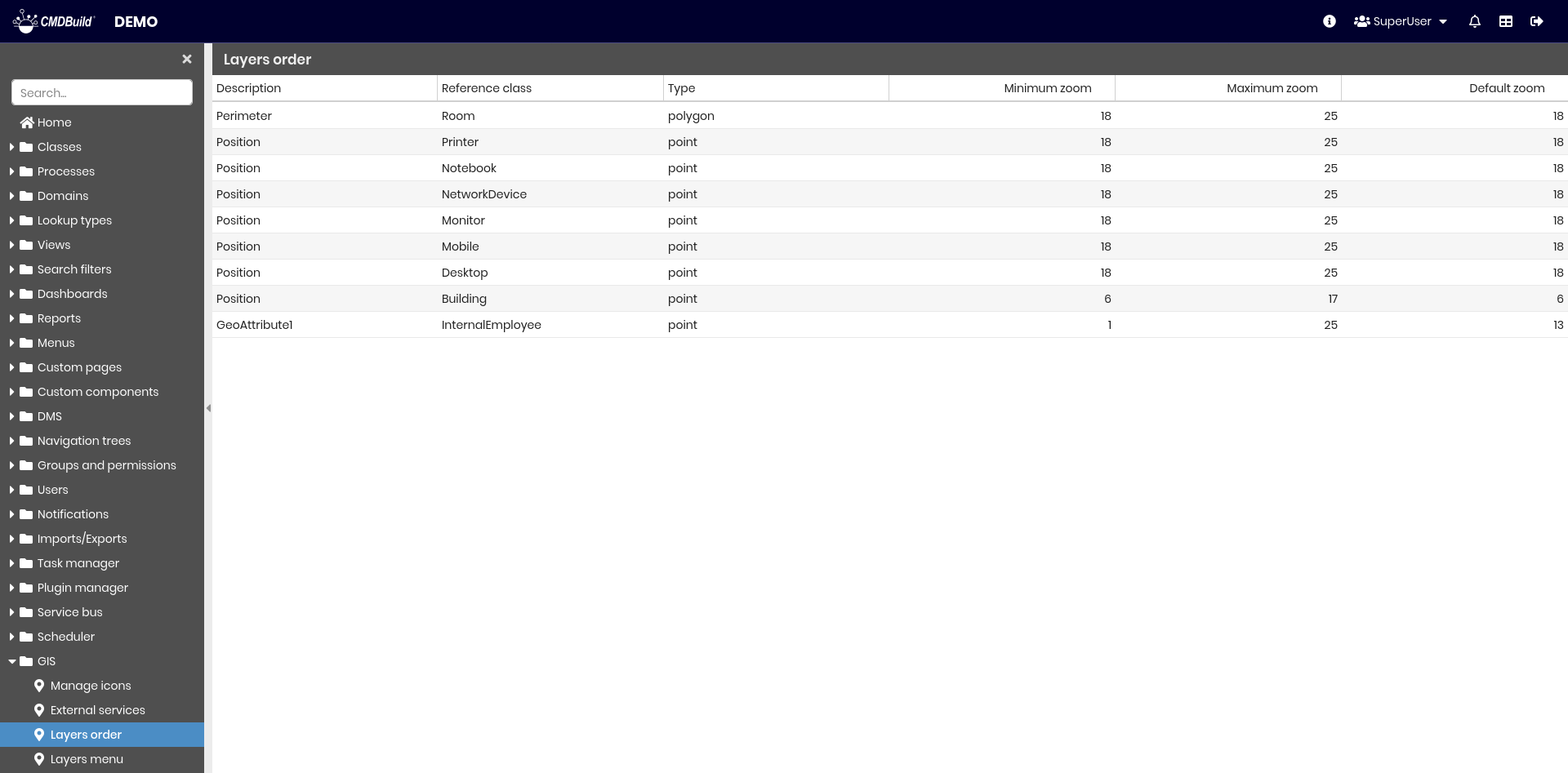
This section allows you to define the visualization order of layers on the map.
CMDBuild manages layers related to geographical attributes (such as asset locations, polygons, and room surfaces) within the PostgreSQL database using the PostGIS spatial extension.
Each layer corresponds to a geographical attribute configured in a class. The order can be modified by dragging and dropping rows in the list.
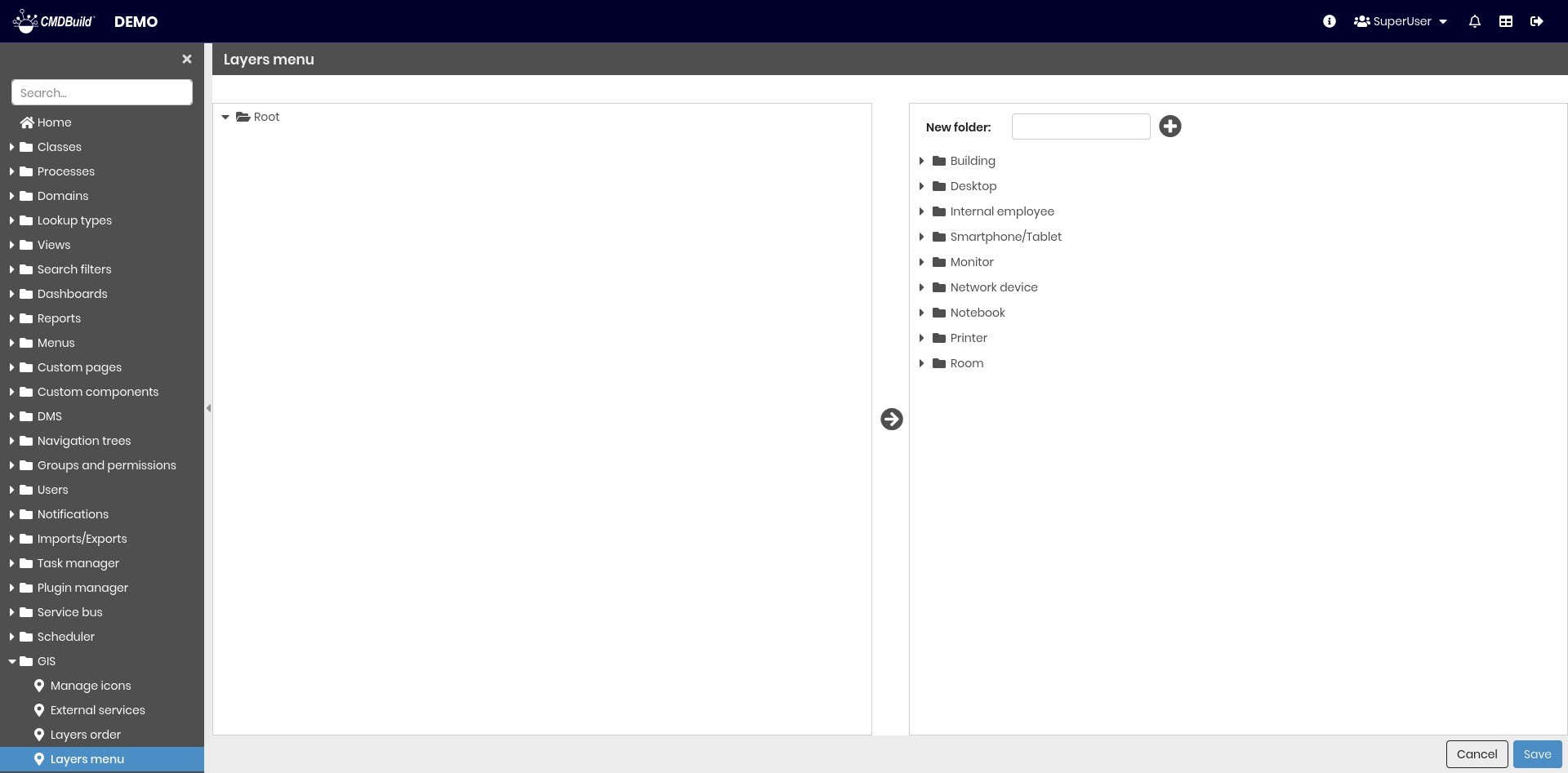
Layers menu
This section allows you to configure the menu used to browse map layers.
The menu is displayed in the Layers tab and follows the same configuration logic as the main CMDBuild menu.
Folders can be created and layers can be arranged using drag and drop.
GIS navigation tree
The Navigation tree tab in the Management Module requires a GIS navigation tree configuration.
This tree guides the user through hierarchical navigation of georeferenced cards on maps and planimetries.
The structure defines how elements are organized and displayed. For example, expanding a Floor card shows related Room cards, and expanding a room shows related Asset cards. All elements can be highlighted on the map.
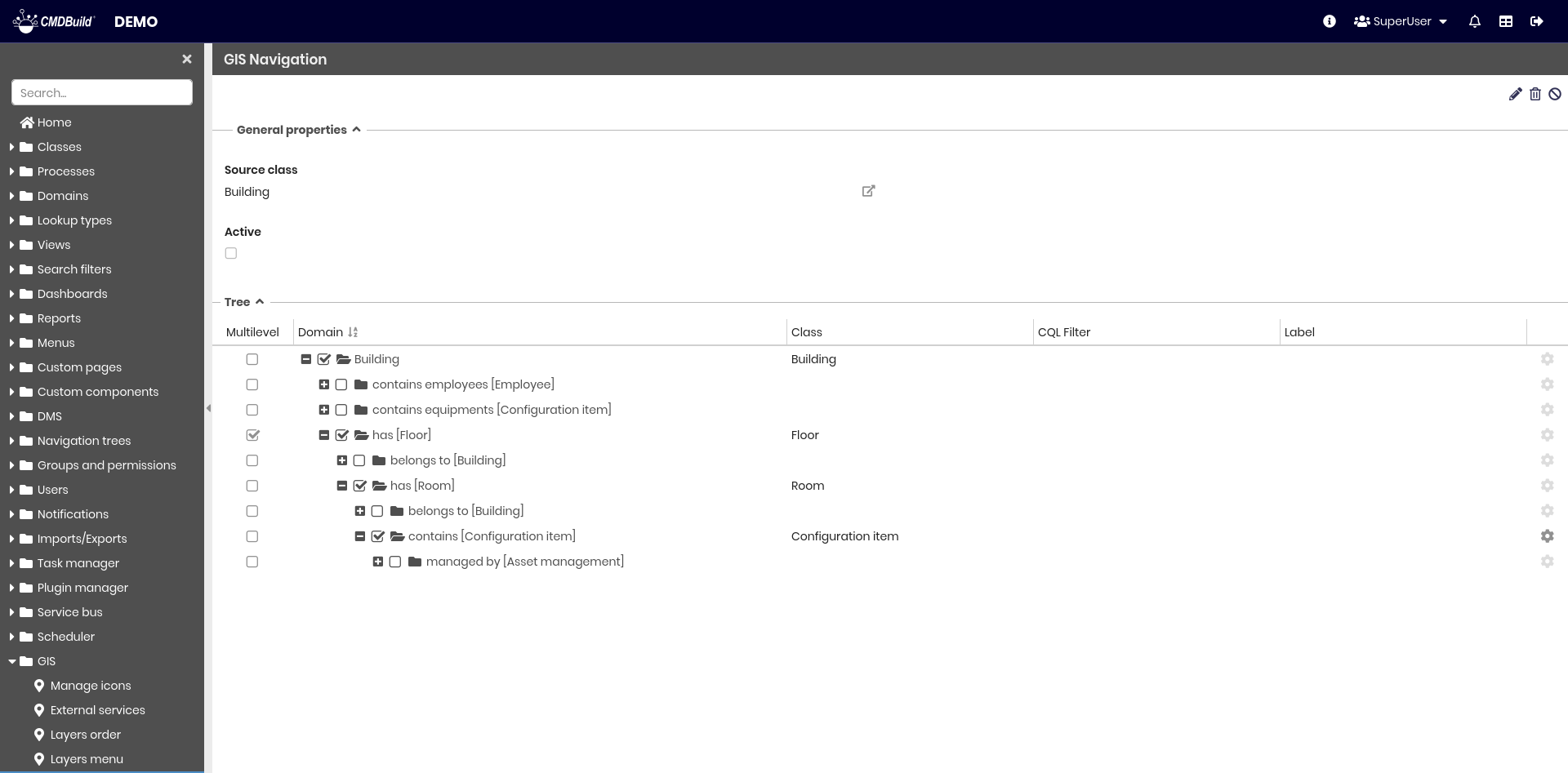
The following operations are available using the top-right toolbar:
- Edit the GIS navigation tree
- Delete the GIS navigation tree
- Enable or disable the GIS navigation tree
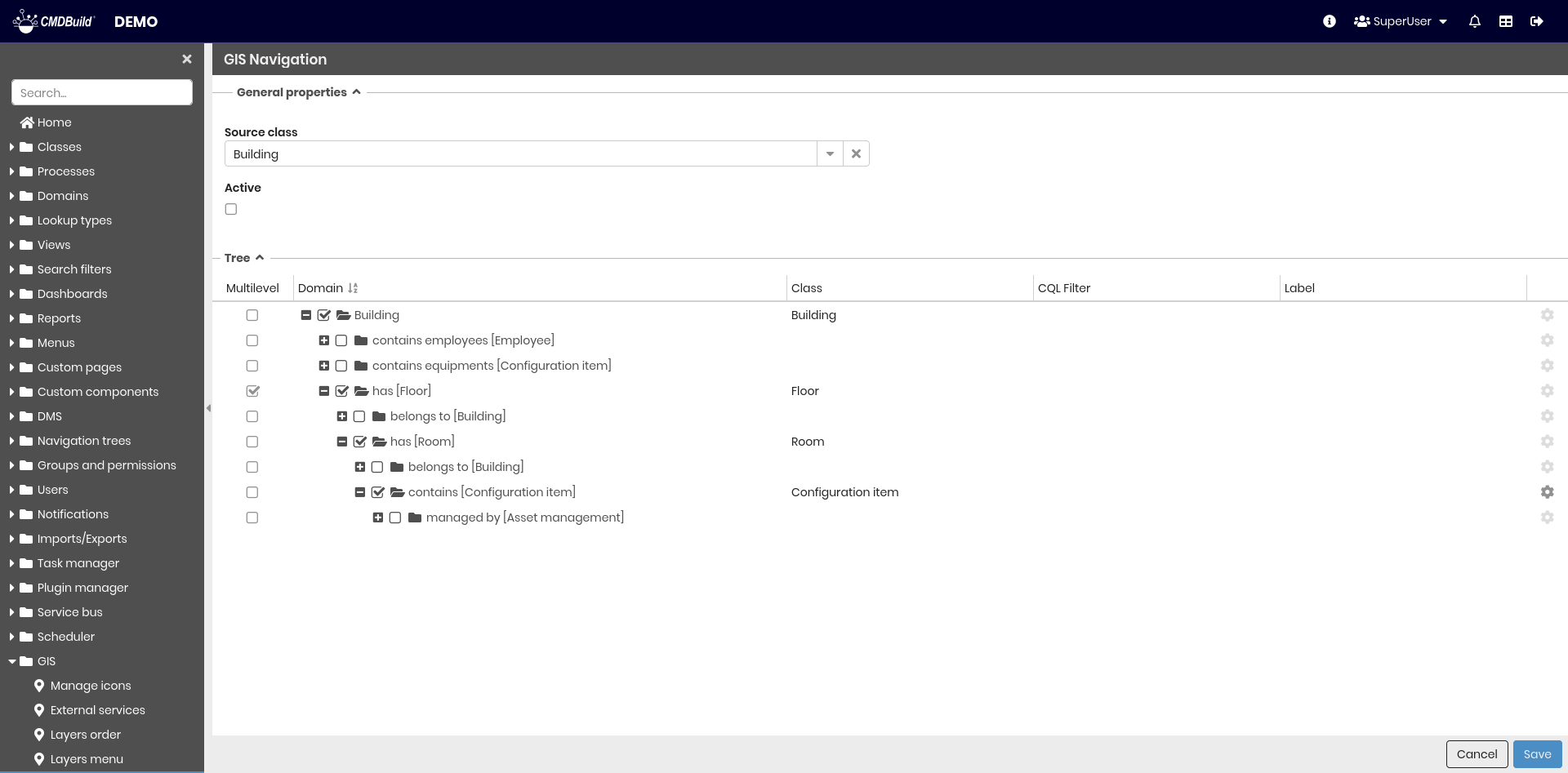
General properties
The following information is required.
- Source class — root class of the navigation tree
- Active — enables the GIS navigation tree

Tree
Starting from the root class, the 1:N class hierarchy is displayed. For each class, the following properties can be configured.
- Multilevel — identifies vertical development classes that overlap and must be displayed as mutually exclusive, typically the Floor class
- Class — class included in the navigation tree
- CQL filter — filter used to exclude specific cards of the selected class
- Alias — label used for display purposes
A typical navigation tree, given the appropriate domains, is composed of the following classes: Building → Floor → Room → Asset.
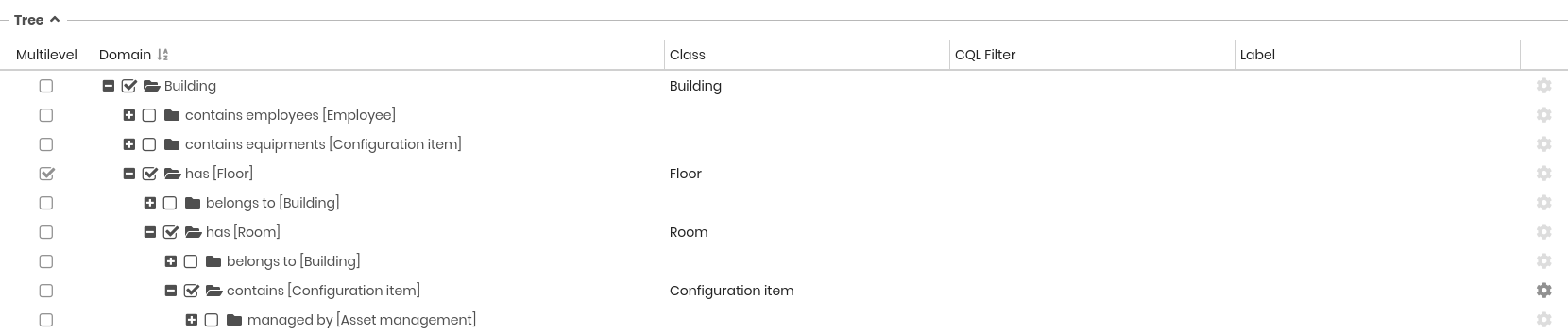
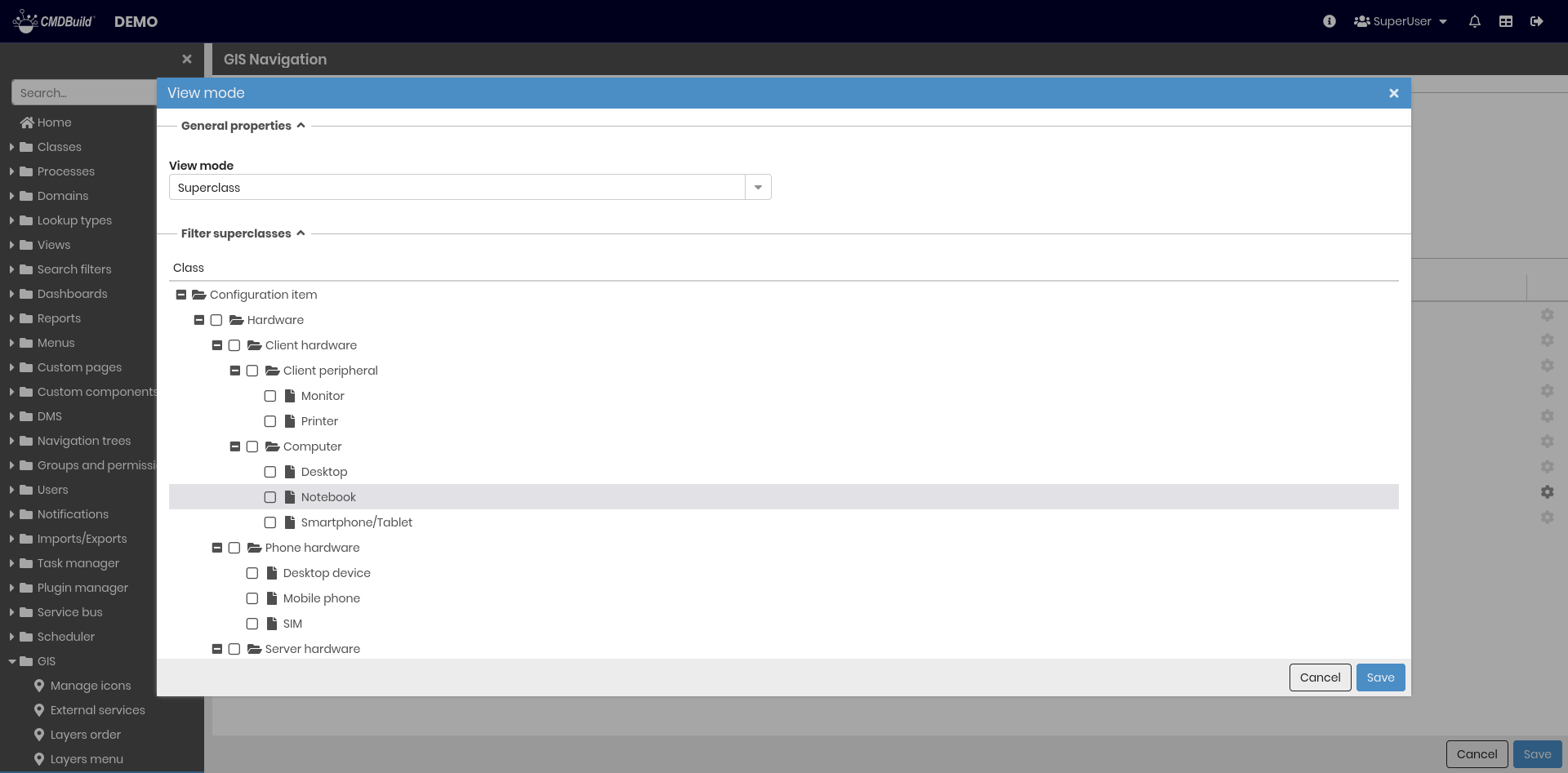
Using the cogwheel icon on the right, available only for superclasses, you can filter which subclasses are included in the menu and define a custom label.
Thematisms
In the Management Module, you can configure thematic maps based on the displayed data.
Thematic maps highlight analysis results using colors or symbols, for example rooms colored by intended use or assets shown according to the number of breakdowns.
Thematic maps can be saved by their creators and remain available in subsequent sessions.
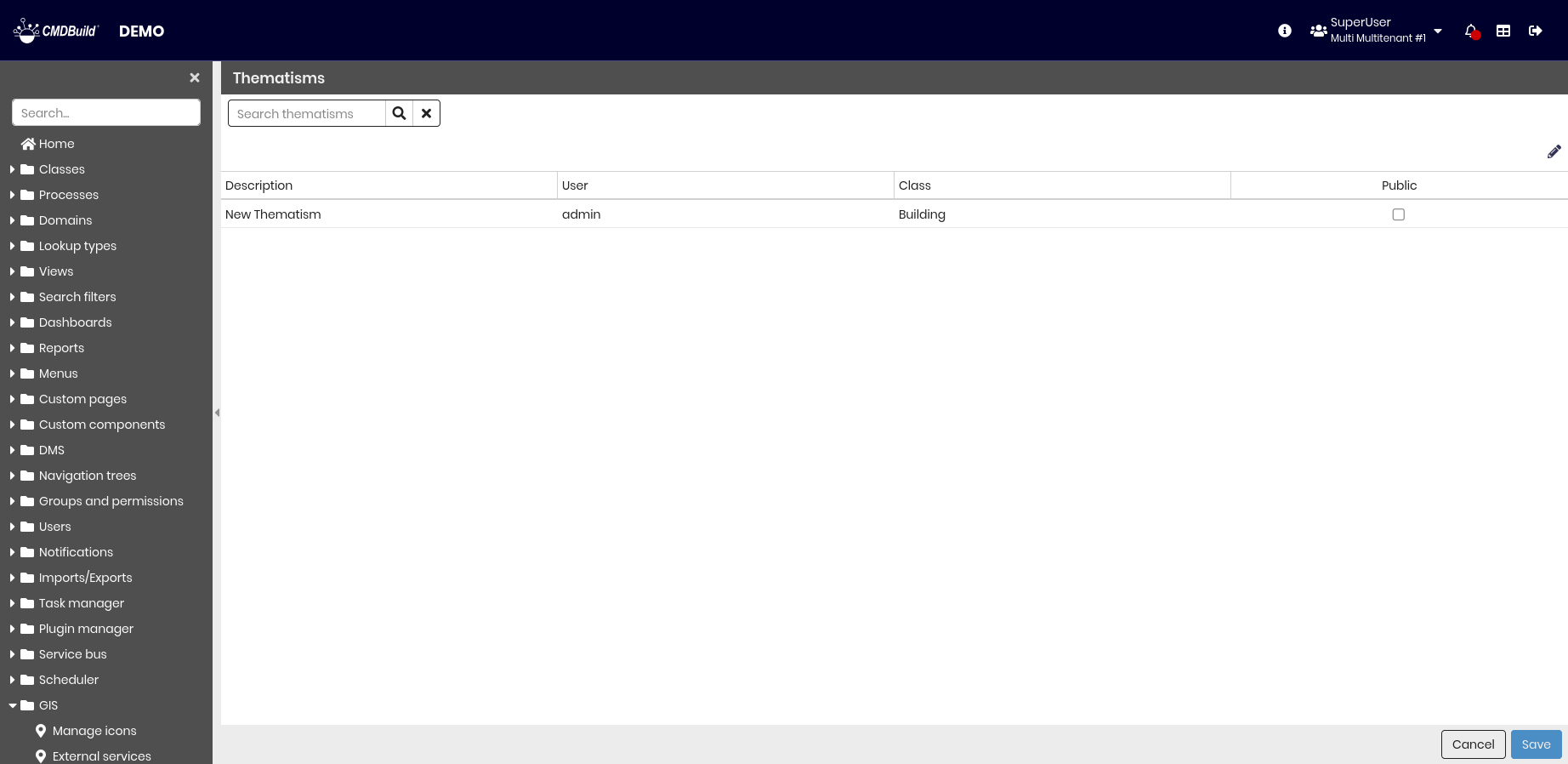
This section allows administrators to view thematic maps created by users and make them visible to all users.
The search field at the top allows filtering the list.
Settings
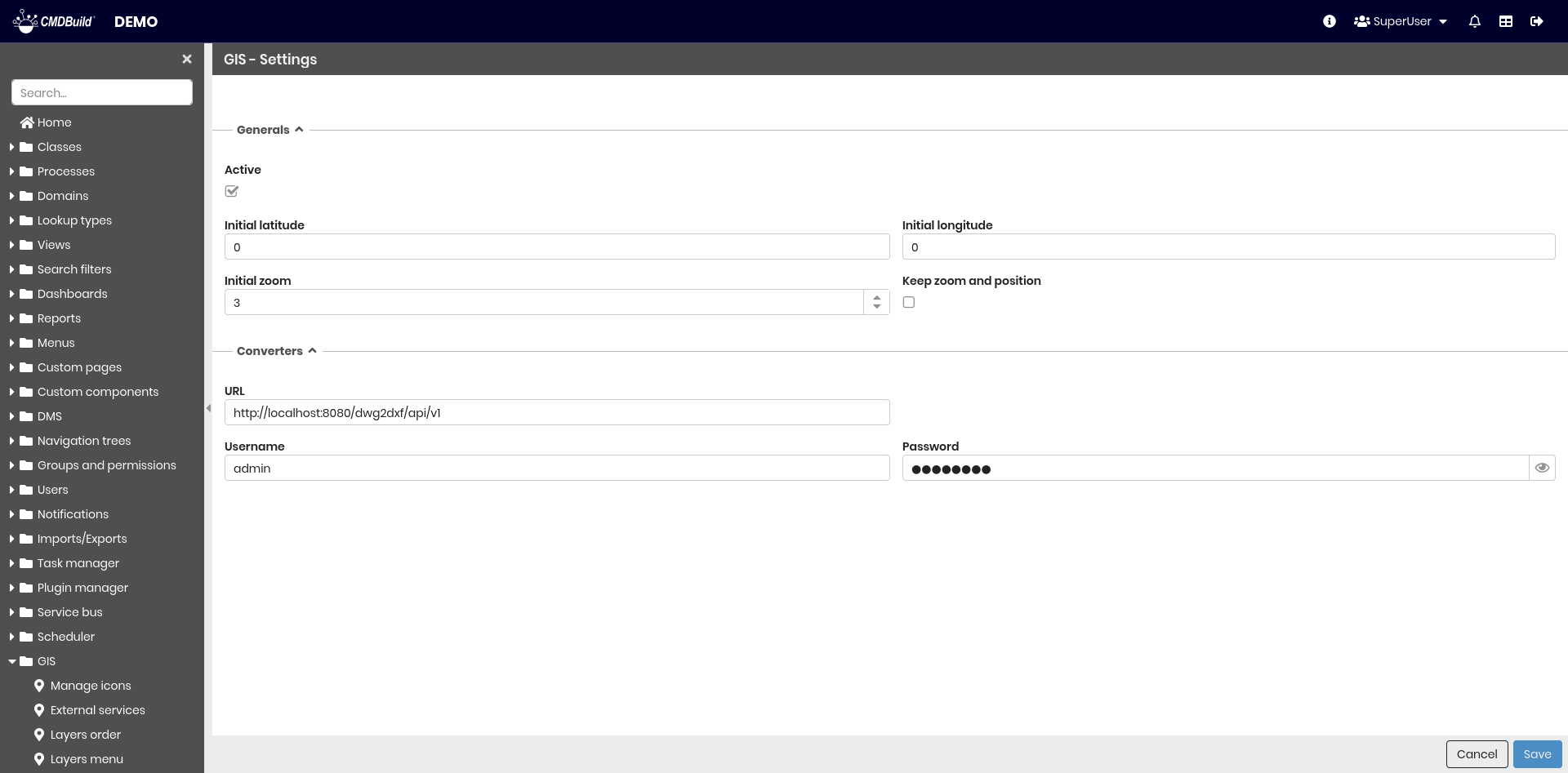
This section allows you to configure parameters for 2D georeferencing features available in CMDBuild, both on maps and vector maps.
It is divided into two tabs:
- Generals
- Converters
General properties
The following information is required.
- Active — enables 2D georeferencing features
- Initial latitude — latitude used at map startup
- Initial longitude — longitude used at map startup
- Initial zoom level — zoom level used at map startup
- Keep zoom and position — preserves zoom level and map position when switching between classes

Converters
This section defines the parameters required to connect to the converter service.
The following information is required.
- URL — converter service address
- Username — converter username
- Password — converter password
