Import / Export
CMDBuild allows configuring templates that include default parameters to execute massive data import and export operations in various formats.
Templates can be used interactively in the Management Module or in batch mode through the Task Manager.
Each template gathers all required information to automate the operation, avoiding repeated configuration.
Supported template types include:
- File template: import/export via CSV, XLS or XLSX files
- Database templates: import from relational databases
- GIS templates: import from DWG planimetries
- IFC templates: import from BIM IFC models
File Template
File templates support both import and export operations using CSV, XLS or XLSX files.
Import templates can operate in:
- Add mode: insert new records only
- Merge mode: update existing records (identified by a key), insert new ones and manage missing records
Properties Tab
Available operations:
- create a new template
- search templates
- edit a template
- clone a template
- delete a template
- disable a template
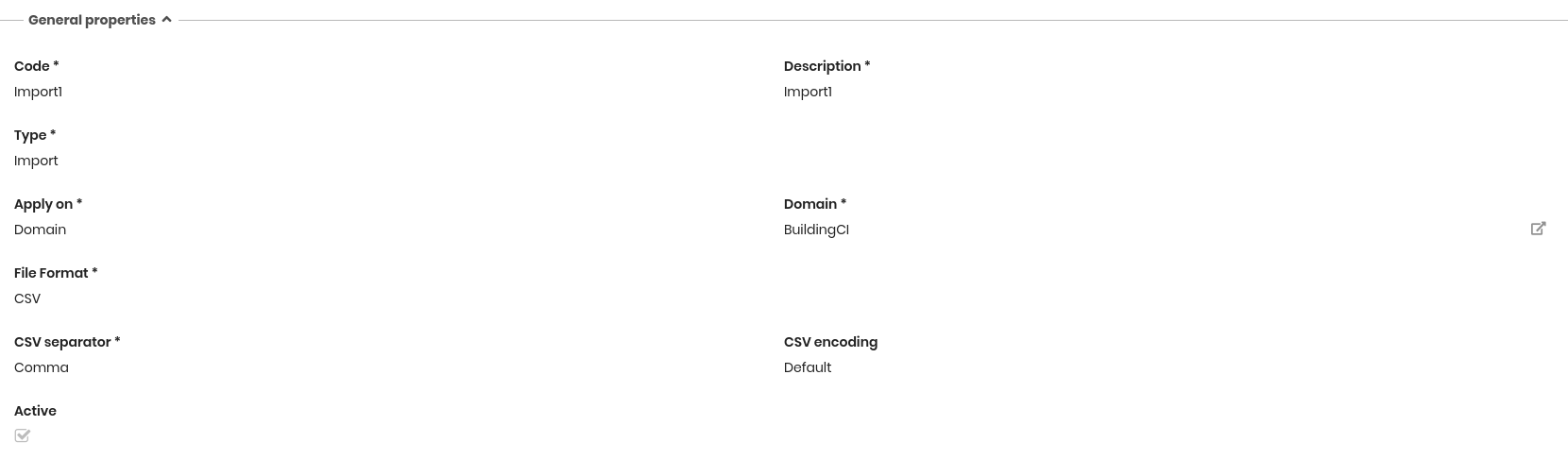
General Properties
The following information is required:
- Code: template identifier
- Description: short description
- Type: Import, Export or Import and Export
- Apply on: choiche from Class, Process, Domain, View from join (only for export)
- Class / Process / Domain / View from join: target element
- File format: CSV, XLSX, XLS
- Active: enables or disables the template
Format‑specific parameters:
CSV format:
- CSV separator: comma, semicolon, pipe (|), TAB
- CSV encoding
XLS/XLSX format:
- Header row number: row containing column names
- Data row number: first row containing data
Attributes
Used to configure attribute mapping:
- Attribute: name of the CMDBuild attribute
- Column name: column in the import/export file
- Mode (Reference / Lookup attributes):
- Id
- Code
- Description
- Description Translation (only for Lookup attributes)
- Default: default value (import only)
In the upper‑right corner of the fieldset, the magic wand icon allows automatically generating the mapping table by populating all attributes of the selected target (class, domain or process).

Dates Format
This section is displayed only if at least one date or date‑time attribute is included in the mapping.
It allows the administrator to select the format to use when importing or exporting dates.
Import Filter
Available for Import and Import/Export templates.
- Filter: restricts exported data

Import Criteria
Available only for Import and Import/Export templates.
- Import mode: Add or Merge
In Merge mode:
- Import key attribute: one or more attributes identifying the card to update
- Missing records: handling of CMDBuild cards not present in the import file:
- no delete
- delete
- Modify card
- Handle missing records on error: forces execution even if errors occur
If missing records are handled by updating an attribute:
- Attribute: attribute to modify
- Value: new value

Export Filter
Available for Export and Import/Export templates.
- Filter: restricts exported data
Notifications
- Notification template: email template used for notifications
- Account: optional override of default email account
Batch executions require these parameters to send notifications.
Interactive executions show results in the user interface.

Permissions Tab
This section allows configuring permissions on the current template for specific user groups. Permissions determine which operations each group can use the template.
For details on permission management, refer to the relative section.
Database Template
Database templates allow importing data from relational databases such as PostgreSQL, MySQL, Oracle or SQL Server.
Templates can update several CMDBuild classes from multiple database tables.
Import can be executed in Add or Merge mode.
Properties Tab
Operations:
- create a new template
- search templates
- edit a template
- delete a template
- disable a template
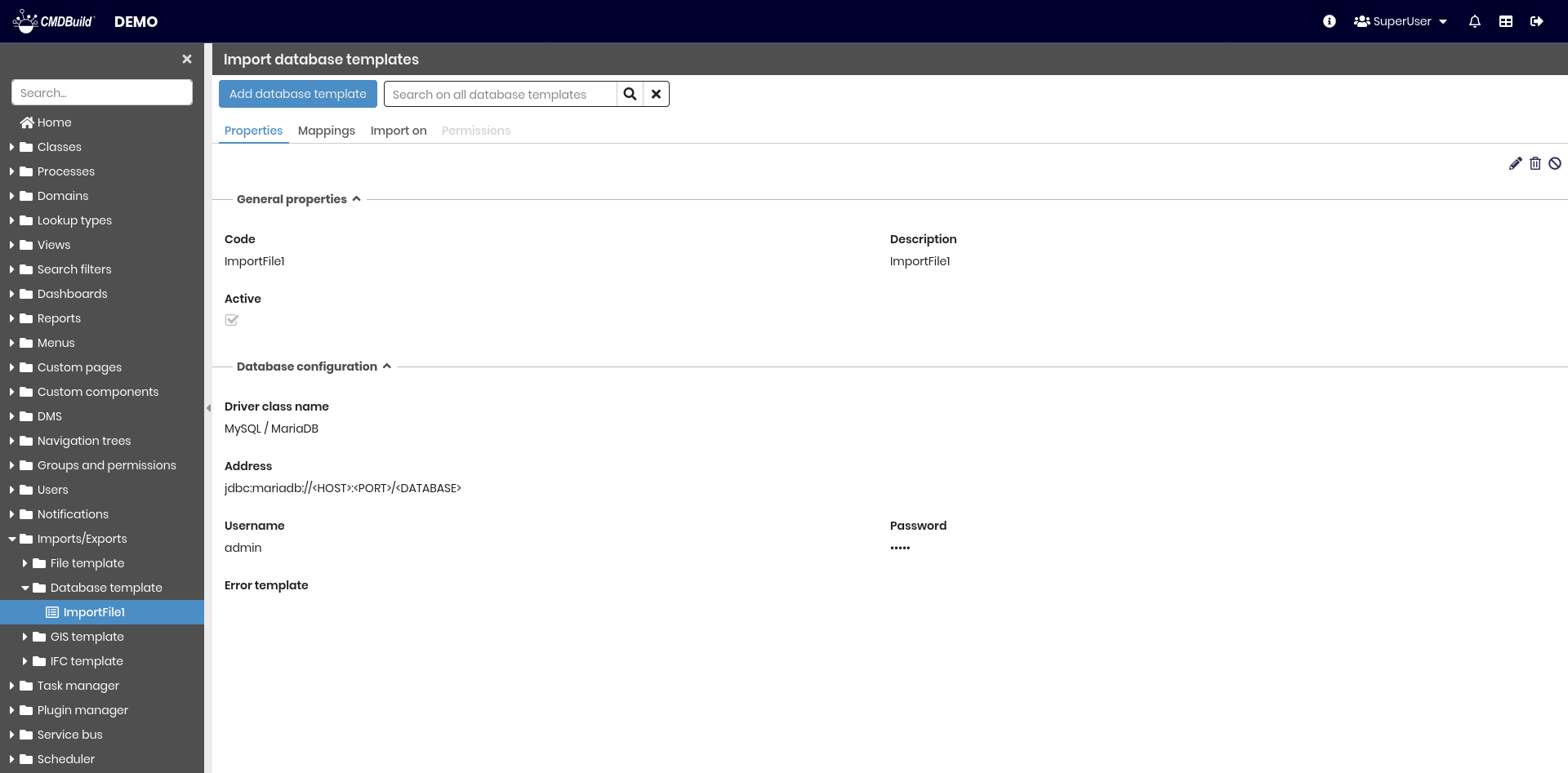
General Properties
- Code
- Description
- Active

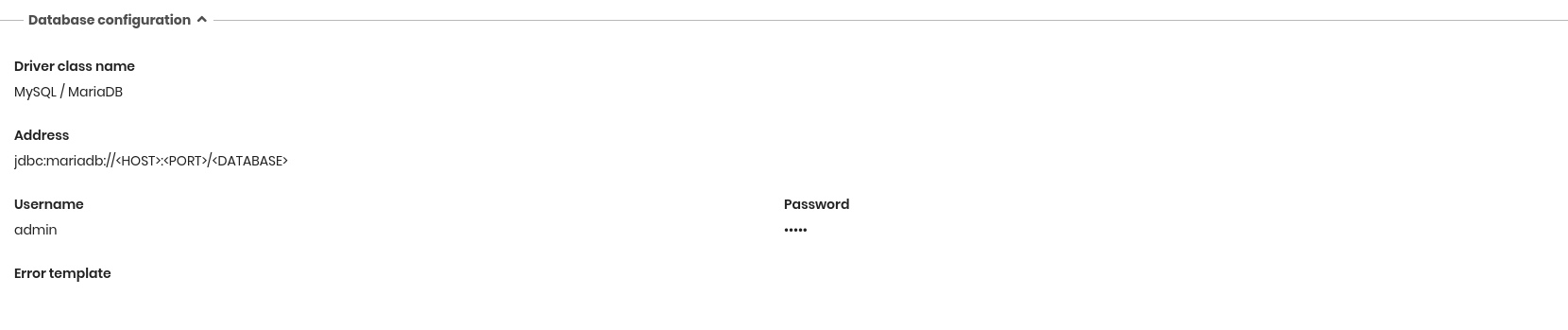
Database Configuration
- Driver class name: PostgreSQL, MySQL / MariaDB, Oracle, SQL Server
- Address: database connection string
- Username
- Password
- Error email template
Mapping Tab
The Mapping tab allows the administrator to configure the classes involved in the import process and map them to the corresponding tables in the configured database.
Available operations include:
- adding a new mapping
- searching, editing, cloning or deleting a mapping
- disabling a mapping
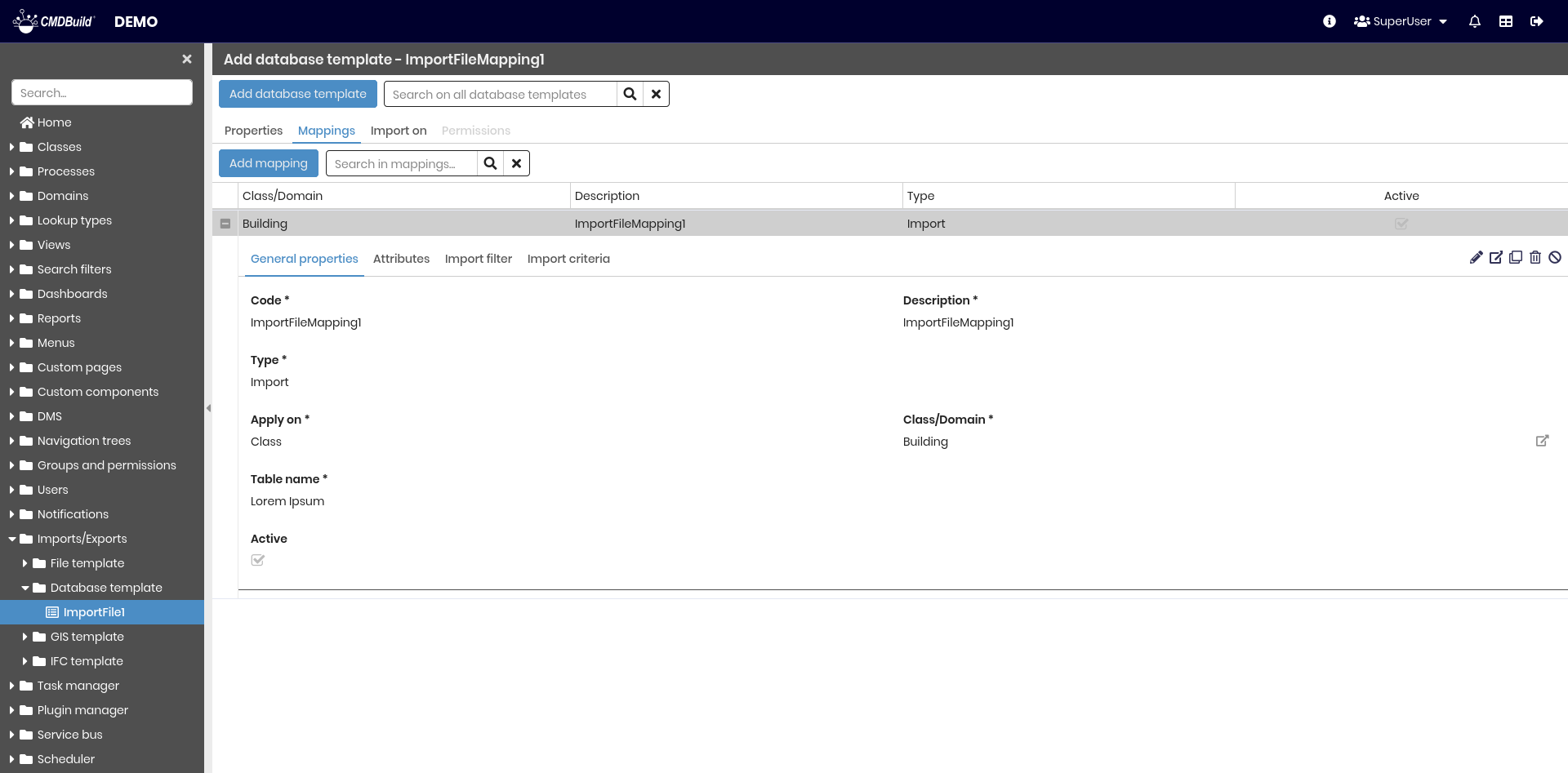
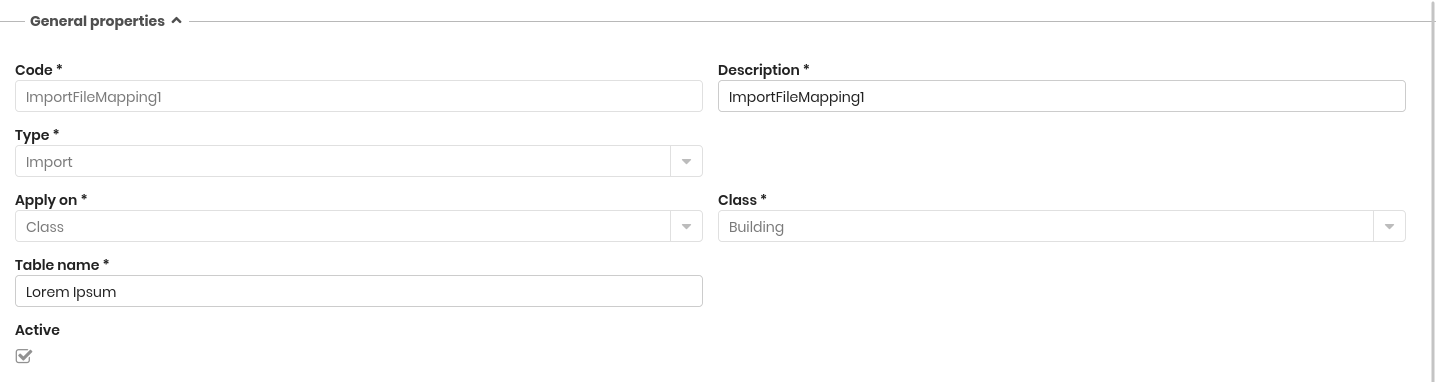
Mapping – General Properties
- Code
- Description
- Apply on: classes or domains
- Class / Domain
- Table name
- Active
Other Properties
All remaining configuration sections for database mappings follow the same structure and behaviour as the corresponding sections in File Templates. This includes:
- Attributes
- Dates format (when applicable)
- Import filter
- Import criteria
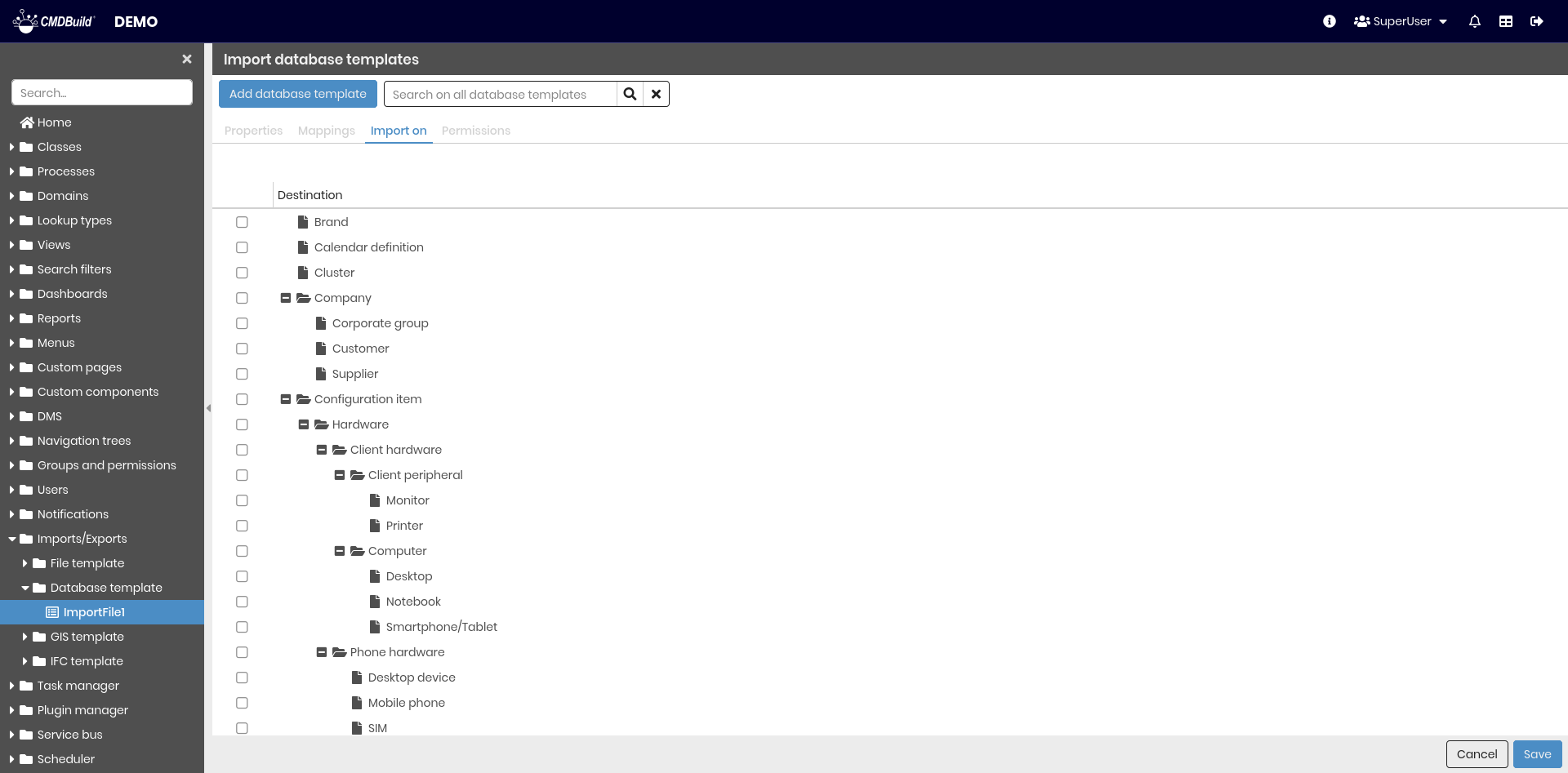
Import on Tab
Choose classes for which the template appears in the contextual menu.
Permissions Tab
This section allows configuring permissions on the current template for specific user groups. Permissions determine which operations each group can use the template.
For details on permission management, refer to the relative section.
GIS Template
GIS templates allow importing planimetries from DWG/DXF files. Data is always imported in Merge mode.
Properties Tab
Operations:
- create
- search
- edit
- delete
- disable
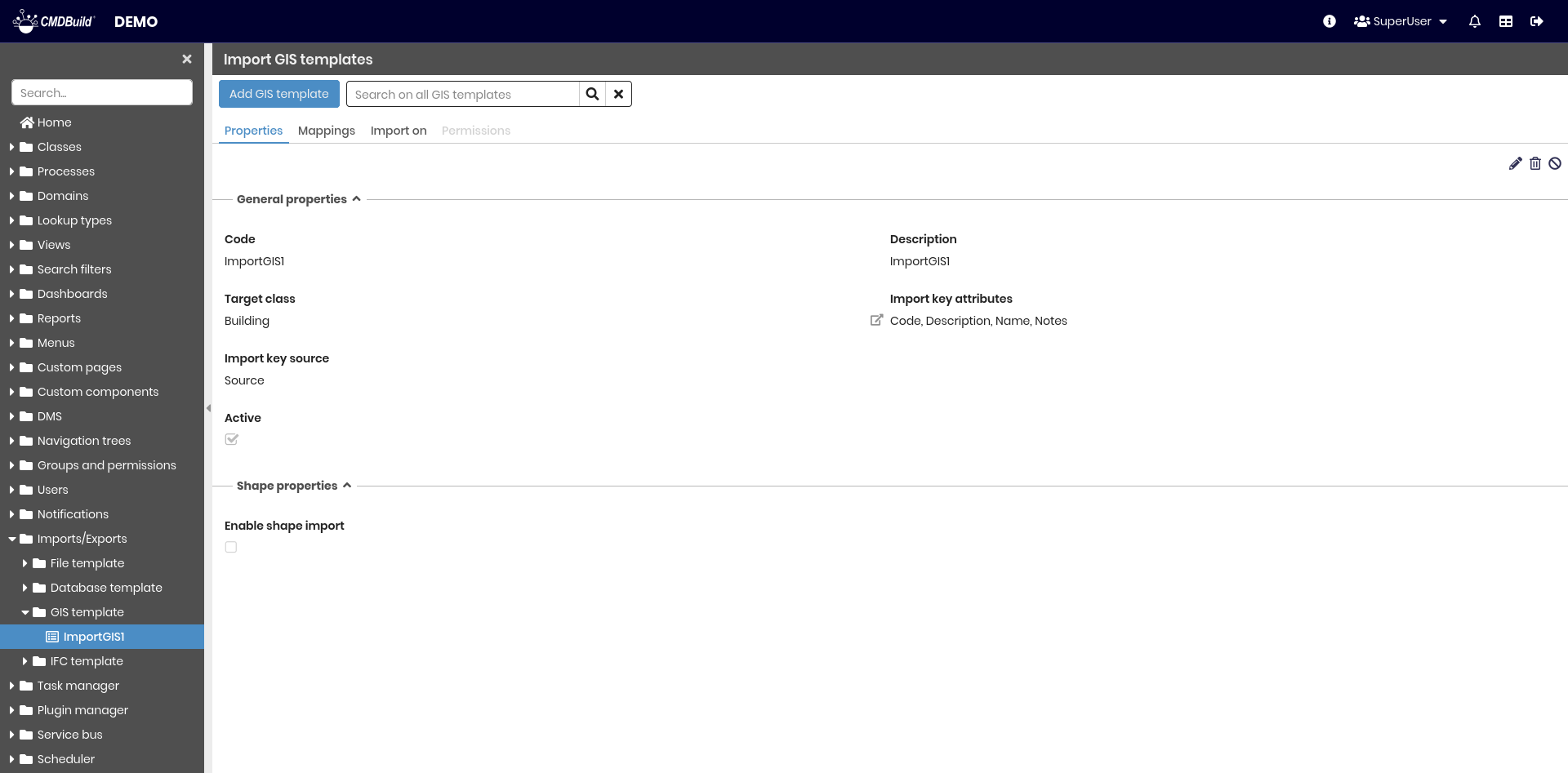
General Properties
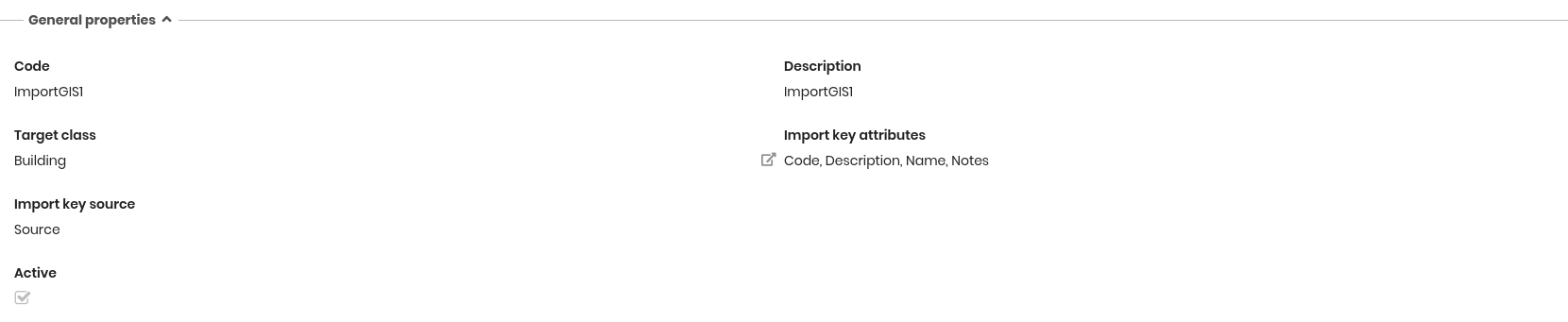
- Code: template identifier
- Description: template description
- Target class: main class associated with the GIS import template
- Import key attributes: attribute(s) used to identify the correct card during import
- Import key source: property from the DWG/DXF file used to identify the card
- Active: enables or disables the template
Shape Properties
- Enable shape import: imports non‑CMDBuild elements (walls, windows, stairs, etc.) into GeoServer as background layers
- Layer to import: defines whether to import all layers, only specified layers or all except specified layers
- Source layers to include: comma‑separated list of layer names to include (used when selecting include)
- Source layers to exclude: comma‑separated list of layer names to exclude (used when selecting exclude)
- Target geo attribute: geographic attribute in the target class where the imported shapes will be stored

Mapping Tab
The mapping configuration for GIS templates follows the same logic and structure used for Database Templates.
This includes:
- adding, editing, cloning and deleting mappings
- enabling or disabling mappings
- configuring mapping metadata (code, description, target class/domain, active status)
- defining attribute mapping rules (attribute, DWG property, mode and default value)
- applying import criteria such as key attributes and missing record handling
For details on how to configure mapping properties, refer to the Database Template – Mapping section.
Import on Tab
Choose classes for which the template appears in the contextual menu.
Permissions Tab
This section allows configuring permissions on the current template for specific user groups. Permissions determine which operations each group can use the template.
For details on permission management, refer to the relative section.
IFC Template
IFC templates allow importing BIM model information from IFC files.
Data is always imported in Merge mode, updating existing cards (identified by a key), inserting new ones and handling missing records according to the configured rules.
Properties Tab
Available operations:
- create a new template
- search among existing templates
- edit a template
- delete a template
- disable a template
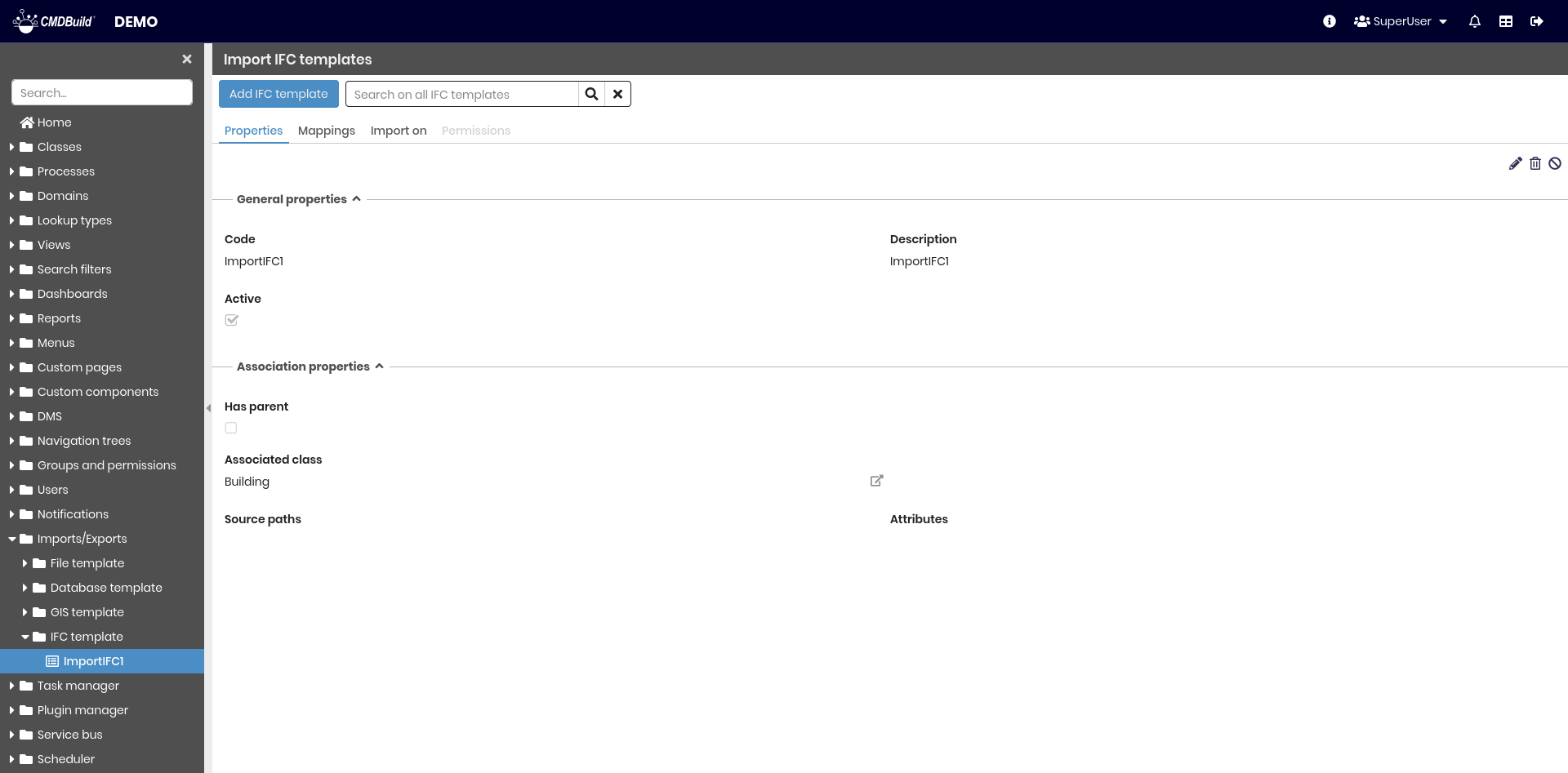
General Properties
- Code: template identifier
- Description: template description
- Active: enables or disables the template

Association Properties
These settings define how IFC data is associated with CMDBuild cards.
- Has parent: enables the association with a parent BIM project (e.g. an electrical plant IFC that belongs to a building project)
- Associated class: the class used to associate the imported IFC elements (e.g. Building)
- Source paths: path expressions used to identify the key for card association
- Attributes: CMDBuild attributes to be populated from IFC data
Mapping Tab
The mapping configuration for BIM templates follows the same logic and structure used for Database Templates.
This includes:
- adding, editing, cloning and deleting mappings
- enabling or disabling mappings
- configuring mapping metadata (code, description, target class/domain, active status)
- defining attribute mapping rules (attribute, DWG property, mode and default value)
- applying import criteria such as key attributes and missing record handling
For details on how to configure mapping properties, refer to the Database Template – Mapping section.
Import on Tab
Choose classes for which the template appears in the contextual menu.
Permissions Tab
This section allows configuring permissions on the current template for specific user groups. Permissions determine which operations each group can use the template.
For details on permission management, refer to the relative section.