Views
Views allow presenting customized subsets of cards to users. They enable creating alternative representations of class or process data through filters, joins or SQL functions.
Views can be defined in three ways:
- Filter‑based views: subsets of cards belonging to the same class or process that satisfy a configured filter
- Join‑based views: visual joins across multiple classes, with selectable attributes and filtering options
- SQL‑based views: result sets returned by a PostgreSQL function that aggregates data from multiple classes or processes
Filter‑based views behave like standard card lists, while join‑based and SQL‑based views are read‑only.
Unlike permissions involving row filters, users can remove the filter applied to a filter‑based view and display the complete content of the target class or process.
Views can also be defined on the Scheduling archive.
From Filter
This feature allows creating and editing views based on filter on classes.
The available operations include:
- adding a new view
- editing a view
- deleting a view
- disabling a view (setting it as inactive)
Each view requires configuring a set of metadata parameters as described below.
General Properties
The following information is required:
- Activity name
- Description
- Target class: the class or process on which the view is based
- Active: enables or disables the view
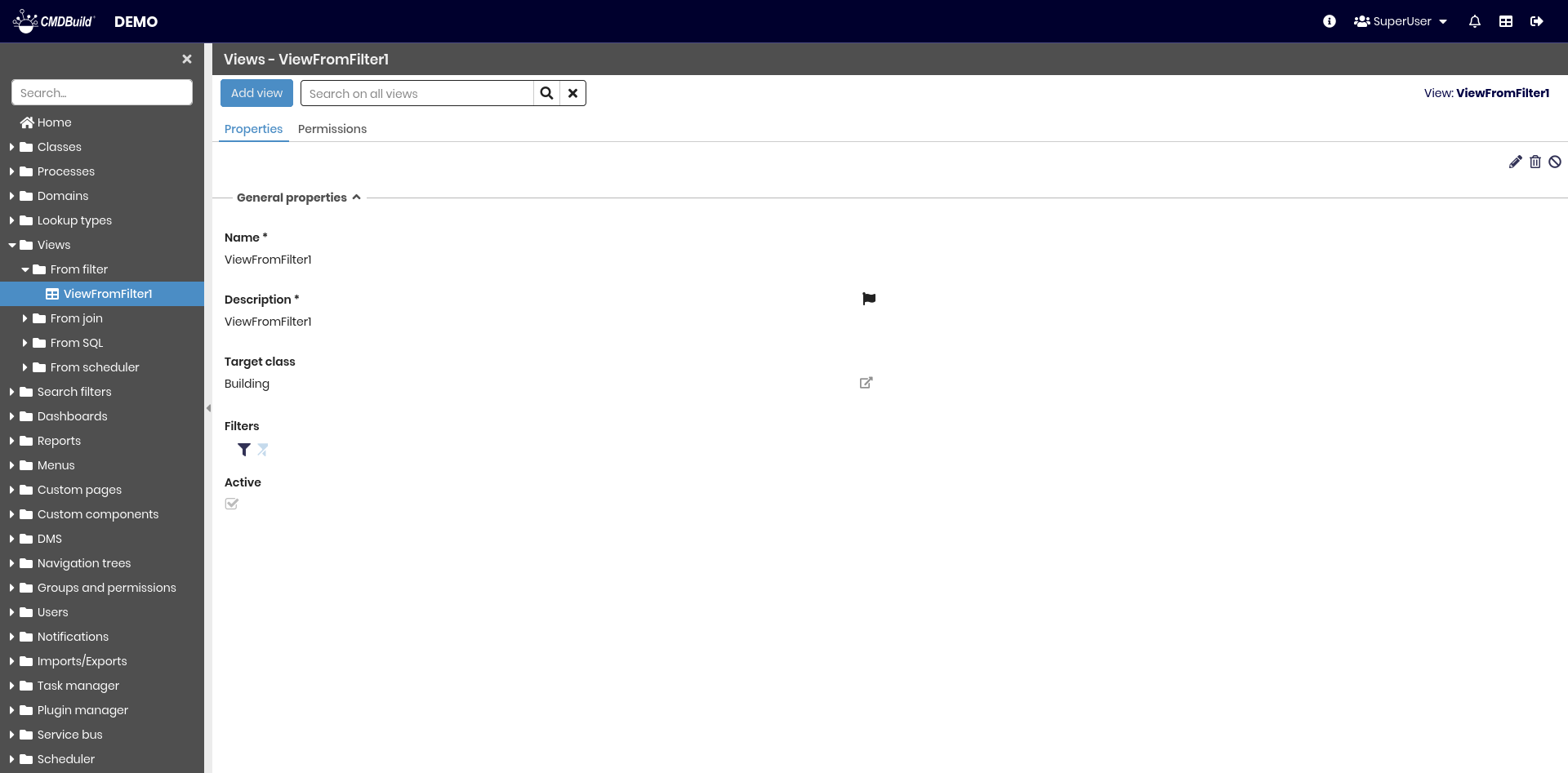
This form also includes icons for:
- filter configuration
- filter removal
Filters
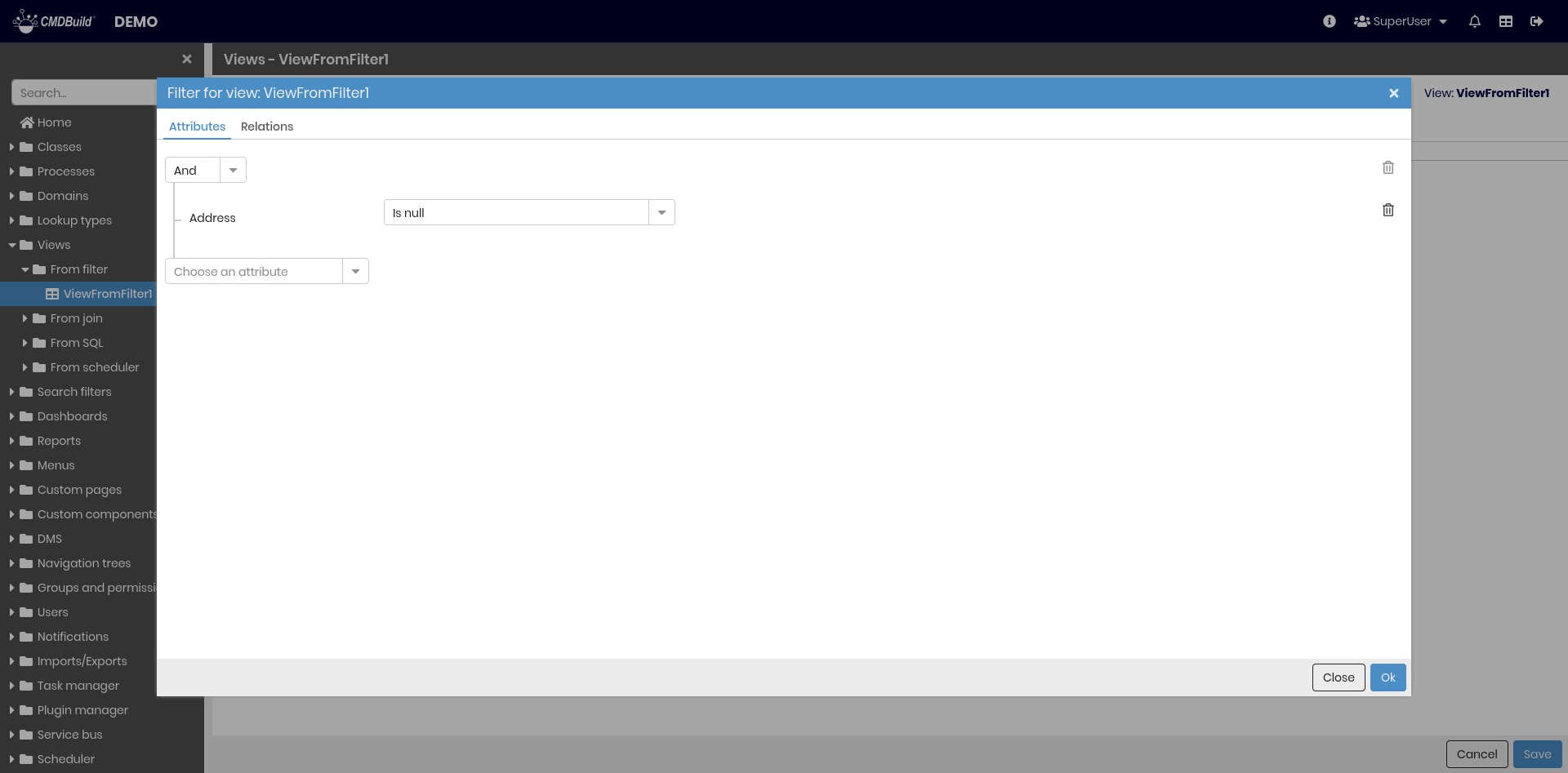
Filters are configured using the same mechanisms available in the Management Module.
The following operations are available:
- selecting an attribute on which to apply the filter; this adds a filter row
- selecting an operator (based on the attribute type)
- entering or selecting a value
- deleting a filter condition
- applying the filter
- removing the complete filter
A filter may contain multiple conditions.
Conditions on the same attribute are evaluated with OR, conditions on different attributes with AND.
Permissions Tab
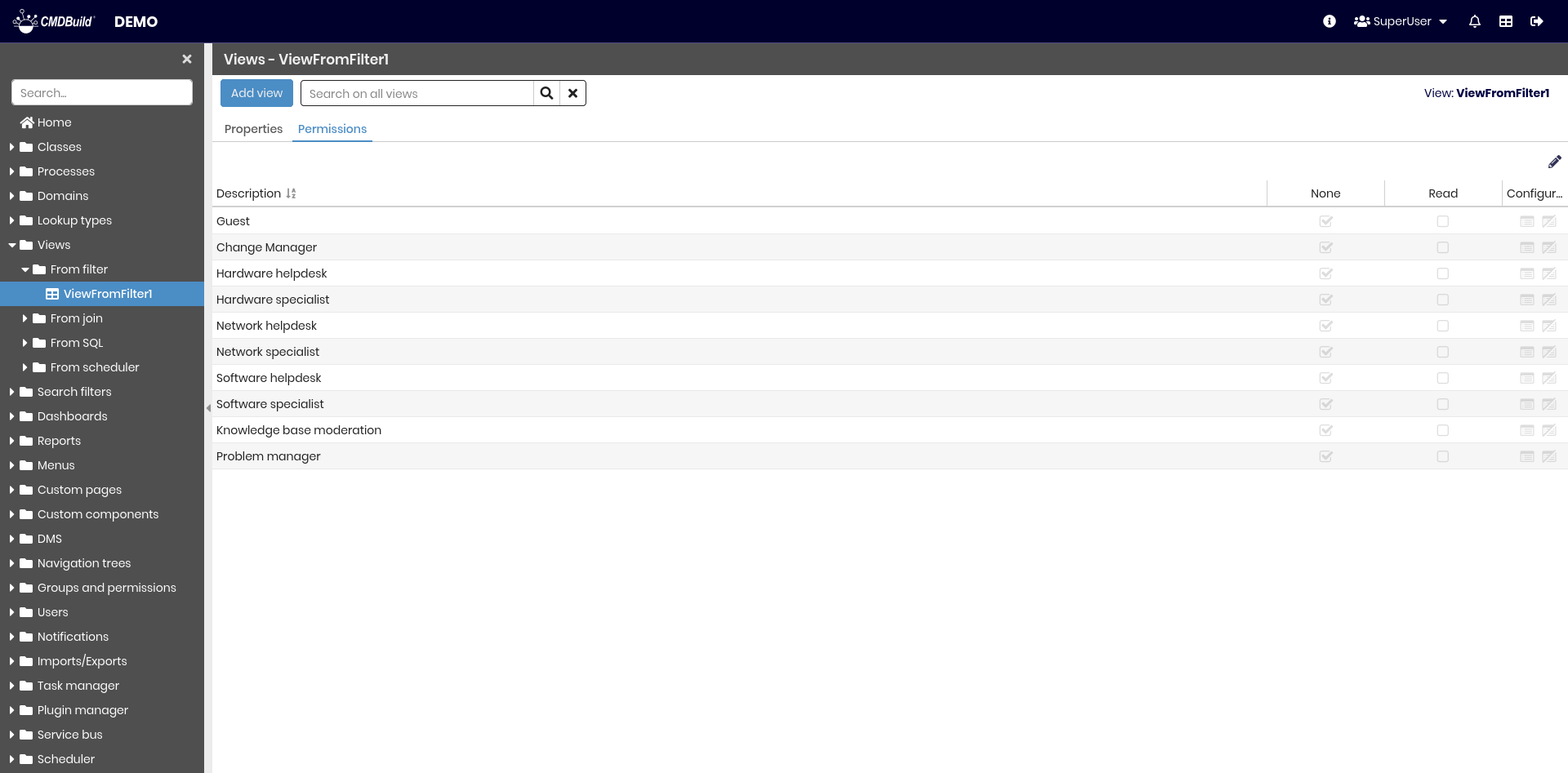
This section allows configuring permissions on the current view for specific user groups.
Permissions determine which groups can access the view.
For details on permission management, refer to the relative section.
Views from Join
This feature allows creating and editing views based on joins across multiple classes.
The available operations include:
- adding a new view
- editing an existing view
- deleting a view
Properties Tab
The configuration is guided through a wizard.
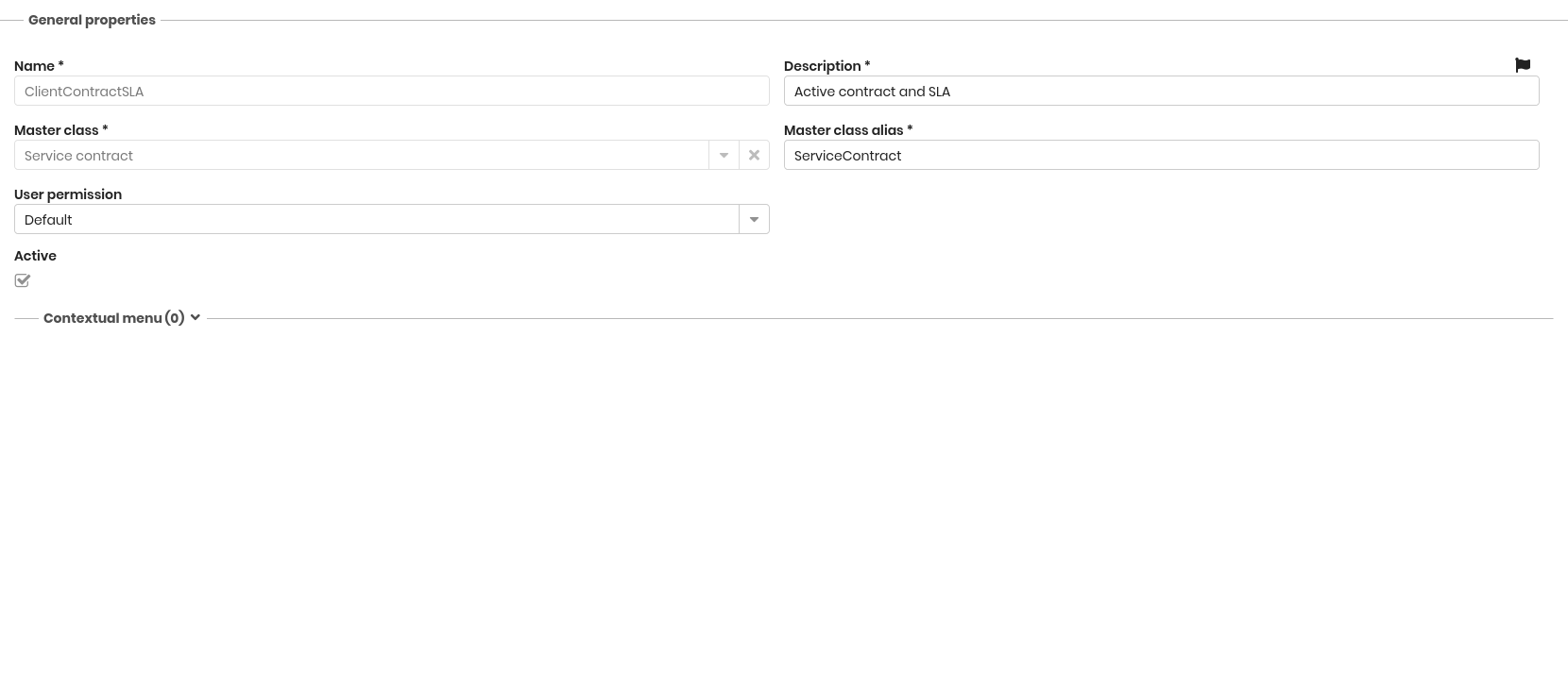
Step 1 – General Properties
The following fields are required:
- Name: the identifier of the view
- Description: the name displayed in the application. This field is localizable by selecting the flag icon, which opens a popup window for translation into the enabled languages
- Master class: the main class from which the traversal of relations begins
- Master class alias: alias used for the master class; by default it corresponds to the master class name
- User permission: defines how user permissions affect the data returned by the view
- Apply user permission: data is filtered based on user permissions
- Ignore user permissions: the query ignores user permissions
- Active: enables or disables the view
Contextual Menu
A contextual menu can be configured using the same mechanisms available for class‑level contextual menus.
-2ec99bfa70377e1a2e94efe84108707b.png)
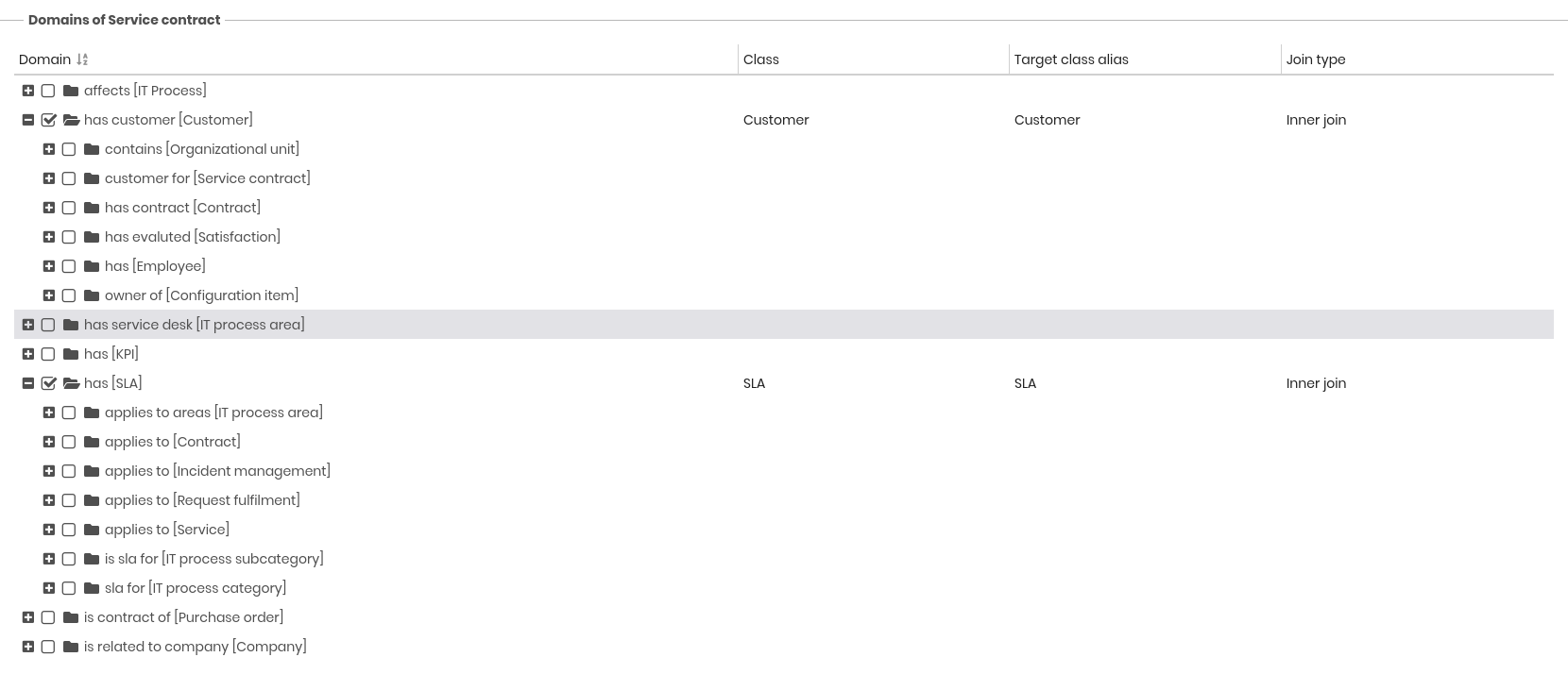
Step 2 – Join Definition
Joins can be defined starting from the master (root) class. For each linked class, an alias and join type (inner or outer) can be defined.
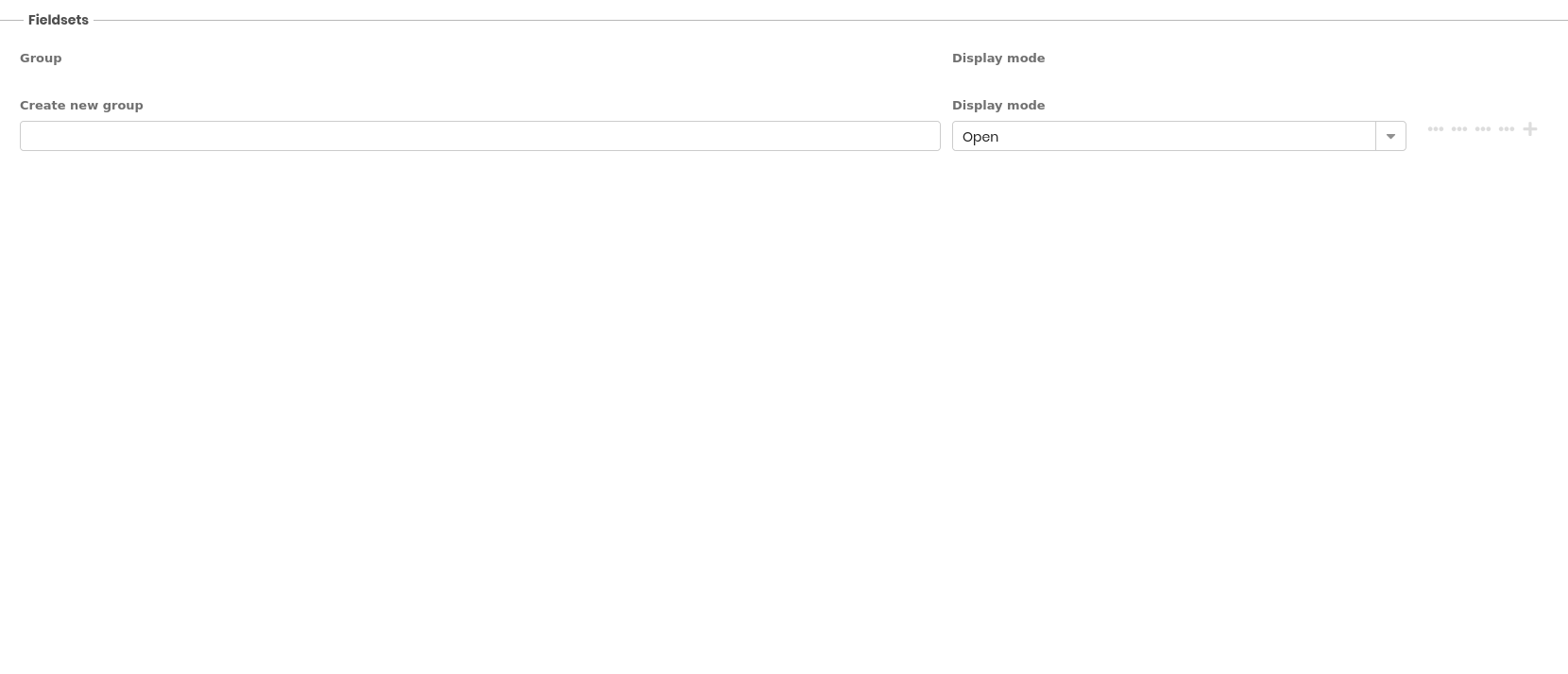
Step 3 – Attribute Groups
Fieldsets can be defined to group attributes from the joined classes.
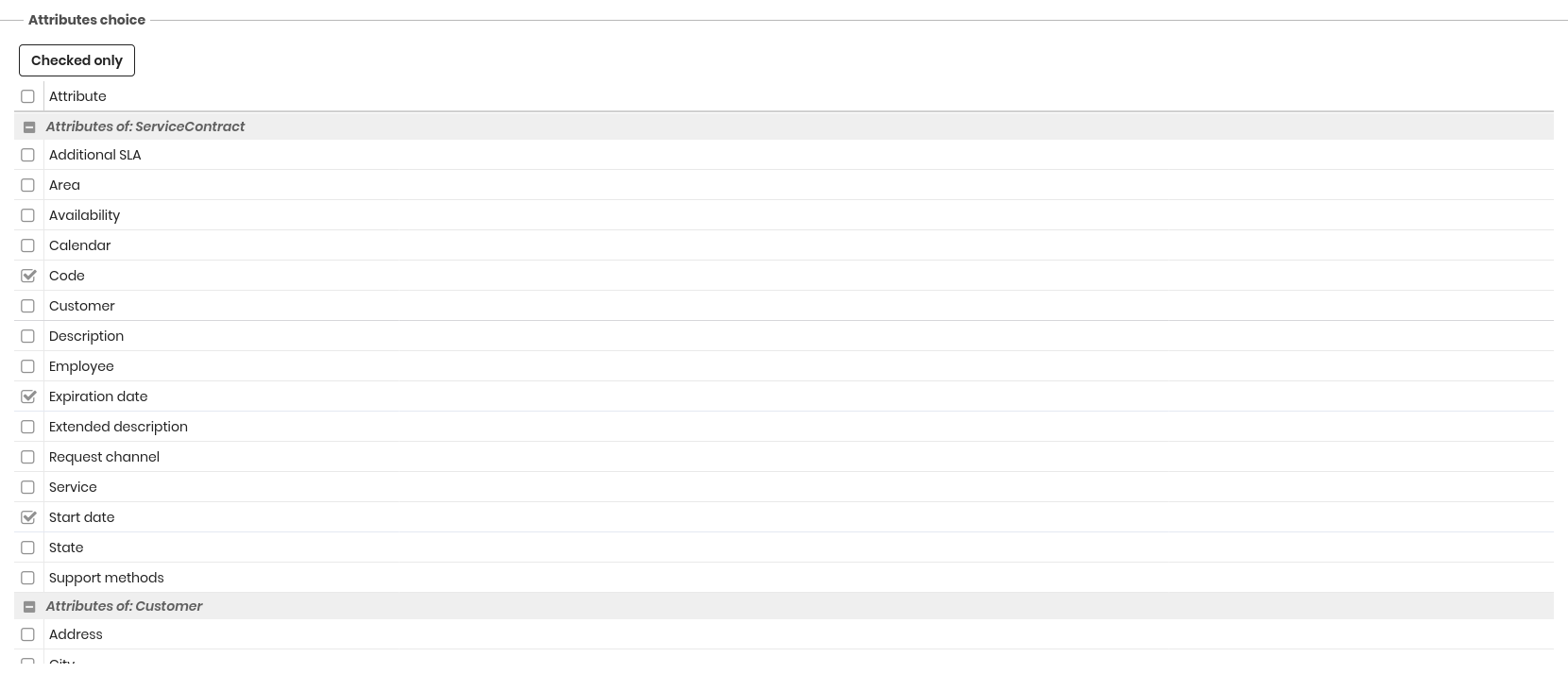
Step 4 – Attribute Selection
Select the attributes to expose in the view.
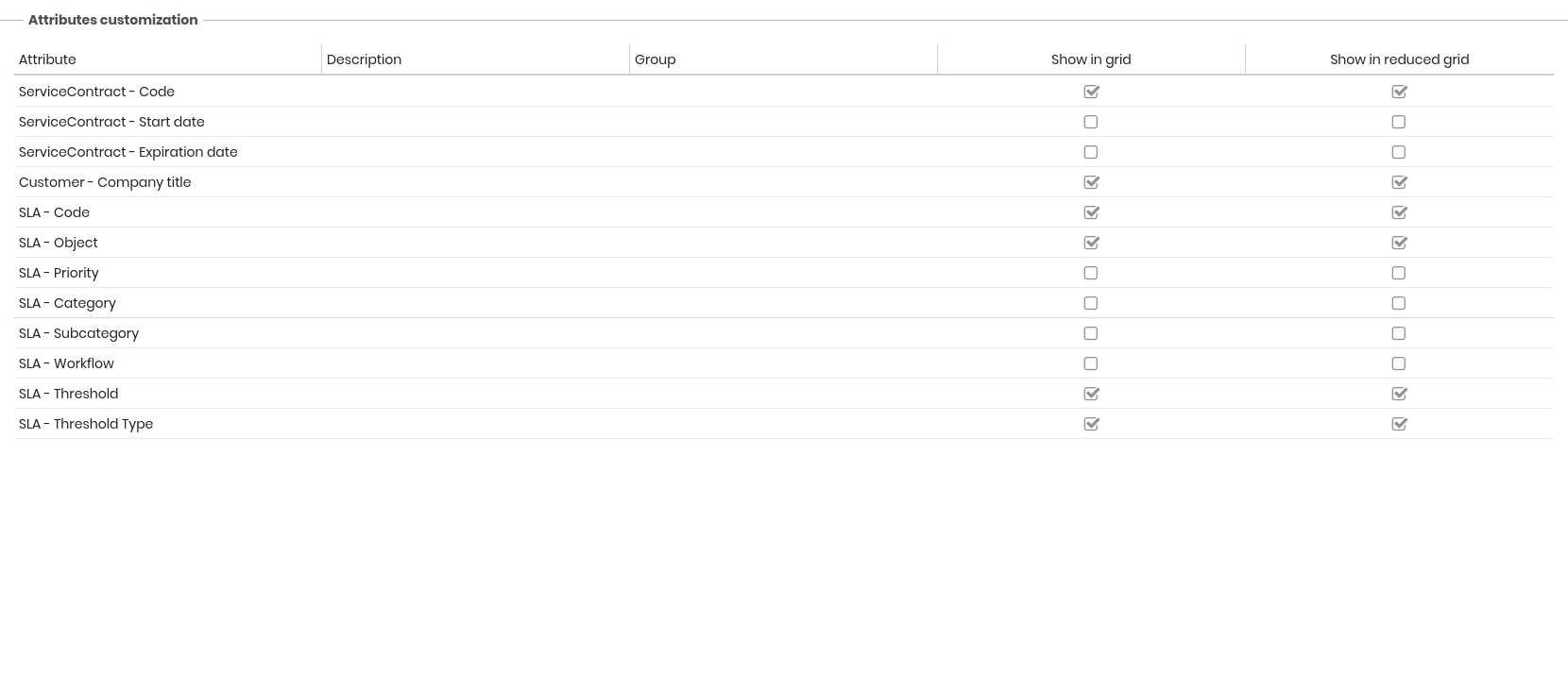
Step 5 – Attributes Customization
Customize followin properties for selected attributes:
- Description
- Gropu
- Show in grid
- Show in reduced grid
Step 6 – Filters
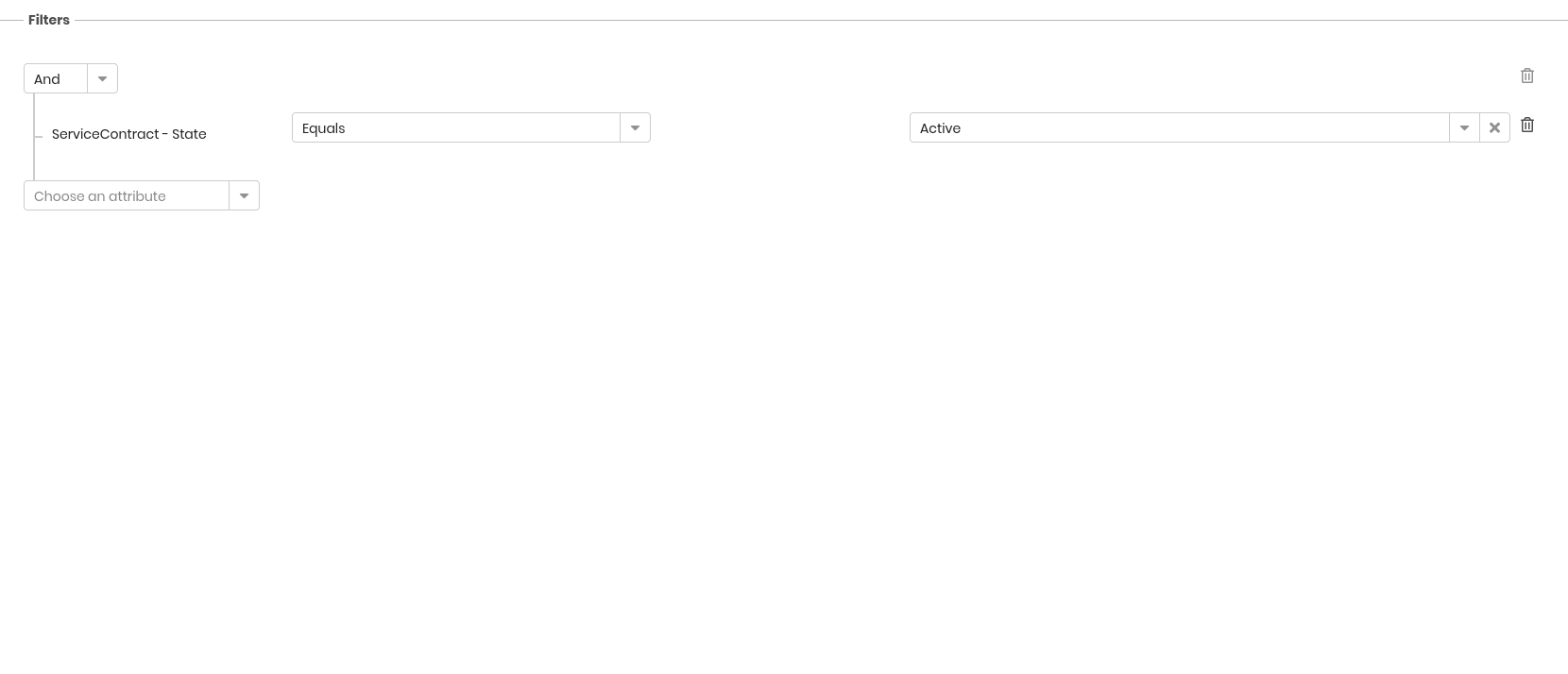
Filters can be added to restrict the output of the join‑based view.
Step 7 – Data Organization
Define ordering and grouping rules for the view data.
Layout Tab
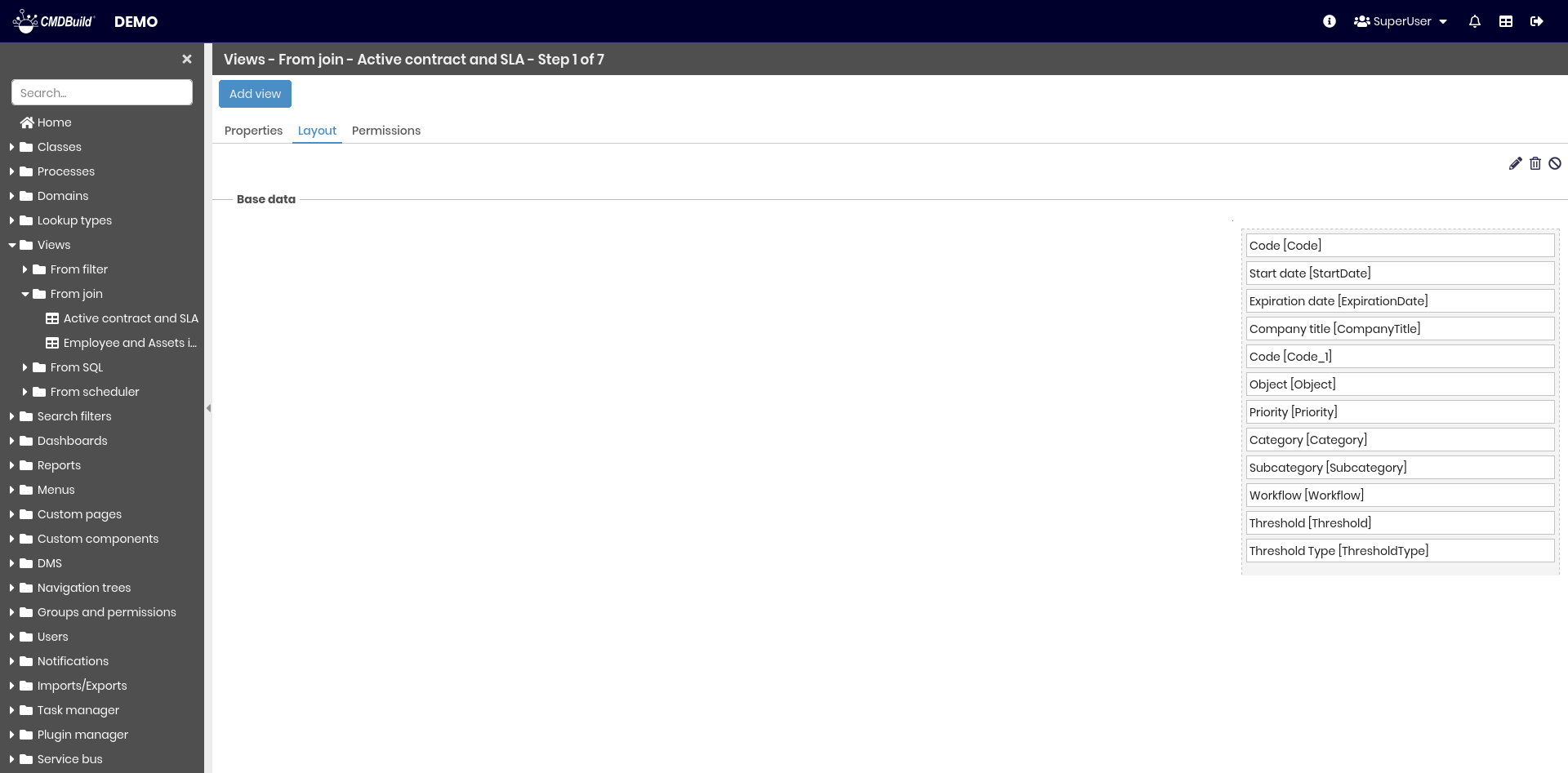
A custom layout can be defined for join‑based views, specifying rows, columns and attribute placement.
Permissions Tab
This section allows configuring permissions on the current view for specific user groups.
Permissions determine which groups can access the view.
For details on permission management, refer to the relative section.
Views from SQL
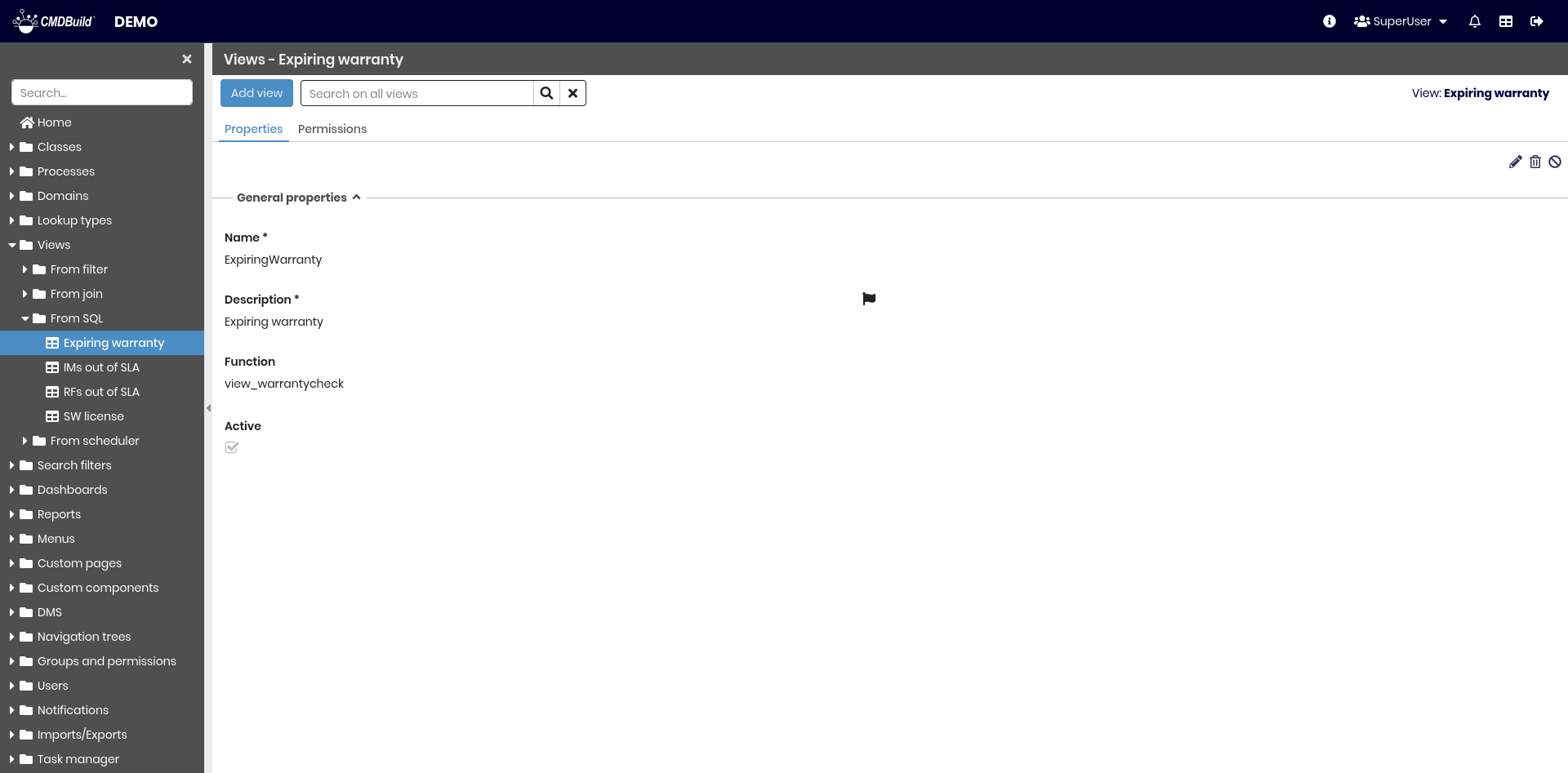
This section allows creating and maintaining views based on SQL functions.
The available operations include:
- creating a new SQL‑based view
- editing a view
- deleting a view
- disabling a view
General Properties
The following fields are required:
- Name: the identifier of the view
- Description: the name displayed in the application. This field is localizable by selecting the flag icon, which opens a popup window for translation into the enabled languages
- SQL function: the function used to retrieve the data
- Active: enables or disables the view

PostgreSQL Function Requirements
The SQL function must:
- include the comment
TYPE: function - explicitly define all input and output parameters
- use supported PostgreSQL data types
- define
RETURNS SETOF recordfor multi‑row output
After modifying a function, clear the CMDBuild cache or restart Tomcat.
Permissions Tab
This section allows configuring permissions on the current view for specific user groups.
Permissions determine which groups can access the view.
For details on permission management, refer to the relative section.
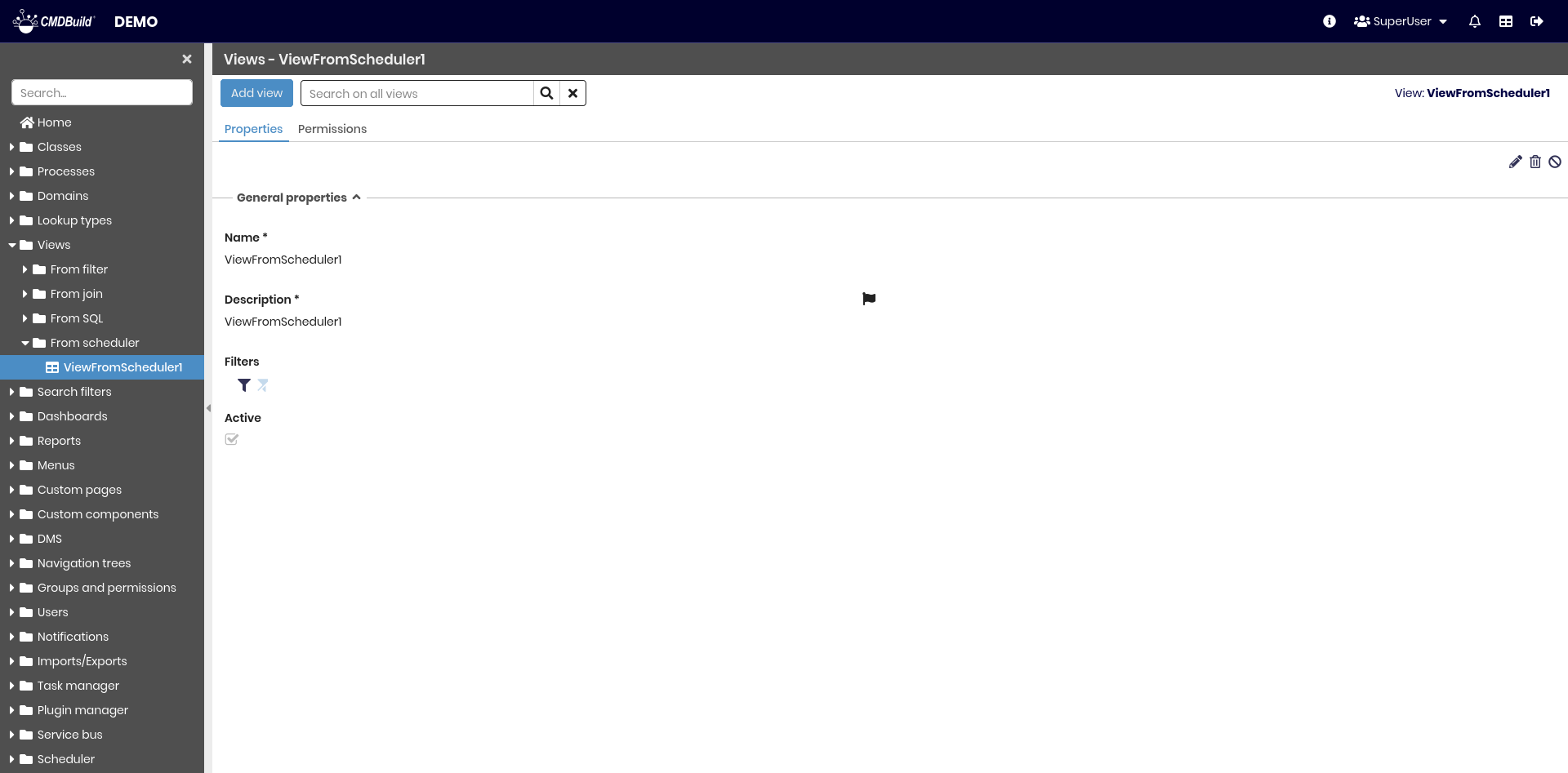
Views from Scheduler
This feature allows creating and managing views on the Scheduling archive.
The configuration process is similar to filter‑based views, except that the target data source is the Scheduling element.