User Interface
This page provides an overview of the CMDBuild user interface, describing the technologies used to implement it and the general criteria that define its layout and behaviour. It explains how the interface is structured into functional areas, how users interact with cards, grids and controls and how localization mechanisms allow the platform to adapt to different languages.
The goal is to give a clear understanding of how the interface is organized and how its components support daily operations in both the Administration Module and the Data Management Module.
Technology
The web desktop interface of CMDBuild — both in the Administration Module and in the Data Management Module — is implemented using the Sencha ExtJS framework, a JavaScript library for building interactive web applications with AJAX technology.
Each user action in the interface is transmitted to the server, implemented in Java, through calls to the standard REST web service methods of CMDBuild. The server then processes the request and translates it into operations on the PostgreSQL database.
General Design Criteria
The interface of the Administration Module includes the following main elements:
- header
- left-side menu to access the functions of the Administration Module
- central work area with information displayed in cards or tables
- detail window used to manage detailed information for selected items
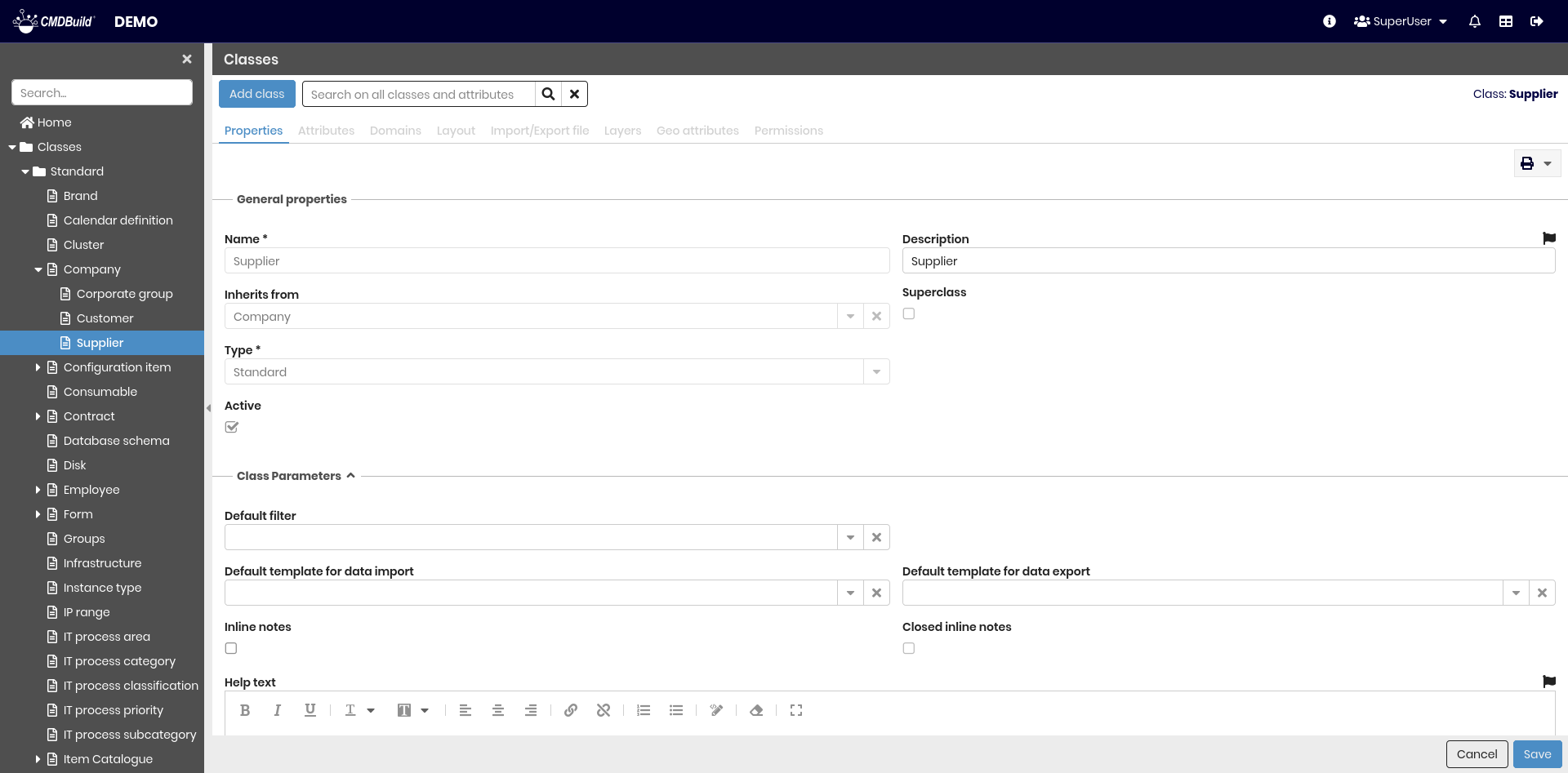
Header
The header includes:
- on the left, the application logo (to be preserved according to the CMDBuild distribution license), the user’s logo and the instance name
- on the right, an information panel containing:
- links to the official website, useful resources and credits
- access to the Scheduler
- the group name
- the preferences menu
- the notification list
- the switch to the Administration Module
- the logout function
Left-Side Menu
The left-side menu provides access to all sections of the Administration Module. From this menu, the Administrator can navigate to the different configuration areas used to define and manage the application setup.
Central Working Area
The central area is the main workspace of the Administration Module.
At the top, it includes a set of controls that allow users to perform actions on the selected item type, such as creating new elements or performing searches. Below the controls, a series of TABs provides access to additional configuration pages related to the selected item, each with its own buttons and operational tools.
Depending on the context, the information in the central area is displayed either in cards or in grids. Cards allow users to view and edit data through the available icons and include form fields organized into fieldsets, with the ability to confirm or cancel changes. Grids present data in tabular form and provide functions for sorting and selecting columns, highlighting or editing rows, expanding detailed information and performing related actions through the available controls.
Detail Window
Detail windows present cards used to enter or modify form fields, possibly organized into fieldsets, and allow confirming or cancelling changes.
Localization
CMDBuild supports two types of localization — i.e. translation into the user’s language:
- first-level localization, related to the base CMDBuild interface (menus, standard buttons, headers, footers)
- second-level localization, related to all elements configured for a specific verticalization (class names, attributes, domains, lookups, etc.)
First-level localization is managed through external system files in JSON format.
Second-level localization can be carried out in two ways:
- locally, within each page containing localizable texts, using a specific button that opens a popup window for translation into the enabled languages
- globally, through the Localizations menu entry, which allows working on all translatable texts available in the system
In the Data Management Module, labels and interface elements are displayed according to the language selected in the user preferences.