Notifications
In CMDBuild, notifications are based on emails and in-app messages displayed through pop-up notifications.
Notifications are managed centrally by the core to ensure better control and simplify the update of sending parameters when changes are required.
In the Administration Module, you can configure accounts for outgoing email (SMTP) and incoming email (IMAP), as well as the templates used to send notifications to operators (workflow system, widgets, Task Manager, and similar features), both via email and in-app notifications.
The centralized definition of notification templates used in processes simplifies maintenance, as the XPDL descriptor does not need to be edited.
Account
This function allows you to create new email accounts for sending and receiving messages, and to manage existing ones.
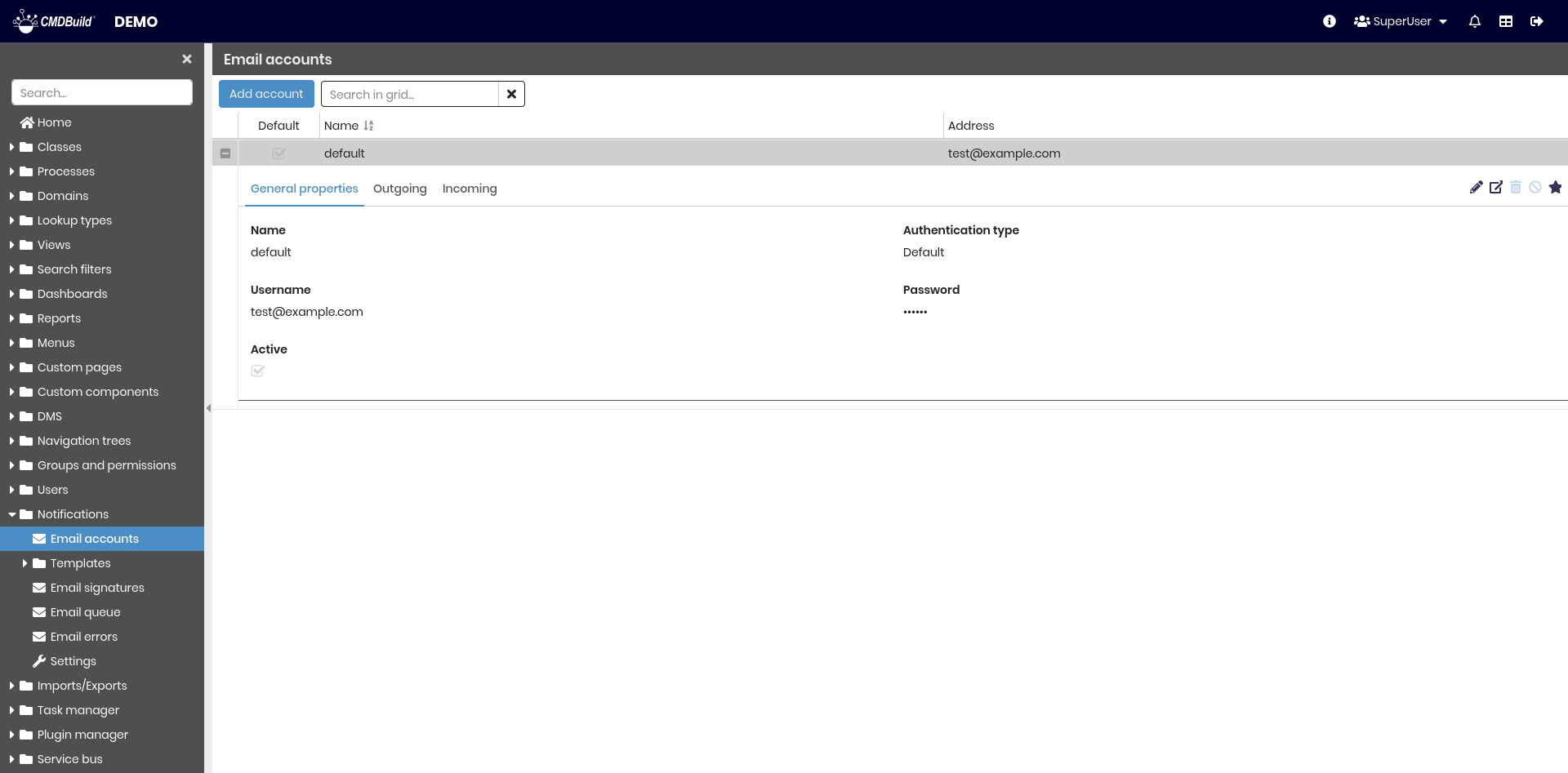
The following operations are available:
-
Top bar:
- Configure a new account
- Search among configured accounts
-
Single row actions:
- Edit the selected account
- View detailed information for the selected account
- Delete the selected account
- Disable the selected account by marking it as inactive
- Set the selected account as the default account
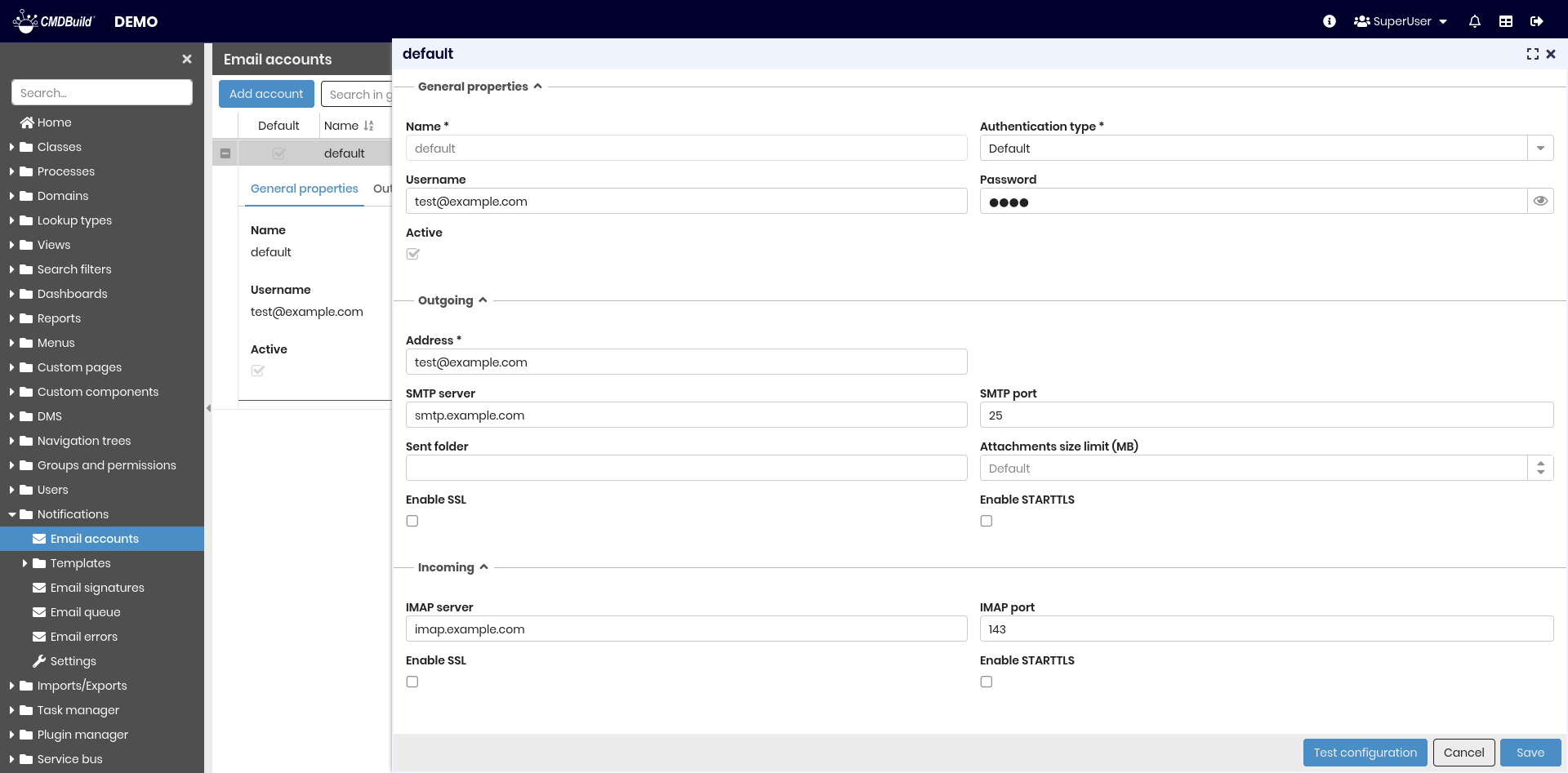
Each account requires several parameters, organized into the sections described below.
General properties
The following information is required:
- Name: account name
- Authentication type: the authentication method used by the email account. Supported options are Default, Gmail with OAuth2, and Modern authentication in Exchange Online
- Username: username used to access the email server
- Password: password used to access the email server
- Active: enables or disables the account

If you select an authentication type other than Default, the Password field is replaced by the Token field - a security credential generated by the authentication provider that allows the application to authenticate and access the email service without using a password
Outgoing mail parameters
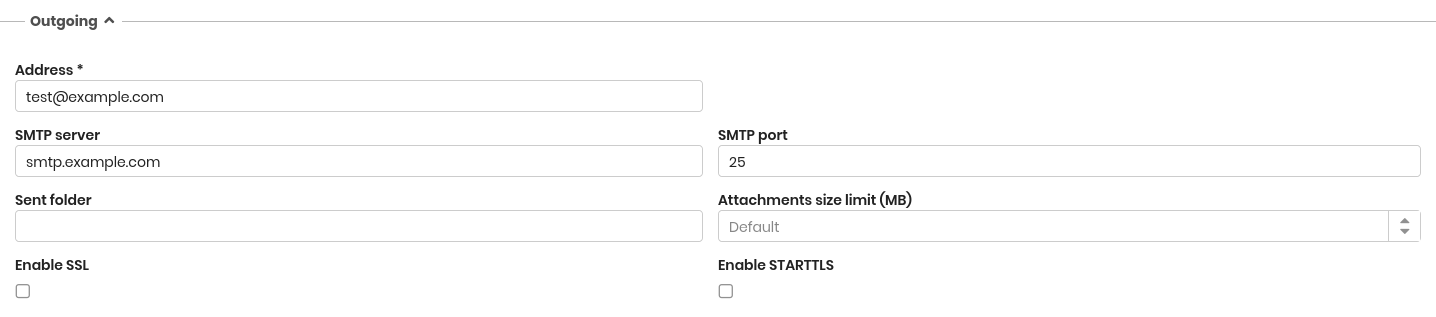
The following information is required:
- E-mail address: email account address
- SMTP server: outgoing mail server
- SMTP port: server port
- Sent folder: folder where sent emails are stored
- Attachment size limit: defines the maximum size allowed for attachments included in emails
- Enable SSL
- Enable STARTTLS
Incoming mail parameters
The following information is required:
- IMAP server: incoming mail server
- IMAP port: server port
- Enable SSL
- Enable STARTTLS

E-mail template
This function allows you to create or edit email notification templates used by enabled features such as the workflow system, widgets, and the Task Manager.
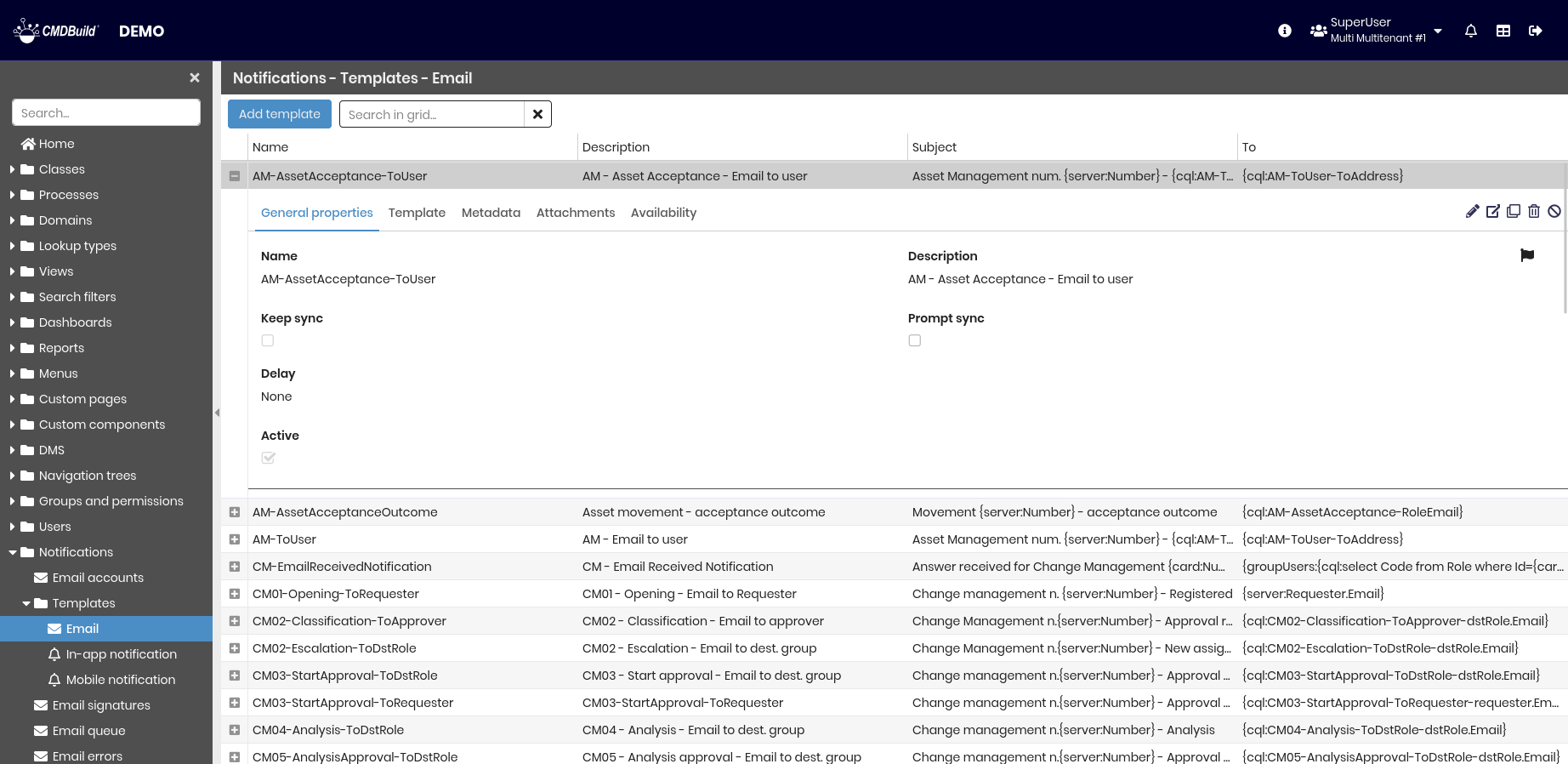
The following operations are available:
-
Top bar:
- Create a new template
- Search among configured templates
-
Single row actions:
- Edit the selected template
- View detailed information for the selected template
- Clone the selected template
- Delete the selected template
- Disable the selected template by marking it as inactive
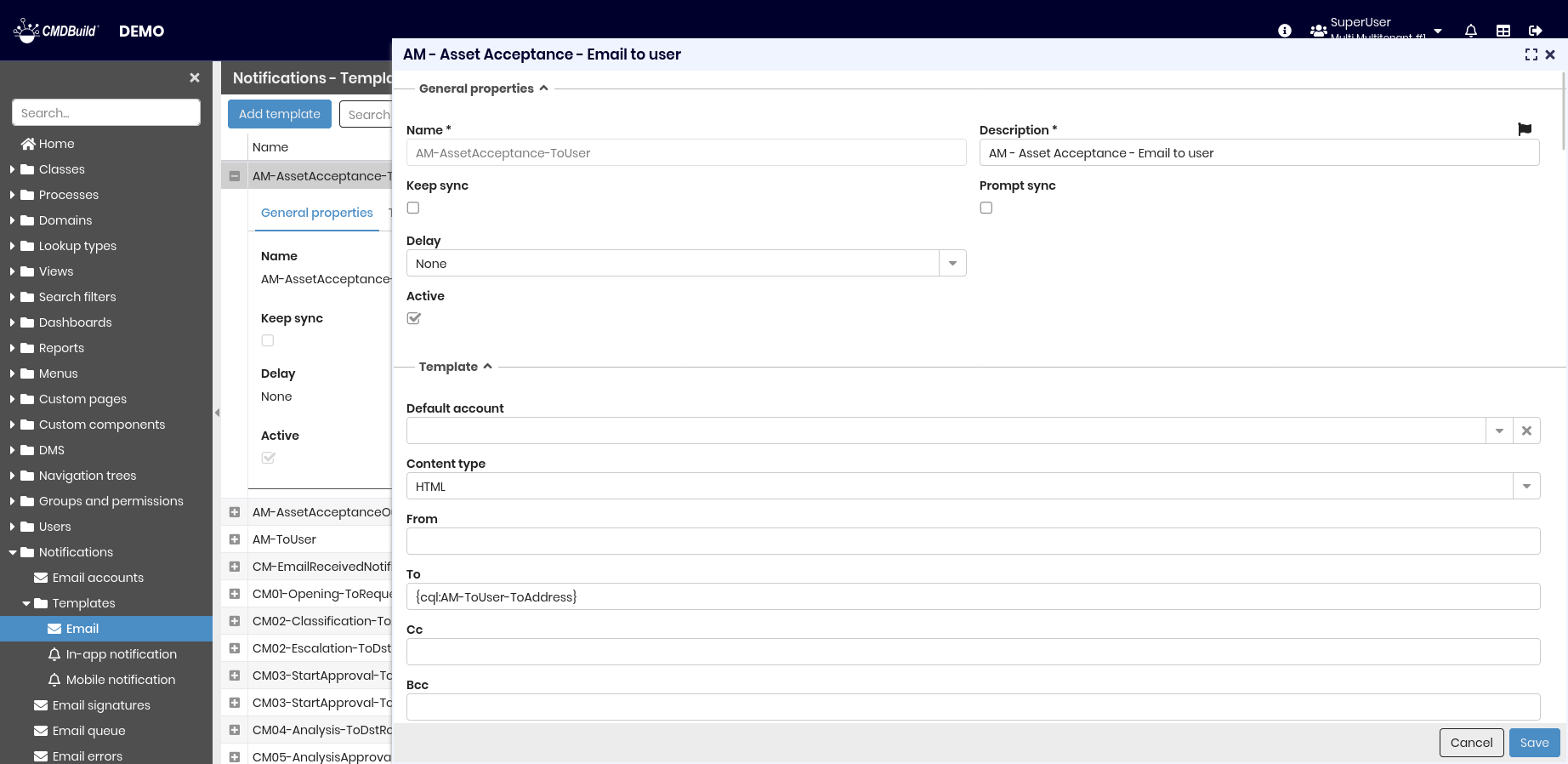
Each template requires several parameters, organized into the sections described below.
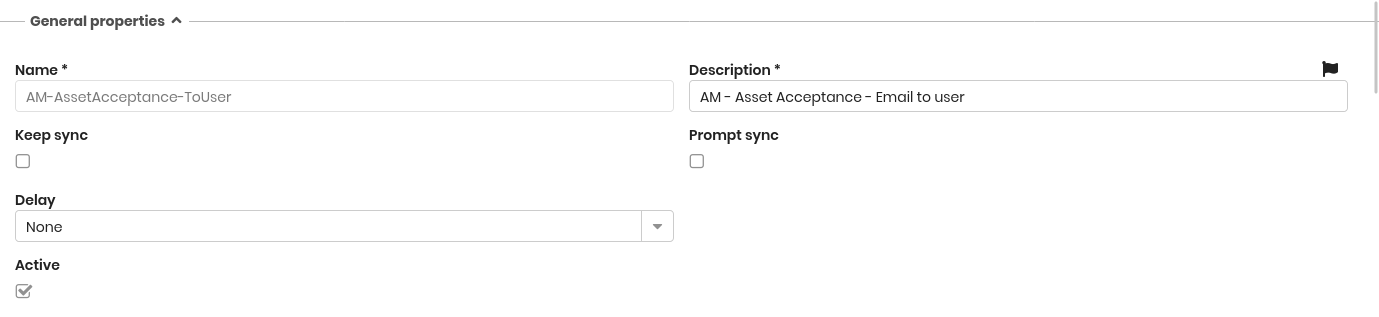
General properties
The following information is required:
- Name: template name
- Description: template description
- Keep sync: automatically updates the email text when attributes used as parameters change
- Prompts sync: requires confirmation each time the email text is updated due to parameter changes
- Delay: postpones email delivery by a specified interval (1, 2, or 4 hours; 1, 2, or 4 days; 1 or 2 weeks; 1 month)
- Active: enables or disables the template
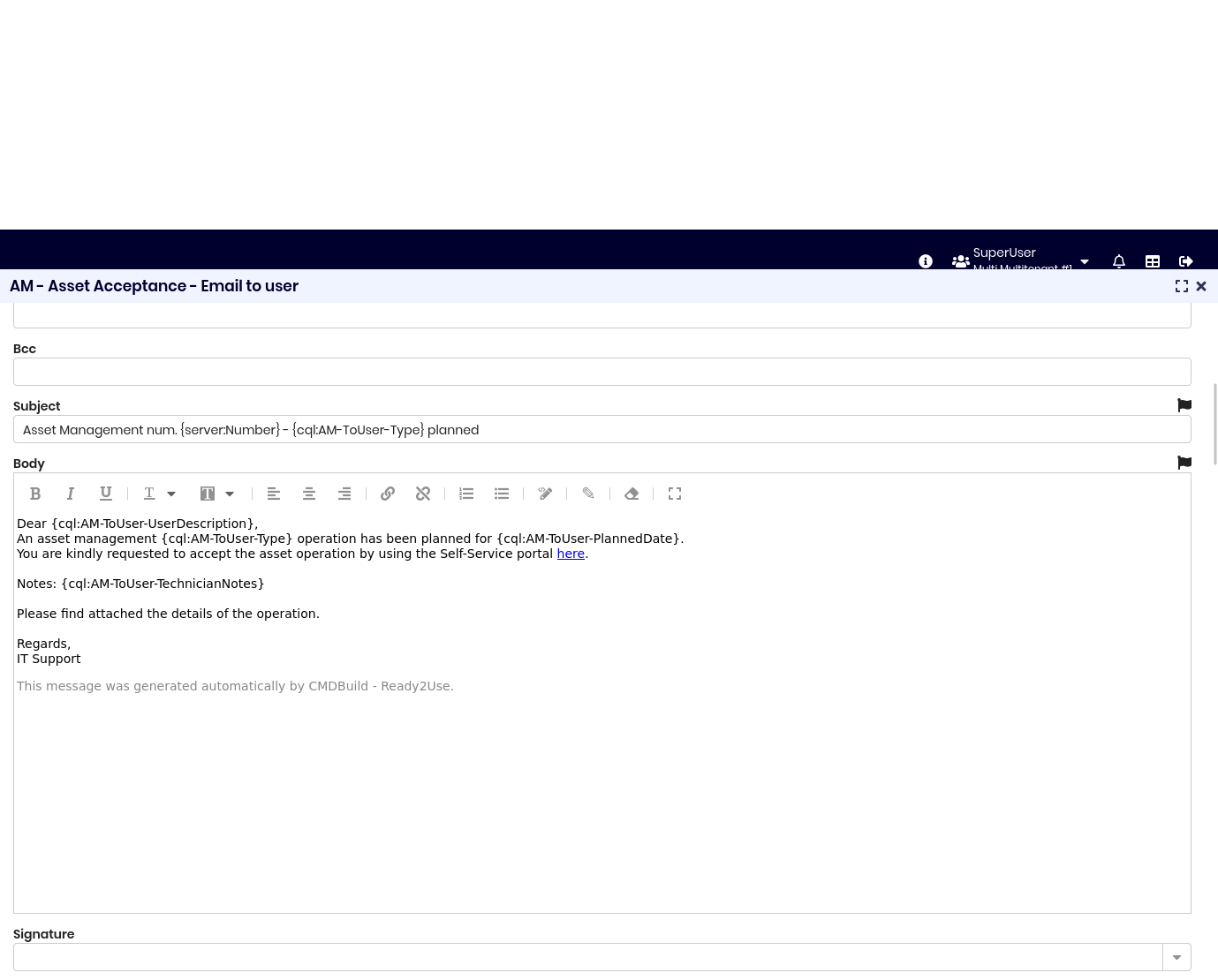
Template
The following information is required:
- Default account
- Type of content: HTML or TEXT
- From: sender address
- To: recipient address or a comma-separated list of addresses
- Cc: carbon copy address or a comma-separated list of addresses
- Bcc: blind carbon copy address or a comma-separated list of addresses
- Subject: notification subject
- Body: notification body
- Signature: allow you to set an email signatures that can be automatically appended to the bottom of email message
Metadata
On the Language expression field you can set the language used to generate the email template. If no language is specified, the default language is used.
If required, you can customize each field using CQL expressions to include information available in the current context, such as workflow variables. CQL expressions are defined using key–value pairs:
- the key represents the value referenced in the template field
- the value contains the corresponding CQL expression

Attachments
You can add attachments to the email. Supported attachment types are:
- Report: when a report is selected, additional fields are displayed to choose the report format and, if required, to define the values of the report parameters
- Attachments: files associated with the card from which the email is sent. In this case, the following options are available:
- Do not upload attachments (default)
- Upload all attachments from the card
- Upload only selected attachments using a filter

Availability
You can define which classes or processes the template is available for. The available options are:
- All classes/processes
- Selected classes/processes: when this option is selected, a tree is displayed allowing you to choose the classes or processes in which the template will be available
- No one
In-app notification template
This function allows you to create or edit in-app notification templates used by enabled features such as the workflow system, widgets, and the Task Manager.
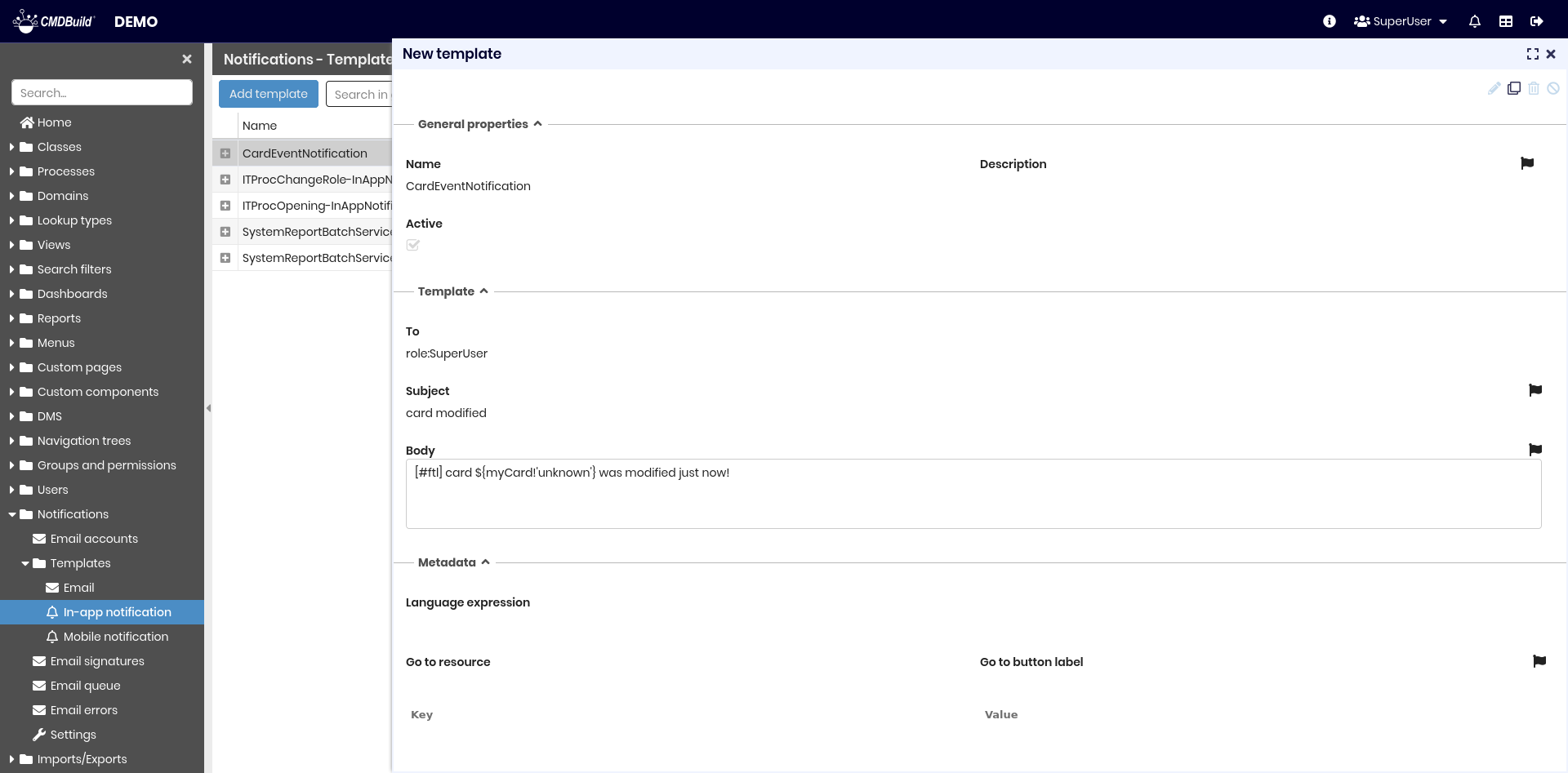
The available management features are the same as those for email notification templates.
Each template requires several parameters, organized into the sections described below.
General properties
The following information is required:
- Name: template name
- Description: template description
- Active: enables or disables the template

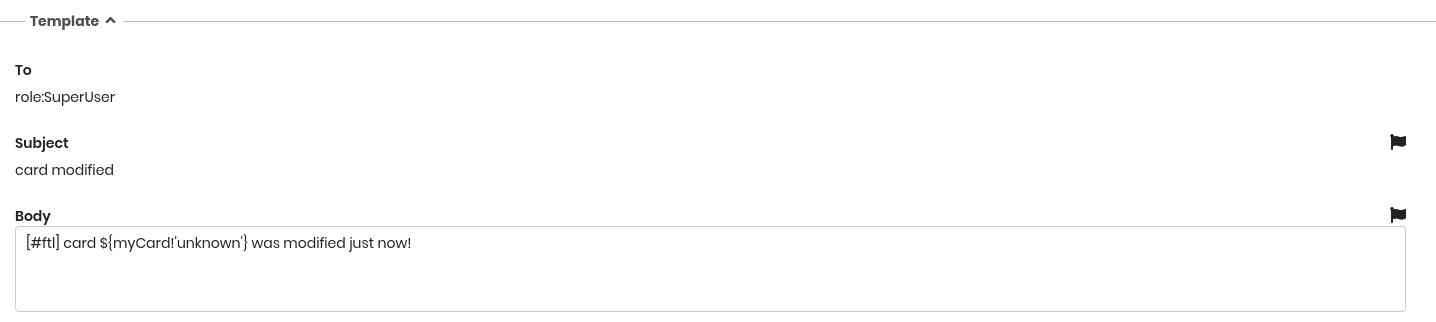
Template
The following information is required:
- To: recipient address or a comma-separated list of addresses
- Subject: notification subject
- Body: notification body
Metadata
On the Language expression field you can set the language used to generate the email template. If no language is specified, the default language is used.
The Go to resource and Go to button label buttons allow you to display an action button inside the notification. The button shows the text defined in Go to button label and opens the resource specified in Go to resource when selected.
If required, you can customize each field using CQL expressions to include information available in the current context, such as workflow variables. CQL expressions are defined using key–value pairs in this section:
- the key represents the value referenced in the template field
- the value contains the corresponding CQL expression

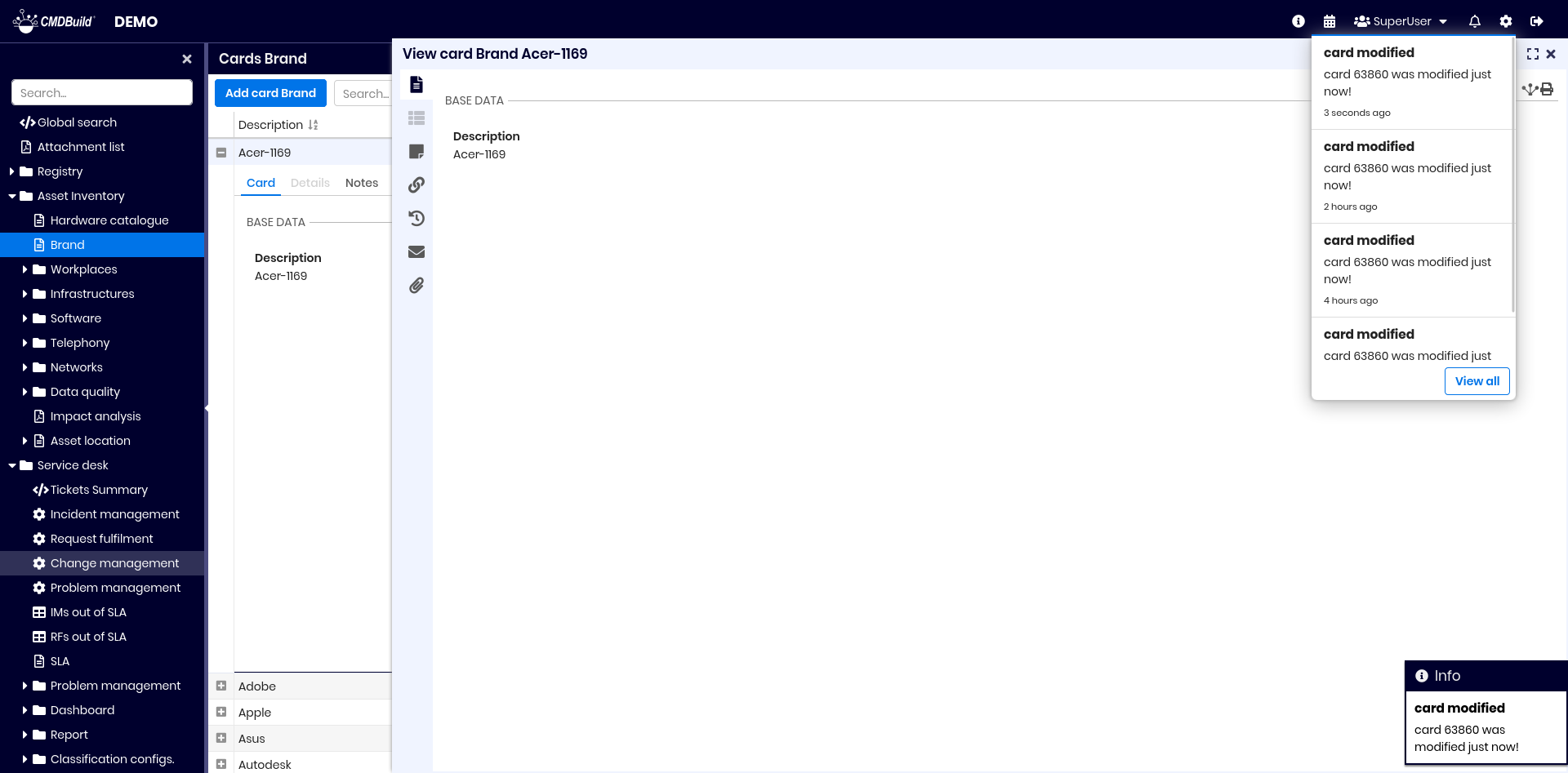
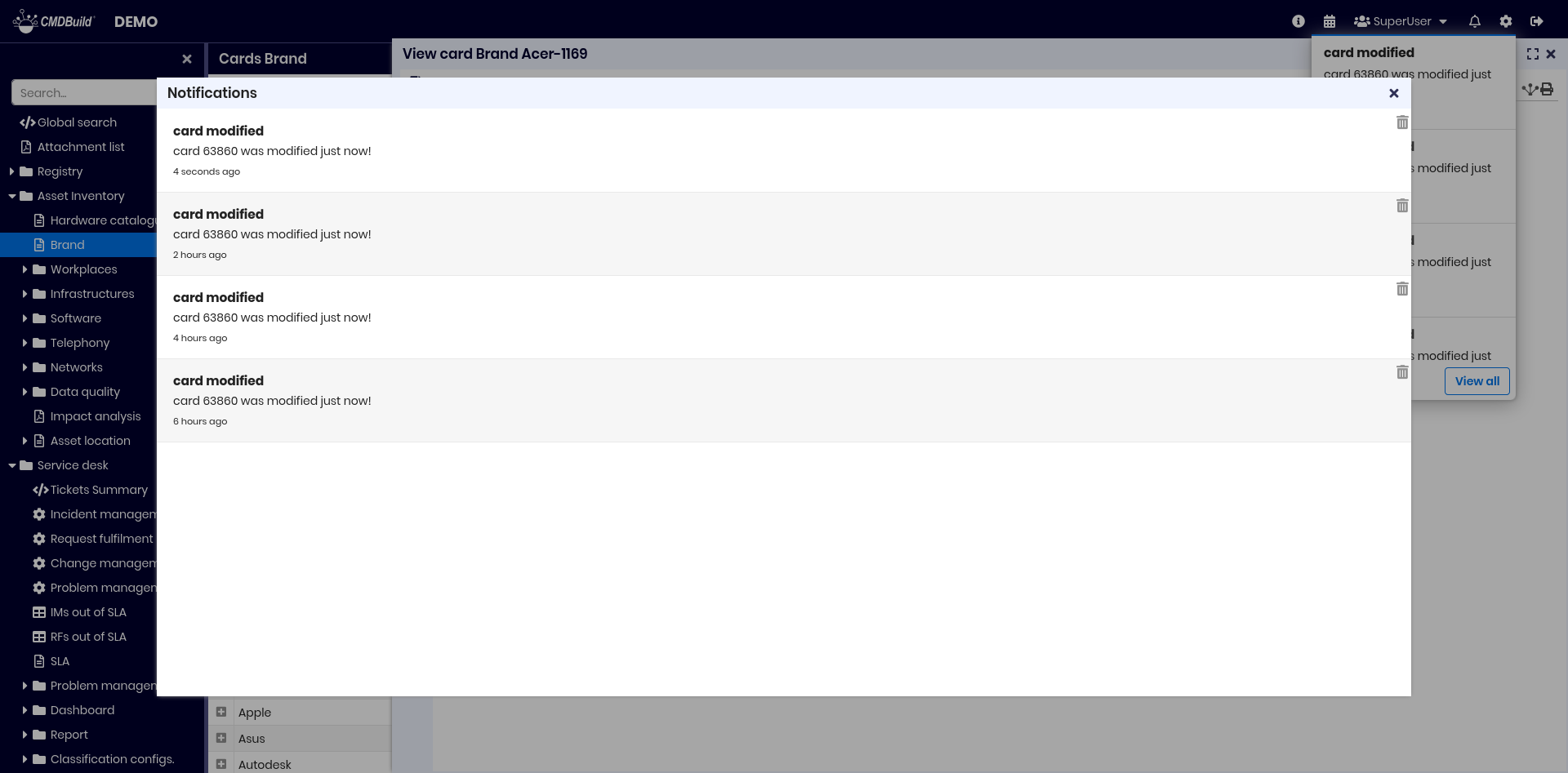
The following images show an example of an in-app notification received.
Mobile notification template
This function allows you to create or edit mobile notification templates used to see notifications on the mobile devices.
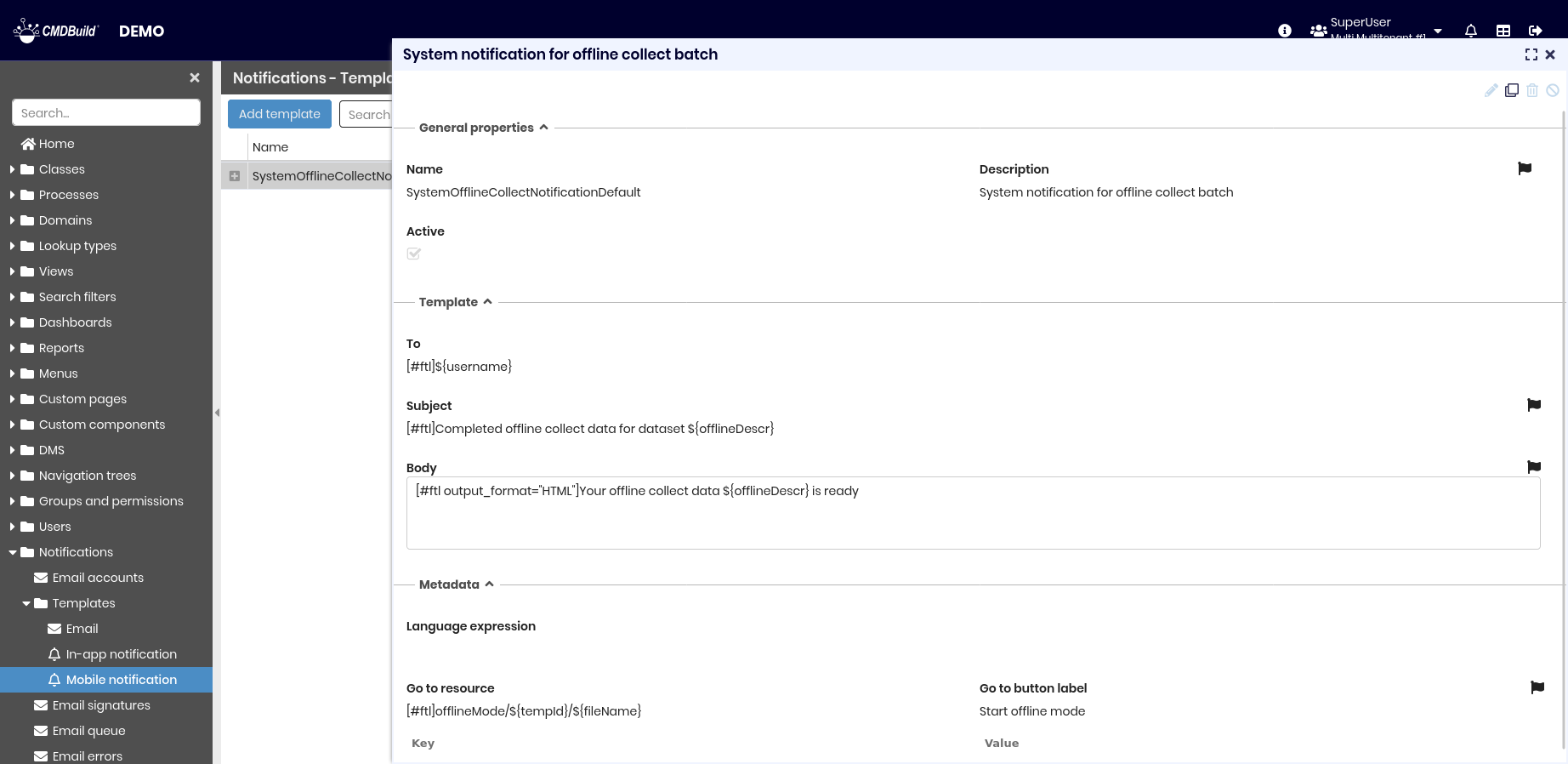
The available management features are the same as those for email notification templates.
Each template requires several parameters, organized into the sections described below.
General properties
The following information is required:
- Name: template name
- Description: template description
- Active: enables or disables the template

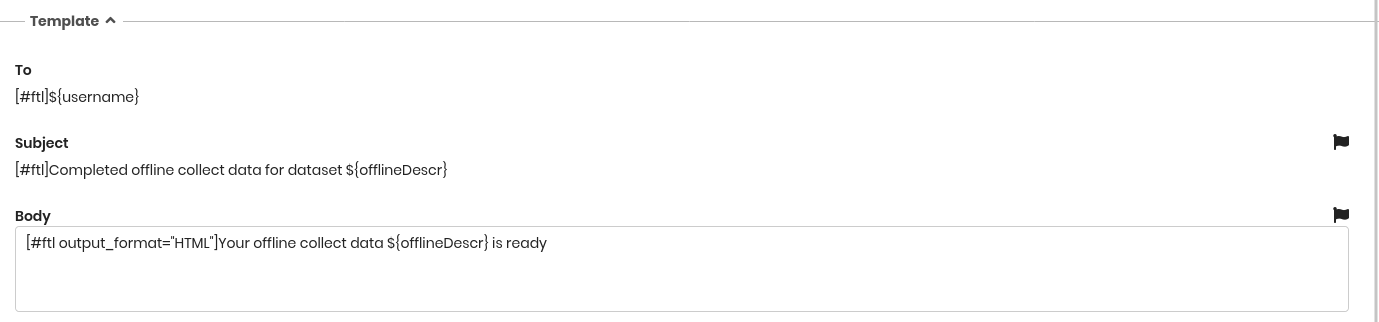
Template
The following information is required:
- To: recipient address or a comma-separated list of addresses
- Subject: notification subject
- Body: notification body
Metadata
On the Language expression field you can set the language used to generate the email template. If no language is specified, the default language is used.
The Go to resource and Go to button label buttons allow you to display an action button inside the notification. The button shows the text defined in Go to button label and opens the resource specified in Go to resource when selected.
If required, you can customize each field using CQL expressions to include information available in the current context, such as workflow variables. CQL expressions are defined using key–value pairs in this section:
- the key represents the value referenced in the template field
- the value contains the corresponding CQL expression

Email signatures
This function allows you to configure email signatures that can be automatically appended to the bottom of email messages.
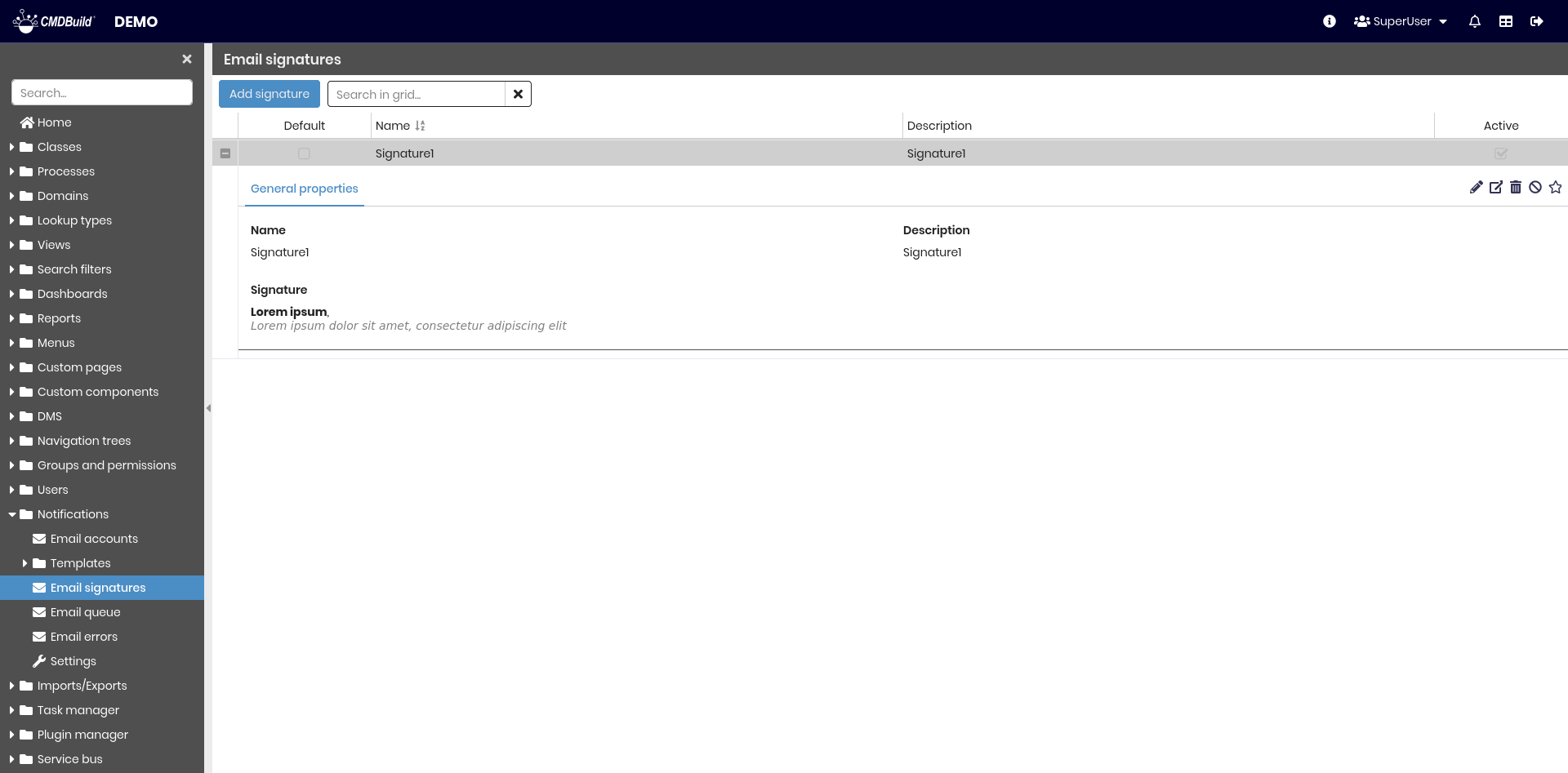
The following operations are available:
-
Top bar:
- Create a new signature
- Search among configured signatures
-
Single row actions:
- Edit the selected signature
- View detailed information for the selected signature
- Delete the selected signature
- Enable or disable the selected signature
- Set the selected signature as the default
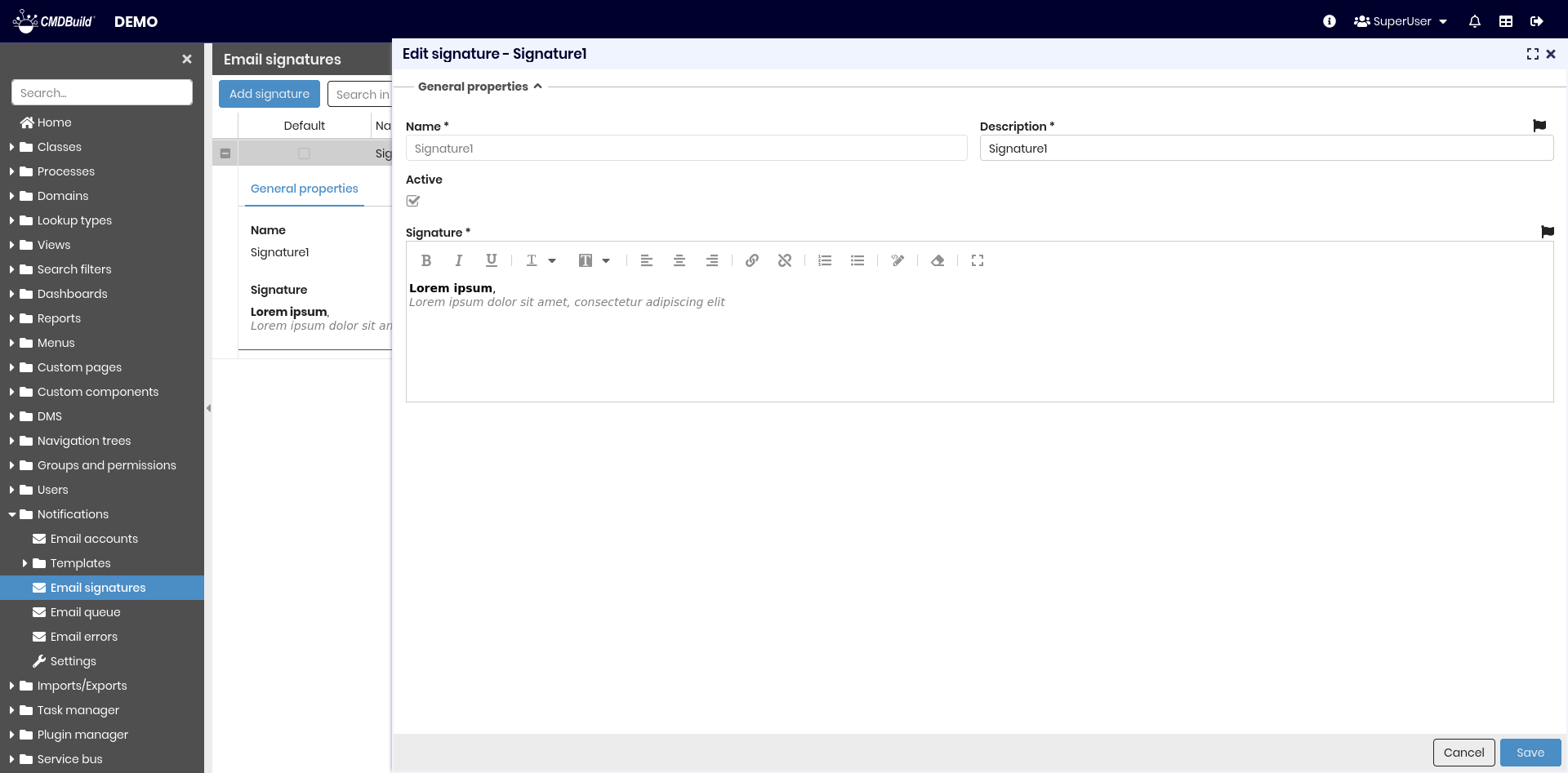
Each signature requires the parameters described below.
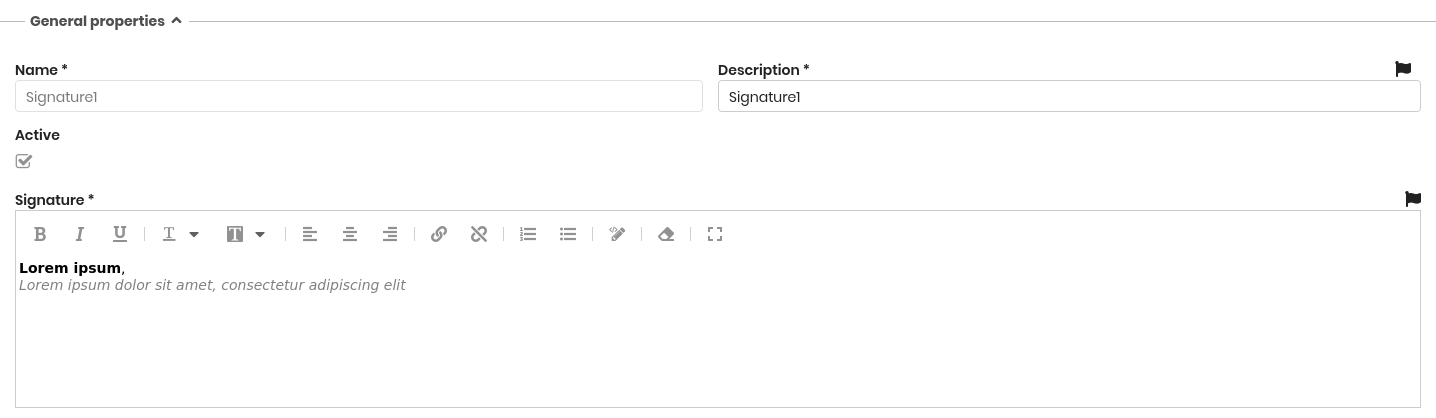
General properties
The following information is required:
- Name: signature name
- Description: signature description
- Active: enables or disables the email signature
- Signature: signature text in HTML format
Email queue
Emails generated by CMDBuild are processed through an email queue, which can be monitored and managed using the features described in this section.
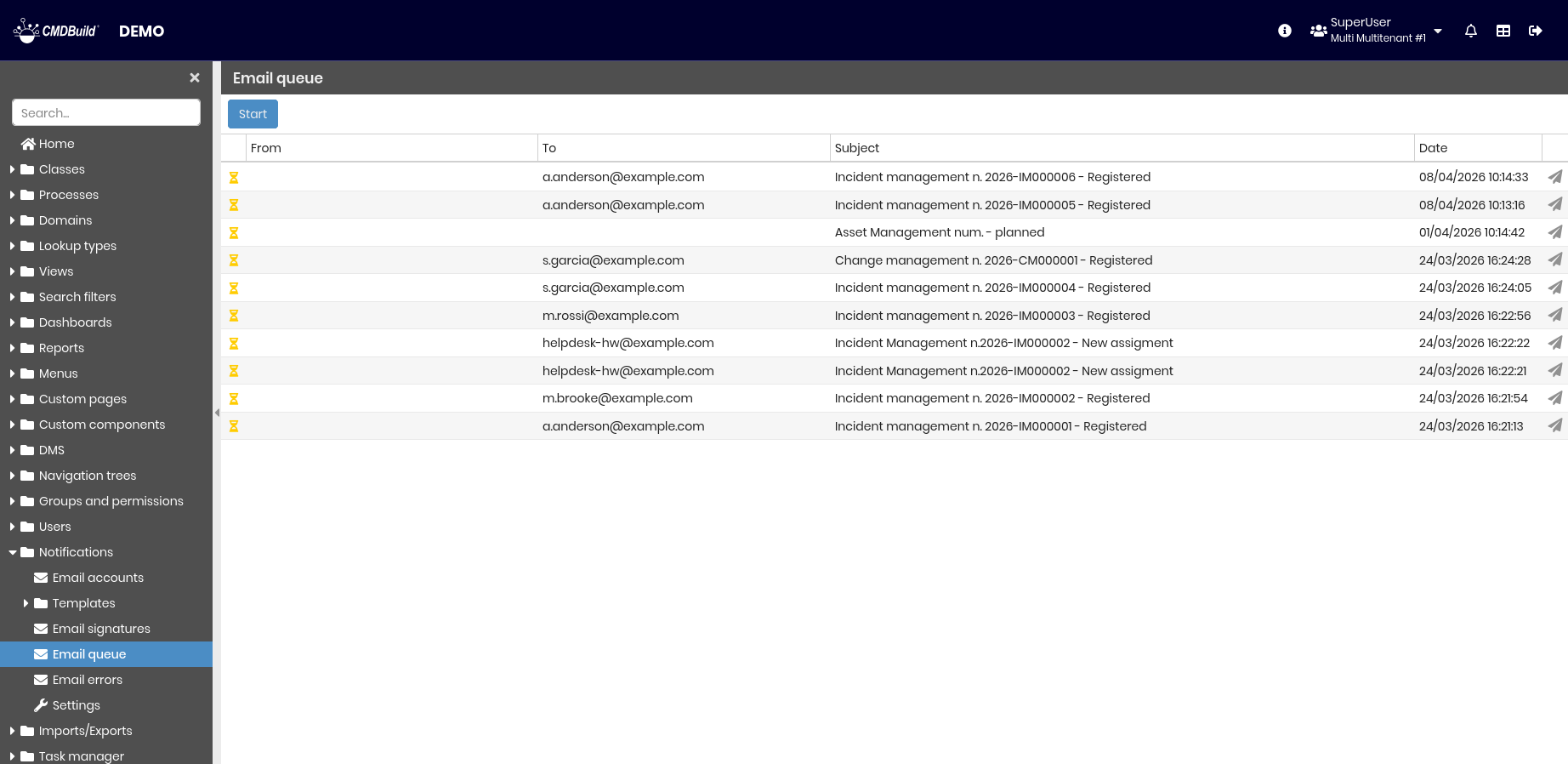
The following operations are available:
-
Top bar:
- Start or stop the email queue (useful for testing when emails must not be sent)
-
Single row action:
- Force the sending of an email currently in the queue
Email errors
This section lists emails that are currently in an error state.
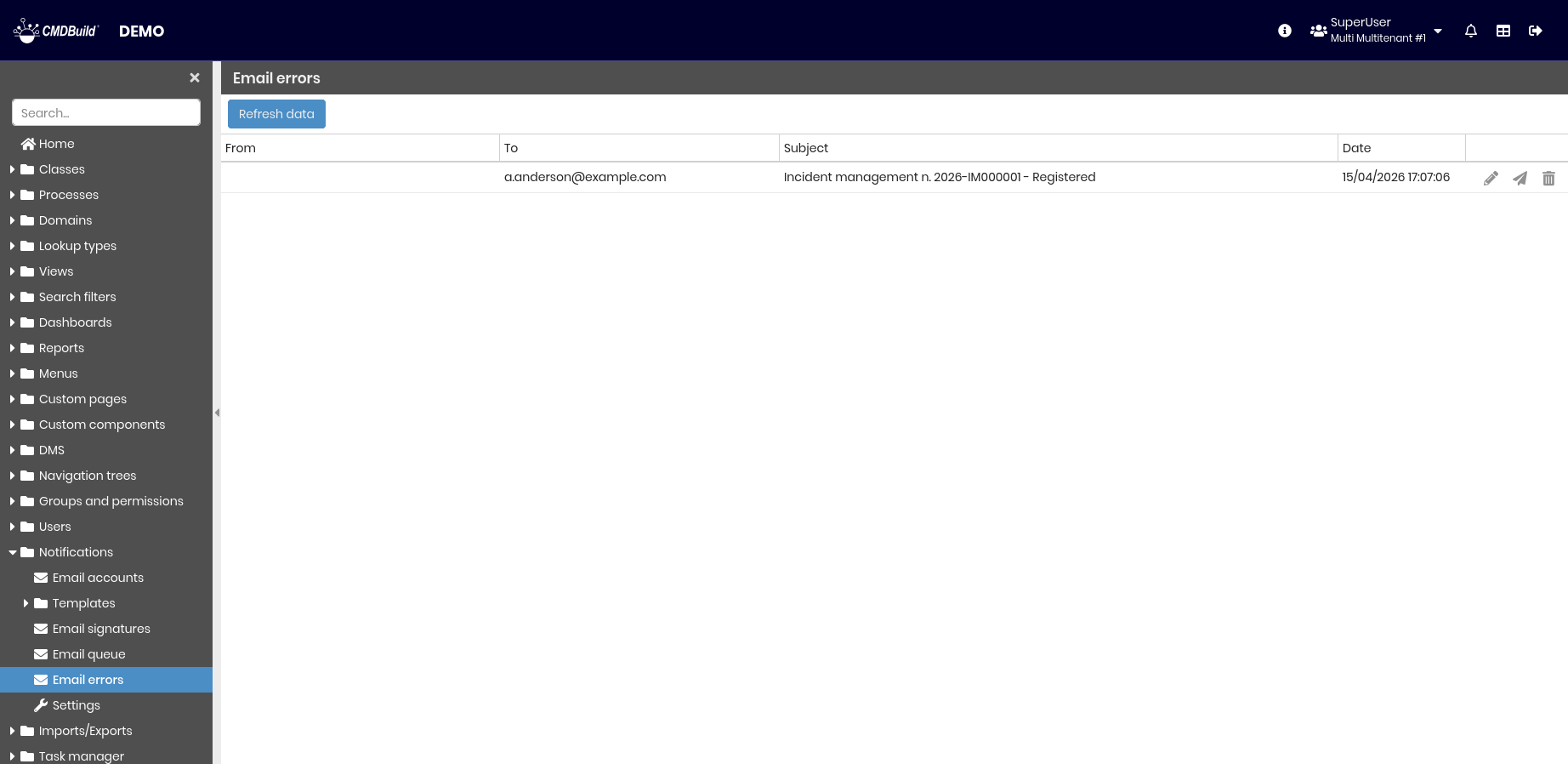
The following operations are available:
-
Top bar:
- Refresh data
-
Single row action:
- Edit the selected email
- Send the selected email
- Delete the selected email
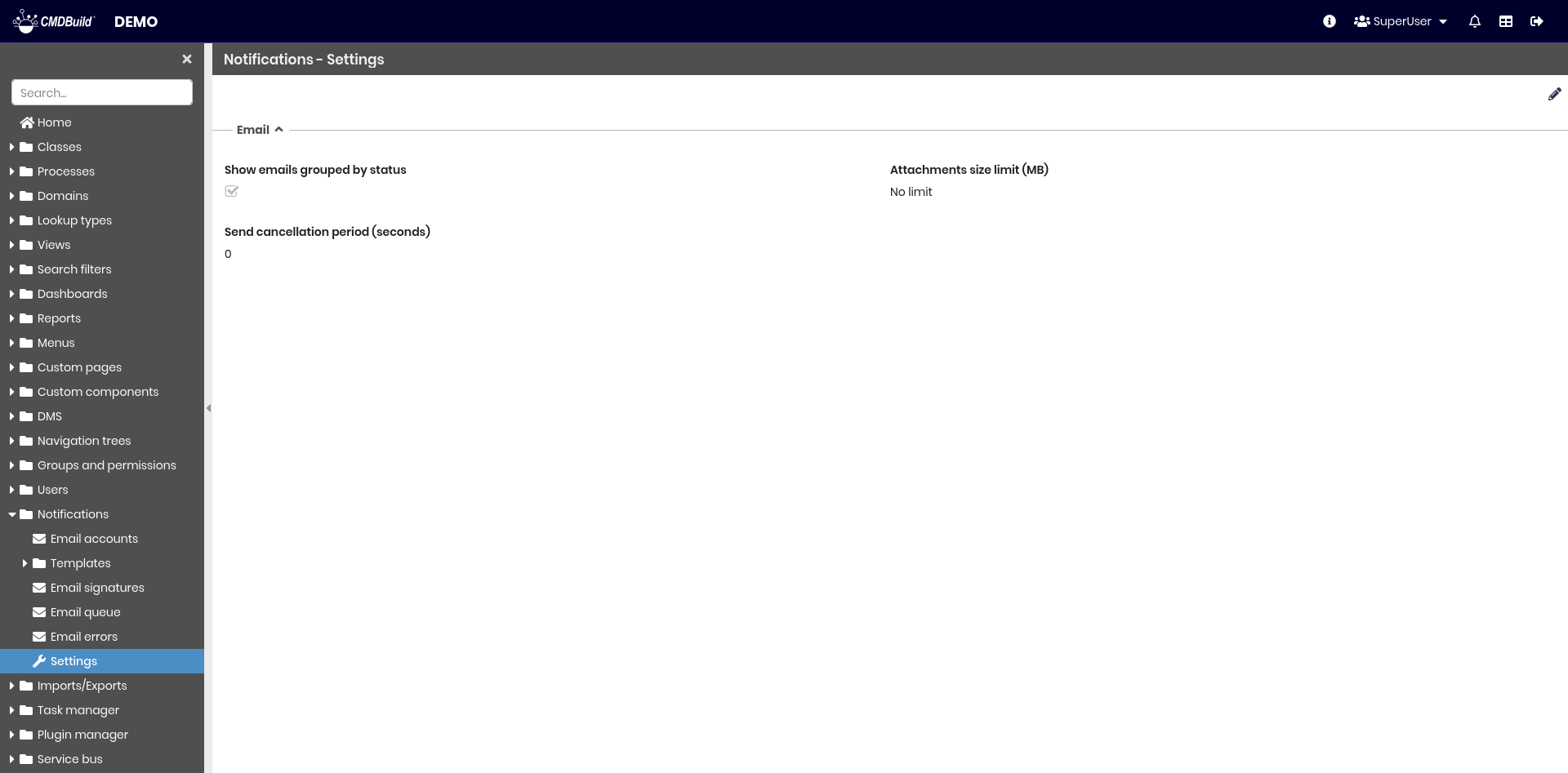
Settings
Contains settings that apply to all emails:
- Show emails grouped by status: if enabled, emails are grouped by status; otherwise, they are sorted by date
- Attachment size limit (MB): defines the maximum size allowed for uploaded attachments
- Send cancellation period (seconds): defines the time window during which an email can be blocked before being sent